How to Fix Agent 64 Spies Never Die Co-Op Connection Error (2026 Guide)
There is something uniquely frustrating about getting a group of friends together for a retro-style co-op game, only to spend the next 30 minutes staring at “Attempting to Join” instead of actually playing.
That is exactly the kind of problem some players can run into with Agent 64: Spies Never Die. The game is built around fast, old-school spy action, and playing it with friends should be one of the easiest ways to enjoy it. Unfortunately, multiplayer connection problems can turn that simple plan into a networking troubleshooting session.
I have always had a soft spot for games that do not try to overcomplicate themselves. Agent 64 has that classic shooter energy where you just want to jump into a mission, grab a weapon, and start causing trouble with your friends. So when the co-op connection refuses to work, it is especially annoying.
The good news is that you do not necessarily need to start changing every router setting you can find.
In most cases, the problem comes down to a handful of things: Steam connectivity, mismatched game files, firewall restrictions, NAT problems, or the way the multiplayer lobby is being created.
Here is the order I would personally work through these fixes in 2026.
Agent 64 Co-Op Connection Error: Quick Fix Overview
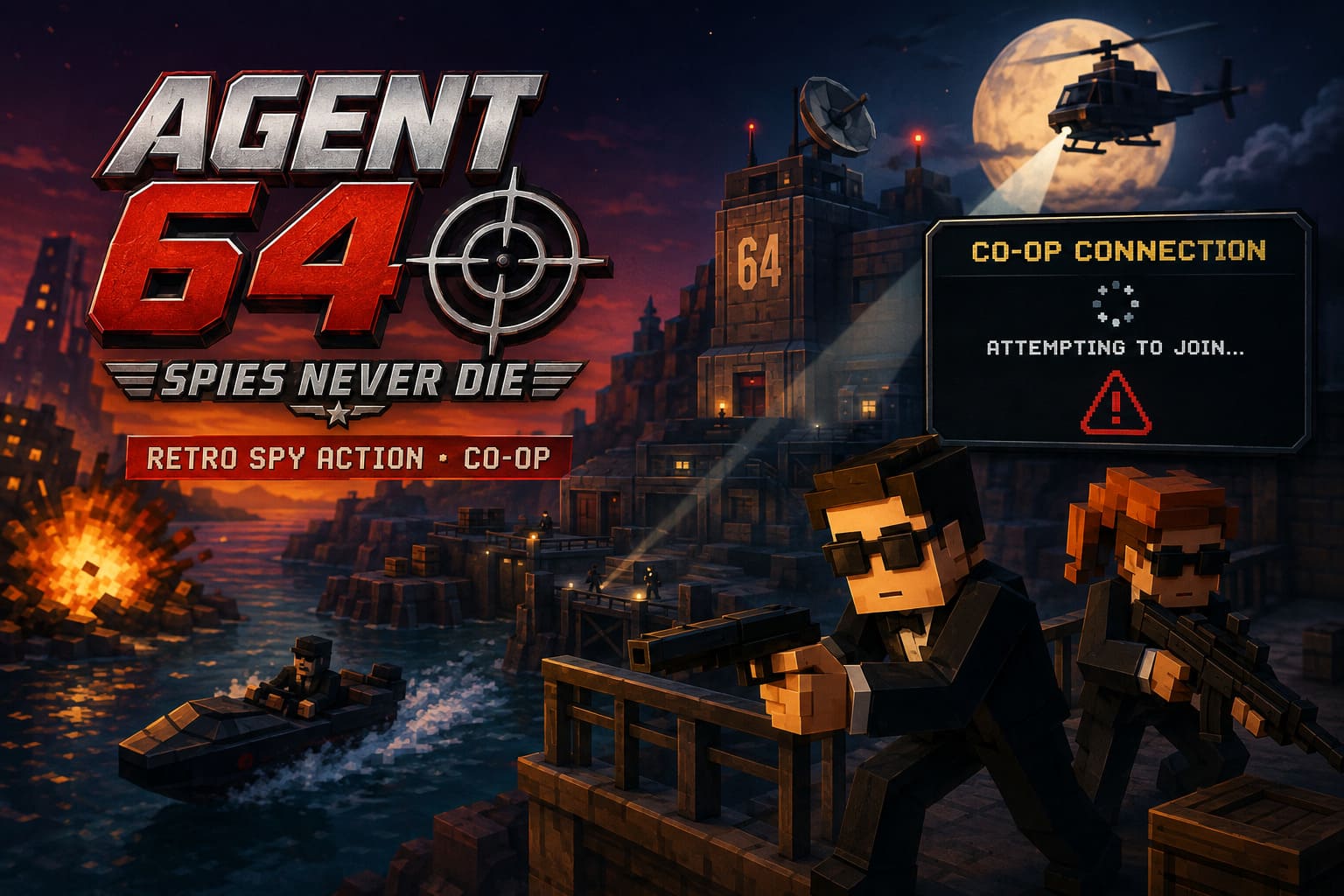
| Problem | Fix To Try | Priority |
|---|---|---|
| Different Game Builds | Verify Game Files and Update Steam | High |
| Steam Lobby Problems | Restart Steam and Recreate the Lobby | High |
| Firewall Blocking | Allow Agent 64 Through Windows Firewall | High |
| Strict NAT | Enable UPnP and Restart Router | High |
| Invite Not Working | Use the In-Game Lobby Browser | Medium |
| ISP Blocking P2P | Try a Virtual LAN Connection | Medium |
| IPv6 Conflict | Test With IPv6 Disabled | Low |
I would start at the top and work downward. Do not immediately start messing with advanced router settings. There is a good chance the problem is much simpler.
1. Make Sure Both Players Are Running the Same Version
This sounds ridiculously obvious, but it is one of the first things I check whenever a multiplayer game refuses to connect.
If you and your friend have different builds of Agent 64, the game may not be able to establish the session properly. This can happen after a small update, hotfix, or experimental build change.
Before doing anything complicated, both players should completely close the game and check Steam for pending updates.
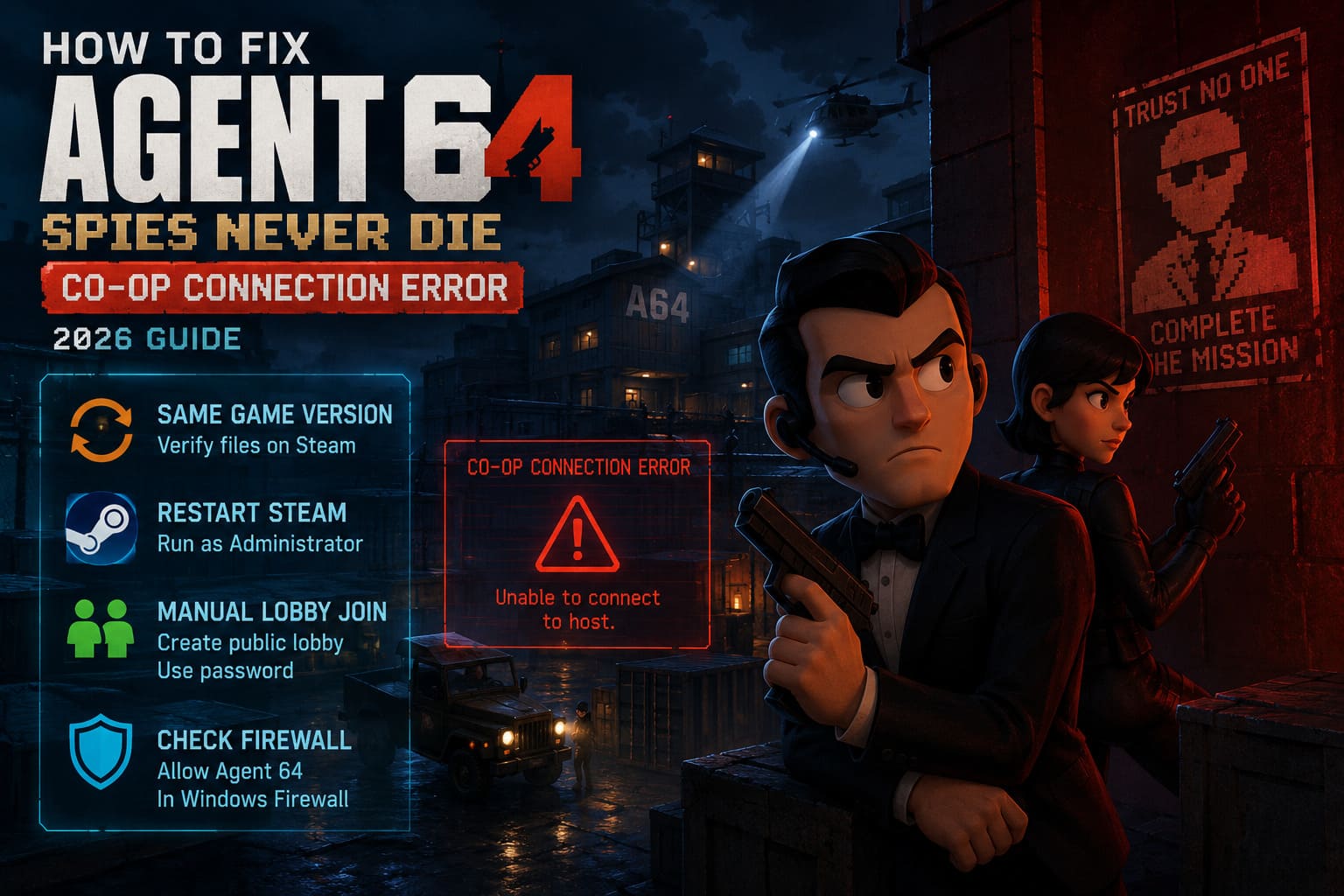
Then verify the installation:
- Open Steam.
- Find Agent 64: Spies Never Die in your Library.
- Right-click the game and select Properties.
- Open Installed Files.
- Select Verify Integrity of Game Files.
- Wait for Steam to finish the process.
- Restart Steam before launching the game again.
I would actually have both players do this, even if only one person is experiencing the error.
A few corrupted or missing files can be enough to create strange multiplayer behavior, and verifying the installation is quick enough that there is really no reason not to try it.
2. Restart Steam Completely
Steam’s networking and invitation system can occasionally get itself into a weird state.
If you have been repeatedly trying to join a friend’s lobby, closing and reopening only the game may not be enough.
Close Agent 64 and then completely exit Steam. Make sure the Steam process is no longer sitting in the system tray. After that, launch Steam again and try creating a fresh lobby.
Personally, I would do this before touching my router.
If you want to go one step further, try running Steam as administrator. Right-click the Steam shortcut and choose Run as administrator, then launch Agent 64 normally through the Steam Library.
This is not a magical fix, but it can eliminate permission-related problems that interfere with game services and security software.
3. Stop Relying on the Steam Invite
This is one of the first workarounds I would test if everything appears to be updated but the invitation simply hangs.
Sometimes the problem is not your internet connection at all. The issue can be the way the multiplayer session is being discovered or handed between Steam and the game.
Instead of immediately sending a Steam invite, have the host create a lobby and make it visible through the game’s multiplayer interface.
If Agent 64 gives you the option to create a Public lobby with a password, I would test that method.
The basic process is:
- The host creates a public lobby.
- Add a password so random players cannot enter.
- The friend opens the game’s multiplayer or server browser.
- Search for the host’s lobby.
- Join manually using the password.
It sounds less convenient than clicking an invite, but this kind of workaround can bypass a broken invitation path.
And honestly, if I can get into a co-op mission in two minutes instead of fighting with Steam invites for half an hour, I will happily use the workaround.
4. Check Windows Firewall Before Blaming Your Router
Windows Firewall is another classic suspect.
Agent 64 needs to communicate with another player’s machine during multiplayer sessions. If Windows or a third-party security application decides that the game should not accept network traffic, your lobby can become unreachable.
Search Windows for:
Allow an app through Windows Firewall
Open the result and select Change Settings.
Look for Agent 64 in the application list and make sure it is allowed on the appropriate networks.
If the game is missing, choose Allow another app and manually locate its executable inside your Steam installation.
I would also check whether your antivirus has its own firewall or network protection feature. Some security suites operate independently of Windows Firewall and can block game traffic even when Windows itself appears correctly configured.
A Quick Firewall Test
If you strongly suspect security software is causing the problem, temporarily disable its network protection and test the multiplayer connection.
Only use this as a short diagnostic test.
If co-op suddenly works, you have found the direction of the problem. Turn the protection back on and create an exception for the game instead of leaving your security disabled.
5. Look at Your NAT Situation
Now we are getting into the networking stuff that actually causes headaches.
Agent 64’s co-op can be affected by how your router handles incoming and outgoing connections. If one player is sitting behind a restrictive NAT configuration, establishing a peer-to-peer session can become difficult.
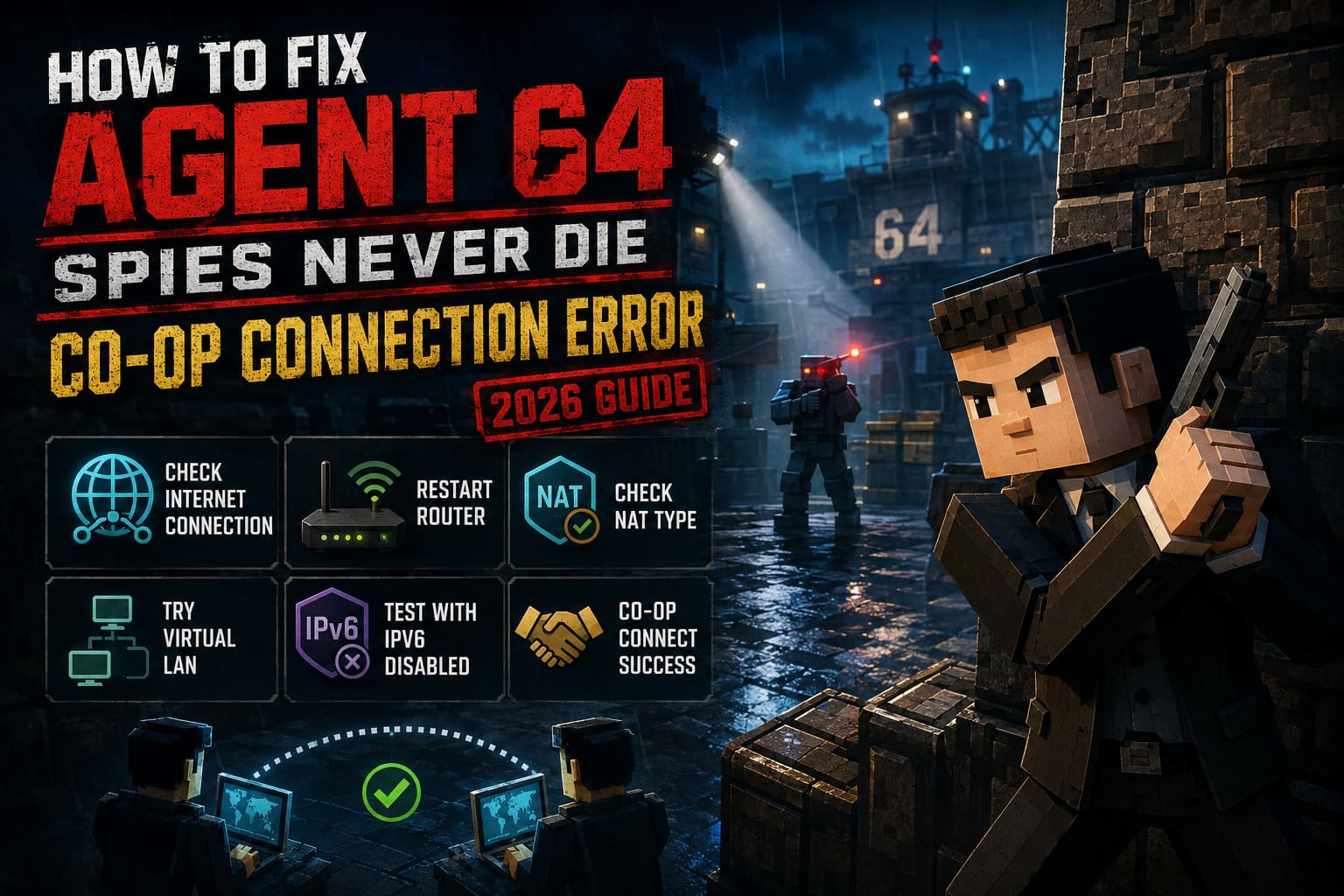
A simplified way of looking at it is:
Open NAT = usually easier connections
Strict NAT = potentially troublesome connections
Your exact terminology will depend on the router, ISP, and platform, but the basic idea is the same.
If you have access to your router’s administration panel, check whether UPnP is enabled.
UPnP allows compatible applications to request the network mappings they need without you manually configuring every port.
If it is disabled, enabling it can sometimes solve multiplayer connection problems immediately.
After changing the setting, restart your router and PC before testing again.
6. Give Your Router a Proper Restart
Not a five-second unplug-and-plug-back-in job.
Actually restart it.
Turn off your modem and router, disconnect them from power, wait around a minute, and then power everything back on.
I know this is the most boring advice imaginable. It is also surprisingly effective.
Routers can hold onto stale network states, and restarting the equipment gives the connection a clean start.
If you are troubleshooting Agent 64 co-op with a friend, I would have the host restart their networking equipment first. If that does nothing, have the other player try the same thing.
7. Watch Out for CGNAT
Here is where things can get more complicated.
Some internet providers use Carrier-Grade NAT (CGNAT). In simple terms, your connection may not have a directly reachable public IPv4 address.
For everyday browsing, streaming, and downloading games, you might never notice.
Peer-to-peer multiplayer is different.
If the host is behind a restrictive CGNAT configuration, opening ports on your home router may not solve the issue because the ISP is effectively sitting between your router and the wider internet.
This is one reason two people can have perfectly good internet speeds but still struggle to connect directly to each other.
If you have tried the basic fixes and every other multiplayer game works differently, contacting your ISP and asking whether your connection uses CGNAT can be useful.
8. Try a Virtual LAN as a Last Resort
If normal peer-to-peer connectivity refuses to cooperate, a virtual LAN can sometimes provide another route.
Tools such as Radmin VPN or Hamachi can create a virtual network between computers over the internet.
The concept is pretty simple:
- Both players install the same virtual LAN application.
- The host creates a private network.
- The other player joins it.
- Confirm that both computers appear connected.
- Launch Agent 64.
- Use the game’s LAN functionality if supported by your build.
- Connect using the host’s virtual network address when required.
This is not the first solution I would recommend.
It adds another layer of networking software, which means another potential source of problems. But if your ISP is making direct P2P connections miserable, it can be a useful fallback.
9. Should You Disable IPv6?
I would leave this one near the bottom of the list.
IPv6 is not inherently bad, and disabling it should not be your first reaction to a multiplayer problem.
However, if you have already tested everything else and Agent 64 still refuses to establish a connection, temporarily testing with IPv6 disabled can help identify a compatibility issue.
Open the Windows Run dialog with Windows + R, enter:
ncpa.cpl
Right-click your active Ethernet or Wi-Fi connection and select Properties.
Find Internet Protocol Version 6 (TCP/IPv6) and temporarily untick it.
Click OK, restart the PC, and test Agent 64 again.
If it changes nothing, turn IPv6 back on. I would not leave networking protocols disabled permanently just because one game is having trouble.
Agent 64 Spies Never Die Split Screen Guide: Local Co-Op Setup & Dynamic Display Options
What I Would Try First
If I were sitting down with a friend and Agent 64 suddenly refused to connect, this would be my exact order:
- Restart both copies of the game.
- Restart Steam completely.
- Verify the game files on both PCs.
- Make sure both installations are fully updated.
- Try joining through the in-game lobby browser instead of a Steam invite.
- Check Windows Firewall permissions.
- Restart the host’s router.
- Check UPnP and NAT settings.
- Investigate CGNAT if the problem continues.
- Only then experiment with a virtual LAN or IPv6 changes.
That order matters.
There is no reason to spend an hour configuring advanced router settings if a Steam restart fixes the problem in 30 seconds.
Agent 64 Spies Never Die Co-Op Guide: How to Beat All 14 Missions With Friends
Final Thoughts
The annoying thing about Agent 64: Spies Never Die co-op connection errors is that the game itself can appear completely fine. You can launch it, play solo, move through menus, and shoot enemies without any trouble. Then multiplayer comes along and suddenly your perfectly healthy internet connection looks guilty.
In my experience with PC multiplayer games, these problems are rarely solved by one mythical setting that everyone on the internet claims is mandatory. It is usually a combination of boring stuff: outdated files, Steam behaving strangely, firewall permissions, NAT restrictions, or an ISP that does not play nicely with peer-to-peer connections.
So start simple.
Update the game. Verify the files. Restart Steam. Recreate the lobby. Check the firewall.
Only after those fail should you start investigating UPnP, NAT, CGNAT, virtual LAN software, or IPv6.
And once you finally get into a mission with your friend, the whole troubleshooting nightmare becomes much easier to forget. Agent 64 is at its best when you can actually play it instead of staring at a connection error.
If your specific error still appears after going through this list, pay attention to the exact wording of the message. A game that gets stuck at “Attempting to Join” may be dealing with a different problem than one that immediately throws a connection failure.
The important thing is not to change ten settings at once. Test one fix at a time, figure out what actually changes the behavior, and work from there.
That is slower than blindly copying a random port-forwarding guide, but it is also a much better way to find the real cause.