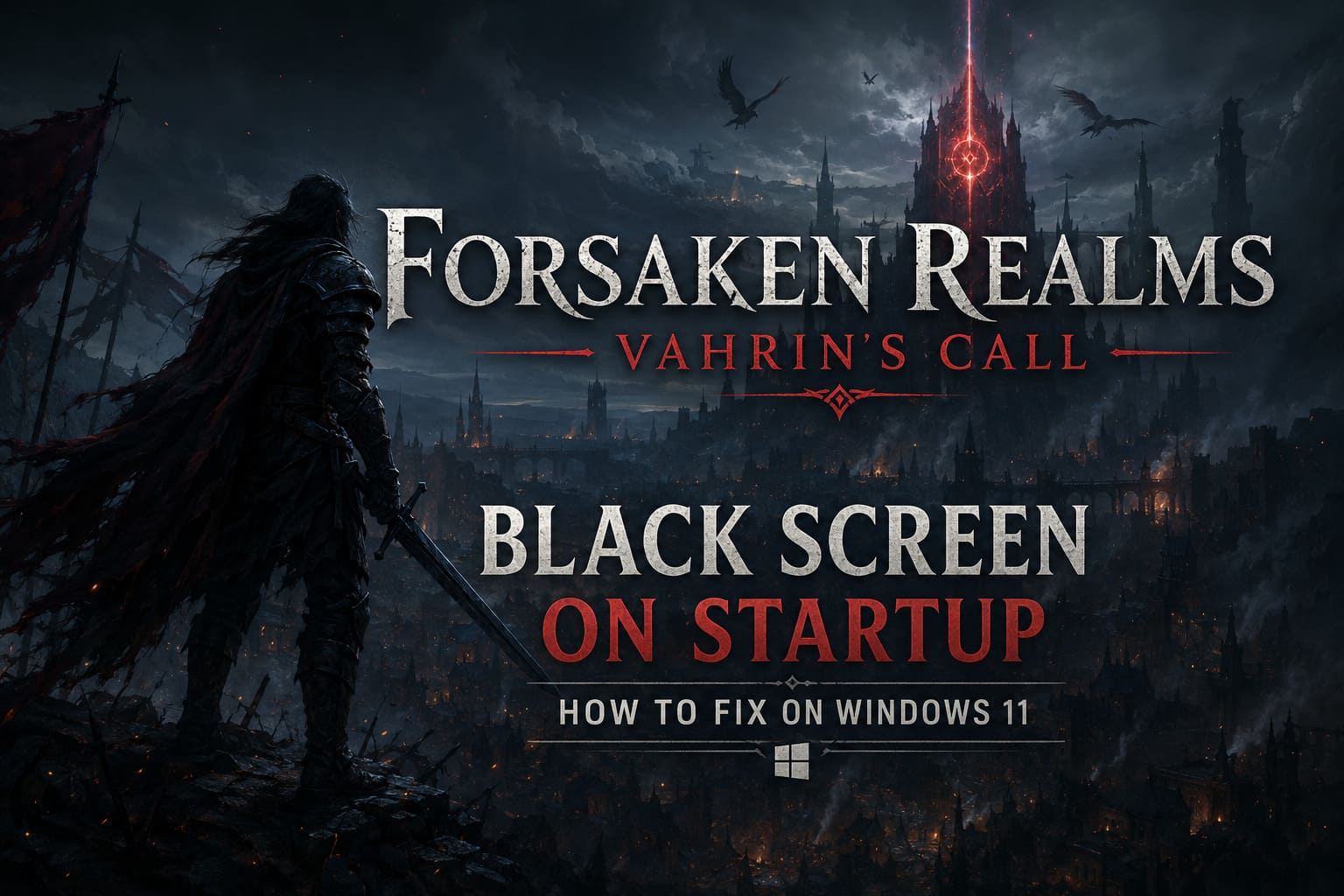
How to Fix Forsaken Realms: Vahrin’s Call Black Screen on Startup on Windows 11
There are few things more frustrating than buying a brand-new RPG, clicking Play, seeing the splash screen appear… and then nothing. No menu. No cinematic. Just a stubborn black screen staring back at you.
That was exactly my experience with Forsaken Realms: Vahrin’s Call.
I spent an entire evening thinking the game was broken before realizing the issue wasn’t the game itself—it was the way Windows 11, graphics drivers, and background software were interacting with it. After digging through Steam discussions, Reddit threads, community fixes, and trying almost every suggestion myself, I managed to get the game running normally.
If you’re facing the same startup black screen, these are the fixes that are genuinely worth your time. I’ll start with the quickest solutions before moving toward the more advanced ones.
Why Does the Game Launch to a Black Screen?
Modern PC games depend on dozens of software components working together perfectly. A small problem anywhere in that chain can stop the game before it even reaches the main menu.
From what I’ve seen across the community, the most common causes include:
- Windows selecting the wrong graphics processor.
- Damaged or incomplete Steam files.
- Fullscreen optimization conflicts.
- Overlay software injecting into the game.
- Corrupted configuration files.
- Outdated or broken GPU drivers.
The good news is that the majority of these problems are surprisingly easy to fix.
Start by Verifying the Steam Installation
This is always my first recommendation, even if it sounds too simple.
Steam occasionally leaves behind corrupted or partially downloaded files after an interrupted update or network hiccup. The game may still launch, but it can freeze before loading any visuals.
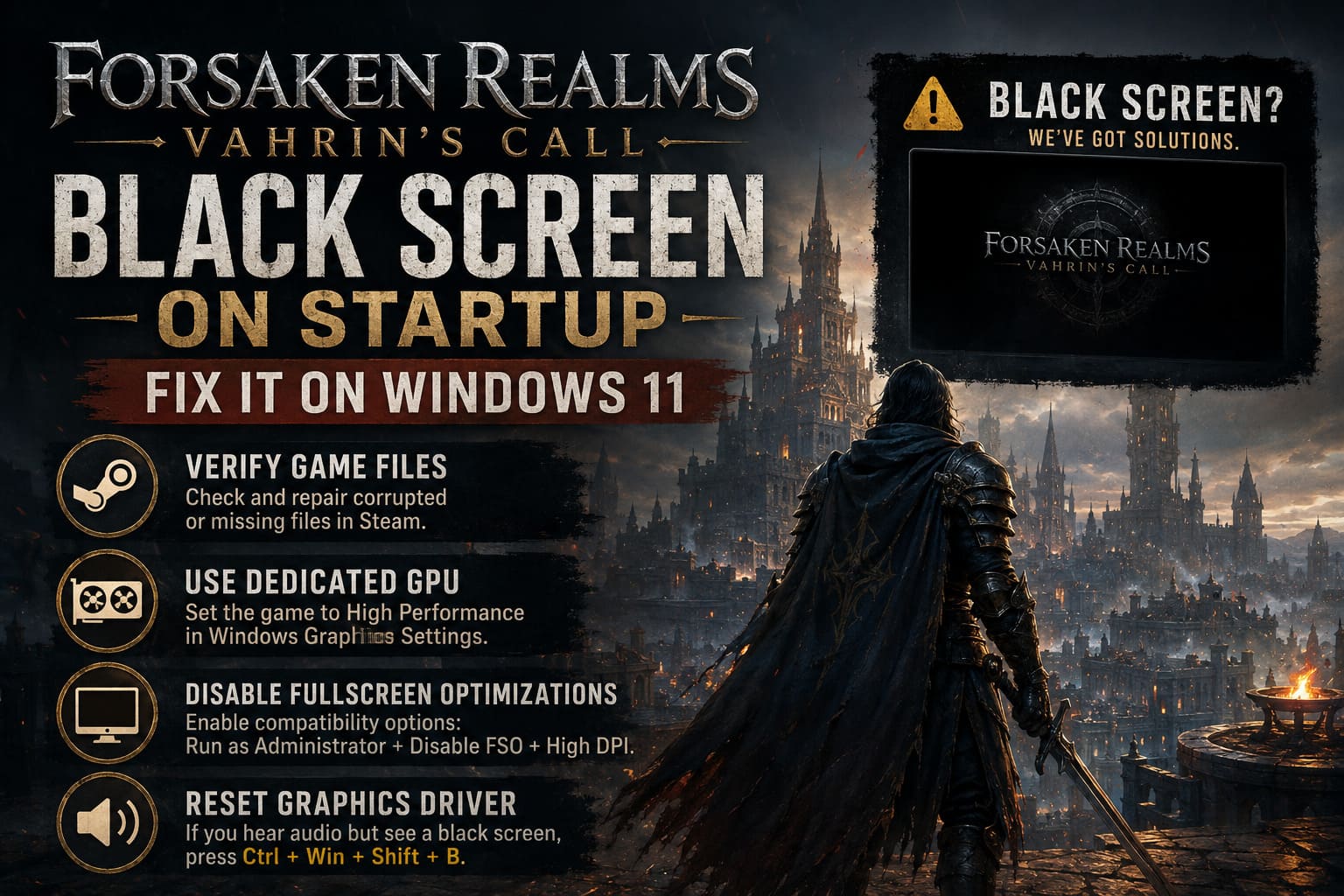
Here’s what to do:
- Open Steam.
- Go to your Library.
- Right-click Forsaken Realms: Vahrin’s Call.
- Open Properties.
- Select Installed Files.
- Click Verify integrity of game files.
Steam compares every installed file against its official version and replaces anything that’s damaged.
It usually takes only a few minutes and has solved startup issues for many players.
Force Windows 11 to Use Your Dedicated GPU
One issue I’ve encountered on multiple gaming laptops is Windows deciding that a demanding RPG should launch using integrated graphics instead of the dedicated NVIDIA or AMD card.
Needless to say, that rarely ends well.
Open Graphics Settings in Windows 11 and manually assign the game’s executable to High Performance.
After changing the setting:
- Save the new preference.
- Restart the PC.
- Launch the game again.
It sounds almost ridiculous, but I’ve seen this single adjustment completely eliminate the black screen without changing anything else.
Disable Fullscreen Optimizations
Windows 11 introduced several display optimizations that generally improve compatibility, but occasionally they do the exact opposite.
When a game struggles to initialize exclusive fullscreen mode, disabling these optimizations can help.
Locate the game’s executable, open Properties, then under the Compatibility tab enable:
- Disable Fullscreen Optimizations
- Run This Program as Administrator
While you’re there, it’s also worth enabling High DPI Scaling Override and setting it to Application.
These options reduce the number of Windows display layers sitting between the game engine and your monitor.
If You Can Hear Audio, Reset the Graphics Driver
This trick feels almost like magic the first time you use it.
If the game is clearly running—you hear menu music or sound effects—but the display stays black, try pressing:
Ctrl + Windows + Shift + B
Your display should briefly flicker.
What this shortcut actually does is restart the Windows graphics driver without rebooting the entire computer.
I’ve recovered several games using this shortcut, especially after GPU driver updates.
Delete the Local Configuration Files
Configuration files become corrupted far more often than people realize.
Games save graphics presets, resolution settings, shader information, and hardware detection data inside your AppData folder. If one of those files becomes damaged, the game may repeatedly crash before reaching the menu.
Navigate to:
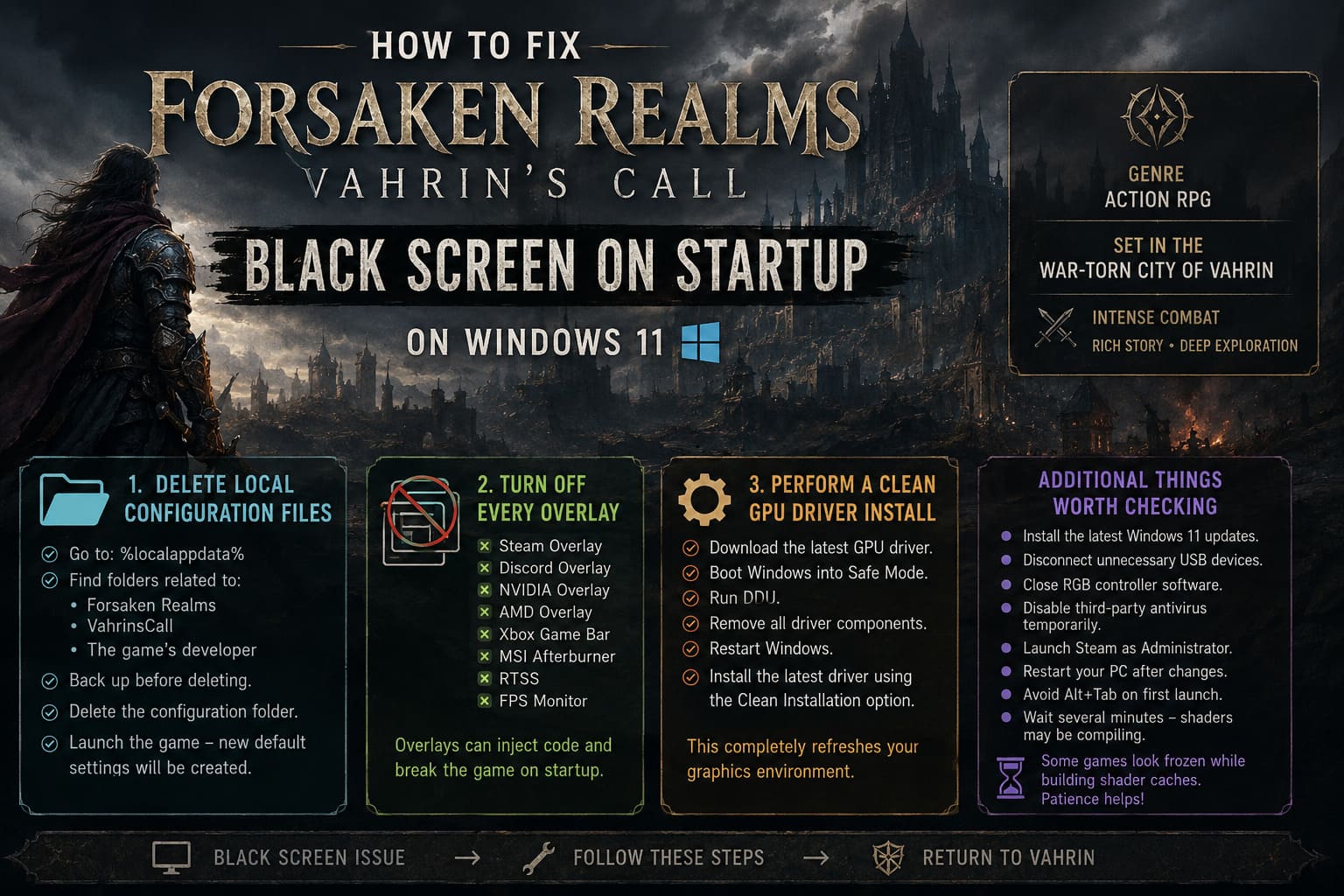
%localappdata%
Look for folders related to:
- Forsaken Realms
- VahrinsCall
- The game’s developer
Before deleting anything, make a backup.
After removing the configuration folder, launch the game again.
The game will automatically generate fresh default settings during startup.
Turn Off Every Overlay
This is probably the fix that surprised me the most.
Overlay software has become incredibly common:
- Steam Overlay
- Discord Overlay
- NVIDIA Overlay
- AMD Overlay
- Xbox Game Bar
- MSI Afterburner
- RTSS
- FPS Monitor
Each one injects additional code into the game.
Most of the time that’s harmless.
Occasionally it completely breaks initialization.
Whenever I’m troubleshooting a new release, I disable every overlay before trying anything complicated.
It removes one of the biggest variables from the equation.
Perform a Truly Clean GPU Driver Installation
Updating your graphics driver isn’t always enough.
Old registry entries, leftover shader caches, and damaged driver components can remain even after installing the newest version.
That’s why experienced PC gamers often recommend Display Driver Uninstaller (DDU).
The process looks like this:
- Download the newest GPU driver.
- Boot Windows into Safe Mode.
- Run DDU.
- Remove every existing graphics driver component.
- Restart Windows.
- Install the newest driver using the Clean Installation option.
It takes a little longer than a standard update, but it completely refreshes your graphics environment.
If your issue is driver-related, this is often the permanent fix.
Additional Things Worth Checking
Not every black screen has the same cause.
Here are a few smaller fixes that have helped players:
- Install the newest Windows 11 updates.
- Disconnect unnecessary USB devices.
- Close RGB controller software.
- Disable third-party antivirus temporarily.
- Launch Steam as Administrator.
- Restart the PC after every major change.
- Avoid Alt+Tab during the game’s first launch.
- Wait several minutes after the initial startup if shaders are compiling.
Some games appear frozen while they’re actually generating shader caches in the background.
Patience sometimes saves unnecessary troubleshooting.
Quick Troubleshooting Priority
| Solution | Difficulty | Success Rate |
|---|---|---|
| Verify Steam Files | Easy | Very High |
| Force Dedicated GPU | Easy | Very High |
| Disable Overlays | Easy | High |
| Disable Fullscreen Optimizations | Easy | High |
| Delete AppData Configuration | Medium | High |
| Reset Graphics Driver Shortcut | Easy | Medium |
| Clean Driver Installation (DDU) | Advanced | Very High |
Common Mistakes Players Make
I’ve noticed the same mistakes appearing repeatedly across gaming forums.
Skipping the restart.
Many graphics settings don’t fully apply until Windows restarts.
Updating drivers over old installations.
A regular update doesn’t always remove corrupted files.
Running multiple monitoring utilities.
Several monitoring applications can hook into DirectX simultaneously and create conflicts.
Ignoring Windows graphics settings.
Many people spend hours changing NVIDIA Control Panel options without realizing Windows has already assigned the game to integrated graphics.
Forsaken Realms Vahrin’s Call Combat Guide: How to Master the Parry and Roll Mechanics
My Personal Recommendation
If I were helping a friend fix this issue, I’d follow this exact order:
- Verify the Steam installation.
- Restart the PC.
- Force the dedicated GPU.
- Disable every overlay.
- Turn off fullscreen optimizations.
- Delete the local configuration files.
- Perform a clean DDU driver installation only if nothing else works.
This approach usually solves the problem without wasting hours experimenting with random settings from the internet.
Final Thoughts
Forsaken Realms: Vahrin’s Call is the kind of fantasy RPG that deserves to be experienced without technical headaches getting in the way. The black screen issue can look alarming, especially when the game refuses to display anything beyond a blank window, but in most cases it’s caused by a configuration conflict rather than a serious bug.
From everything I’ve tested and read through community discussions, the biggest winners are still verifying the Steam files, forcing Windows 11 to use the dedicated graphics card, and disabling overlay software before launching the game. Those three fixes alone account for a large percentage of successful reports.
If those don’t solve it, don’t panic. Resetting the local configuration, adjusting compatibility settings, and, as a last resort, performing a completely clean graphics driver installation with DDU can usually eliminate even the most stubborn startup problems.
Hopefully, one of these methods gets you past that black screen and into Vahrin itself—because once the game actually starts, it’s much easier to focus on surviving the city’s dangers than fighting with Windows.