Best Palworld Steam Deck Settings: CryoUtilities & Performance Guide
Palworld is one of those games that immediately grabs your attention. It combines survival crafting, exploration, base building, and monster collecting into a huge open-world adventure that feels like a mix of several popular genres blended together. After spending time with many survival games on different platforms, I can say that Palworld has one of the most addictive gameplay loops in recent years. The problem is that this ambitious world also pushes hardware surprisingly hard, especially on portable devices like the Steam Deck.
Running Palworld on Steam Deck is impressive, but the default experience is far from perfect. The game uses Unreal Engine 5 technology, which already demands a lot from modern hardware. Add a massive map, dozens of creatures moving around, AI calculations, base activity, and constant world saving, and the Steam Deck starts showing its limits. Players often experience stuttering, unstable frame rates, sudden FPS drops, and even crashes after long sessions.

After testing different configurations and comparing results from the Steam Deck community, one thing became clear: Palworld needs more than just lowering graphics settings. The biggest improvements come from optimizing SteamOS memory management, adjusting VRAM allocation, and balancing the game’s graphics options correctly.
The combination of CryoUtilities, BIOS adjustments, and optimized Palworld settings can completely change the experience. Instead of dealing with random freezes and inconsistent performance, you can achieve a much smoother handheld survival adventure.
https://pixelnitro.com/palworld-autosave-lag-spike-fix-ultimate-guide-to-eliminating-stuttering/
Why Does Palworld Struggle on Steam Deck?
Before changing settings, it is important to understand what causes Palworld performance issues. Unlike smaller survival games, Palworld constantly manages a huge amount of information in the background. The game world contains active creatures, player-built structures, environmental details, and AI systems that continue working even when you are not directly interacting with them.
The Steam Deck has 16GB of LPDDR5 unified memory, meaning the CPU and GPU share the same RAM pool. This design works well for many games, but demanding open-world titles can quickly consume available memory. Palworld is especially affected because of memory leaks that appear during longer play sessions.
Teleporting between locations, entering large bases, fighting multiple enemies, or exploring new areas can cause sudden memory spikes. When SteamOS cannot provide enough resources, the result is usually heavy stuttering, freezing, or a complete crash back to the Steam interface.
This is where CryoUtilities becomes extremely useful. Instead of increasing raw hardware power, it improves how SteamOS handles memory usage and storage allocation, giving Palworld more room to operate.
Installing CryoUtilities for Palworld Performance
CryoUtilities is one of the most popular optimization tools among Steam Deck owners. Created by CryoByte33, the utility modifies several Linux-based SteamOS settings that affect memory behavior.
Installing it is relatively simple:
- Press the Steam button on your Steam Deck.
- Open the Power menu and select Switch to Desktop Mode.
- Open your browser and search for the official CryoUtilities GitHub page.
- Download and run the installation script.
- Create a sudo password if SteamOS asks for one.
- Launch CryoUtilities from Desktop Mode.
Once installed, the interface is straightforward. For Palworld, the safest choice is using the Recommended Settings option because it automatically applies the most useful memory improvements.
| CryoUtilities Setting | Recommended Value | Benefit |
|---|---|---|
| Swap File Size | 16GB | Prevents crashes caused by memory leaks |
| Swappiness | 1 | Keeps active game data in faster RAM |
| Huge Pages (THP) | Enabled | Improves CPU memory handling |
| Shared Memory Override | Enabled | Helps CPU and GPU share resources efficiently |
The biggest improvement comes from increasing the swap file from the default size to 16GB. Palworld can slowly consume more memory during long sessions, and the additional swap space works as a safety net when RAM usage becomes too high.
It will not magically turn the Steam Deck into a gaming PC, but it significantly reduces those frustrating moments where the game suddenly freezes after an hour of progress.
Increase Steam Deck VRAM Allocation Through BIOS
CryoUtilities handles memory management, but another important improvement comes from changing the Steam Deck’s UMA Frame Buffer Size.
By default, Steam Deck reserves 1GB of VRAM for the GPU. Because Palworld contains detailed environments and many graphical assets, giving the GPU more dedicated memory can improve stability.
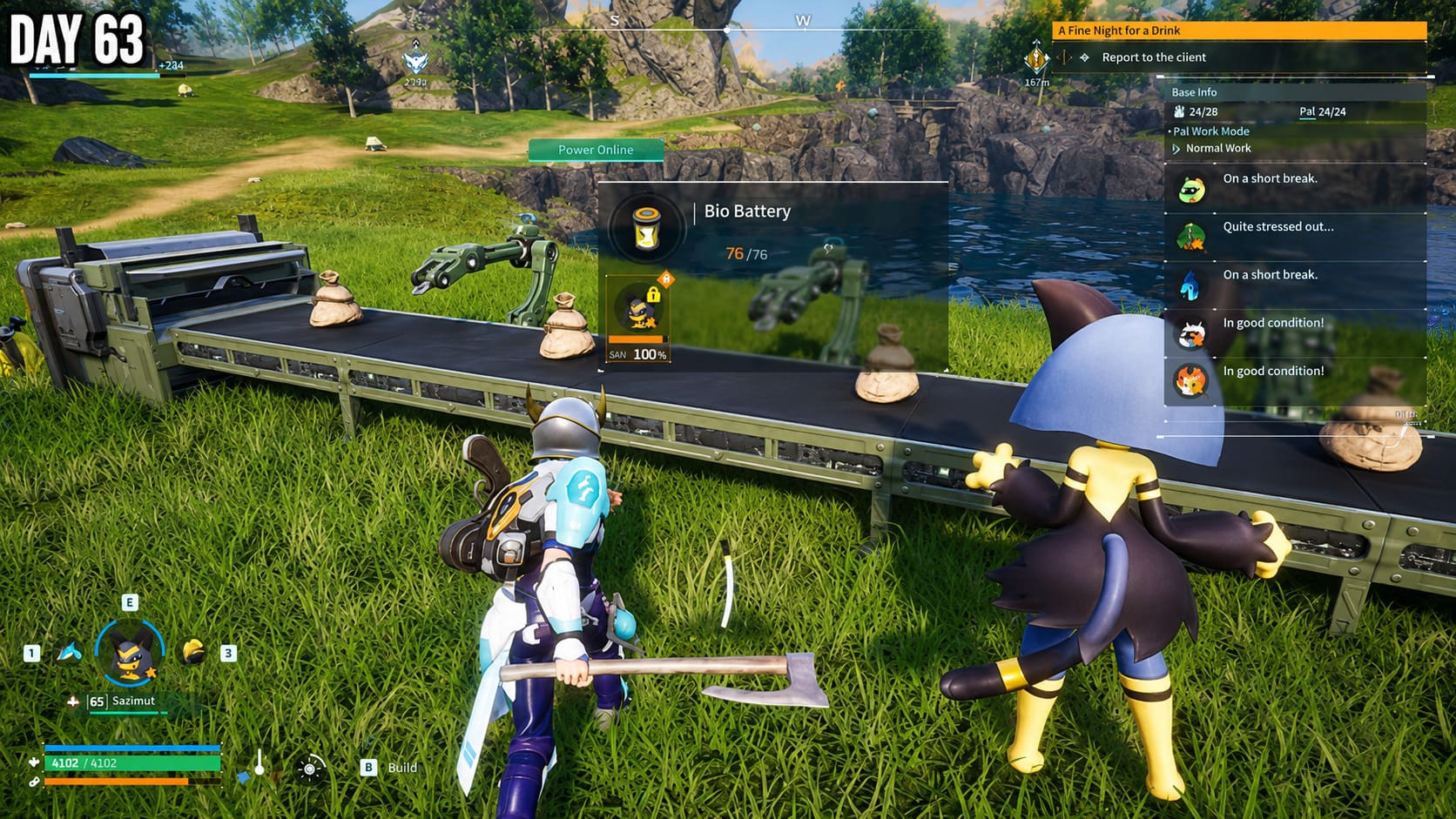
Follow these steps:
- Completely shut down your Steam Deck.
- Hold the Volume Up button and press the Power button.
- Keep holding Volume Up until the BIOS menu appears.
- Select Setup Utility.
- Open the Advanced tab.
- Find UMA Frame Buffer Size.
- Change the value from 1G to 4G.
- Save the settings and restart the device.
This adjustment gives the GPU a larger guaranteed memory allocation. In practical gameplay, it helps reduce small freezes when quickly turning the camera, entering new areas, or loading detailed environments.
The difference is not always obvious in average FPS numbers, but frame pacing becomes much more consistent, which matters a lot on a handheld screen.
Best Palworld Graphics Settings for Steam Deck
After optimizing SteamOS, the next step is adjusting Palworld itself. The goal is not chasing maximum FPS. A stable 30 or 40 FPS experience feels much better than a constantly changing frame rate.
These settings provide the best balance between visuals and performance:
| Graphics Option | Recommended Setting |
|---|---|
| Screen Mode | Fullscreen |
| Resolution | 1280×800 |
| FPS Limit | 30 or 40 FPS |
| VSync | Off |
| Motion Blur | Off |
| Anti-Aliasing | TAA or FXAA |
| View Distance | Medium |
| Grass Details | Low or Medium |
| Shadows | Low |
| Effects Quality | Low or Medium |
| Texture Quality | Medium |
I personally prefer keeping textures at Medium because Palworld still looks surprisingly good on the Steam Deck display. Lowering textures too much makes the world feel blurry, while Medium textures provide a much better visual experience without destroying performance.
The biggest performance killers are shadows, grass rendering, and high view distance. Unreal Engine games often struggle with these settings because they require constant environmental calculations.
SteamOS Performance Settings You Should Use
Steam Deck’s built-in performance tools also play an important role. Open the Quick Access Menu using the three dots button and go to the Performance section.
For the best experience:
- Enable Advanced View.
- Set the refresh rate to 60Hz with a 30 FPS limit for better battery life.
- Use 40Hz with a 40 FPS limit if you want smoother movement.
- Avoid trying to force 60 FPS because Palworld is too demanding for consistent performance.
The 40 FPS option is my favorite when playing plugged in. The game feels noticeably smoother than 30 FPS while still maintaining reasonable stability.
For battery-focused sessions, enabling the TDP limit and setting it around 12W-13W can help extend playtime. However, during large fights or busy bases, you may notice occasional drops.
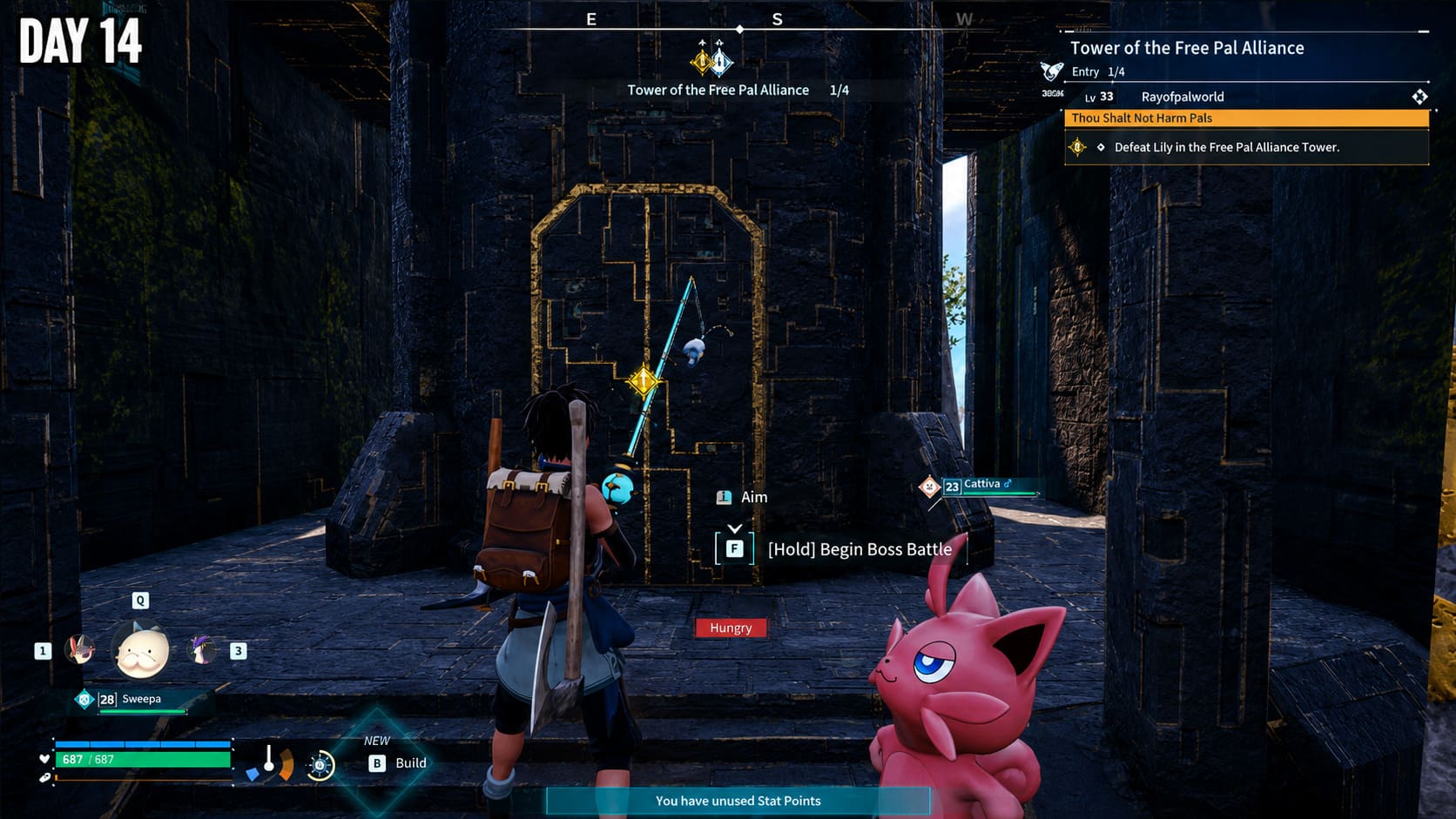
Real Performance Improvements After Optimization
Before applying these changes, Palworld on Steam Deck often feels unpredictable. FPS can jump between 25 and 35, loading new areas creates noticeable stutters, and long sessions can eventually end with crashes.
After installing CryoUtilities, increasing the UMA buffer, and adjusting graphics settings, the experience becomes much more enjoyable.
The biggest improvements are:
- More stable frame times: Sudden drops during exploration become much less common.
- Fewer crashes: The expanded swap file helps prevent memory-related shutdowns.
- Better image quality: Medium textures remain possible without overwhelming the hardware.
- Longer sessions: You can spend several hours building bases and exploring without constantly worrying about losing progress.
The Steam Deck will never run Palworld like a high-end desktop PC, but with the right setup, it becomes a surprisingly capable survival machine.
Final Thoughts: Is Palworld Worth Playing on Steam Deck?
Palworld is a demanding game, and the Steam Deck is not designed around massive Unreal Engine 5 open worlds. However, that does not mean the experience is bad. With a few smart adjustments, the handheld handles the game far better than the default settings suggest.
CryoUtilities solves many memory problems, the BIOS VRAM adjustment improves consistency, and carefully chosen graphics settings create a balanced experience. Instead of fighting crashes and unstable performance, you can focus on exploring islands, capturing Pals, and building your perfect base.
For Steam Deck owners, these tweaks are absolutely worth trying. Palworld becomes a much smoother portable adventure, and the device finally gets the chance to show what it can do.