How to Fix Palworld Crashing on Launch on Steam Deck (Proton Guide)
After spending hundreds of hours testing survival games, open-world adventures, and demanding Unreal Engine titles on different hardware, I can say one thing: portable gaming always comes with compromises. The Steam Deck is an incredible handheld, but games like Palworld push its limits with a massive open world, constant asset streaming, and heavy memory usage.
One of the most frustrating problems players face is Palworld crashing on launch on Steam Deck. You press Play, the screen starts loading, and suddenly you are returned to the Steam library. Sometimes the game shows a black screen, sometimes it freezes before reaching the main menu, and sometimes it simply closes without any explanation.
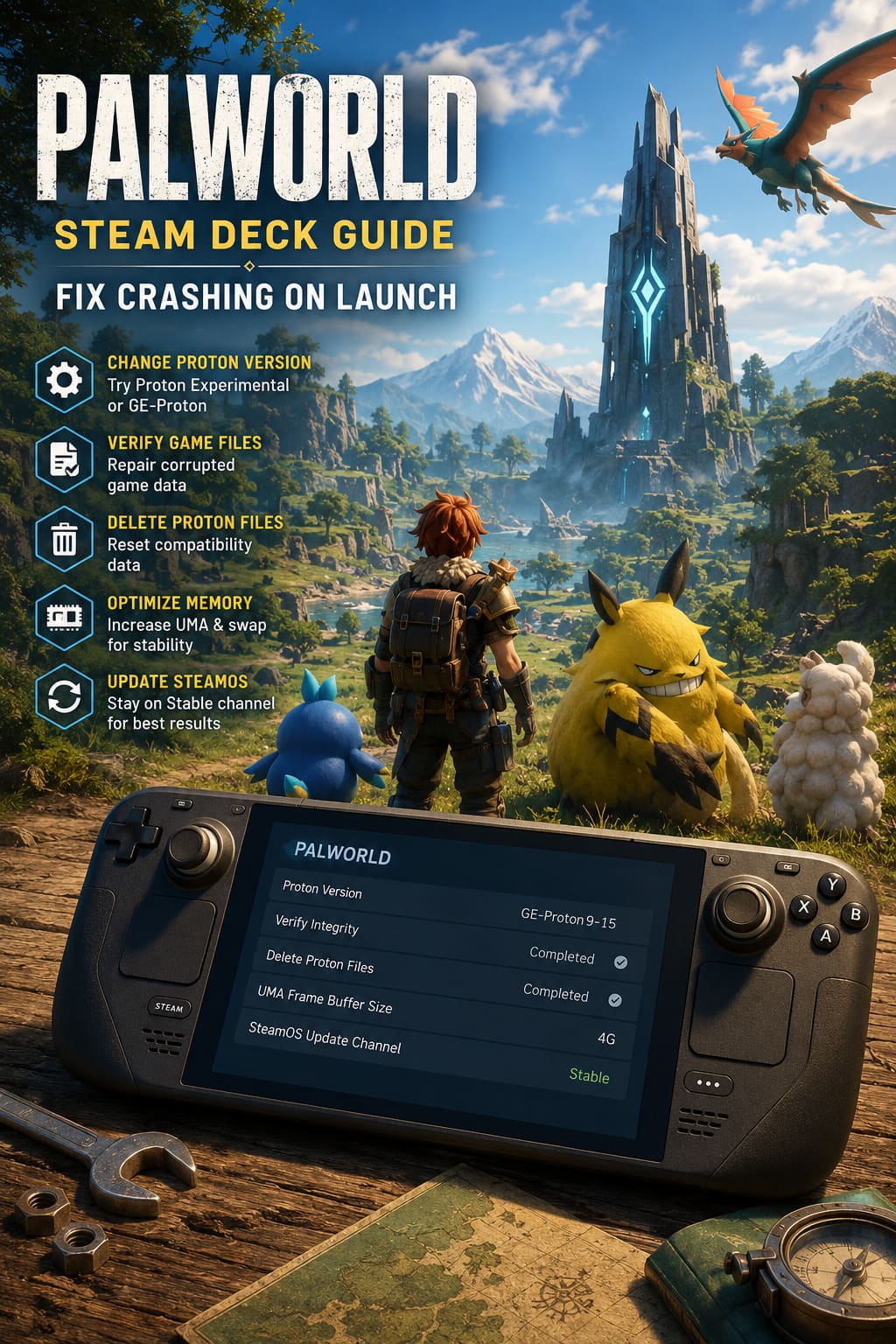
This issue does not have one universal cause. From my experience with PC and handheld gaming, these crashes usually happen because of unstable Proton versions, corrupted game files, outdated SteamOS updates, damaged compatibility data, or memory limitations. The good news is that most Palworld startup crashes can be fixed without deleting the entire game.
This guide covers the most effective Palworld Steam Deck crash fixes, including Proton changes, file verification, memory optimization, and system adjustments that can improve stability.
Palworld Autosave Lag Spike Fix: Ultimate Guide to Eliminating Stuttering
Why Does Palworld Crash on Steam Deck?
Palworld is not a small survival sandbox. The game runs on Unreal Engine 5, which means it relies heavily on advanced asset streaming, shader processing, large environments, and constant background loading. The Steam Deck handles impressive games for its size, but its hardware has limits when dealing with demanding open-world experiences.
The Steam Deck uses unified memory, meaning the same 16GB of RAM is shared between the operating system and the GPU. During the launch process, Palworld immediately begins loading textures, world data, and background systems. If Proton has compatibility issues or available memory becomes too limited, the game may crash before entering gameplay.
The most common reasons why Palworld crashes during startup include:
| Problem | Possible Result |
|---|---|
| Incorrect Proton version | Game crashes before reaching the menu |
| Corrupted Proton prefix files | Black screen or infinite loading |
| Damaged game files | Random launch failures |
| Low available memory | Crashes during loading screens |
| Outdated SteamOS | Compatibility problems |
| Beta system updates | Unexpected stability issues |
Fix 1: Change the Proton Compatibility Layer
The most common reason Palworld fails to launch on Steam Deck is the Proton compatibility layer. Proton allows Windows games to run on Linux-based systems, but different versions can behave differently depending on the game engine and current updates.
Sometimes Steam automatically selects a Proton version that is not the most stable choice for a specific game. Manually switching Proton versions can solve startup crashes almost instantly.
How to Change Proton Version for Palworld
- Open your Steam Deck and enter your Library.
- Select Palworld.
- Press the Options button.
- Choose Properties.
- Open the Compatibility section.
- Enable Force the use of a specific Steam Play compatibility tool.
- Select Proton Experimental or Proton Hotfix.
- Restart the game.
In my testing with different Unreal Engine games, Proton Experimental often performs better because Valve continuously adds compatibility fixes for newer releases. If that version still causes problems, the next option is trying GE-Proton.
GE-Proton is a community-maintained Proton version that includes additional fixes for specific games, graphics features, and video components. Many Steam Deck users have reported that GE-Proton can launch games that fail with official Proton versions.
How to Install GE-Proton
- Switch your Steam Deck to Desktop Mode.
- Open the Discover application.
- Search for ProtonUp-Qt.
- Install the application.
- Download the latest GE-Proton version.
- Return to Gaming Mode.
- Select GE-Proton inside Palworld compatibility settings.
Fix 2: Verify Palworld Game Files
Sometimes the issue is not related to Steam Deck settings at all. A broken update, interrupted download, or corrupted installation file can prevent Palworld from launching correctly.
Steam includes a built-in verification tool that checks your installed files and replaces missing or damaged data automatically. This is one of the first fixes I recommend after major updates because large survival games often modify hundreds of files with every patch.
How to Verify Palworld Files
- Open your Steam Library.
- Select Palworld.
- Press the Options button.
- Choose Properties.
- Open the Installed Files tab.
- Select Verify integrity of game files.
- Wait until Steam completes the scan.
If Steam finds damaged files, it will automatically download replacements. The process may take several minutes depending on your storage speed, but it is much faster than reinstalling the entire game.
Fix 3: Delete Palworld Proton Files
Another common reason behind Steam Deck launch crashes is a corrupted Proton prefix. The Proton prefix works like a small Windows environment created specifically for the game. It stores registry information, graphics settings, and compatibility files.
If these files become damaged after an update or system change, Palworld may fail before reaching the main menu. Resetting these files forces Steam to create a clean environment.
How to Delete Proton Files
- Open Palworld properties in Steam.
- Select the Developer section.
- Click Delete Proton Files.
- Confirm the action.
- Launch Palworld again.
This process resets local graphics settings and some configuration files. Your cloud saves should remain safe if Steam Cloud synchronization is enabled.
This solution has helped with many PC and handheld games that suddenly stopped launching after updates, especially titles running through compatibility layers.
Fix 4: Improve Steam Deck Memory and VRAM Settings
Palworld is one of those games where memory management can make a huge difference. The Steam Deck shares its memory between the CPU, GPU, and operating system, which means demanding games can quickly consume available resources.
By default, the Steam Deck reserves a limited amount of dedicated VRAM. For large open-world games, increasing the UMA Frame Buffer Size may help reduce crashes during loading.
How to Increase UMA Frame Buffer Size
- Completely shut down your Steam Deck.
- Hold the Volume Up button.
- Press the Power button.
- Enter BIOS settings.
- Open Setup Utility.
- Go to the Advanced menu.
- Find UMA Frame Buffer Size.
- Change the value from 1G to 4G.
- Save changes and restart the device.
Another popular solution among Steam Deck players is increasing the swap file size with tools like CryoUtilities. A larger swap file gives the system additional breathing room when handling large worlds and prevents some out-of-memory crashes.
This will not transform the Steam Deck into a desktop gaming PC, but it can make demanding survival games noticeably more stable during longer sessions.
Fix 5: Update SteamOS and Avoid Beta Versions
SteamOS updates often include important Proton improvements, GPU driver changes, and performance fixes. Running an outdated version can create compatibility problems with newer Palworld updates.
However, Beta and Preview SteamOS channels can sometimes introduce experimental bugs. For maximum stability, most players should stay on the Stable channel.
How to Check SteamOS Updates
- Press the Steam button.
- Open Settings.
- Select System.
- Check your update channel.
- Switch to Stable if you are using Beta or Preview.
- Check for available updates.
- Restart your Steam Deck.
When playing demanding games on handheld hardware, stability is usually more important than testing unfinished system features.
Best Palworld Steam Deck Settings to Prevent Future Crashes
Getting Palworld to launch is only the first step. The game can still crash later if the system is constantly under heavy stress, especially during long exploration sessions or when building large bases.
After fixing startup issues, I recommend using balanced settings instead of trying to push maximum graphics quality.
- Set graphics preset to Medium or Low.
- Limit FPS to 30 or 40 FPS.
- Disable Motion Blur.
- Disable Ride Camera Smoothing.
- Reduce texture quality if stuttering appears.
- Close unnecessary background applications.
A stable 30 FPS experience is much better than chasing higher performance and dealing with random crashes. Survival games are all about exploration and progression, so consistency matters more than occasional frame spikes.
Final Thoughts
Palworld on Steam Deck can be an excellent portable survival experience when properly configured, but it is definitely one of those games that requires some extra attention. After playing many demanding open-world titles on handheld devices, I have learned that software configuration often matters just as much as hardware power.
If Palworld crashes on launch, start with changing the Proton version, verifying your files, and deleting corrupted Proton data. If those solutions do not work, focus on memory optimization and keeping SteamOS on a stable update channel.
The Steam Deck is surprisingly powerful for its size, but games like Palworld require smart settings. With the right configuration, you can spend hours catching Pals and exploring the world without constantly fighting crashes.