Palworld Autosave Lag Spike Fix: Ultimate Guide to Eliminating Stuttering
After spending hundreds of hours in survival games, I have learned one thing: nothing destroys immersion faster than a sudden freeze at the worst possible moment. You are exploring a dangerous area, fighting a powerful Alpha Pal, or carefully designing a massive base, and suddenly your screen locks for a second. In Palworld, this frustrating performance issue is often caused by autosave lag spikes.
The Palworld autosave stutter problem has become one of the most common complaints among PC players. The game can run perfectly at high frame rates, but every 30 seconds or one minute, a random micro-freeze appears. At first, many players blame their graphics card, but after testing different configurations and analyzing community feedback, the real problem is usually connected to save processing, storage speed, and world complexity.
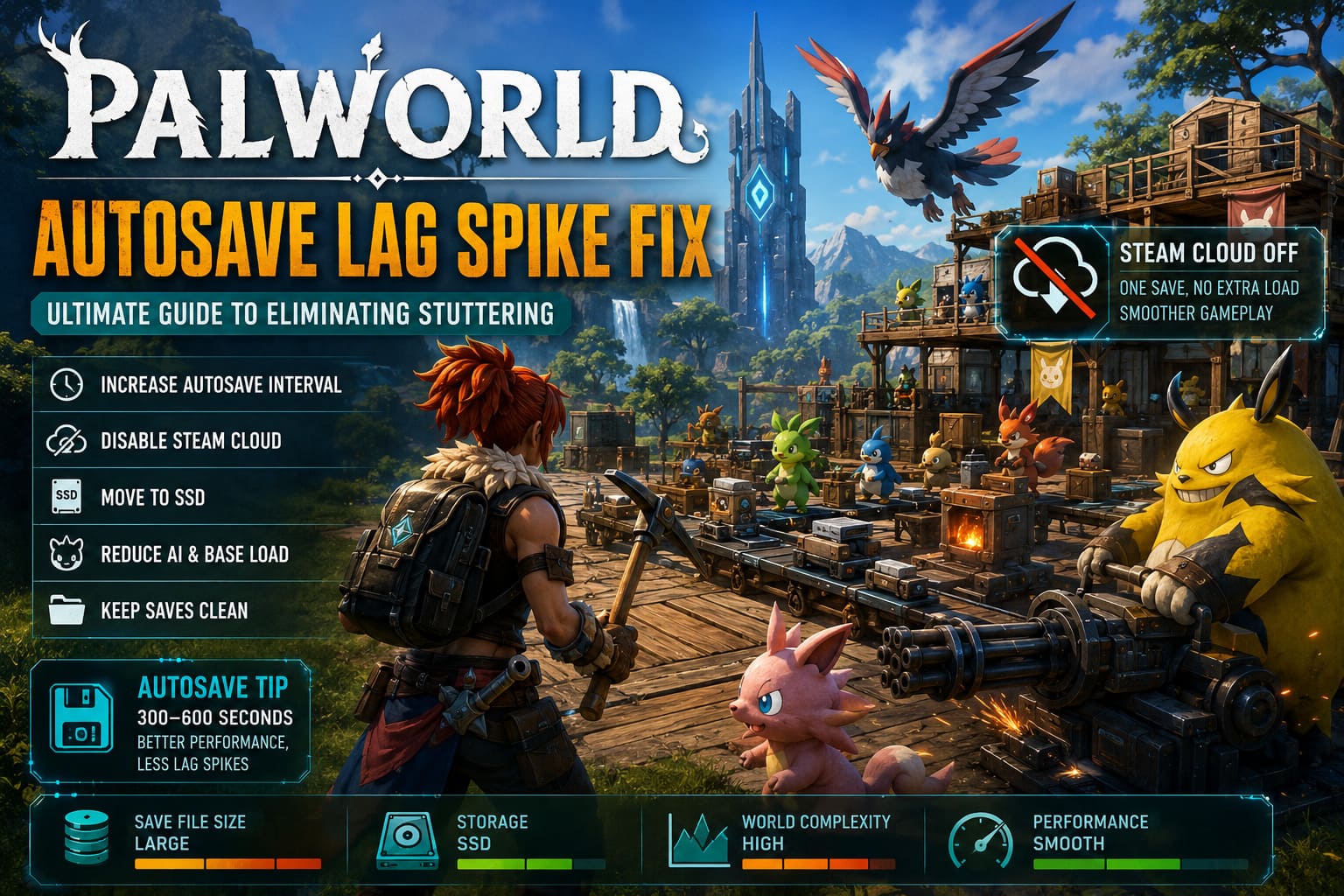
As your Palworld world grows, your save file becomes much larger. Every captured Pal, every structure, every item stored in your bases, and every AI routine running in the background adds more data that the engine must track. When the game creates an autosave, all this information needs to be collected, compressed, and written to your drive, which can temporarily interrupt normal gameplay.
Palworld DX12 Stuttering Fix: Best Launch Options & Performance Guide
The good news is that this issue can be significantly reduced or even completely removed with the right combination of configuration changes, optimization methods, and gameplay adjustments. This guide covers the most effective Palworld autosave lag spike fixes that can help you achieve smoother performance.
Why Does Palworld Freeze During Autosave?
When you start a new Palworld world, autosaving usually does not create noticeable performance problems. Your save data is small, your base is simple, and only a few Pals need to be tracked. The process happens quickly, so most players never notice anything unusual.
The situation changes after dozens or hundreds of hours of progression. A developed Palworld world is not just a map with buildings. The game constantly manages a huge amount of simulation data that includes Pal behavior, production tasks, inventories, crafting systems, player progress, and world objects.
Every autosave forces the engine to process this information. In large worlds with multiple bases and hundreds of active Pals, this process becomes much heavier and can cause noticeable freezing. From my experience with open-world survival games, this is a classic simulation problem where the CPU and storage system become the real bottleneck instead of the GPU.
| Problem | Why It Causes Stuttering |
|---|---|
| Large Save Files | More world information needs to be processed during every autosave. |
| Playing On HDD | Slow read and write speeds create longer save delays. |
| Steam Cloud Enabled | The game saves locally while Steam also synchronizes the file. |
| Too Many Active Pals | Additional AI calculations increase simulation load. |
| Long Gaming Sessions | Memory usage can increase and create additional instability. |
Best Palworld Autosave Lag Spike Fixes
There is no single universal solution that fixes autosave lag for every player. The best results usually come from combining several different improvements. Some changes are simple, while others require more technical adjustments.
Increase the Autosave Interval With Mods
One of the most effective solutions is changing how often Palworld creates save files. The default autosave system prioritizes protecting player progress, but frequent saving can become a performance problem in advanced worlds.
The Palworld modding community has created tools that allow players to adjust the autosave timer. These modifications reduce how often the game writes large amounts of data to your storage drive.
Many experienced players increase the autosave interval to:
- 300 seconds (5 minutes) for a balanced experience.
- 600 seconds (10 minutes) for maximum performance improvement.
Personally, I think a 10-minute interval is a reasonable choice for large survival worlds. Losing a few minutes of progress after a crash is frustrating, but dealing with constant freezes during exploration, combat, and building is much worse.
How to Install and Configure Autosave Mods
- Install the required Unreal Engine scripting framework such as REUE4SS.
- Place the autosave modification files inside your Palworld installation folder.
- Open the configuration file using a simple text editor.
- Find the autosave interval setting.
- Change the value to your preferred save delay.
- Save the changes and restart the game.
Before installing any modification, always create a backup of your save files. A small configuration mistake can sometimes prevent the game from loading your world correctly.

Disable Steam Cloud Synchronization
One of the most overlooked causes of Palworld autosave lag is Steam Cloud synchronization. Many players never consider it because it works silently in the background.
When Palworld creates a new save file, Steam may immediately attempt to upload the updated data to cloud storage. This creates another read and write operation while the game is already processing the save.
Instead of one task, your system handles two operations:
- Palworld writes the updated save data to your drive.
- Steam uploads the same data to cloud servers.
On slower storage devices, especially older hard drives, this extra workload can create noticeable freezes.
How to Disable Steam Cloud for Palworld
- Open your Steam Library.
- Right-click Palworld.
- Select the Properties menu.
- Open the General section.
- Disable Steam Cloud save synchronization.
This is one of the first fixes I recommend trying because it requires no mods and takes only a few seconds to change. Many players report smoother performance immediately after disabling cloud synchronization.
Move Palworld to an SSD
If Palworld is installed on a mechanical hard drive, autosave problems are much more likely to appear as your world becomes larger. Modern survival games constantly read and write small pieces of data, and older HDD storage struggles with this workload.
Moving Palworld to an SSD can improve:
- Autosave speed.
- Loading times.
- Texture streaming.
- Overall frame consistency.
An NVMe SSD provides the best experience, but even a normal SATA SSD is a massive improvement compared to a traditional hard drive. In games like Palworld, stable frame pacing feels much better than unstable high FPS numbers.
Reduce Base Complexity and AI Load
Sometimes the autosave problem is not only about saving files. Your world itself may simply be too demanding for the engine to handle smoothly.
Large automated bases filled with dozens of working Pals create a huge simulation workload. Every Pal needs AI calculations, movement decisions, and task management. When combined with autosaving, this can create severe performance drops.
Try these adjustments:
- Store unused Pals inside the Palbox.
- Remove unnecessary production machines.
- Avoid creating extremely crowded bases.
- Spread large bases across different locations.
A massive base full of automated workers may look impressive, but it can also become one of the biggest causes of stuttering. Good base organization often improves performance more than lowering graphics settings.
Clean Your Palworld Save Data
Over time, Palworld save folders can collect unnecessary files and temporary data. In some cases, cleaning the save directory can help fix repeated freezing issues.
Safe Save Cleanup Process
- Create a backup of your current save folder.
- Navigate to your Palworld saved data directory.
- Remove unnecessary temporary files.
- Launch the game and allow it to rebuild required folders.
- Restore your active save if necessary.
Never delete save data without making a backup first. A damaged 100-hour survival world is far more painful than dealing with occasional lag spikes.
Restart Palworld After Long Sessions
Palworld can become less stable during extremely long play sessions. After several hours, memory usage may increase, which can lead to additional stuttering and performance drops.
If your game becomes slower over time, try completely restarting:
- Close Palworld.
- Restart Steam.
- Launch the game again.
A fresh restart can clear temporary memory problems and restore smoother gameplay without changing any settings.
Final Thoughts: The Best Way to Fix Palworld Autosave Stuttering
Palworld is an impressive survival game, but its large-scale simulation can push hardware harder than many players expect. Autosave lag spikes are usually not caused by weak graphics cards. The main problems are often connected to save file size, storage performance, cloud synchronization, and excessive world complexity.
The most effective combination for fixing Palworld autosave stuttering is increasing the save interval, disabling Steam Cloud synchronization, installing the game on an SSD, reducing unnecessary AI workload, and restarting the game during long sessions.
After applying these changes, large Palworld worlds become much smoother. Exploration feels better, base building becomes more enjoyable, and sudden freezes no longer interrupt important moments.
For a survival game built around creativity and discovery, performance problems should never be the thing that takes you out of the adventure.