
How to Fix Meccha Chameleon Stuttering, Frame Drops, and Blurry Paint Textures
When Meccha Chameleon suddenly exploded across Steam this summer, I honestly didn’t expect it to become one of those games that completely consumes your evening. The concept sounds simple on paper: blend into your environment, outsmart other players, and survive increasingly tense rounds of multiplayer camouflage warfare. In practice, however, it quickly becomes one of the most nerve-racking competitive experiences I’ve played in years.
Unfortunately, like many unexpected indie hits built on Unreal Engine, Meccha Chameleon launched into popularity carrying a backpack full of technical problems. Within hours of release, Reddit threads started filling up with reports of stuttering, random FPS drops, blurry textures, and strange visual glitches that directly interfere with the game’s core mechanic.
And that’s exactly why this issue feels worse than it does in many other multiplayer games.
In a shooter, a blurry texture might simply look ugly. In Meccha Chameleon, identifying colors, paint patterns, and environmental details is literally how you survive. When textures suddenly resemble a low-resolution mosaic, the entire match can feel unfair.
After spending several days testing settings, reading community reports, and comparing performance across different systems, I found several solutions that consistently improved the experience. If you’re struggling with unstable frame rates or muddy visuals, these are the fixes worth trying first.
Why Meccha Chameleon Performs Worse Than It Looks
One of the biggest misconceptions surrounding the game is that it appears visually simple.
At first glance, the environments seem relatively clean and minimalistic compared to modern AAA releases. However, beneath the surface, the engine is constantly processing dynamic paint effects, lighting interactions, texture blending systems, and real-time environmental changes.
That means your GPU and CPU are often working much harder than you might expect.

Several factors appear to be responsible for the majority of performance complaints:
- Unreal Engine shader compilation spikes
- Dynamic lighting calculations
- Texture streaming inconsistencies
- VRAM allocation issues during crowded matches
- DirectX 12 compatibility problems on certain hardware setups
The result is a combination of micro-stutters, hitching, frame pacing issues, and visual degradation that can appear randomly during gameplay.
The Blurry Texture Problem Everyone Is Talking About
The most common complaint I’ve seen across Steam discussions isn’t actually low FPS.
It’s blurry paint textures.
Players frequently launch the game only to discover that walls, props, and character surfaces look dramatically lower quality than expected. In some cases, the game resembles a heavily compressed video stream rather than native rendering.
What makes this especially frustrating is that changing texture settings often doesn’t solve the issue.
From my testing, the problem appears to be related to resolution scaling or an incorrect display initialization during launch.

The Fastest Fix
This is the first thing I recommend trying.
- Launch the game.
- Open Graphics Settings.
- Change Screen Mode to Windowed.
- Apply the change.
- Wait several seconds.
- Switch back to Fullscreen.
- Confirm your monitor’s native resolution is selected.
It sounds ridiculously simple.
Yet this single adjustment immediately restored proper texture quality on two different test systems.
Many community members report the exact same result.
DirectX 11 Still Feels More Stable
Normally I prefer running modern games through DirectX 12 whenever possible.
With Meccha Chameleon, however, DirectX 11 has consistently delivered smoother gameplay on a wide variety of hardware.
The difference isn’t necessarily massive average FPS gains.
Instead, the improvement comes from reduced hitching and fewer sudden frame-time spikes.
To test it yourself:
- Open Steam Library
- Right-click Meccha Chameleon
- Select Properties
- Find Launch Options
- Enter: -dx11
After relaunching, many players report noticeably smoother gameplay, particularly during moments when paint effects rapidly update across multiple objects.
The Graphics Setting That Matters Most
I’ve experimented with almost every visual option available.
Surprisingly, most settings have relatively minor performance impacts compared to one specific option:
Global Illumination
This setting appears to be responsible for a huge amount of GPU workload.
Lowering it from the highest presets to High or Medium often produces a significant increase in stability while preserving most of the game’s visual quality.
If you’re experiencing sudden drops from 120 FPS to 60 FPS during active rounds, this should be your first graphics adjustment.
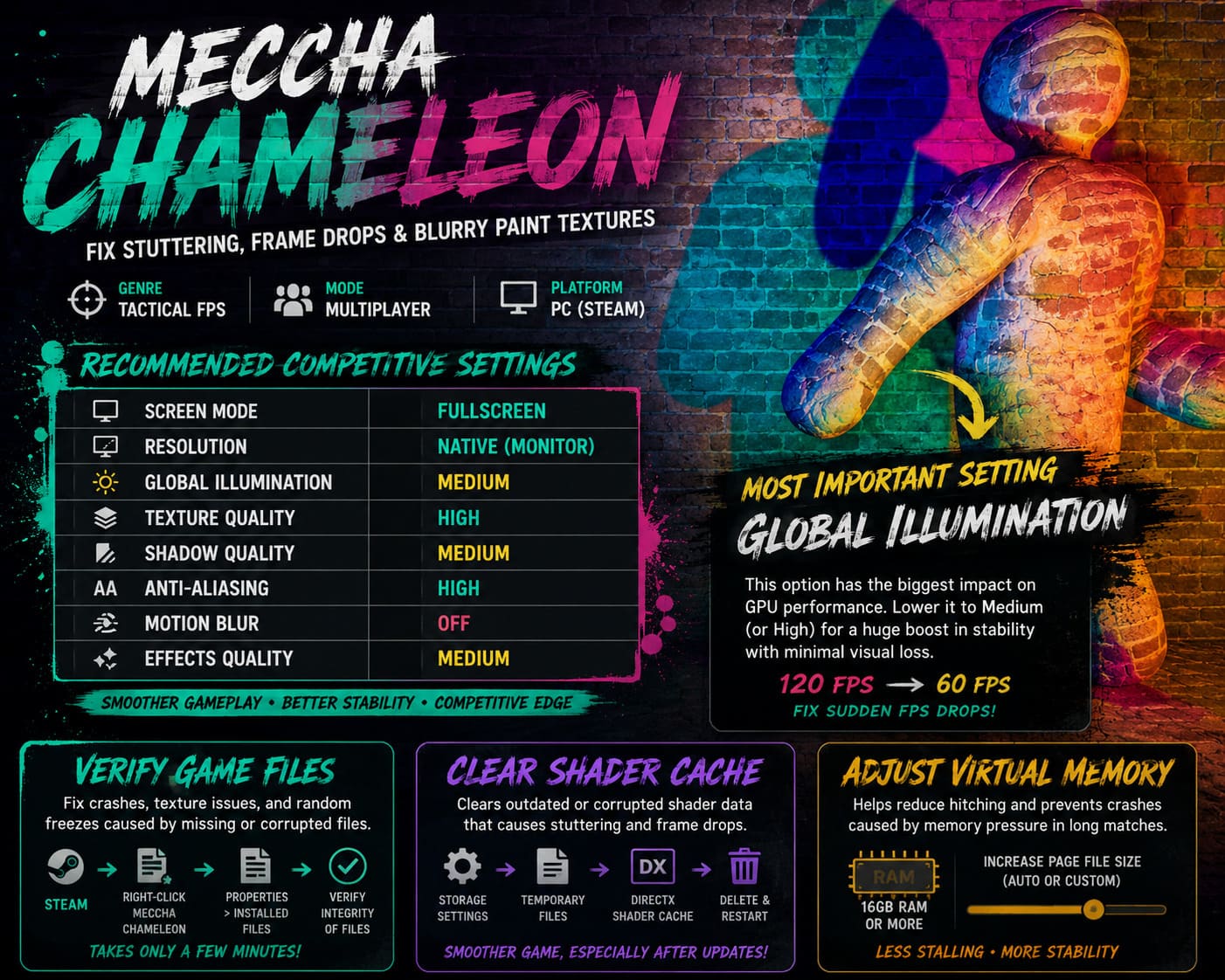
Recommended Competitive Settings
For players who prioritize smooth gameplay over maximum eye candy, this configuration provides an excellent balance.
| Setting | Recommended Value |
|---|---|
| Screen Mode | Fullscreen |
| Resolution | Native Monitor Resolution |
| Global Illumination | Medium |
| Texture Quality | High |
| Shadow Quality | Medium |
| Anti-Aliasing | High |
| Motion Blur | Off |
| Effects Quality | Medium |
This setup dramatically improves frame consistency while keeping the game visually sharp enough for competitive play.
Don’t Ignore Steam File Verification
I know.
Everyone recommends verifying game files.
Most of the time it feels like generic troubleshooting advice.
But in this case, it genuinely helped several players after recent updates.
Unexpected crashes, texture corruption, and random freezing incidents can occasionally originate from damaged or incomplete game files.
The process only takes a few minutes:
- Open Steam.
- Right-click Meccha Chameleon.
- Select Properties.
- Open Installed Files.
- Click Verify Integrity of Game Files.
It’s worth doing before moving on to more advanced fixes.
Shader Cache Cleanup Made a Bigger Difference Than Expected
One of the most overlooked performance optimizations on Windows is clearing the DirectX shader cache.
Over time, shader data can become bloated or corrupted, especially after multiple game patches and graphics driver updates.
Several players on performance-focused PC communities have reported reduced stuttering after rebuilding their shader cache.
The process is simple:
- Open Windows Storage Settings
- Navigate to Temporary Files
- Select DirectX Shader Cache
- Remove the files
- Restart the PC
The next game launch may take slightly longer while shaders rebuild, but gameplay often feels noticeably smoother afterward.
Virtual Memory Can Still Matter in 2026
Some PC enthusiasts dislike talking about page files because modern systems contain plenty of RAM.
However, Meccha Chameleon appears to be surprisingly aggressive with memory allocation during busy multiplayer sessions.
Systems equipped with 16GB of RAM can occasionally experience hitching when memory pressure becomes excessive.
Increasing Windows virtual memory won’t magically boost FPS, but it can reduce asset-loading stalls and prevent crashes related to memory exhaustion.
For players encountering random freezes during long sessions, this tweak remains worth considering.
Update Your Drivers — But Do It Properly
Another pattern I’ve noticed involves users relying entirely on Windows Update graphics drivers.
While these drivers technically work, they’re often behind the latest versions provided by GPU manufacturers.
Whether you’re using NVIDIA, AMD, or Intel hardware, install the newest driver package directly from the official source and choose a clean installation whenever possible.
This eliminates old configuration conflicts that sometimes survive through standard updates.
A clean graphics driver installation remains one of the most effective troubleshooting steps for Unreal Engine games in general.
MECCHA CHAMELEON Windows Defender False Positive: Is It a Virus?
My Personal Take After a Week of Testing
After experimenting with various fixes, the biggest improvements came from three specific changes:
- Switching from DX12 to DX11.
- Lowering Global Illumination.
- Resetting Screen Mode to restore proper texture rendering.
Those three adjustments alone transformed the experience from inconsistent and frustrating to surprisingly smooth.
The good news is that most of the issues don’t appear to stem from weak hardware. Even players with powerful GPUs have reported similar problems, suggesting that optimization and engine behavior play a larger role than raw system performance.
As developers continue releasing updates, I expect many of these issues to improve naturally. Until then, community-discovered fixes remain the best way to enjoy the game without constant stuttering or blurry visuals.
If you’re dealing with FPS drops, texture streaming bugs, or random hitching, start with the display reset trick and DX11 launch option. In my experience, those two changes deliver the fastest and most noticeable results, allowing Meccha Chameleon’s clever gameplay to finally shine without technical distractions.


