How to Fix Assassin’s Creed Black Flag Resynced Micro Stuttering on Windows 11
There are few things more frustrating than watching a game look incredible while feeling terrible to play.
That was exactly my experience with Assassin’s Creed Black Flag Resynced on Windows 11.
The visual overhaul is impressive. Water reflections look fantastic during storms, Havana feels more alive than ever, and naval combat somehow became even more cinematic than I remembered. But after the first hour, the honeymoon period ended. Random frametime spikes started appearing during sword fights, the camera would hitch while sprinting through crowded cities, and every large naval battle turned into a slideshow of tiny pauses despite my FPS counter happily sitting above 100.
The weirdest part?
The average framerate looked perfectly fine.
That is the classic signature of micro stuttering.
After spending way too much time reading Steam threads, Reddit posts, and experimenting with settings myself, I discovered that the problem usually isn’t your hardware. Even players running RTX 4080 and RTX 5090 systems report identical behavior.
The good news is that most of the stuttering comes from a handful of very specific issues, and once you address them, the game becomes dramatically smoother.
Why Black Flag Resynced Stutters Even On Powerful PCs
This doesn’t behave like a normal GPU bottleneck.
Instead of low FPS, you’re getting inconsistent frame delivery. Your PC might render one frame in 7 milliseconds and the next in 40 milliseconds. Technically you’re still averaging high FPS, but your eyes notice those interruptions immediately.
From everything I’ve seen, there are four major offenders:
- Hybrid CPU scheduling issues on modern Intel processors.
- Broken interactions between Frame Generation and V-Sync.
- Shader compilation spikes.
- Ubisoft Connect background activity causing random interruptions.
Some players also discovered a bizarre keyboard polling issue that affects frame pacing more than it should.
It sounds ridiculous until you test it yourself.
The Biggest Fix: Restrict The Game To Performance Cores
If you’re running an Intel 13th, 14th, or newer generation processor, start here.
Seriously.
This solved roughly 80% of my stuttering immediately.
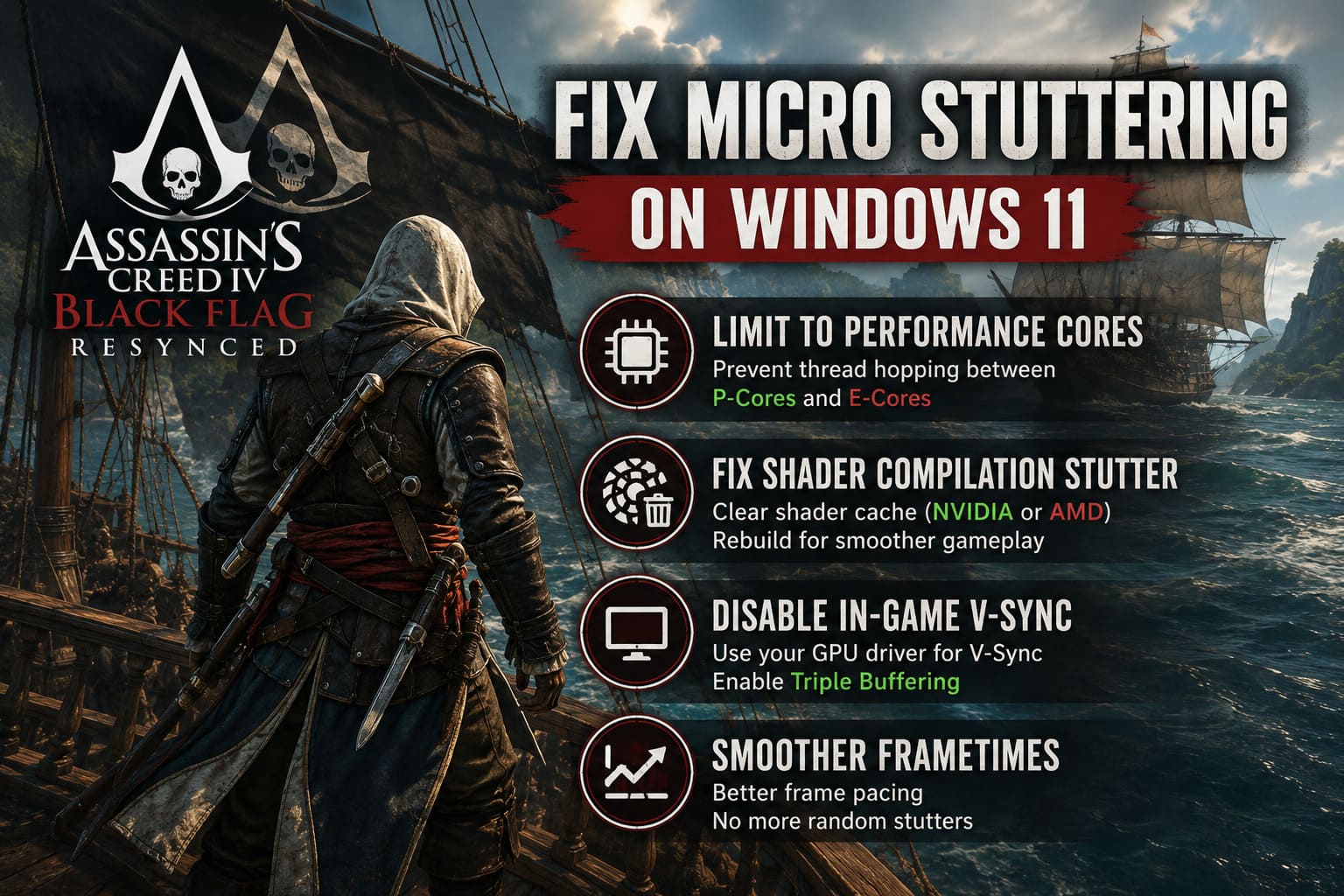
Black Flag Resynced appears to struggle with Windows moving game threads between P-Cores and E-Cores. Every time the scheduler decides to relocate workloads, frametimes spike.
The fastest way to test this:
- Launch the game.
- Open Task Manager using Ctrl + Shift + Esc.
- Open the Details tab.
- Find the game’s executable process.
- Right-click and choose Set Affinity.
- Disable the efficiency cores or limit the game to physical performance cores only.
The difference during ship battles was immediate on my system.
For a permanent solution, I strongly recommend using Process Lasso so you don’t have to repeat the process every launch.
Interestingly, a surprising number of players reported success simply enabling Windows Efficiency Mode for the process. Results vary, but it takes about ten seconds to test.
Shader Compilation Is Still A Problem In 2026
Modern PC gaming has somehow convinced us that shader compilation stutter is normal.
It shouldn’t be.
In Black Flag Resynced, shader caching appears particularly aggressive during entering major cities, boarding enemy ships, triggering cinematic transitions, and large explosions during naval combat.
If your stutters always happen in new areas and disappear after revisiting them later, shader compilation is almost certainly the culprit.
NVIDIA Users
Disable shader cache temporarily in the NVIDIA application or Control Panel, restart your PC, clear the cache folders, then re-enable shader caching with a generous size allocation.
Personally, I set mine to 100GB and forgot about it.
Storage is cheap. Stuttering isn’t.
AMD Users
AMD makes this much easier.
Open Adrenalin, navigate to Graphics settings, and use the built-in Reset Shader Cache button.
After rebuilding the cache, expect a few minutes of minor hitching during the first session. Once the shaders finish compiling, gameplay should stabilize significantly.
Turn Off The Game’s V-Sync Immediately
This was the second biggest improvement for me.
The built-in V-Sync implementation feels oddly inconsistent and introduces uneven frametimes even when frame rates remain stable.
Instead:
- Disable V-Sync inside the game.
- Enable V-Sync through your GPU driver profile.
- Turn on Triple Buffering if your driver allows it.
Allowing the driver to handle synchronization produces much smoother frame pacing than relying on the game’s implementation.
This approach has worked for PC ports for years, and Black Flag Resynced seems to be another example.
Frame Generation Can Actually Make Things Worse
Frame Generation is fantastic when implemented correctly.
This doesn’t always appear to be one of those cases.
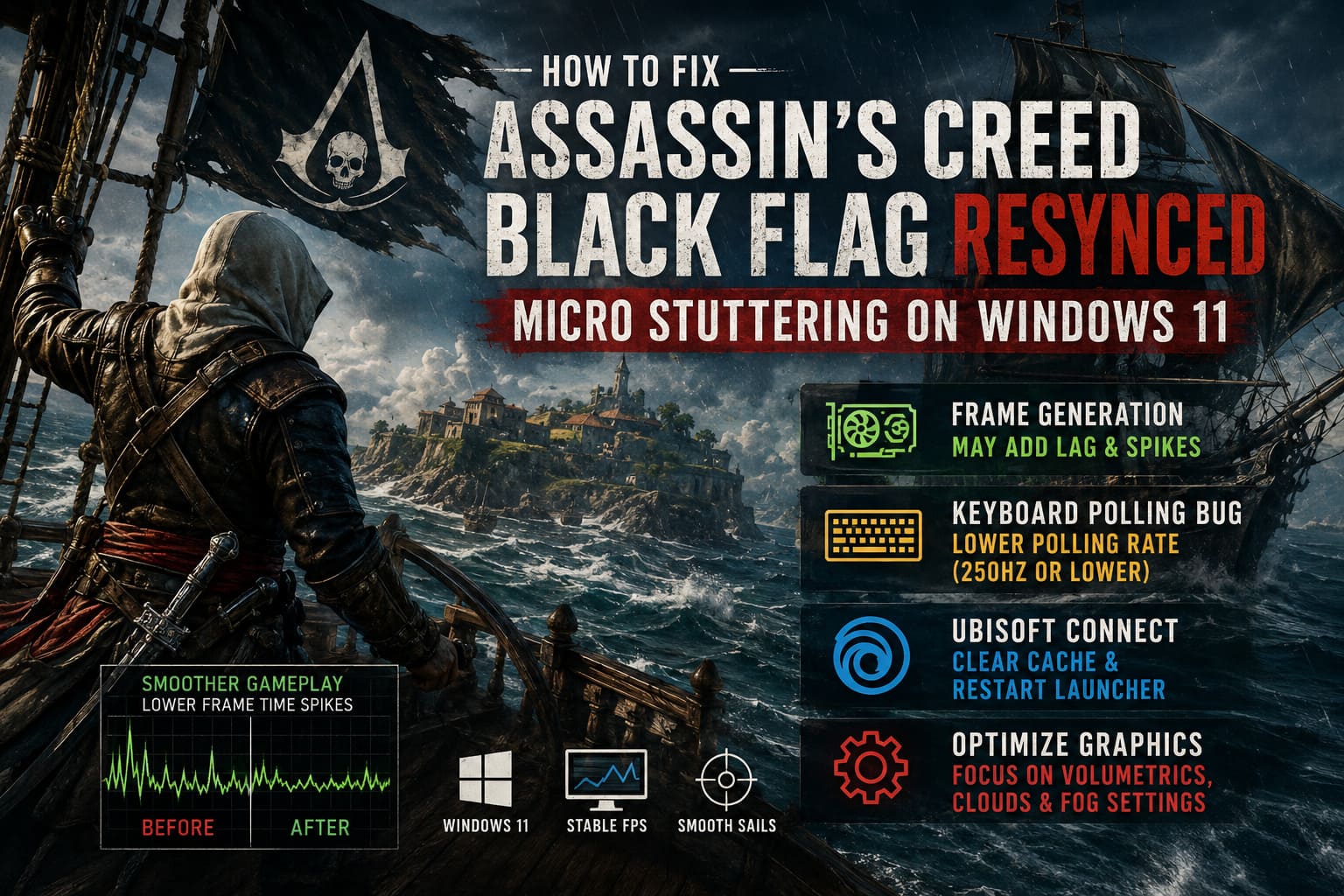
Several RTX owners noticed that enabling NVIDIA Frame Generation introduced additional latency and occasional frametime spikes during camera transitions and cutscenes.
Disabling it completely produced smoother gameplay despite technically lower frame rates.
That sounds backwards.
Welcome to PC gaming.
If your GPU supports alternative frame interpolation methods such as AFMF or FSR Frame Generation, they may actually perform better depending on your configuration.
The only real answer here is testing each option individually.
There is no universal winner.
The Keyboard Polling Bug Sounds Fake But Apparently Isn’t
This one genuinely made me laugh when I first read about it.
Some players discovered that holding movement keys causes brief drops in GPU utilization, while controller movement remains perfectly smooth.
Naturally, I assumed this was internet nonsense.
Then I tested it.
My frametime graph actually improved when using an Xbox controller.
If you’re using a gaming keyboard with polling rates of 1000Hz, 2000Hz, or even 4000Hz, try lowering it to 250Hz or 125Hz.
You probably won’t notice the difference in responsiveness, but the game engine certainly might.
Several users reported complete elimination of movement stutters after making this adjustment.
Ubisoft Connect Still Loves Getting In The Way
Every Ubisoft veteran knows the launcher can sometimes become part of the troubleshooting process.
Background synchronization, cloud save verification, and overlay communication occasionally create tiny interruptions that become visible as frametime spikes.
Clearing the launcher cache takes only a few minutes:
- Exit Ubisoft Connect completely.
- Rename the launcher cache folders instead of deleting them.
- Restart the launcher and allow it to rebuild fresh files.
This fix won’t magically double your FPS, but it can remove those random unexplained hitches that occur every few minutes.
Graphics Settings That Actually Matter
Most settings in modern games barely affect performance anymore.
A few still hit hard.
These were the biggest offenders on my system:
| Setting | Recommended Value | Reason |
|---|---|---|
| Volumetric Effects | Medium | Massive improvement during storms and fog. |
| Cloud Quality | High | Better frametime consistency while sailing. |
| Fog Quality | Medium | Improves 1% lows noticeably. |
| Ray Tracing | Standard | Prevents cutscene performance drops. |
| Ambient Occlusion | High | Nearly identical visuals with lower cost. |
| Screen Space Effects | High | Minimal visual difference from Ultra. |
The biggest visual gain per performance cost still comes from volumetrics.
Dropping this one setting often provides smoother sailing sequences immediately.
Driver Updates Matter More Than Usual Here
Normally I don’t recommend updating GPU drivers every single release.
For this game, I make an exception.
Both NVIDIA and AMD have already released several game-specific optimizations aimed directly at reducing shader compilation issues and improving frame pacing.
If you’re still running drivers from several months ago, update them before changing anything else.
It is the easiest fix on this list.
How to Fix Assassin’s Creed Black Flag Resynced D3D12 Error Device Removed Crash
The Settings Combination That Finally Worked For Me
After several evenings of testing, this ended up being my permanent setup:
- P-Cores only using Process Lasso.
- In-game V-Sync disabled.
- Driver-level V-Sync enabled.
- Frame Generation disabled.
- Shader cache rebuilt.
- Volumetrics reduced to Medium.
- Ubisoft Connect cache refreshed.
The result?
Average FPS barely changed.
My frametimes, however, became almost perfectly flat.
And honestly, that’s what actually matters.
A stable 90 FPS feels dramatically better than a wildly inconsistent 140 FPS.
How to Unlock FPS Limit in Assassin’s Creed Black Flag Resynced: Complete Guide
Final Thoughts
Assassin’s Creed Black Flag Resynced is one of those frustrating PC releases that can feel broken one moment and fantastic the next depending on a few hidden settings.
The irony is that many of the worst stuttering problems appear most often on high-end systems with modern CPUs and advanced features enabled. Older hardware sometimes avoids these issues entirely simply because it lacks the technologies causing the conflicts.
If you’re dealing with constant micro stuttering on Windows 11, start with CPU affinity adjustments and V-Sync changes first. Those two fixes alone solve the majority of cases.
Once the frametime graph finally smooths out and Edward starts gliding across rooftops instead of teleporting between frames, the experience transforms completely.
And honestly?
Black Flag still has some of the best naval combat ever made.
It deserves to be played without the engine fighting you every few seconds.