Invincible VS Input Lag Fix: PC Performance Guide (2026) – How to Reduce Latency and Boost FPS
If you’ve been grinding Invincible VS lately, you already know how insanely fun—and frustrating—it can be. The combat is fast, brutal, and super precise… at least it’s supposed to be. But if your inputs feel even slightly delayed, the whole experience falls apart.
I’ve spent dozens of hours tweaking settings, testing different setups, and digging through community discussions to figure out what actually works—not just theory, but real, noticeable improvements. This isn’t some generic checklist. This is what actually made my game feel instant and responsive.
Let’s get into it.
Why Input Lag Feels So Bad in Invincible VS
Fighting games punish delay harder than almost any other genre. In shooters, you might miss a shot. Here, you lose entire rounds.
When input lag hits in Invincible VS, you’ll notice combos dropping for no reason, blocks coming out too late, movement feeling heavy or delayed, and online matches feeling worse than they should.
The worst part is that sometimes your FPS is high, but the game still feels sluggish. That’s because input lag isn’t just FPS—it’s your entire system pipeline.
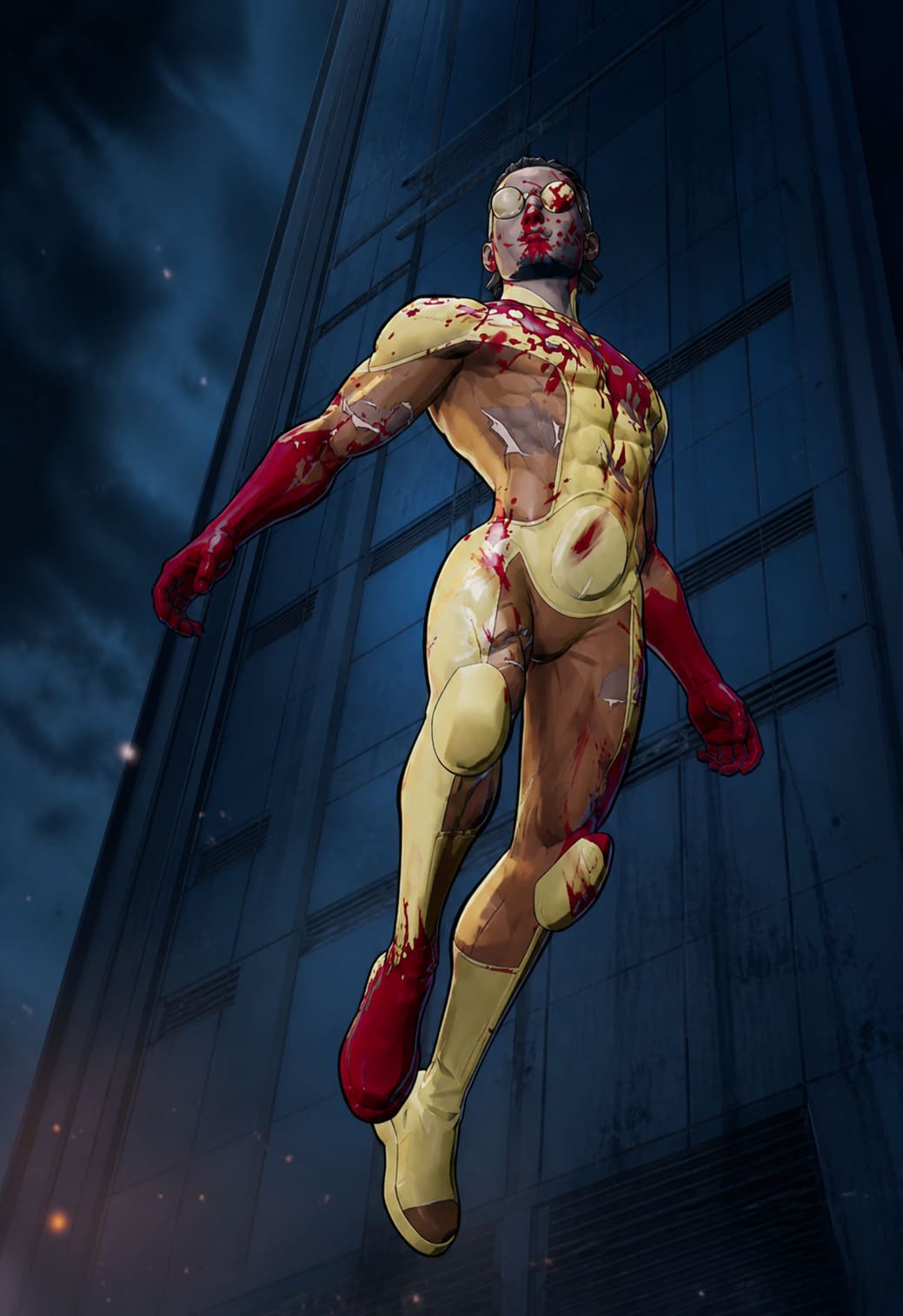
The Settings That Instantly Improved My Gameplay
Let’s start with the biggest wins. These gave me the most noticeable difference right away.
1. Switch to Exclusive Fullscreen (Non-Negotiable)
If you’re playing in Borderless Windowed, you’re already adding delay because Windows adds an extra layer that increases latency.
- Why it matters: Desktop Window Manager adds delay
- Fix: Set display mode to Exclusive Fullscreen
This alone made my inputs feel tighter within seconds.
2. Turn OFF V-Sync
I know screen tearing is annoying, but input lag is worse, and V-Sync introduces buffering that increases delay.
- Disable V-Sync completely
- Use G-Sync or FreeSync if available
This change alone can dramatically improve responsiveness.
3. Reduce In-Game Input Delay Settings
If you play online, you should aim for the lowest delay possible while keeping stability.
- Set delay to 0–2 for best responsiveness
- Increase only if connection is unstable
Lower delay gives faster inputs, while higher delay smooths visuals but slows response.
Invincible VS Secret Endings Guide 2026: How to Unlock Every Hidden Character Ending & Story Branch
GPU Tweaks That Actually Work (NVIDIA & AMD)
Modern GPUs have built-in latency tools, and they make a real difference when configured correctly.
NVIDIA Users
- Enable Reflex Low Latency set to On + Boost
- Set Low Latency Mode to Ultra in Control Panel
This reduces the render queue and makes your inputs appear on screen faster.
AMD Users
- Enable Anti-Lag+
- Disable Radeon Chill
Chill can create inconsistent frame timing, which feels like input lag even if FPS looks stable.
Invincible VS Steam Deck Optimization Guide: Best Settings for 60 FPS (2026 Update)
Windows 11 Tweaks That Made a Real Difference
Windows background processes can interfere with performance more than most players realize.
1. Test Hardware-Accelerated GPU Scheduling
This setting behaves differently depending on your system, so testing both ON and OFF is the best approach to find the most responsive feel.
2. Disable Background Recording
Background recording constantly buffers gameplay and can introduce stutter and delay.
- Disable Xbox Game Bar recording
- Disable NVIDIA Shadowplay Instant Replay
This frees up system resources and stabilizes frame pacing.
3. Use Ultimate Performance Mode
Unlocking and enabling Ultimate Performance ensures your CPU runs at full power without unexpected throttling.
powercfg -duplicatescheme e9a42b02-d5df-448d-aa00-03f14749eb61This helps maintain consistent performance during intense matches.
Hardware Fixes Most People Ignore
Sometimes the issue isn’t software but how your hardware is configured.
Wired > Wireless
Wireless setups can introduce occasional latency spikes, while wired connections provide consistent and reliable input and network performance.
Polling Rate Matters
Set your controller or mouse to a 1000Hz polling rate to ensure faster input updates and eliminate floaty feeling controls.
Check Your Monitor Refresh Rate
Make sure your system is actually using your monitor’s maximum refresh rate, as running at 60Hz instead of 144Hz or higher creates noticeable input delay.
Advanced Fixes (Only If You Still Have Issues)
If the game still doesn’t feel responsive, deeper system optimizations may help.
Verify Game Files
Corrupted files can cause stutters and inconsistent performance, so verifying game integrity can fix hidden issues.
Clean Install GPU Drivers
Using a clean install removes leftover driver conflicts and often resolves unexplained performance problems.
Set Game Priority
Setting the game to high priority ensures it gets CPU resources before background applications, improving consistency.
My Personal Zero Delay Setup
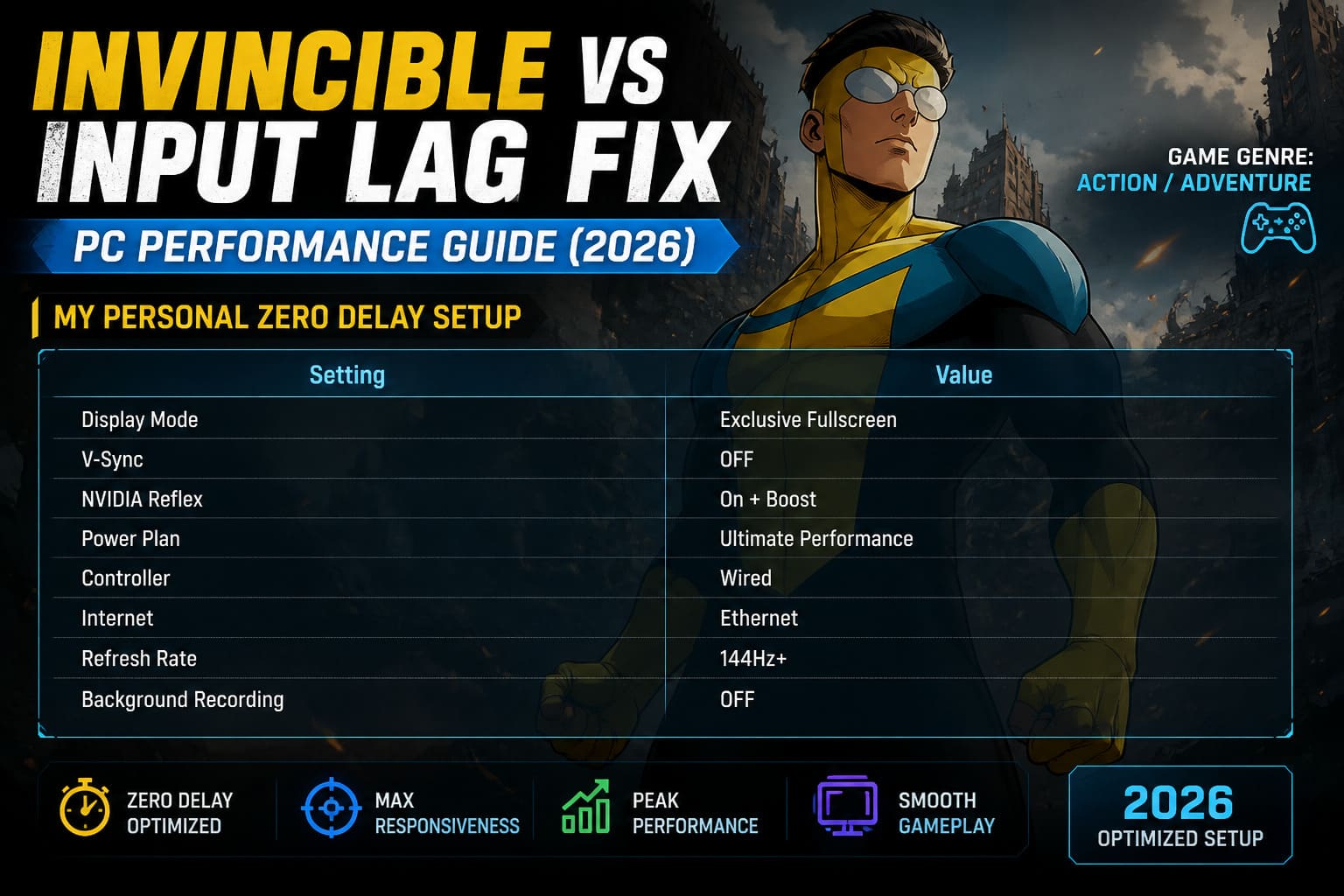
| Setting | Value |
|---|---|
| Display Mode | Exclusive Fullscreen |
| V-Sync | OFF |
| NVIDIA Reflex | On + Boost |
| Power Plan | Ultimate Performance |
| Controller | Wired |
| Internet | Ethernet |
| Refresh Rate | 144Hz+ |
| Background Recording | OFF |
With this setup, the game feels instant, responsive, and ready for competitive play.
Final Thoughts: It’s Not Just FPS—It’s Feel
A lot of players focus only on FPS, but in fighting games, input latency is far more important for performance and consistency.
You can have high FPS and powerful hardware, but still lose matches if your inputs are delayed.
After applying these tweaks, Invincible VS finally felt fast, sharp, and satisfying, exactly how it should be.
If something still feels off, don’t assume it’s just the game, because small system changes can completely transform your experience.
Quick Checklist
- Fullscreen enabled
- V-Sync disabled
- Reflex or Anti-Lag enabled
- Wired controller and Ethernet connection
- Background recording disabled