How to Fix Noir Bloom Controller Not Working: Gamepad Input Guide
Noir Bloom is the type of game that feels completely different when played with a controller. After spending hundreds of hours with fast-paced action games, precision shooters, and stylish combat titles, I can confidently say that this kind of gameplay was designed around a gamepad. Every dodge, shot, and movement decision depends on timing, and a controller provides the smooth response needed to enjoy the full experience.
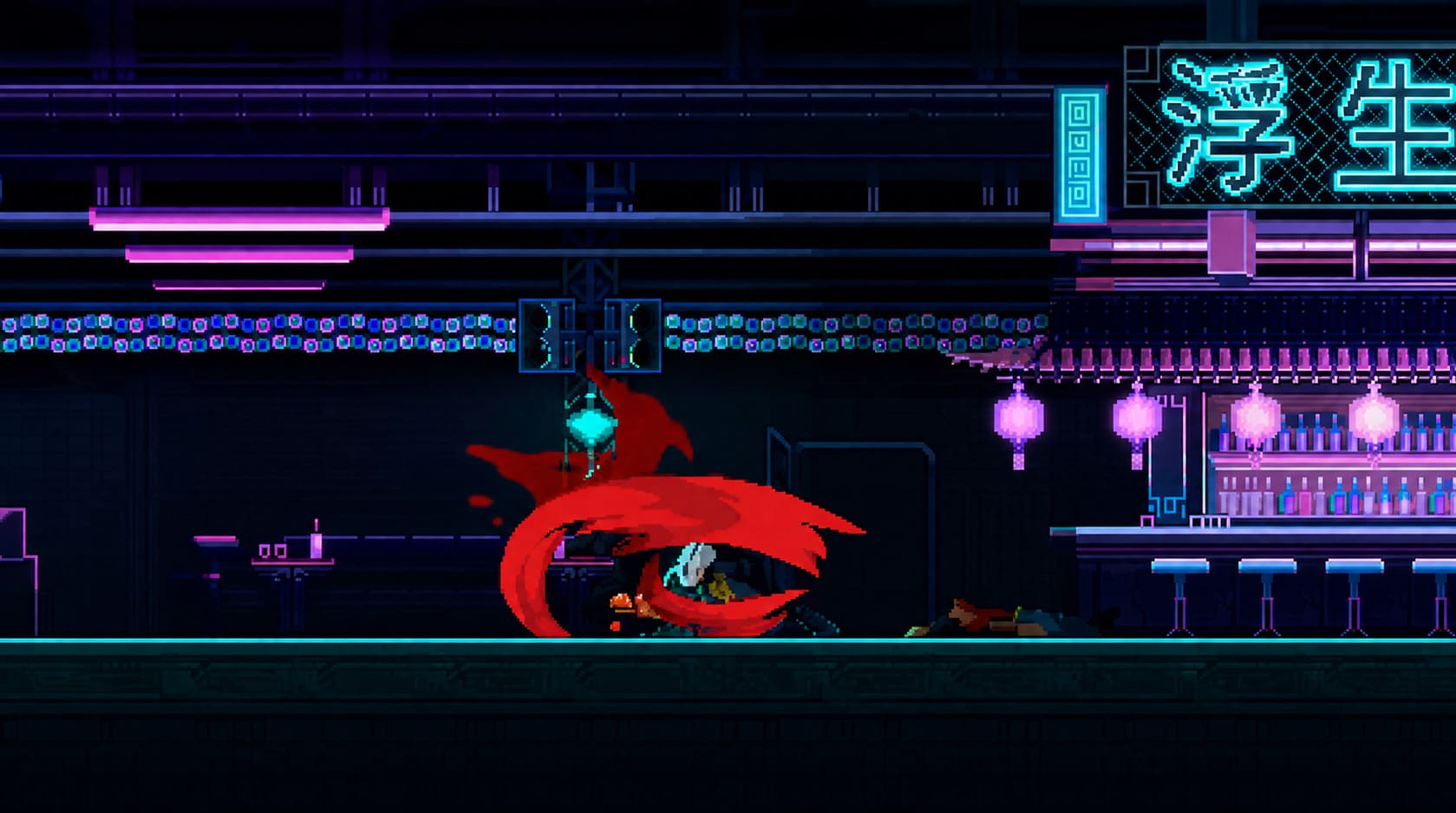
Developed by HONKI Games, Noir Bloom delivers intense 2D gun-fu action with fast reactions, aggressive movement, and stylish combat sequences. The game focuses on a constant flow of attacks and defensive maneuvers, creating an experience similar to other precision-based action games where every input matters. Because of this, playing with a keyboard and mouse can feel less natural compared to using a proper controller.
However, many PC players have encountered frustrating technical issues where the Noir Bloom controller is not working. Some users report that their Xbox controllers are not detected, PlayStation controllers have incorrect button layouts, or inputs randomly stop responding during combat. These problems can completely ruin the fast-paced rhythm that makes the game enjoyable.
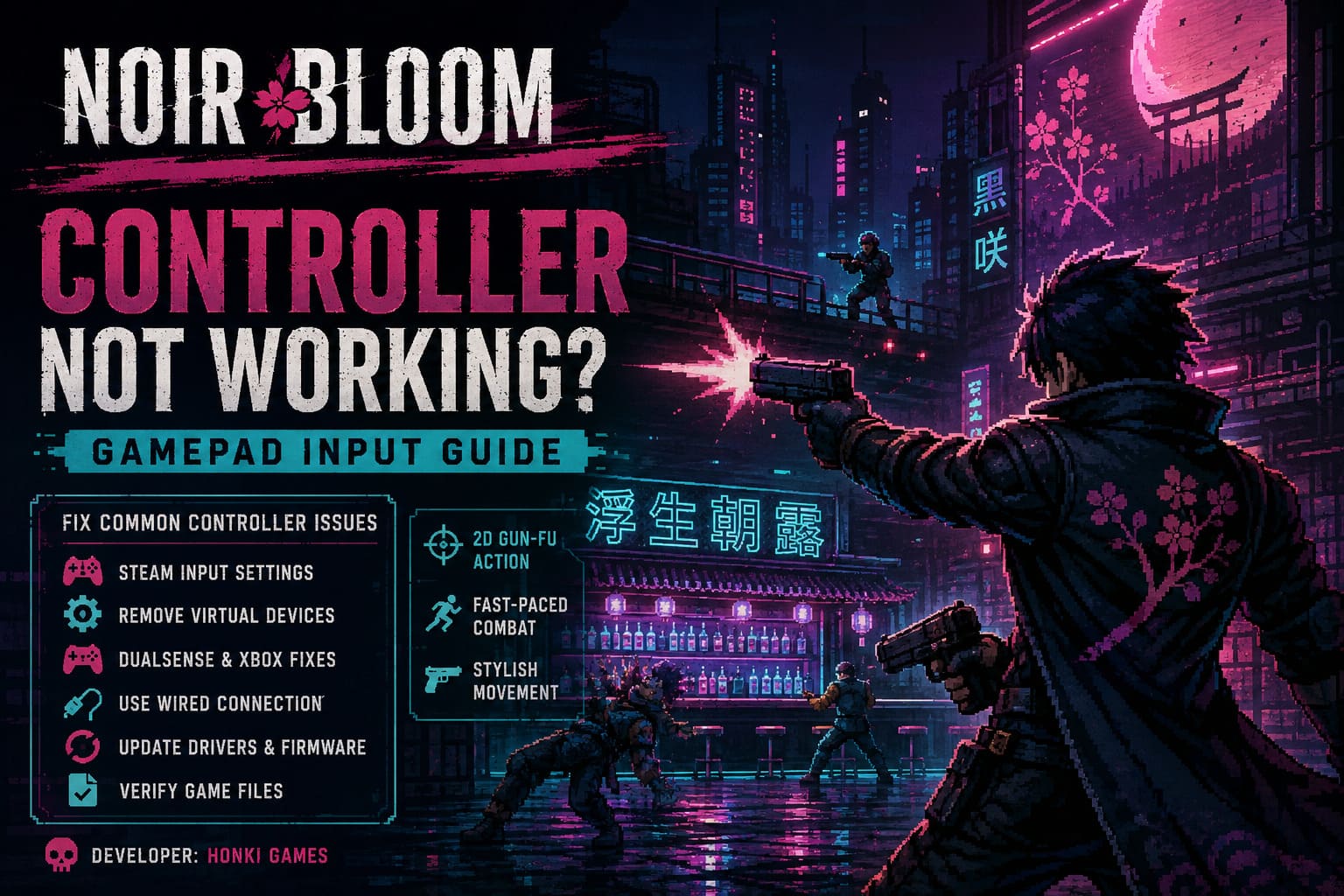
This guide covers the most effective solutions to fix Noir Bloom gamepad problems, including Steam Input adjustments, controller conflicts, PlayStation controller fixes, connection troubleshooting, and firmware updates.
How to Fix Noir Bloom Crashing on Startup on Steam (2026 Guide)
| Problem | Possible Cause | Recommended Fix |
| Controller completely not detected | Steam Input conflict | Change Steam Input settings |
| Wrong button layout | Incorrect controller profile | Adjust Steam or DS4Windows configuration |
| Game detects another device | Virtual controller interference | Disable ghost devices |
| Controller disconnects | Bluetooth instability | Use a wired USB connection |
| Random input problems | Old drivers or firmware | Update controller software |
Why Is Your Controller Not Working in Noir Bloom?
Before changing settings randomly, it helps to understand why Noir Bloom may fail to recognize your gamepad. Unlike consoles, where hardware is standardized, PC gaming has many different controller systems working together. Windows has to translate signals from Xbox controllers, PlayStation controllers, and third-party devices through different software layers.
In many cases, the problem is not the controller itself. The issue usually comes from a conflict between Steam settings, Windows device management, or additional programs installed on the computer.
The most common causes of Noir Bloom controller problems include:
- Steam Input conflicts where Valve’s controller system interferes with the game’s native support.
- Virtual controller devices created by emulators, remote-play programs, or mapping software.
- Outdated drivers or firmware causing incorrect button recognition.
- Bluetooth connection problems creating random disconnects or delayed inputs.
- Wrong controller priority where Windows detects another device as the main player controller.
Most of these problems can be fixed within a few minutes without reinstalling Noir Bloom or replacing your hardware.
Fix 1: Change Steam Input Settings for Noir Bloom
Steam Input is one of the biggest reasons controllers sometimes fail in PC games. Valve created this system to make almost any controller compatible, but it can occasionally interfere with games that already include their own controller support.
I have seen this happen with many indie action games. A controller works perfectly everywhere else, but one specific title refuses to recognize it because Steam Input and the game’s built-in system are competing with each other.
To change Steam Input settings:
- Open your Steam Library.
- Find NOIR BLOOM or Noir Bloom Demo.
- Right-click the game and select Properties.
- Open the Controller section.
- Find the option called Override for NOIR BLOOM.
- Change the setting to Enable Steam Input.
- Launch the game and test your controller.
If your controller still does not work, repeat the same steps and select Disable Steam Input instead. Some controllers perform better when they use the game’s direct input support instead of Steam’s translation system.
Fix 2: Remove Phantom Controllers and Virtual Devices
One of the strangest controller problems on PC happens when Windows detects devices that are not physically connected. These hidden devices can take control priority and prevent Noir Bloom from receiving input from your real controller.
This issue is especially common if you have previously installed emulator software, virtual joystick tools, or controller customization programs.
Disable Ghost Controller Devices
Follow these steps to remove conflicts:
- Disconnect your physical controller from the PC.
- Press Windows Key + X.
- Select Device Manager.
- Open the Human Interface Devices section.
- Look for entries such as HID-compliant game controller or Xbox controller devices that remain active.
- Disable suspicious virtual devices.
- Reconnect your controller and restart Noir Bloom.
It is usually better to disable these devices instead of uninstalling them because Windows may automatically reinstall them after restarting the system.
Fix 3: Configure Noir Bloom Through Steam Big Picture Mode
Steam Big Picture Mode is not only a different interface. It also changes how Steam manages connected controllers and background device detection. For some players, switching to this mode forces Steam to properly recognize the gamepad again.
To configure Noir Bloom through Big Picture Mode:
- Open Steam.
- Enter Big Picture Mode using the icon in the top-right corner.
- Open your Library.
- Select Noir Bloom.
- Open the controller settings menu.
- Select the correct controller layout.
- Apply the recommended configuration.
- Launch the game while staying in Big Picture Mode.
This solution is especially useful for Xbox Series controllers and PlayStation controllers that are detected incorrectly.
Fix 4: Solve DualSense and DualShock Controller Problems
PlayStation controllers are excellent devices, but Windows still favors Microsoft’s XInput standard. Because of this, some PC games have trouble recognizing DualSense and DualShock controllers correctly.
If your PlayStation controller does not work in Noir Bloom, a controller conversion tool may solve the issue by making Windows recognize it as an Xbox controller.
Common solutions include:
- DS4Windows
- DualSense controller compatibility tools
Adjust Controller Emulation Settings
Inside DS4Windows:
- Open the Profiles section.
- Edit your active controller profile.
- Navigate to controller settings.
- Find the Emulated Controller option.
- Switch between Xbox 360 and DualShock 4 profiles.
- Save changes and restart the program.
- Launch Noir Bloom again.
The correct option depends on your Steam Input settings and the controller model you are using.
Fix 5: Use a Wired Controller Connection
Wireless controllers are convenient, but Bluetooth can create unexpected problems. Signal interference, battery-saving features, and connection drops can make a controller appear broken when the real issue is communication between the device and Windows.
For troubleshooting, a wired connection is always the best first step.
- Turn off Bluetooth on your controller.
- Disconnect unnecessary USB devices.
- Avoid using cheap USB hubs.
- Connect the controller directly to your PC.
- Wait for Windows to recognize the device before launching Noir Bloom.
If the controller works perfectly with a cable, the problem is likely related to Bluetooth rather than the game itself.

Fix 6: Update Controller Firmware and Verify Game Files
Sometimes controller problems appear after system updates, Steam updates, or game patches. Corrupted files or outdated firmware can affect how input commands are processed.
Verify Noir Bloom Game Files
- Open Steam Library.
- Right-click Noir Bloom.
- Select Properties.
- Open Installed Files.
- Select Verify integrity of game files.
Steam will scan the installation and automatically replace damaged or missing files.
Update Controller Firmware
For Xbox controllers:
- Install the Xbox Accessories application.
- Connect the controller using USB.
- Check for available firmware updates.
For PlayStation controllers:
- Use Sony’s DualSense firmware updater.
- Connect the controller and install updates if available.
Noir Bloom Controller Troubleshooting Checklist
If you want to return to the action as quickly as possible, follow this order:
- Switch Steam Input between enabled and disabled.
- Remove unnecessary virtual controller devices.
- Launch Noir Bloom through Steam Big Picture Mode.
- Test the controller with a wired USB connection.
- Update controller firmware.
- Verify Noir Bloom files through Steam.
After applying these fixes, your controller should work correctly and allow you to experience Noir Bloom as intended. Fast movement, precise aiming, and perfectly timed attacks are the heart of the game, and a responsive controller makes a huge difference.
Once the technical problems are gone, Noir Bloom becomes the stylish action experience it was designed to be. The difference between struggling with broken inputs and smoothly executing combat combos is massive, and fixing your controller is the first step toward enjoying every part of its fast-paced gun-fu gameplay.