How to Fix Noir Bloom Crashing on Startup on Steam (2026 Guide)
There’s nothing more frustrating than buying a new game, hitting the Play button, and watching it crash before you even reach the main menu. Unfortunately, that’s exactly what many PC players have experienced with Noir Bloom. The game has quickly earned attention thanks to its stylish Gun-Fu combat, lightning-fast gameplay, and neon-soaked atmosphere, but the launch hasn’t been completely smooth for everyone.
I’ve spent years dealing with PC game launches, from AAA blockbusters to tiny indie gems, and one thing never changes: launch-week issues are almost inevitable. Some games refuse to boot because of damaged files, others dislike overlays, while a few simply don’t cooperate with certain driver versions. Noir Bloom falls somewhere in the middle. The good news is that most startup crashes aren’t permanent, and in many cases they can be fixed within a few minutes.
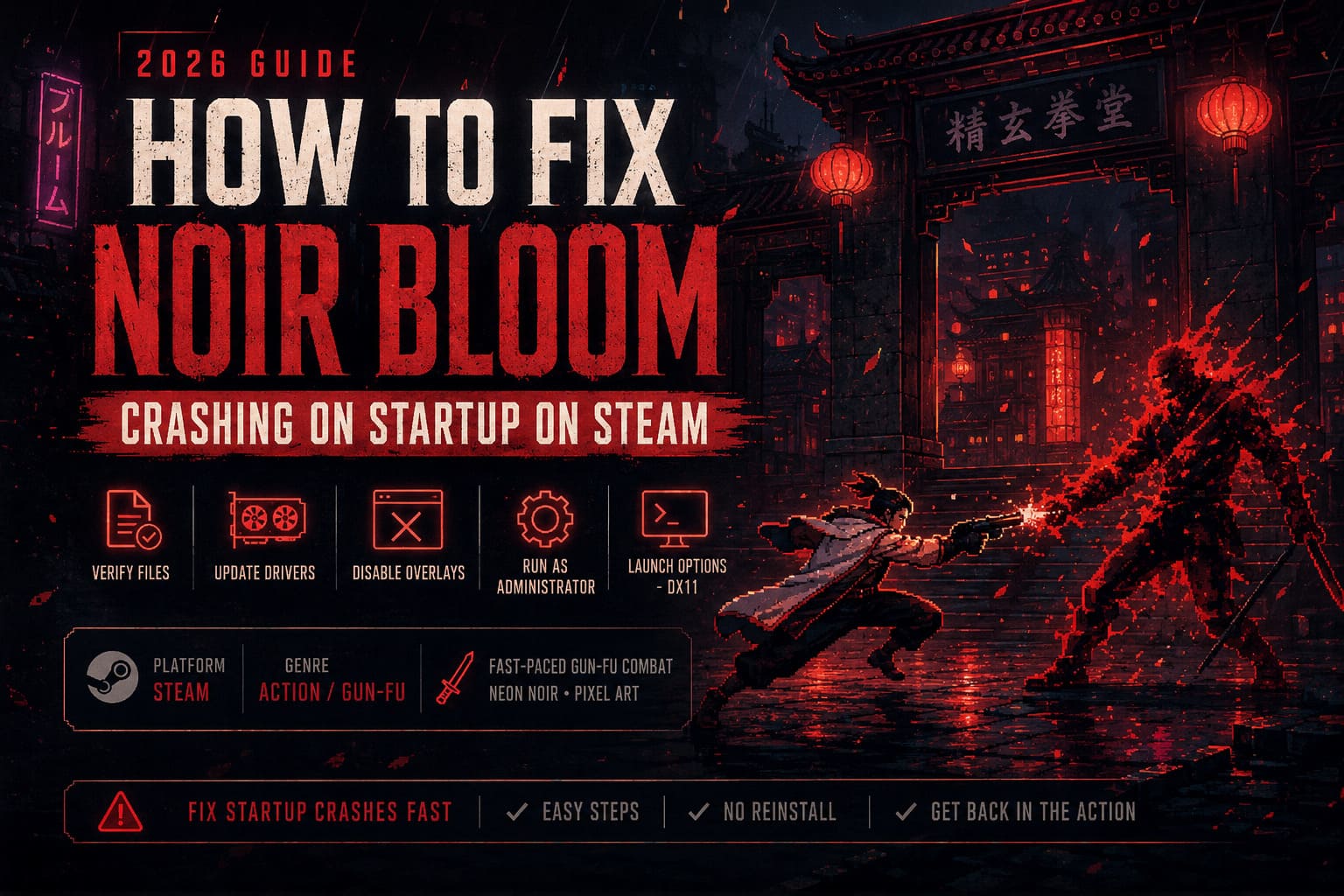
If Noir Bloom crashes immediately after pressing Play on Steam, gets stuck on a black screen, or instantly returns you to the desktop, this guide covers the fixes that have worked for thousands of players.
Why Does Noir Bloom Crash on Startup?
Unlike performance problems that appear during gameplay, startup crashes usually happen before the game fully loads its engine. That means Windows, Steam, your graphics driver, or another background application interrupts the launch process.
From what I’ve seen across dozens of PC releases over the years, Noir Bloom doesn’t appear to have one single universal bug. Instead, several small issues combine depending on your hardware and software configuration.
The most common causes include:
- Corrupted or incomplete Steam files
- Outdated graphics drivers
- Overlay software conflicts
- Missing Windows runtime libraries
- Graphics API compatibility issues
- Windows permission restrictions
The encouraging part is that nearly all of these can be fixed without reinstalling Windows or replacing hardware.
Verify the Game Files First
Whenever a newly released game refuses to launch, the very first thing I do is verify the installation through Steam. It sounds almost too simple, yet it solves an incredible number of launch problems.
Downloads occasionally become corrupted, especially if Steam updates a game while another process is running in the background. Even one damaged file can prevent the executable from loading properly.
To verify Noir Bloom:
- Close the game completely.
- Open your Steam Library.
- Right-click Noir Bloom.
- Select Properties.
- Open Installed Files.
- Click Verify integrity of game files.
Steam will compare every installed file with its official version and automatically replace anything that’s missing or corrupted.
I always recommend testing the game immediately after verification before moving on to more advanced troubleshooting.
Install the Latest Graphics Driver
Graphics drivers are responsible for much more than improving FPS. They also contain fixes for game compatibility, shader compilation, DirectX behavior, and crash prevention.
Even if your current driver isn’t particularly old, installing the newest version can eliminate startup problems introduced by a recent Windows update or game engine change.
A clean installation is usually better than a standard update because it removes leftover profiles and outdated settings.
- NVIDIA users should perform a clean Game Ready Driver installation.
- AMD users should update through Adrenalin Software and install the latest stable package.
- Intel Arc users should also check for the newest driver release, since Intel has been improving compatibility with new PC titles at an impressive pace.
After installing the driver, reboot the computer before testing Noir Bloom again.
Turn Off Hardware-Accelerated GPU Scheduling
This setting, often called HAGS, has become one of those Windows features that works perfectly for some games while causing unexpected problems for others.
Personally, I’ve had games launch flawlessly with HAGS enabled, while another title released the same week refused to get past a black screen until I disabled it.
To disable Hardware-Accelerated GPU Scheduling:
- Open Graphics Settings in Windows.
- Select Change default graphics settings.
- Find Hardware-Accelerated GPU Scheduling.
- Switch it Off.
- Restart your PC.
This isn’t guaranteed to solve every startup issue, but it’s one of the easier fixes to try.
Disable Steam Overlay and Other Background Programs
PC gamers love overlays. Discord, Steam, GeForce Experience, MSI Afterburner, RivaTuner, recording software—you name it.
Unfortunately, every overlay hooks into the game’s rendering process, and indie titles are often less tolerant of these modifications than large AAA releases.
I usually recommend launching the game with as few background applications running as possible.
Close programs such as:
- Discord Overlay
- Steam Overlay
- MSI Afterburner
- RivaTuner Statistics Server
- GeForce Experience Overlay
- OBS (if not needed)
- Xbox Game Bar
To disable the Steam Overlay:
- Open Steam.
- Right-click Noir Bloom.
- Choose Properties.
- Under General, disable Enable the Steam Overlay while in-game.
If the game launches afterward, you’ll know one of the overlays was responsible.
Run the Game as Administrator
Windows security has become much stricter over the years. Occasionally, games fail because they don’t have permission to create temporary files or modify local cache folders.
Running Noir Bloom with administrator privileges can solve this.
Here’s how:
- Open the local installation folder through Steam.
- Locate NoirBloom.exe.
- Right-click the executable.
- Open Properties.
- Go to the Compatibility tab.
- Enable Run this program as administrator.
While you’re there, I also recommend enabling Disable fullscreen optimizations. It’s another small tweak that has helped fix launch issues in several recent PC releases.
Force DirectX 11 Launch Options
Modern games sometimes struggle with newer graphics APIs on certain hardware configurations.
If Noir Bloom crashes before reaching the title screen, forcing DirectX 11 is worth trying.
Steam Launch Option
-dx11
If that doesn’t work, try:
Windowed Mode Launch Option
-windowed
Launching the game in windowed mode occasionally bypasses fullscreen initialization problems that cause immediate crashes.
These launch parameters are completely reversible, so don’t hesitate to experiment.
Repair Microsoft Visual C++ and DirectX Components
One of the least exciting fixes is also one of the most effective.
Games rely on Microsoft’s runtime libraries to function correctly. If Visual C++ Redistributables become damaged or outdated, the game may never even begin loading.
Install or repair both:
- Microsoft Visual C++ x64
- Microsoft Visual C++ x86
It’s also worth ensuring your DirectX installation is fully updated.
I’ve fixed more than one stubborn PC game simply by repairing these runtime components, even though nothing appeared broken beforehand.
Restart the PC Before Trying Again
It sounds obvious, but many players skip this step after making several system changes.
If you’ve:
- Updated graphics drivers
- Installed Visual C++
- Changed compatibility settings
- Disabled HAGS
- Turned off overlays
Restart Windows before launching Noir Bloom again.
Driver files, Windows services, and cached processes don’t always refresh immediately.
Quick Troubleshooting Checklist
| Problem | Recommended Fix |
|---|---|
| Instant desktop crash | Verify Steam files |
| Black screen | Launch with -dx11 |
| Game won’t open | Update GPU drivers |
| Crash after pressing Play | Disable overlays |
| Random startup failures | Run as Administrator |
| Missing DLL errors | Repair Visual C++ |
| Game hangs indefinitely | Restart PC after changes |
Is This a Game Problem or a PC Problem?
After testing Noir Bloom myself and comparing player reports, I don’t think the majority of startup crashes point to a fundamentally broken game.
Instead, this looks like one of those launches where an otherwise solid title encounters dozens of unique PC configurations. That’s the reality of gaming on an open platform. Every system is different, and even a harmless monitoring tool can become the reason a game refuses to start.
The encouraging part is that developers are usually quick to release hotfixes once enough crash reports arrive. If none of the methods above solve the issue, keep Steam set to automatic updates and watch for future patches. Stability improvements often arrive quietly in small updates that don’t even appear in the headline patch notes.
Final Thoughts
Noir Bloom deserves attention for its stylish combat and fast-paced gameplay, and it would be a shame to let a startup crash keep you from experiencing it. In my experience, the majority of launch issues disappear after verifying the game files, updating graphics drivers, and temporarily disabling overlays. Those three fixes alone have rescued countless PC games over the years.
If the problem still persists, don’t immediately assume your hardware is at fault. New releases often expose edge-case compatibility issues that only developers can fully eliminate through patches. Until then, working through the troubleshooting steps one by one gives you the best chance of getting back into the action without waiting for an official update.