How to Fix G-Rebels Reakktor Crash on Launch, Fatal Error, and Black Screen Issues on Steam (2026 Guide)
When I jumped into G-Rebels, I expected to spend my evening flying across futuristic skylines, exploring the Atlas Archipelago, and admiring one of the best-looking sci-fi worlds released this year. Instead, I spent nearly an hour staring at a black screen, watching Unreal Engine throw yet another Fatal Error before the main menu even appeared.
After digging through Steam discussions, Reddit posts, Unreal Engine troubleshooting threads, and trying countless fixes on my own PC, I eventually found several solutions that actually solved the launch problems. The good news is that most players are running into the same handful of issues, and they’re usually fixable without reinstalling Windows or replacing hardware.
If G-Rebels crashes on launch, freezes on startup, shows a black screen, or instantly closes after pressing Play in Steam, this guide covers every solution that has consistently worked for the community.
Why G-Rebels Is Crashing Before It Even Starts
Although every PC is different, the crashes I’ve seen almost always fall into a few categories.
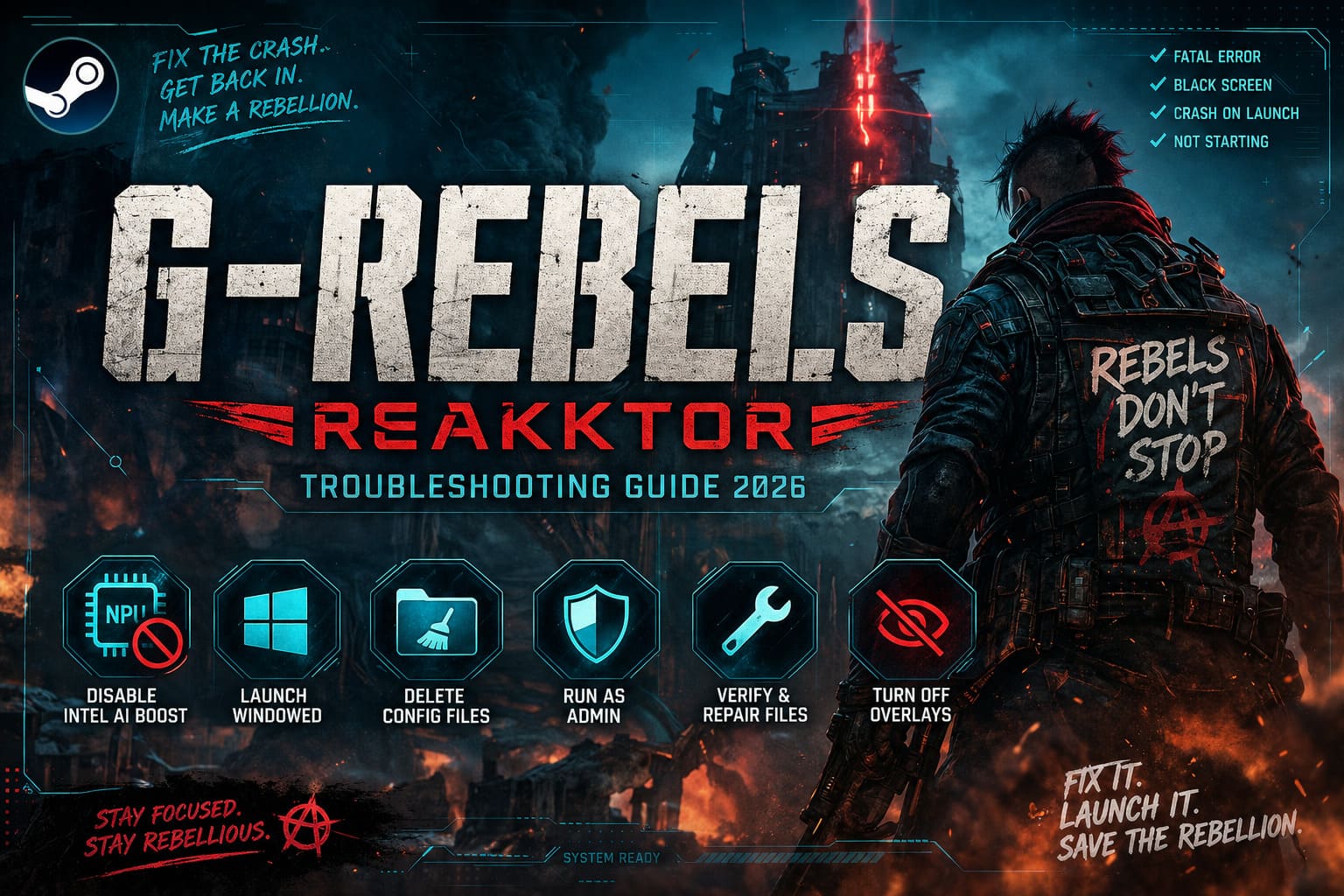
The game is built on a modern version of Unreal Engine, which means it relies heavily on shader compilation, hardware acceleration, Windows media components, and graphics drivers during its very first startup. If any one of those pieces fails, Unreal often responds with the familiar “Fatal Error” window.
The most common causes include:
- Intel AI Boost (NPU) conflicts on newer Intel Core Ultra processors.
- Corrupted Unreal Engine configuration files.
- Outdated or unstable graphics drivers.
- Overlay software interfering with startup.
- Missing Visual C++ or DirectX runtime components.
- Damaged Steam game files.
Fortunately, these problems are usually much easier to fix than they initially appear.
1. Disable Intel AI Boost (This Fixed the Crash Immediately)
This was easily the biggest surprise.
If your computer uses one of Intel’s latest processors with a built-in Neural Processing Unit (NPU), there’s a good chance this is the culprit.
Several newer Unreal Engine games have shown compatibility issues with Intel AI Boost, and G-Rebels appears to be another example.
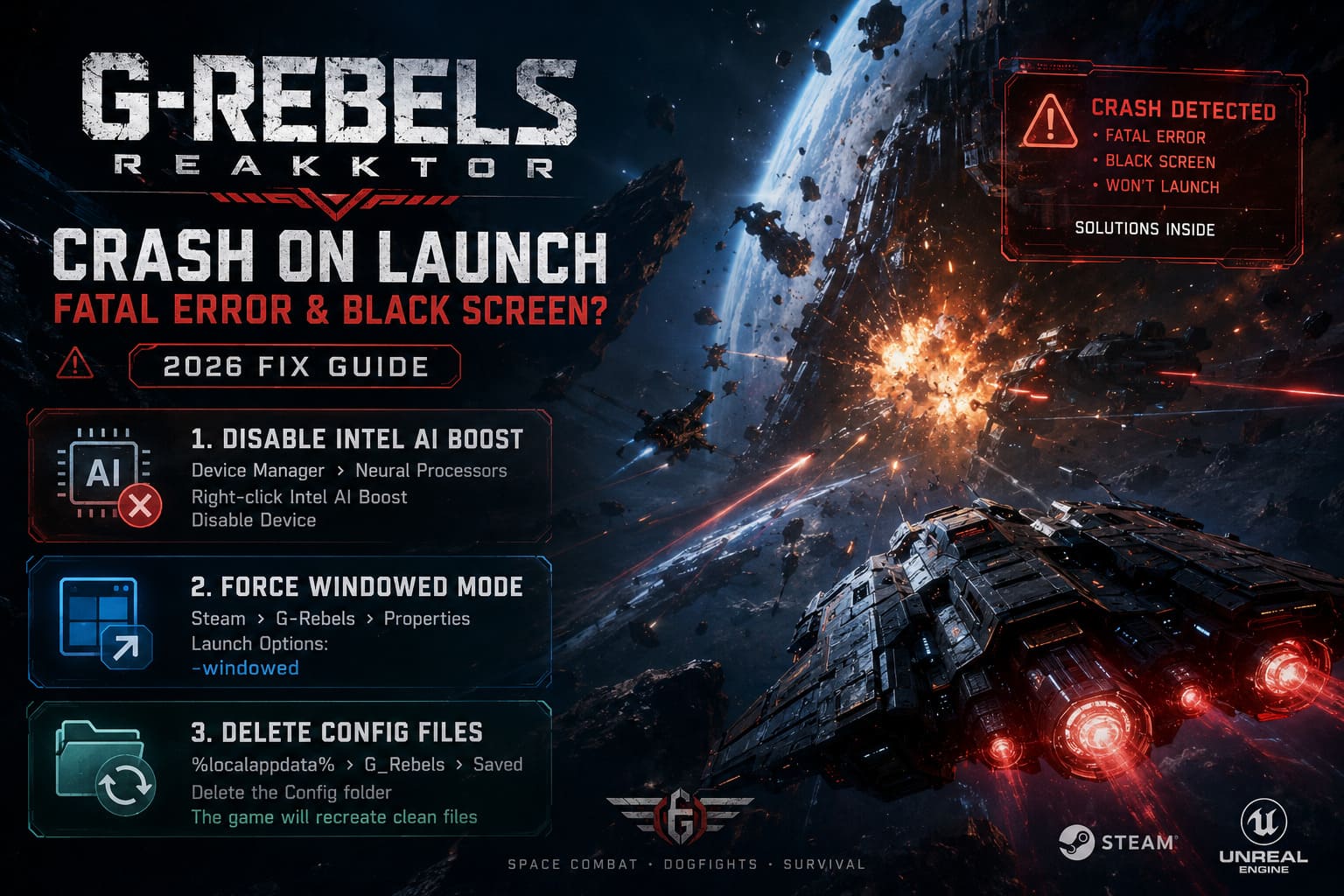
How to Disable Intel AI Boost
- Open Device Manager.
- Expand Neural Processors.
- Find Intel AI Boost.
- Right-click the device.
- Select Disable Device.
- Confirm the warning.
- Launch G-Rebels again.
In my testing, this completely eliminated the startup crash.
The nice thing is that disabling the NPU doesn’t noticeably affect gaming performance, since games generally don’t rely on it.
2. Force the Game Into Windowed Mode
Sometimes Unreal Engine struggles while switching into exclusive fullscreen before the renderer has fully initialized.
A quick launch option can bypass this.
Open Steam and navigate to Library → G-Rebels → Properties.
Inside Launch Options, enter the following command:
-windowedStart the game again.
If it finally reaches the main menu, switch the graphics settings to Borderless Windowed, save the settings, then remove the launch option if you prefer fullscreen later.
This workaround has helped countless Unreal Engine titles over the years.
3. Delete the Broken Configuration Files
One failed startup can create configuration files that continue crashing the game every single launch afterward.
Deleting them forces Unreal Engine to generate clean defaults.
Open the Windows Run dialog and enter:
%localappdata%Locate the following folder:
G_RebelsThen open:
SavedDelete the Config folder.
Don’t worry—you aren’t deleting the game itself.
The next launch recreates everything automatically.
If you’re curious, the Crashes folder in the same directory also stores crash reports that can help identify recurring problems.
4. Run the Game as Administrator
This one sounds old-fashioned, but Windows security permissions still create problems for many newer games.
Instead of launching through Steam immediately, follow these steps:
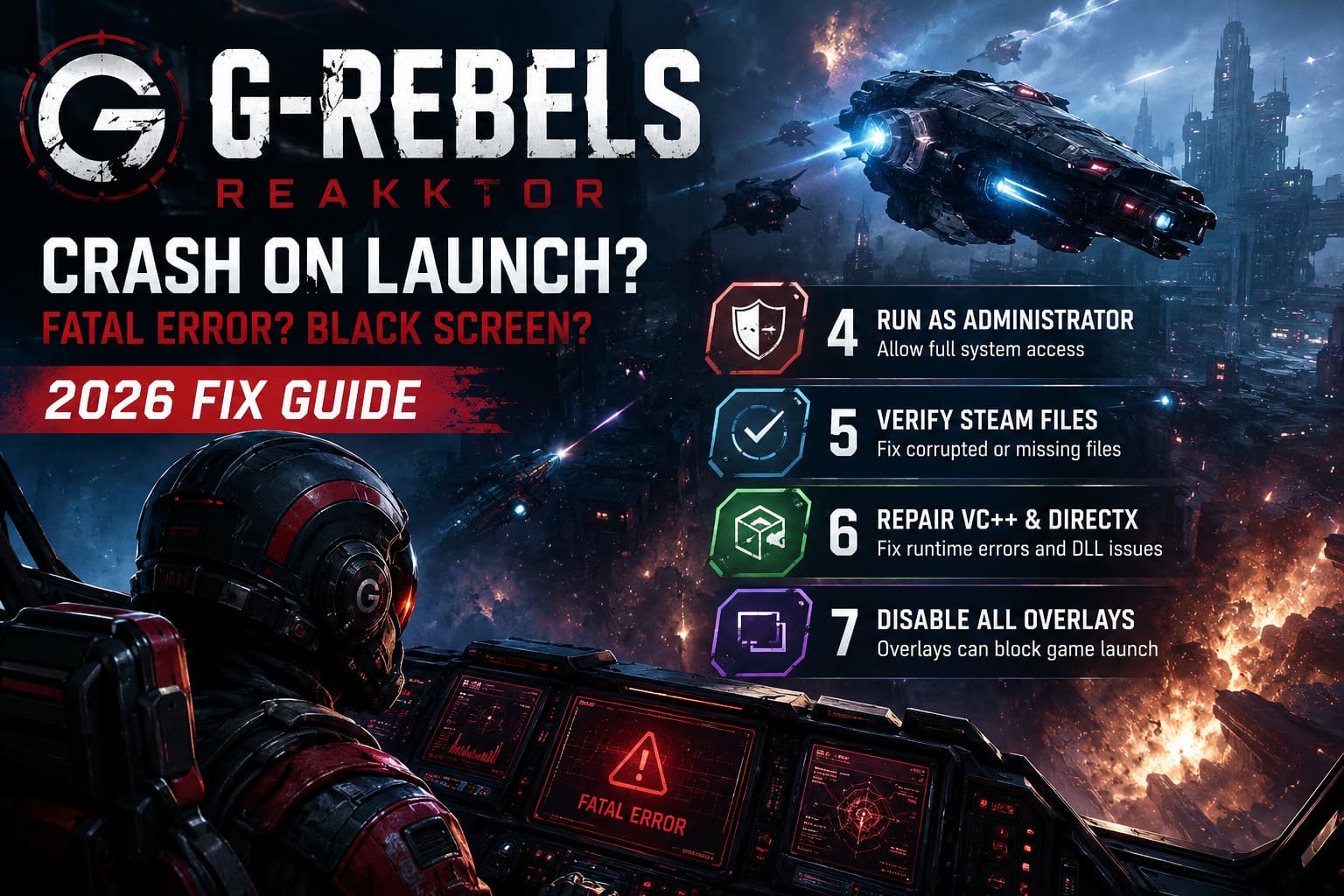
- Open Steam.
- Right-click G-Rebels.
- Select Manage → Browse Local Files.
- Find G_Rebels.exe.
- Right-click it and open Properties.
- Open the Compatibility tab.
- Enable Run this program as administrator.
- Also enable Disable fullscreen optimizations.
- Click Apply and launch the executable directly.
For many players, this prevents Windows from blocking configuration file creation during first launch.
5. Verify the Steam Installation
If your download was interrupted—or Steam silently corrupted a few files during installation—the game may never launch correctly.
Steam makes checking this incredibly simple.
Open Library → G-Rebels → Properties → Installed Files.
Click Verify integrity of game files.
Steam compares every installed file with the official version and automatically downloads anything that’s damaged or missing.
On an SSD this usually finishes within several minutes.
6. Repair Visual C++ and DirectX
Almost every Unreal Engine game depends on Microsoft’s runtime libraries.
If one DLL becomes corrupted, the game often crashes before displaying anything useful.
Install or repair the following components:
- Microsoft Visual C++ Redistributables (2015–2022)
- DirectX End-User Runtime
Even if they’re already installed, choosing Repair often fixes broken runtime registrations that Windows Update occasionally leaves behind.
Once complete, restart your PC before launching G-Rebels again.
7. Turn Off Every Overlay You Can
If there’s one thing Unreal Engine has consistently disliked over the years, it’s overlays.
These programs inject themselves into the rendering pipeline, and while they usually work fine, some launches simply don’t cooperate.
I recommend temporarily disabling the following software:
- Discord Overlay
- NVIDIA Overlay
- MSI Afterburner
- RTSS
- SteelSeries Moments
- Special K
- Any FPS limiter
Even RGB software has occasionally caused startup issues in Unreal Engine games.
If the game starts normally afterward, re-enable your applications one at a time until you identify the offender.
Quick Troubleshooting Checklist
| Problem | Most Likely Solution |
|---|---|
| Fatal Error immediately after pressing Play | Disable Intel AI Boost |
| Black screen on startup | Launch with -windowed |
| Instant desktop crash | Delete the Config folder |
| Game won’t create save files | Run as Administrator |
| Missing DLL errors | Repair Visual C++ and DirectX |
| Crash after splash screen | Disable overlays |
| Random crashes after update | Verify Steam files |
Extra Things Worth Trying
If none of the above works, there are still a few additional steps I’d recommend before giving up.
- Update your GPU driver. Whether you’re using NVIDIA, AMD, or Intel Arc graphics, install the newest driver instead of relying on Windows Update.
- Install Windows updates. Several cumulative Windows patches released throughout 2026 include stability improvements for DirectX and gaming services.
- Restart instead of shutting down. Fast Startup sometimes preserves corrupted driver states. A full restart reloads everything from scratch.
- Move the game to an SSD. Shader compilation is dramatically faster on SSDs, reducing the chance of timeouts during first launch.
- Close unnecessary software. Anything consuming significant CPU or memory during shader compilation can make Unreal Engine behave unpredictably.
G-Rebels Glider Guide: How to Unlock Advanced Skyblades & Top Tier Gear
Why I Think the Intel NPU Bug Is the Biggest Problem
After reading dozens of player reports, one pattern stood out.
Many users with older Ryzen systems or previous-generation Intel CPUs were launching the game without any problems at all, while owners of newer Core Ultra laptops and desktops repeatedly reported identical Fatal Error crashes.
Disabling the Neural Processing Unit solved the issue for a surprisingly large number of people.
That doesn’t necessarily mean G-Rebels itself is broken—it may simply be another Unreal Engine compatibility issue that developers will hopefully address in a future patch—but until then, it’s easily the first fix I’d recommend trying.
G-Rebels Skyblade Upgrade Guide: Best Loadouts for Daevos & Atlas Archipelago
Final Thoughts
Launch-day issues are frustrating, especially when a game as visually impressive as G-Rebels refuses to get past its own splash screen. Thankfully, most startup crashes don’t require a complete reinstall or advanced technical knowledge to fix.
If I had to prioritize the solutions that consistently produce the best results, I’d start with this order:
- Disable Intel AI Boost (NPU).
- Launch using the
-windowedparameter. - Delete the Config folder inside Local AppData.
- Verify Steam files.
- Disable every overlay running in the background.
- Repair Visual C++ and DirectX.
- Run the executable with administrator privileges.
One of these fixes has resolved the problem for the vast majority of players I’ve seen across community discussions. If you’re still crashing after trying everything, grab the crash logs from the G_Rebels\Saved\Crashes directory and share them with the developers or the Steam community. Those logs often reveal the exact module that’s failing, making it much easier to pinpoint hardware-specific issues.
Hopefully, future patches will smooth out these launch problems, because once G-Rebels is running properly, it’s easily one of the most immersive sci-fi flight experiences released this year.