Moss The Forgotten Relic Low FPS, Lag, and Stuttering: PC Optimization Guide
When I first launched Moss: The Forgotten Relic, I expected a relaxing adventure with beautiful handcrafted environments and smooth cinematic gameplay. Instead, I immediately noticed something that has become all too common with modern PC releases: random frame drops, shader stutters, and inconsistent frame pacing.
The strange thing is that the game doesn’t constantly perform badly. During quiet exploration it can run wonderfully, but once new environments load, magical effects fill the screen, or the camera shifts into larger diorama scenes, performance can suddenly become unstable. After spending several hours experimenting with settings and comparing results with discussions from other PC players, I found a combination of tweaks that noticeably improved the overall experience.
If you’re trying to make Moss: The Forgotten Relic feel smoother without sacrificing its gorgeous art style, these are the adjustments I genuinely recommend.
Why Does Moss: The Forgotten Relic Stutter?
One thing I quickly realized is that this isn’t simply a “your PC is too weak” problem.
The game features highly detailed environments, dynamic lighting, cinematic camera transitions, and continuous texture streaming. Those elements create beautiful scenes, but they also put unexpected pressure on both the GPU and CPU.
In my experience, most stuttering comes from three areas:
- Shader compilation when entering new locations.
- Texture streaming while moving between large scenes.
- Heavy particle effects during magical sequences and combat.
Even fairly powerful gaming PCs may experience brief hiccups, especially during the first playthrough of each area.
Check Your Hardware Before Chasing Settings
Before changing every graphics option, make sure your hardware isn’t creating the bottleneck.
An SSD makes a surprisingly big difference here. Players running the game from older HDDs often experience delayed asset loading, which feels like random FPS drops.
Here’s a quick overview.
| Component | Recommended Experience |
|---|---|
| CPU | Modern 6-core processor or better |
| RAM | 16 GB preferred |
| GPU | GTX 1070 / RX Vega 56 minimum, newer GPUs recommended |
| Storage | SSD strongly recommended |
| API | DirectX 12 compatible |
If your graphics card only has around 6 GB of VRAM, lowering texture-heavy settings can dramatically improve consistency.
Graphics Settings That Actually Help
I usually avoid dropping everything to Low because Moss deserves to be enjoyed visually. Fortunately, several options improve performance far more than others.
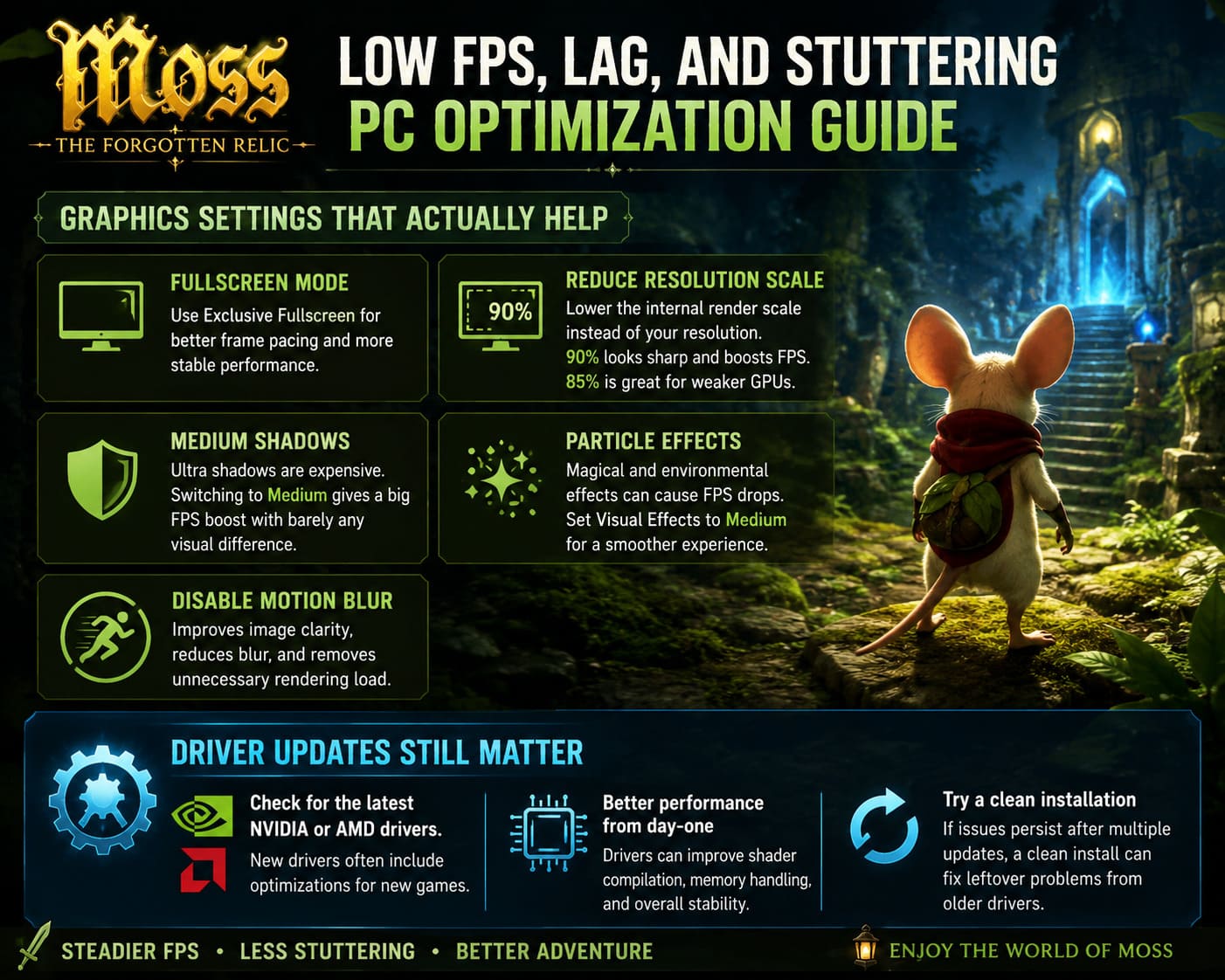
Fullscreen Mode
This was the very first change I made.
Exclusive Fullscreen generally provides more stable frame pacing than Borderless Windowed on my system. Windows seems to prioritize GPU resources more effectively, especially when background applications are running.
Reduce Resolution Scale Before Native Resolution
Instead of lowering your monitor resolution, reduce the internal render scale slightly.
Running at 90% resolution scale still looks surprisingly sharp while giving the GPU noticeably less work.
For weaker graphics cards, 85% often provides an excellent balance.
Medium Shadows Are Worth It
Ultra-quality shadows are expensive.
Honestly, after switching from Ultra to Medium, I barely noticed the visual difference during gameplay, but my average FPS improved immediately in larger environments.
This is probably the single biggest visual setting I’d recommend lowering first.
Particle Effects Can Hurt Performance
Magical attacks, glowing portals, floating particles, and environmental effects look fantastic, but they’re also among the biggest GPU killers.
Setting Visual Effects to Medium keeps the presentation attractive while reducing sudden frame drops during action-heavy scenes.
Disable Motion Blur
I’ve never been a fan of aggressive motion blur in games.
Besides making the image softer, it also adds unnecessary rendering work.
Turning it off made movement feel much cleaner, especially during fast camera transitions.
Driver Updates Still Matter
Normally I don’t rush to install every graphics driver on release day.
However, for newly launched games it’s worth checking.
Both NVIDIA and AMD frequently release optimizations that improve shader compilation, memory management, and overall stability during the first few weeks after launch.
If you’ve updated drivers multiple times without success, performing a clean installation can sometimes eliminate strange performance issues left behind by older versions.
Windows Tweaks That Gave Me Better Results
Some improvements came from Windows itself rather than the game.
The changes below aren’t magic fixes, but together they noticeably improved consistency.
I recommend trying:
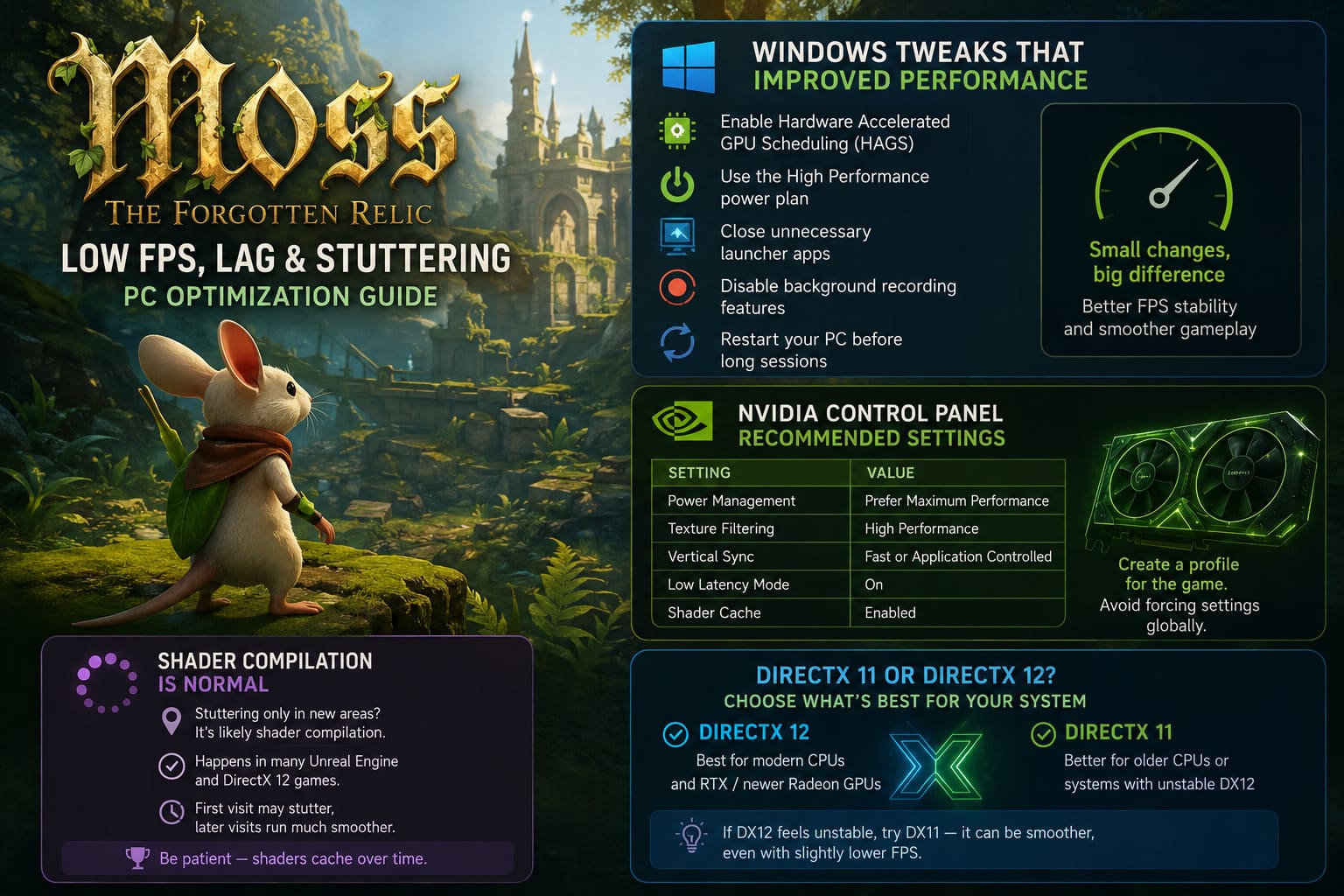
- Enable Hardware Accelerated GPU Scheduling (HAGS).
- Switch Windows to the High Performance power plan.
- Close unnecessary launcher software before starting the game.
- Disable background recording features if you never use them.
- Restart the PC before long gaming sessions.
Individually these changes may only add a few frames, but combined they help reduce inconsistent frame pacing.
NVIDIA Control Panel Settings I Prefer
For NVIDIA users, a few driver-level options are worth changing specifically for Moss.
My preferred setup looks like this:
| Setting | Recommended Value |
|---|---|
| Power Management | Prefer Maximum Performance |
| Texture Filtering | High Performance |
| Vertical Sync | Fast or Application Controlled |
| Low Latency Mode | On |
| Shader Cache | Enabled |
I generally avoid forcing every driver option globally. Creating a profile specifically for the game is a much cleaner approach.
Shader Compilation Is Probably Not Your Fault
This deserves its own section because many players assume something is wrong with their hardware.
If the game stutters only when entering a brand-new area—and then runs smoothly afterward—that’s usually shader compilation.
I’ve seen this behavior in many Unreal Engine and DirectX 12 games over the last few years.
The first visit to an area may feel rough, but subsequent visits often become significantly smoother once shaders are cached.
Patience actually helps here.
Should You Use DirectX 11 or DirectX 12?
This depends on your hardware.
Here’s the simple rule I usually follow.
| DirectX Version | Best For |
|---|---|
| DirectX 12 | Modern CPUs, RTX and newer Radeon GPUs |
| DirectX 11 | Older processors or systems suffering from unstable DX12 performance |
If your frame times look inconsistent under DX12, it’s worth launching the game with DX11 just to compare.
Sometimes the older API delivers smoother gameplay even if average FPS is slightly lower.
Disable Every Overlay You Don’t Need
This sounds obvious, yet it’s amazing how often overlays interfere with games.
I personally disable:
- Steam Overlay.
- Discord Overlay.
- NVIDIA Overlay.
- Xbox Game Bar (when not recording).
Every overlay consumes a small amount of system resources, and together they can contribute to hitching during gameplay.
Raise the Game’s Process Priority
One tweak that occasionally helps is increasing the game’s priority in Task Manager.
I recommend using Above Normal or High.
Avoid choosing Realtime, since that can create stability problems for Windows itself.
It won’t magically increase FPS, but it can reduce interruptions caused by background processes.
Laptop Players Should Double-Check Their GPU
I’ve seen this happen more often than people realize.
Some gaming laptops launch new games using integrated graphics instead of the dedicated GPU.
If performance seems unusually poor:
- Open Windows Graphics Settings.
- Select the game executable.
- Assign it to High Performance.
- Play while connected to the charger.
Battery mode dramatically reduces CPU and GPU clocks on many laptops.
How to Fix Moss The Forgotten Relic Controller Not Recognized on PC (2026 Guide)
Steam Deck Impressions
I was pleasantly surprised by how playable the game feels on Steam Deck after a little tuning.
My preferred settings would be:
- 40 Hz refresh rate.
- 40 FPS limit.
- 80% internal resolution.
- FSR sharpening enabled.
- Medium textures.
- Low shadows.
- Medium effects.
The result isn’t perfect, but gameplay becomes much smoother while preserving the game’s charming visual style.
My Final Thoughts
After spending quite a bit of time experimenting, I don’t think Moss: The Forgotten Relic suffers from terrible optimization—it simply demands more hardware than many players expected from a title that originally started life in VR.
The biggest improvements for me came from combining several smaller optimizations rather than relying on one miracle fix. Lowering shadow quality, reducing resolution scale slightly, disabling overlays, updating GPU drivers, and allowing shaders to compile naturally made the game feel dramatically smoother over time.
If you’re still experiencing heavy FPS drops on modern hardware after trying everything above, the problem may simply be the current version of the game. Launch-period releases often receive multiple performance patches during the first few weeks, so it’s worth checking future updates before assuming your PC is at fault.
At the end of the day, Moss: The Forgotten Relic is too beautiful to experience through constant stuttering. With a little tweaking, its handcrafted environments, cinematic storytelling, and charming world can finally shine the way they were meant to.