Outbound Steam Deck Best Settings: Optimize Graphics, FPS, and Battery Life (2026 Guide)
There’s something oddly perfect about playing Outbound on a Steam Deck. The whole vibe of the game — driving a tiny electric camper through forests, setting up solar-powered camps, growing crops beside a lake at sunset — just fits handheld gaming in a way most survival games don’t.
But after spending way too many hours testing settings on both the LCD and OLED Deck models, I can confidently say this: the default graphics profile is not the best way to experience Outbound.
The game runs, sure. It’s officially verified, menus work fine, controls are smooth, and you can jump in immediately. But once you start driving quickly through larger biomes or build a more advanced mobile base with lights, crops, turbines, storage modules, and crafting stations, performance starts wobbling hard.
You get random stutters. Fan noise ramps up. Battery drains faster than expected. Sometimes the frame pacing feels inconsistent even when the FPS counter looks acceptable.
After tweaking nearly every option available, I ended up with a setup that feels dramatically smoother while still keeping the cozy atmosphere intact. This guide is basically the configuration I wish I had on day one.
Why Outbound Pushes the Steam Deck Harder Than Expected
At first glance, Outbound looks like a relaxed indie survival game. Bright colors, stylized visuals, soft lighting — nothing that screams “hardware killer.”
But under the hood, there’s actually a lot happening at once.
The game constantly streams environmental assets while you drive between regions. Trees sway dynamically, weather systems shift in real time, shadows move naturally across your modular van setup, and lighting changes throughout the day-night cycle. On desktop GPUs this isn’t a huge problem, but on the Steam Deck’s shared-memory architecture, things get messy quickly.
The biggest issue I noticed wasn’t raw FPS. It was frame consistency.
A locked 30 FPS that feels stable is infinitely better than bouncing between 38 and 52 with constant traversal hitching. Outbound especially benefits from stable frame pacing because of its slower, exploration-heavy gameplay style.
Once I accepted that, the perfect settings became way easier to find.
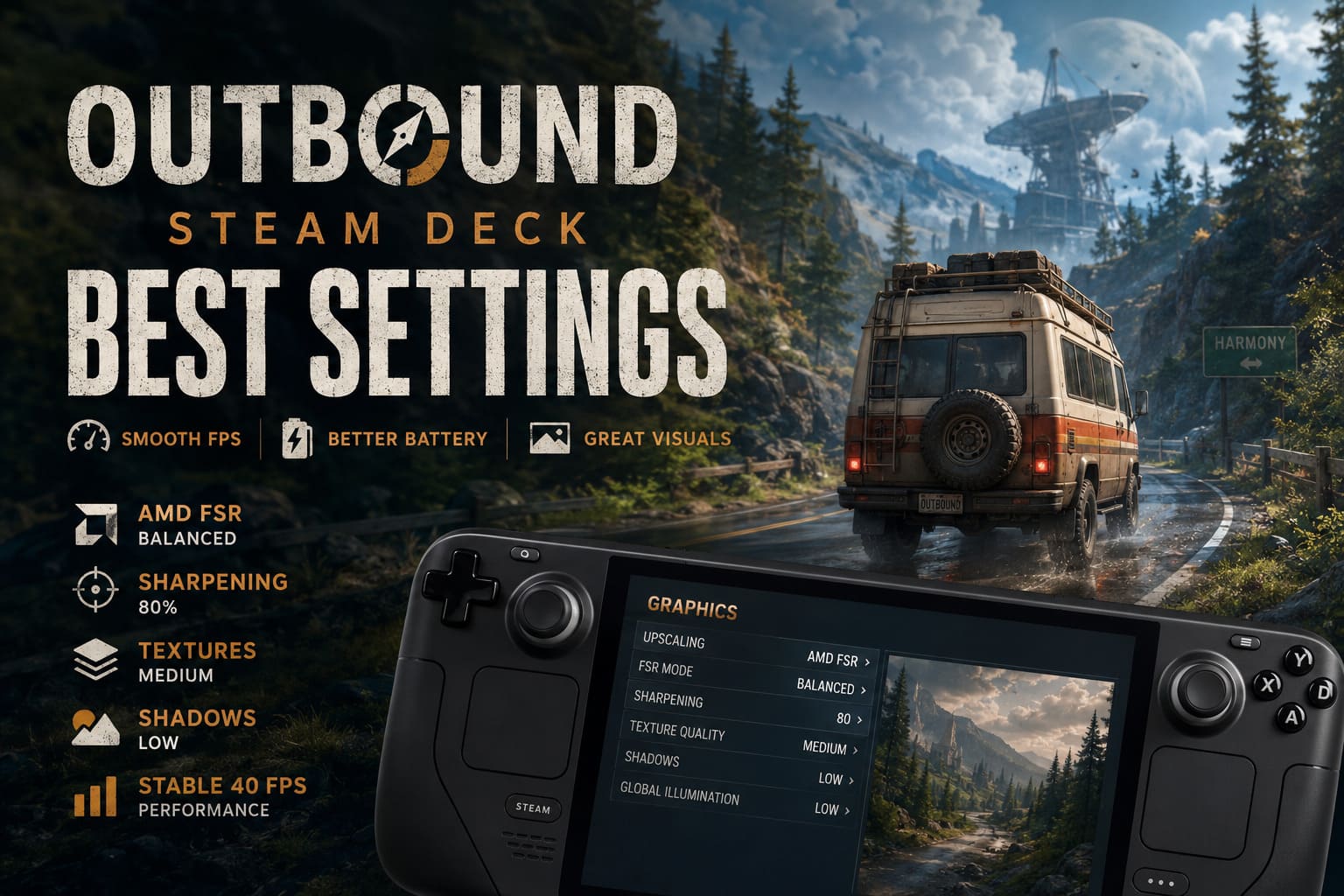
My Recommended Steam Deck Settings for Outbound
This is the setup I personally think feels best overall.
It keeps visuals clean, preserves the atmosphere, and avoids the ugly blurry image quality some aggressive FSR presets create.
SteamOS Settings
Open the Quick Access menu using the three-dot button.
| Setting | Recommended Value |
|---|---|
| Per-Game Profile | Enabled |
| Frame Limit | 40 FPS (OLED) / 30 FPS (LCD) |
| Refresh Rate | 80Hz or 90Hz (OLED) / 60Hz (LCD) |
| TDP Limit | Disabled |
| Scaling Filter | Linear |
I tested capped TDP configurations extensively, but honestly, Outbound benefits a lot from allowing CPU boost behavior during fast driving sections. Restricting wattage too aggressively creates traversal stutter almost immediately.
On OLED models, the 40 FPS mode feels incredibly smooth. It honestly surprised me how good this game feels at 40 with proper frame pacing.
Outbound Ultimate Farming and Cooking Guide: Best Recipes, Crop Layouts, and Survival Food Tips
Best In-Game Graphics Settings
Here’s the exact setup I ended up sticking with after hours of experimentation.
| Graphics Option | Best Setting |
|---|---|
| Display Mode | Fullscreen |
| Resolution | 1280×800 |
| V-Sync | Off |
| Upscaling | AMD FSR |
| FSR Mode | Balanced |
| Sharpening | 80 |
| Motion Blur | Off |
| Texture Quality | Medium |
| Shadows | Low |
| Global Illumination | Low |
| Screen Space Reflections | Medium |
| Model Detail | Medium |
| Foliage Density | Low |
| Post Processing | Low |
| Volumetric Fog | Low |
| Mirrors | Off |
| Anisotropic Filtering | 4x |
This setup consistently gave me the best balance between visuals and stability.
And honestly? Medium textures on a 7-inch display still look fantastic.
A lot of people instinctively crank textures to High because modern PCs usually handle it fine. But on Steam Deck, High textures create streaming hiccups while driving. You especially notice it when entering dense forest zones or rapidly moving between weather-heavy regions.
Medium removes almost all of those little freezes.
Outbound Multiplayer Guide: How to Play Co-Op With Friends (2026)
Shadows Are the Real Performance Killer

If there’s one setting that absolutely destroys performance in Outbound, it’s shadows.
Not textures.
Not reflections.
Shadows.
The game’s lighting system is surprisingly advanced for a cozy survival title. Every modular object casts dynamic shadows, foliage reacts to moving sunlight, and your van’s structures constantly recalculate lighting angles during different times of day.
It looks beautiful at High settings.
It also cooks the Steam Deck.
Dropping shadows to Low gave me one of the largest performance gains in the entire game while barely hurting visual quality during actual gameplay.
During sunsets you’ll still get gorgeous lighting anyway thanks to the game’s color grading.
OLED Steam Deck Owners Get a Huge Advantage
I played on both the original LCD Deck and the OLED model, and the difference is honestly massive for Outbound.
Not necessarily because of raw performance — although the OLED does run slightly cooler — but because the game’s art style looks incredible on the OLED screen.
The lighting, neon reflections, campfires, sunsets, rainstorms, and interior van lighting all pop dramatically more on OLED panels.
If you own the OLED version, I highly recommend targeting 40 FPS instead of 30.
The motion clarity improvement makes driving feel much smoother, especially on winding roads.
Best Battery Saver Setup
Sometimes you just want a long handheld session without destroying the battery in 90 minutes.
Here’s the low-power setup I’ve been using while traveling.
Battery Optimized Steam Deck Settings
| Setting | Value |
|---|---|
| FPS Limit | 30 |
| Refresh Rate | 60Hz |
| TDP Limit | 10W |
| Half Rate Shading | Off |
In-Game Battery Saver Preset
- FSR: Performance
- Sharpening: 85
- Shadows: Low
- SSR: Off
- Global Illumination: Off
- Foliage: Low
- Volumetric Fog: Off
- Texture Quality: Medium
This setup genuinely extends battery life a lot.
Fan noise drops dramatically too, which honestly matters more than people realize in cozy games like this. Quiet handheld gaming just feels better.
Common Problems I Ran Into
Stuttering While Driving
This usually happens because the CPU doesn’t have enough headroom for asset streaming.
If you capped TDP too aggressively, increase it to around 12–15W or disable it entirely.
Outbound clearly prioritizes world streaming during high-speed traversal.
Blurry Menus or UI
This is almost always caused by over-aggressive FSR.
Switch from Performance to Balanced mode and raise sharpening to around 80.
That instantly fixed blurry crafting text for me.
Sudden FPS Drops Near Large Bases
Large custom camps with tons of lighting, crops, turbines, and decorations absolutely hammer CPU performance.
A few things helped significantly:
- Reduce shadow quality
- Disable mirrors
- Lower foliage density
- Avoid excessive dynamic lights
Mirrors especially are surprisingly expensive.
Is Outbound Worth Playing on Steam Deck?
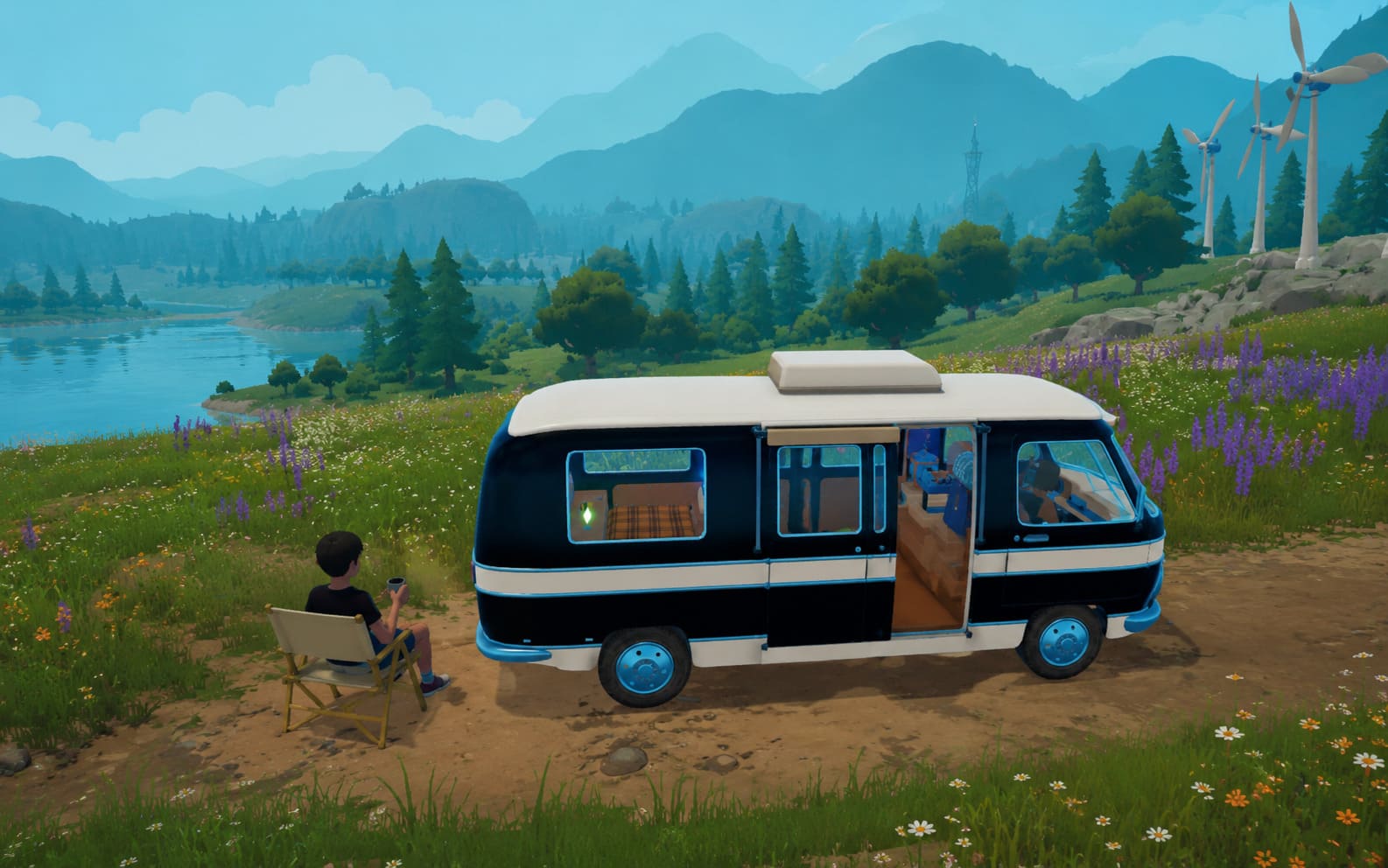
Absolutely.
Honestly, I think this might become one of those games people specifically associate with handheld gaming years from now.
There’s something incredibly relaxing about sitting outside with headphones on while slowly driving through Outbound’s world on a portable device. The pacing just fits the Deck perfectly.
That said, I do think manual optimization is important.
The default settings aren’t terrible, but they leave a lot of performance consistency on the table. With a few adjustments, the experience becomes dramatically smoother, quieter, and more enjoyable overall.
And unlike some survival games where lowering graphics ruins the atmosphere, Outbound still looks beautiful even on optimized settings.
The stylized art direction carries the visuals hard.
Final Thoughts
After dozens of hours tweaking settings, testing battery profiles, comparing OLED vs LCD behavior, and experimenting with different FSR modes, I genuinely think the sweet spot for Outbound on Steam Deck is:
- 40 FPS on OLED
- 30 FPS on LCD
- Medium textures
- Low shadows
- Balanced FSR
- TDP unrestricted unless prioritizing battery
That combination preserves almost everything that makes the game visually special while eliminating most of the annoying handheld performance issues.
And honestly, once you get the settings dialed in properly, Outbound feels like one of the most relaxing Steam Deck games released in years.