Beast of Reincarnation Save File Location: Full PC Path Guide (Steam & Game Pass)
When I invest dozens of hours into an RPG, one thing always worries me more than losing a difficult boss fight—losing my save file. I’ve learned that lesson the hard way over the years. A Windows update, a cloud sync conflict, or even a sudden power outage can wipe out hours of progress if you’re unlucky.
That was one of the first things I checked after starting Beast of Reincarnation. Since it’s the kind of action RPG where every upgrade, exploration milestone, and story decision matters, having a manual backup isn’t just something for modders—it’s something I’d recommend to every player.
If you’re planning to reinstall Windows, move to a new PC, experiment with mods, or simply want peace of mind, here’s everything you need to know about finding your save files and protecting your progress.
Where Are Beast of Reincarnation Save Files Located?
On the Windows version, the game stores its save data inside your local AppData folder.
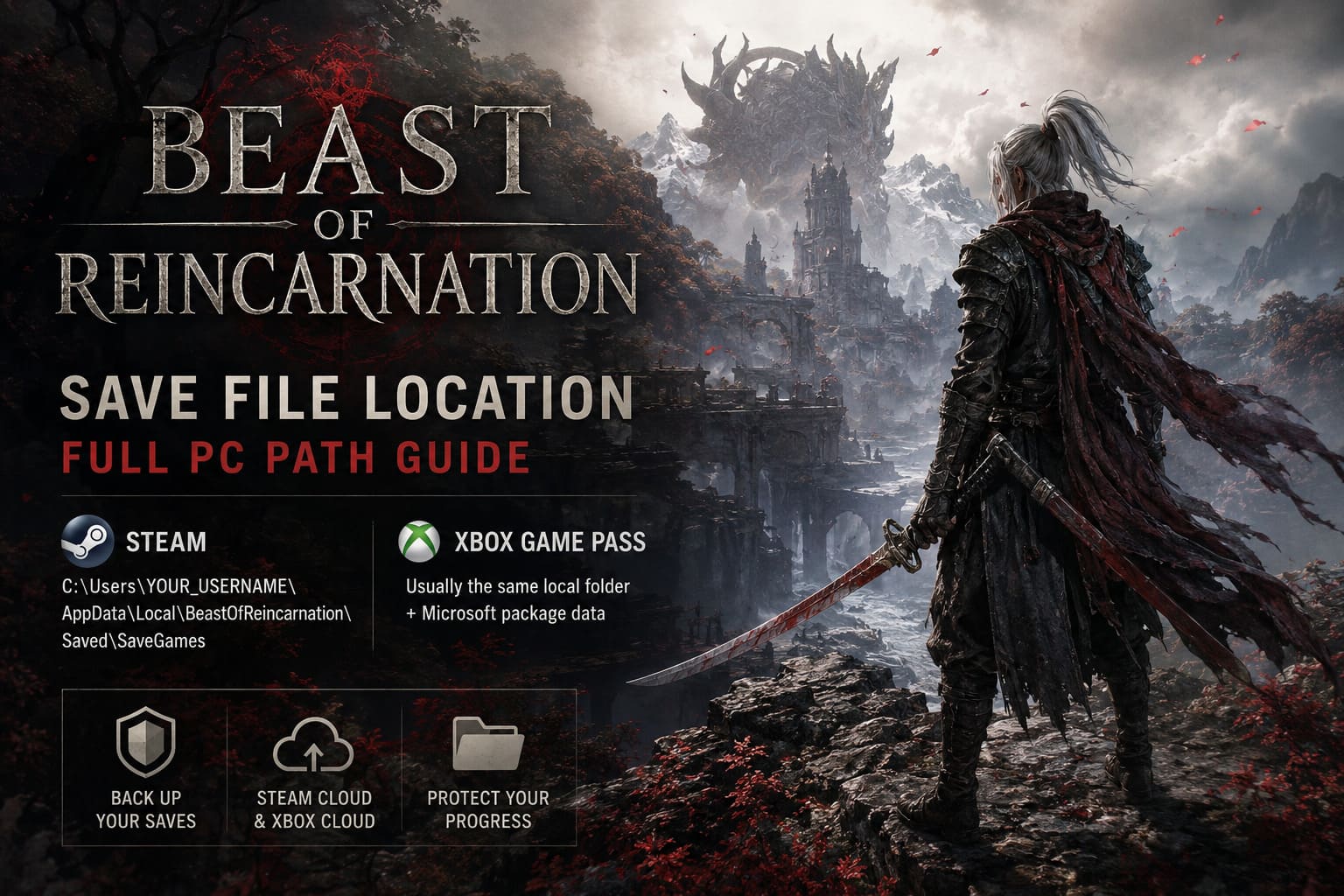
Default save location:
C:\Users\YOUR_USERNAME\AppData\Local\BeastOfReincarnation\Saved\SaveGamesInside you’ll typically find several .sav files that contain nearly everything related to your current adventure, including:
- Character progression
- Equipment and inventory
- Story progression
- Fast travel unlocks
- World progression
- Player statistics
This folder is the most important location if you ever need to back up or restore your game.
The Fastest Way to Open the Save Folder
One thing I never do anymore is manually click through hidden Windows folders. It’s much faster to let Windows do the work.
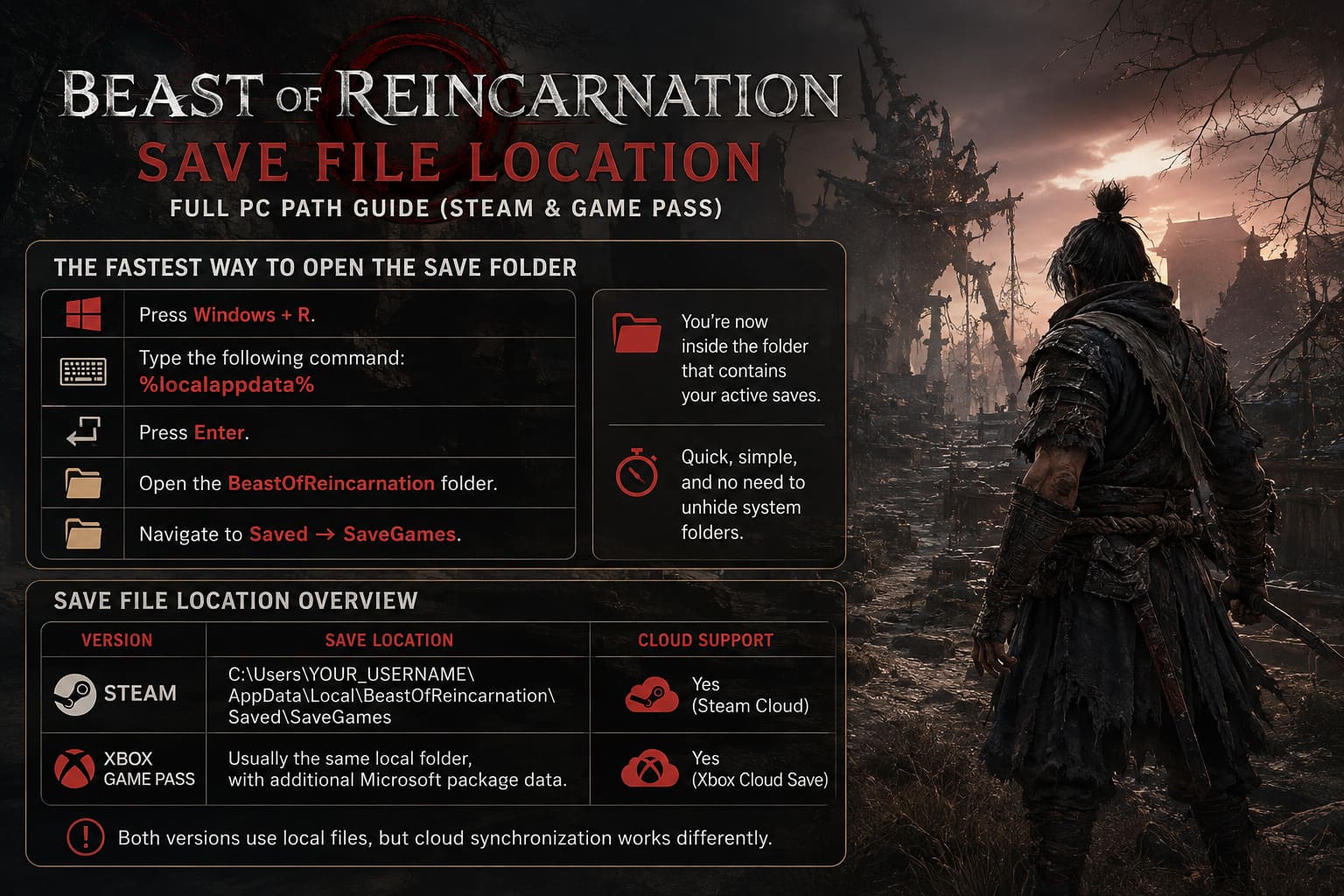
Here’s my preferred method:
- Press Windows + R.
- Type the following command:
%localappdata%- Press Enter.
- Open the BeastOfReincarnation folder.
- Navigate to Saved → SaveGames.
You’re now inside the folder that contains your active saves.
It only takes a few seconds and avoids having to enable hidden folders permanently.
Save File Location Overview
| Version | Save Location | Cloud Support |
|---|---|---|
| Steam | C:\Users\YOUR_USERNAME\AppData\Local\BeastOfReincarnation\Saved\SaveGames | Yes (Steam Cloud) |
| Xbox Game Pass | Usually the same local folder, with additional Microsoft package data. | Xbox Cloud Save |
Although both versions use local files, cloud synchronization works differently.
Steam Players Should Be Careful with Cloud Sync
Steam Cloud is fantastic most of the time.
Most.
I’ve also seen it overwrite perfectly good saves after reinstalling Windows or switching computers.
Whenever I want to restore an older backup, I always make sure Steam Cloud isn’t immediately replacing my files.
My routine is simple:
- Exit the game completely.
- Disable Steam Cloud temporarily if restoring an older save.
- Copy the backup into the SaveGames folder.
- Launch the game.
- Verify everything loaded correctly.
- Enable Steam Cloud again if everything looks good.
It takes an extra minute but can save dozens of hours of gameplay.
What About Xbox Game Pass?
The Microsoft Store ecosystem behaves a little differently.
Some game data still appears inside the standard AppData directory, while certain save information can also be stored inside Microsoft’s protected package system.
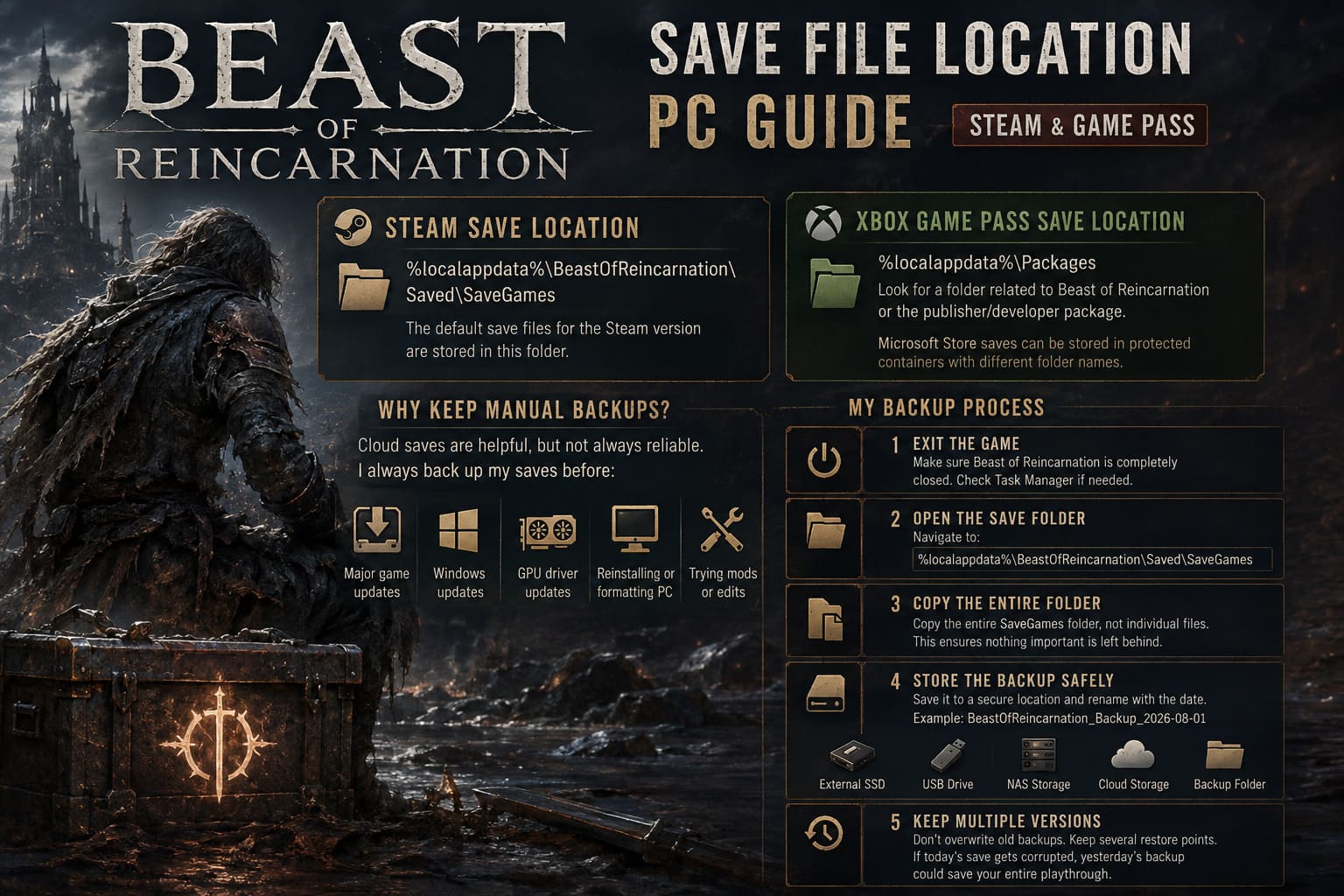
If your normal save folder appears empty, check:
%localappdata%\PackagesLook for a folder related to Beast of Reincarnation, the publisher, or the developer package.
Unlike Steam, Microsoft sometimes stores save containers under less obvious directory names, so don’t panic if you don’t immediately see traditional save files.
Why I Always Keep Manual Backups
Cloud saves are convenient.
They’re not perfect.
I’ve personally encountered situations where cloud synchronization uploaded a corrupted save instead of restoring the healthy one.
Since then, I’ve made it a habit to create manual backups before:
- Installing major game updates.
- Updating Windows.
- Reinstalling GPU drivers.
- Formatting my PC.
- Trying gameplay mods.
- Editing configuration files.
It only takes a minute.
My Backup Process
This is the exact process I use for almost every RPG.
Step 1 — Exit the Game
First, make sure Beast of Reincarnation is completely closed.
Double-check Task Manager if necessary.
Never copy save files while the game is still running.
Step 2 — Open the Save Folder
Navigate to:
%localappdata%\BeastOfReincarnation\Saved\SaveGamesStep 3 — Copy the Entire Folder
Instead of selecting individual files, copy the entire SaveGames directory.
That way you won’t accidentally leave behind supporting files the game expects.
Step 4 — Store the Backup Somewhere Safe
I usually keep backups in one of these places:
- External SSD
- USB flash drive
- NAS storage
- Desktop backup folder
- Cloud storage
I also rename every backup with the current date.
For example:
BeastOfReincarnation_Backup_2026-08-01Finding an older save becomes much easier later.
Step 5 — Keep Multiple Versions
This is probably my biggest recommendation.
Don’t overwrite yesterday’s backup.
Keep several restore points instead.
If today’s save becomes corrupted, yesterday’s copy could save your entire playthrough.
Where Configuration Files Are Stored
Besides your saves, the game also keeps important graphical settings inside another folder.
Configuration directory:
%localappdata%\BeastOfReincarnation\Saved\Config\WindowsNoEditorThe two files I usually check are:
| File | Purpose |
|---|---|
| Engine.ini | Advanced rendering and engine settings. |
| GameUserSettings.ini | Graphics, resolution, fullscreen mode, frame rate, and audio options. |
These files can be useful if you’re troubleshooting startup problems or experimenting with custom settings.
Editing Configuration Files Safely
Whenever I edit configuration files, I always follow one simple rule: Create a backup first.
After that:
- Open the file with Notepad.
- Make your changes.
- Save the file.
- Restart the game.
If something goes wrong, simply restore the original file.
It takes almost no extra effort and eliminates unnecessary headaches.
Common Save File Problems
Here are the issues I see players run into most often.
I Can’t Find the AppData Folder
This is normal.
Windows hides the AppData directory by default.
The quickest solution is simply using:
%localappdata%through the Run dialog.
Alternatively, you can enable Hidden Items inside File Explorer.
My Save Appears Corrupted
Unexpected shutdowns sometimes interrupt auto-saving.
Before assuming everything is lost, inspect the SaveGames folder carefully.
Sometimes Windows or the game leaves behind a backup copy with a .bak extension.
If available:
- Move the damaged save elsewhere.
- Rename the backup file.
- Remove the .bak extension.
- Launch the game again.
It won’t always work, but it’s worth checking before giving up.
Cloud Saves Keep Replacing My Backup
This usually happens because cloud synchronization starts immediately after launching the game client.
If you’re intentionally restoring an older save:
- Disable cloud synchronization temporarily.
- Restore the backup.
- Launch the game.
- Confirm everything works.
- Turn cloud sync back on afterward.
This avoids accidental overwrites.
Beast of Reincarnation Progression System Guide: Beginner Tutorial
A Few Personal Tips After Years of RPGs
One habit I’ve developed over years of playing long RPGs is treating save files almost like important documents.
Games can crash.
Windows updates can fail.
Storage drives eventually wear out.
None of that is common, but when it happens, you’ll be glad you spent two minutes making a backup.
I also recommend keeping one untouched backup from the beginning of every major chapter or story arc. If you ever want to revisit a different quest outcome or test another character build, you’ll already have the perfect restore point waiting.
For players who enjoy tweaking graphics settings or experimenting with configuration files, backing up both your SaveGames folder and Config folder together is an easy habit that can save hours of troubleshooting later.
Final Thoughts
Beast of Reincarnation is exactly the kind of game where losing progress would be incredibly frustrating. Between difficult encounters, meaningful exploration, and long story sequences, every hour invested feels valuable.
Fortunately, the game’s save files are easy to locate once you know where to look. Whether you’re playing through Steam or Xbox Game Pass, taking a few minutes to create regular backups is one of the smartest things you can do. Personally, I never rely on cloud saves alone anymore. A simple copy of the SaveGames folder has rescued more than one of my RPG adventures over the years, and it’s a habit I’ll continue with every major release.