How to Fix Moss The Forgotten Relic Controller Not Recognized on PC (2026 Guide)
There are few VR adventures that have aged as gracefully as Moss. Every time I return to Quill’s tiny world, I’m reminded why it became one of the defining single-player VR experiences. The environmental storytelling, precise interactions, and charming animations still hold up years later. That is exactly why it’s incredibly frustrating when the game launches perfectly—but your controllers suddenly become nothing more than expensive paperweights.
I’ve seen this happen on Meta Quest 3, Quest 2, Valve Index, HP Reverb G2, HTC Vive hardware, and even on otherwise perfectly configured gaming PCs. SteamVR detects everything correctly, your controllers work inside the SteamVR dashboard, and then Moss loads… nothing responds. Sometimes you only see floating blue spheres. Other times the menu refuses to accept button presses, or thumbsticks stop functioning the moment the game starts.
The good news is that this isn’t usually a hardware failure. In almost every case, the problem comes down to outdated configuration files, OpenXR conflicts, Steam Input confusion, or damaged controller bindings left behind after software updates.
After digging through countless community reports, comparing fixes from experienced VR players, and testing multiple runtime combinations myself, these are the solutions that consistently solve the controller recognition problem without forcing a complete Windows reinstall.
Why Moss Stops Detecting VR Controllers
Although Moss continues to run well on modern hardware, it was originally built around older VR software frameworks. Since then, both SteamVR and OpenXR have changed significantly.
Modern headsets introduce new controller profiles, runtime layers, and tracking methods that older games don’t always interpret correctly. When something becomes mismatched, the game may launch normally while completely ignoring your controller inputs.
The most common causes include:
- Corrupted local configuration files stored inside Windows AppData.
- Steam Input overriding native VR controls.
- Incorrect OpenXR runtime selection.
- Outdated controller layouts created for previous hardware generations.
- Background software interfering with VR input translation.
Fortunately, every one of these issues has a practical solution.
Solution 1: Reset the Moss Configuration Cache
If I could recommend only one fix, this would be it.
A surprisingly large number of controller problems come from damaged local configuration files. Even after reinstalling the game, Windows often keeps these files untouched, meaning the same bug simply returns.
Instead of deleting your saves outright, rename the configuration folder first.
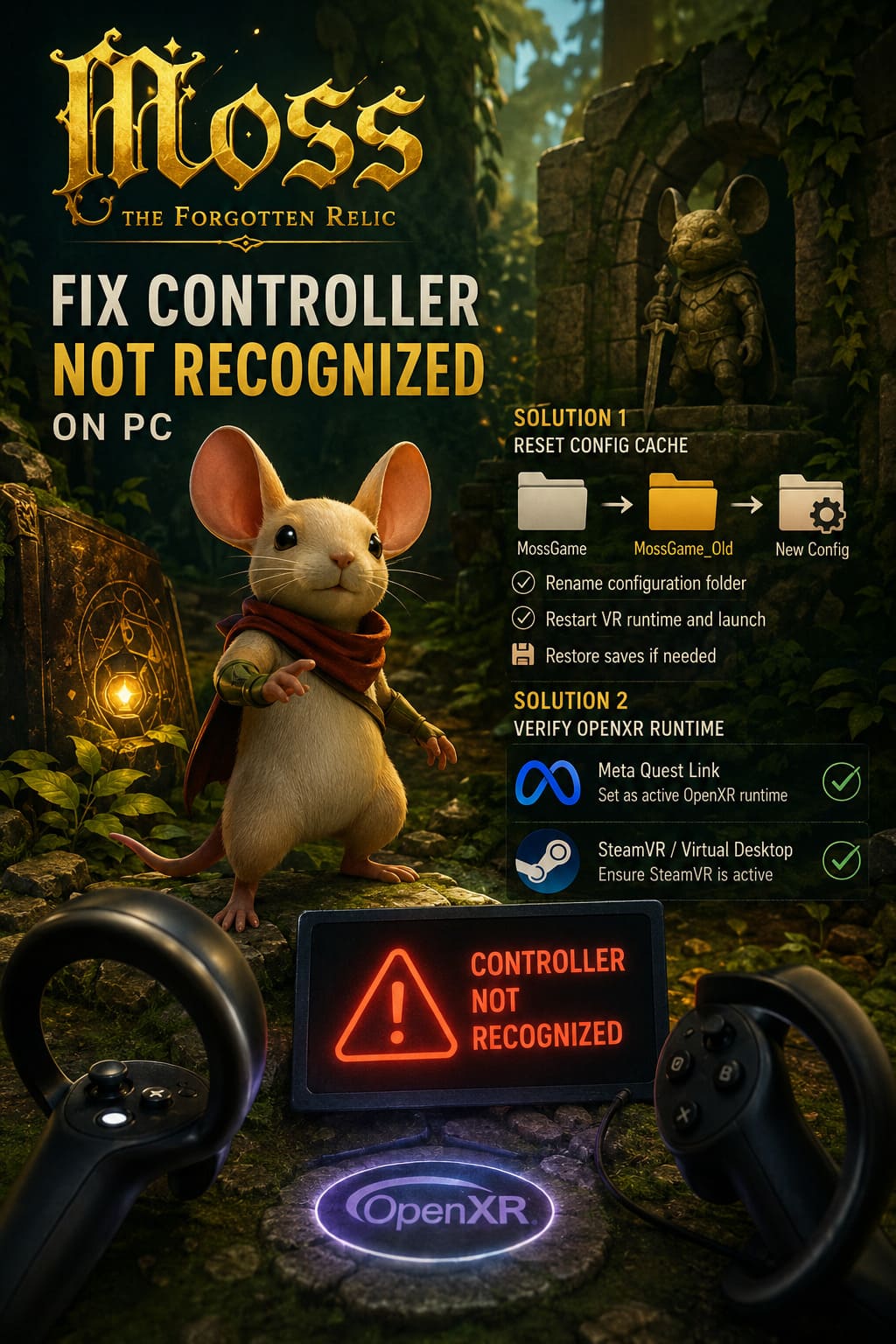
Follow these steps:
- Close Moss completely.
- Exit SteamVR or Meta Horizon Link.
- Open Windows File Explorer.
- Navigate to:
%USERPROFILE%\AppData\Local\
- Locate the folder named:
MossGame
- Rename it to:
MossGame_Old
- Launch your VR runtime again.
- Start Moss.
The game automatically creates a brand-new configuration folder during startup.
If your controllers suddenly begin working again, you’ve confirmed the original configuration was corrupted.
Your save files can usually be copied from the old folder into the newly created SaveGames directory afterward.
Solution 2: Verify Your OpenXR Runtime
One mistake I still see in 2026 is players mixing OpenXR runtimes without realizing it.
SteamVR, Meta Quest Link, Virtual Desktop, and Windows Mixed Reality all want to become the active runtime. If the wrong software is currently handling controller communication, games may launch with partial tracking or completely ignore inputs.
Meta Quest Link Users
If you’re using:
- Quest 2
- Quest 3
- Quest Pro
through Link Cable or Air Link:
- Open Meta Horizon Link.
- Enter Settings.
- Open Developer.
- Find OpenXR Runtime.
- Set Meta Quest Link as the active runtime if it isn’t already.
- Restart Windows before testing again.
This alone fixes many controller detection problems.
SteamVR Runtime Users
If you launch through Steam Link or Virtual Desktop:
- Open SteamVR.
- Enable Advanced Settings.
- Open the OpenXR or Developer section.
- Confirm SteamVR is the active OpenXR runtime.
Virtual Desktop users should also launch Moss directly from the built-in Games tab instead of launching the executable manually. That launch method applies several compatibility hooks that older VR titles often expect.
Solution 3: Refresh Steam Input
Steam Input is excellent for traditional controllers.
VR is a different story.
Sometimes Steam Input translates everything correctly.
Sometimes it completely breaks native OpenXR communication.
That inconsistency makes it worth testing both modes.
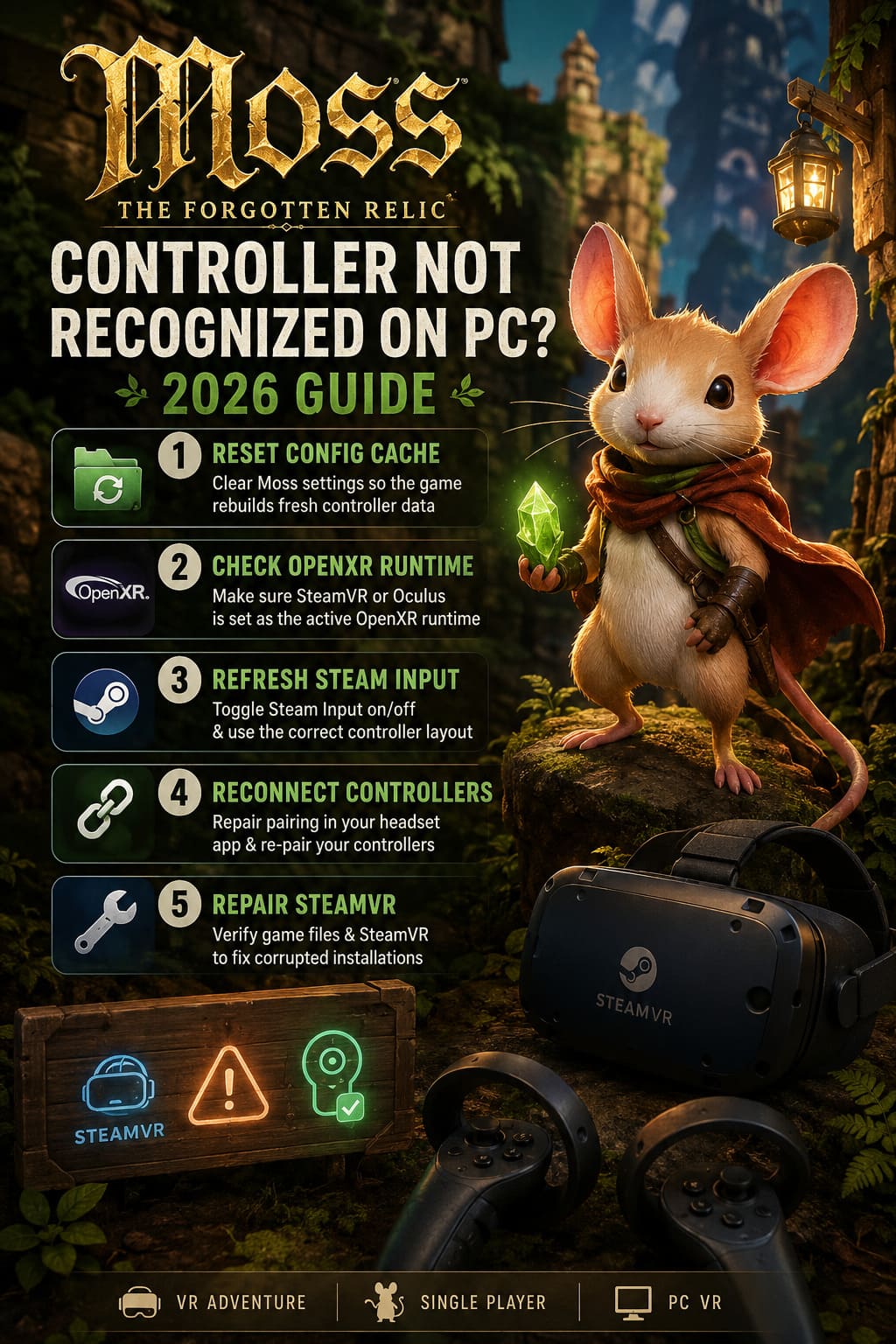
Open your Steam Library.
Locate Moss.
Open Properties → Controller.
Switch the override between:
- Enable Steam Input
- Disable Steam Input
Restart the game after each change.
Many players discover one option works perfectly while the other completely blocks input.
Install the Correct Controller Layout
Even when tracking works properly, Moss may still load an outdated binding profile.
Thankfully SteamVR allows controller layouts to be replaced in seconds.
- Launch Moss.
- Open the SteamVR Dashboard.
- Navigate to Controller Settings.
- Choose Browse Configurations.
- Select the Official tab.
- Install the layout matching your headset.
| VR Headset | Recommended Layout |
|---|---|
| Meta Quest 3 | Official Quest Touch Profile |
| Quest 2 | Official Quest Touch Profile |
| Valve Index | Official Knuckles Layout |
| HP Reverb G2 | Official WMR Layout |
| HTC Vive | Official Vive Wand Layout |
Using community layouts can help in rare cases, but the official profiles remain the safest starting point.
Solution 4: Reconnect Your Controllers
Sometimes the problem isn’t Moss at all.
Bluetooth pairing occasionally becomes corrupted after firmware updates or headset software upgrades.
Meta Quest users can repair both controllers through the Meta mobile application.
The process is straightforward:
- Unpair both controllers.
- Fully restart the headset.
- Pair each controller again.
- Wait for vibration confirmation.
- Reconnect to your PC.
It sounds almost too simple, but corrupted controller pairing has caused countless “unclickable menu” reports.
Valve Index owners should also recalibrate their controllers inside SteamVR.
Calibration refreshes controller communication and often restores proper analog stick behavior.
Solution 5: Repair SteamVR Installation
Corrupted SteamVR files can produce controller issues even if every other VR game appears normal.
I always recommend verifying both installations.
Open Steam.
Verify Moss through Properties → Installed Files → Verify Integrity.
Then repeat the exact process for SteamVR itself.
Steam replaces any damaged runtime files automatically without affecting your installed games.
It’s one of those maintenance tasks that only takes a few minutes but eliminates an entire category of possible problems.
Disable Software That Hijacks Input
Gaming PCs often have dozens of background utilities running.
Most never interfere with VR.
Some absolutely do.
Programs worth disabling before troubleshooting include:
- DS4Windows
- JoyToKey
- reWASD
- MSI Afterburner overlays
- RivaTuner Statistics Server
- GeForce Experience overlay
These applications can intercept DirectInput or XInput communication before it reaches SteamVR.
Even if they appear unrelated to VR, they have been responsible for controller recognition problems across multiple OpenXR titles.
Don’t Ignore Wireless Interference
This issue gets overlooked far too often.
Quest controllers communicate through Bluetooth.
If your desktop is simultaneously running on a crowded 2.4 GHz Wi-Fi network, wireless congestion can occasionally introduce tracking instability.
Whenever possible:
- Switch your router to 5 GHz.
- Move Bluetooth receivers away from USB 3.0 devices.
- Use a USB extension cable for Bluetooth adapters.
- Reduce nearby wireless interference.
While this isn’t the most common cause of complete controller failure, it absolutely contributes to intermittent tracking problems.
Recommended Troubleshooting Order
Instead of randomly trying every possible fix, I recommend following this sequence:
| Step | Action | Difficulty |
|---|---|---|
| 1 | Rename the MossGame AppData folder | Easy |
| 2 | Verify OpenXR Runtime | Easy |
| 3 | Toggle Steam Input | Easy |
| 4 | Install Official Controller Layout | Easy |
| 5 | Re-pair VR Controllers | Medium |
| 6 | Verify Moss and SteamVR files | Medium |
| 7 | Disable overlays and controller utilities | Medium |
| 8 | Check Bluetooth and wireless interference | Advanced |
Final Thoughts
Controller recognition problems can make it feel like Moss has become incompatible with modern VR hardware, but that simply isn’t true. In my experience, the game itself remains remarkably stable once the software environment is properly aligned.
The biggest culprit continues to be old configuration data surviving multiple SteamVR updates. Rename the local AppData folder, confirm your OpenXR runtime matches your headset, refresh Steam Input, and install the correct controller layout before diving into more advanced troubleshooting. Those four steps alone solve the overwhelming majority of cases.
Moss is still one of the finest examples of immersive VR storytelling ever created, and Quill deserves to be experienced with responsive, accurate controls. Spending a few minutes cleaning up your VR software stack is far better than giving up on one of the platform’s true classics. Once everything is synchronized correctly, the adventure feels every bit as magical today as it did on day one.