Grounded II Dedicated Server Hosting Guide: Setup & Configurations (2026)
There is something especially satisfying about having your own Grounded II dedicated server. You are not waiting for the host to come online, nobody has to keep the game running on their PC, and your backyard world can stay available whenever your friends feel like jumping in.
For a game built around exploration, base building, resource gathering, and fighting insects that are much bigger than they have any right to be, a dedicated server can make the whole experience feel much smoother. It is also a great option for groups that play at different times. One friend can work on the base in the afternoon, another can gather resources later, and everyone can continue from the same persistent world.
I have always preferred dedicated servers for long-running survival games because they remove one annoying problem: the entire world being tied to one player’s PC. Once the server is configured properly, Grounded II becomes much easier to treat like a persistent co-op survival game rather than a session you have to organize every time.
This guide explains how to set up a Grounded II dedicated server on Windows, configure the important settings, forward the required ports, create a startup script, keep the server updated, and deal with the most common problems.
Why Run a Dedicated Server for Grounded II?
A dedicated server makes the most sense if you regularly play with a group of friends.
Instead of one person hosting every session, the server runs independently. Your friends can connect when they are available, and the world remains ready for the next session.
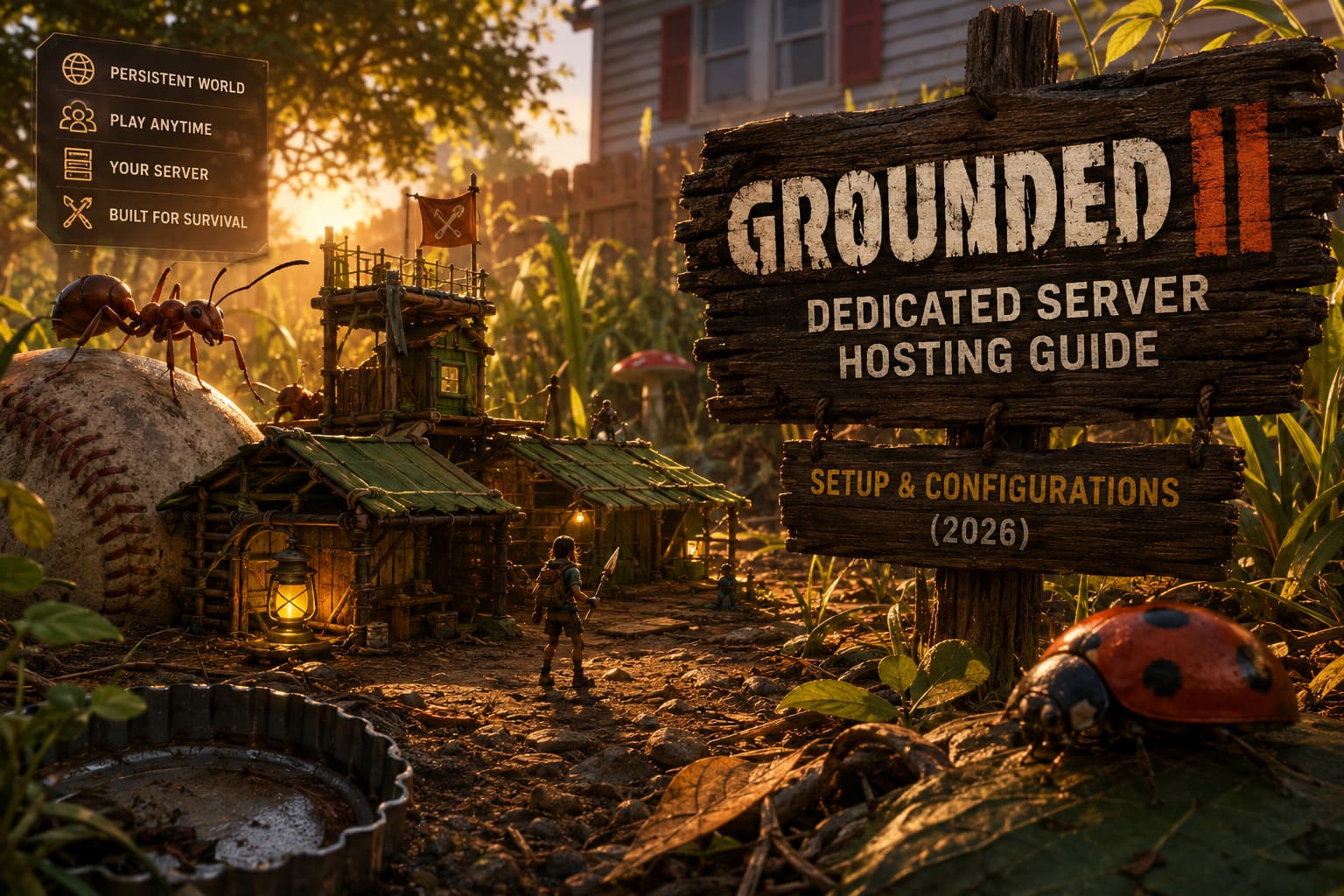
There are a few major advantages:
- Persistent world: Your base and progress remain available even when the usual host is offline.
- Better organization: The server can run on a separate PC or VPS.
- More flexible play sessions: Friends can join without waiting for the original host.
- Centralized administration: Settings, saves, backups, and updates are all managed from one location.
- Better long-term stability: A dedicated machine can be optimized specifically for server workloads.
For a small group, you do not need some monster gaming PC. In fact, an older computer with a decent processor, enough RAM, an SSD, and a stable wired connection can be perfectly useful.
Grounded II Dedicated Server Requirements
Before installing anything, look at the machine you plan to use. The biggest mistake is treating the server like it needs the same hardware as a normal gaming PC.
You are primarily concerned with CPU performance, available memory, storage speed, and network stability.
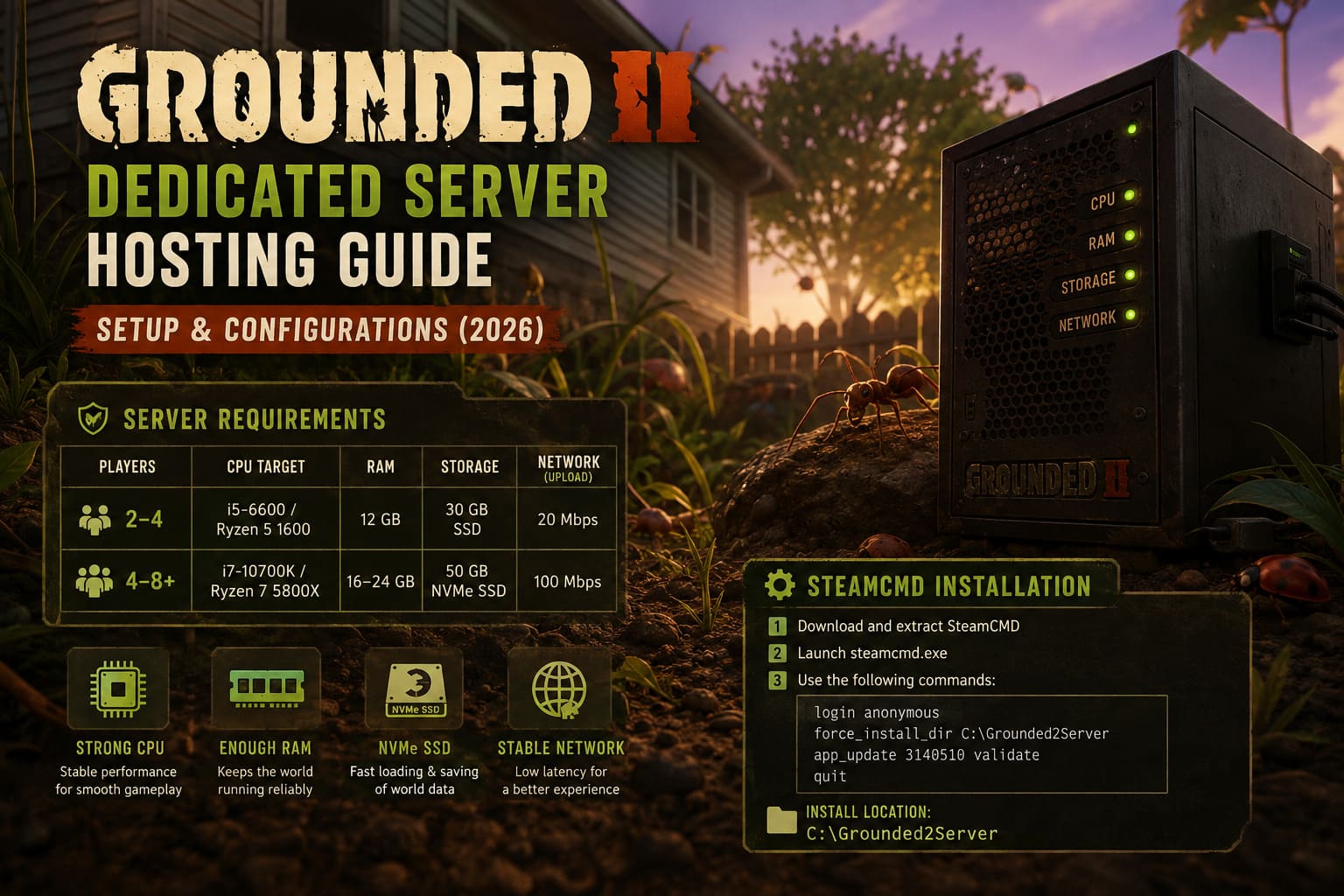
| Server Size | CPU Target | RAM | Storage | Network |
|---|---|---|---|---|
| 2–4 players | Core i5-6600 / Ryzen 5 1600 | 12 GB | 30 GB SSD | 20 Mbps upload |
| 4–8+ players | Core i7-10700K / Ryzen 7 5800X | 16–24 GB | 50 GB NVMe SSD | 100 Mbps upload |
Windows 10 or Windows 11 64-bit is suitable for a typical home setup, while Windows 11 or Windows Server can make sense for a machine dedicated entirely to hosting.
The SSD recommendation is not something I would ignore. Grounded II has a large world, plenty of environmental activity, creatures moving around the map, and player-built structures. A mechanical hard drive can become an unnecessary bottleneck when the server is constantly loading and saving world data.
If you have an old PC sitting around with 16 GB of RAM and an SSD, I would absolutely test it before spending money on a new server.
Installing SteamCMD for Grounded II
For a dedicated server, SteamCMD is the practical solution. It allows you to download server files without keeping the full Steam desktop client running.
Start by creating a folder such as:
C:\SteamCMD
Download SteamCMD, extract it into that folder, and launch steamcmd.exe.
Once SteamCMD finishes its initial update, you should see the familiar:
Steam>
prompt.
From there, use the server installation commands supplied for the Grounded II dedicated server:
login anonymous
force_install_dir C:\Grounded2Server
app_update 3140510 validate
quit
The important part here is the server AppID and installation directory. The validate parameter tells SteamCMD to verify the downloaded files rather than simply assuming everything arrived correctly.
After the process completes, you should have a dedicated server installation inside:
C:\Grounded2Server
If SteamCMD reports an error during the download, do not immediately start changing random settings. First check that the installation directory is correct and that SteamCMD has finished updating itself.
Setting Up Port Forwarding
This is the part that causes the most headaches for first-time server hosts.
Your server may run perfectly on your local network but remain completely inaccessible to friends over the internet. In most cases, the problem is the router.
Port forwarding tells your router where incoming game traffic should go.
First, open Command Prompt and enter:
ipconfigFind the IPv4 Address assigned to your server computer. It will normally look something like:
192.168.1.50
Also make a note of the Default Gateway, which is usually the address you use to access your router’s administration page.
Log into the router and find the port-forwarding section. Depending on the manufacturer, it may be called NAT, Port Forwarding, Gaming, Firewall, or Advanced Settings.
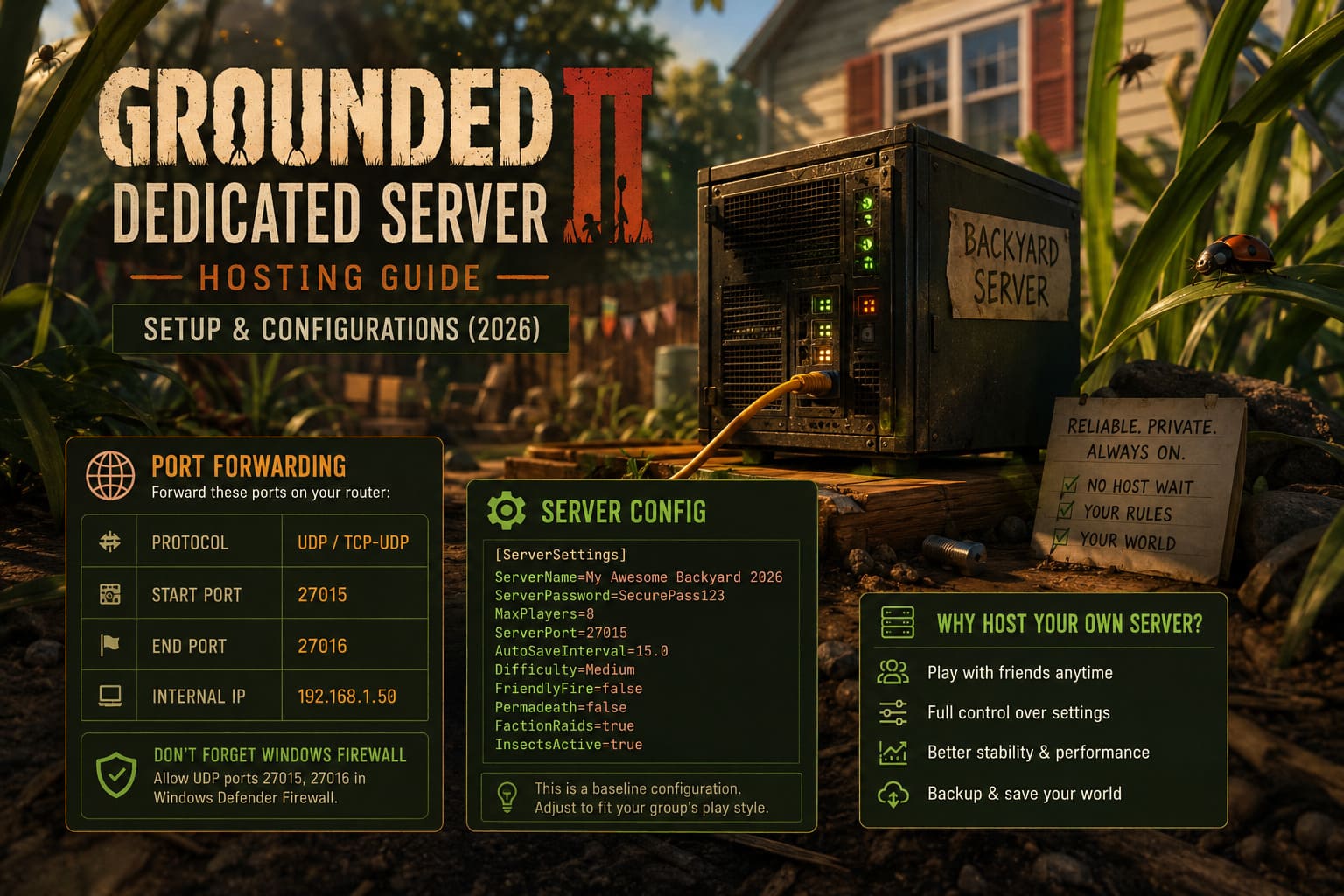
A typical setup based on the configuration in this guide looks like this:
| Setting | Value |
|---|---|
| Rule Name | Grounded 2 Server |
| Internal IP | Your server PC IPv4 address |
| Protocol | UDP / TCP-UDP |
| Start Port | 27015 |
| End Port | 27016 |
Save the rule and restart the router only if it specifically asks you to.
Do Not Forget Windows Firewall
Router forwarding is only half of the job.
Windows Firewall can still block incoming traffic even when your router is configured correctly.
Open Windows Defender Firewall with Advanced Security, select Inbound Rules, and create a new rule.
Choose Port, select UDP, and enter:
27015, 27016Allow the connection and apply the rule to the appropriate network profiles.
Give the rule a recognizable name such as Grounded 2 Server.
One extra tip from experience: make sure the server PC keeps the same local IP address. If your router assigns a different address after a reboot, your carefully configured forwarding rule may suddenly point at the wrong machine. A DHCP reservation on the router is often cleaner than manually forcing a Windows IP configuration.
Configuring Your Grounded II Server
Once the files are installed, you can customize the server.
The configuration location supplied for this setup is:
C:\Grounded2Server\Grounded2\Saved\Config\WindowsServer
Look for:
GameUserSettings.ini
If the file does not exist, create it with Notepad.
A basic configuration can look like this:
[ServerSettings]
ServerName=My Awesome Backyard 2026
ServerPassword=SecurePass123
MaxPlayers=8
ServerPort=27015
AutoSaveInterval=15.0
Difficulty=Medium
FriendlyFire=false
Permadeath=false
FactionRaids=true
InsectsActive=true
The exact settings supported by a particular server build can change with updates, so I would treat this as a baseline configuration rather than a permanent list of guaranteed variables.
The most useful options are straightforward.
ServerName controls how your server is identified.
ServerPassword is useful if you want a private world for friends rather than an open server.
MaxPlayers determines the player capacity. Increasing it can increase CPU, RAM, and network demands.
AutoSaveInterval controls how frequently the world is saved when supported by the server configuration.
And settings related to difficulty, friendly fire, raids, and creature activity let you shape the experience around your group.
For a first server, I would resist the temptation to change twenty things at once. Start with a simple configuration. Once everyone is connecting reliably, experiment.
Create a Startup Script
Launching the executable manually every time gets old very quickly.
A batch file is a much better solution.
Go to:
C:\Grounded2Server
Create a new text document and rename it to:
start_server.bat
Make sure Windows has not left .txt at the end of the filename.
Open the batch file and add:
Grounded2Server.exe -log -port=27015 -queryport=27016 -NoSteamClient -useallavailablecoresSave the file and double-click it.
The server should launch in a command window where you can monitor activity.
The -log parameter is particularly useful because it lets you see what the server is doing instead of staring at a black box and wondering whether it actually started.
If the window immediately closes, do not panic. Run the executable or batch file from Command Prompt instead. That way, the error message remains visible and you can actually read what went wrong.
Keep the Server Updated
This is another thing people forget until their friends suddenly cannot connect.
When Grounded II receives a game update, the dedicated server may also need to be updated. If the client and server versions do not match, connection problems are likely.
Stop the server before updating it.
Then run SteamCMD again:
steamcmd.exe +login anonymous +force_install_dir C:\Grounded2Server +app_update 3140510 validate +quitWait for SteamCMD to finish completely before starting the server again.
I recommend making this part of your normal maintenance routine. Update first, test the server yourself, then tell your friends to connect. It is much less frustrating than discovering the mismatch after everyone has already joined voice chat.
Back Up Your World
If you spend dozens of hours building a giant backyard base, please back it up.
Seriously.
A server crash is annoying. Losing a world you have been building for weeks is something else entirely.
The save location for the setup described here is:
C:\Grounded2Server\Grounded2\Saved\SaveGames
Create regular backups of this directory and store copies somewhere separate from the server machine.
An external drive works. Cloud storage can also work. The important thing is having a second copy.
I would personally keep several generations of backups rather than overwriting one backup forever. That gives you a way back if a corrupted save is accidentally copied over your good version.
Automatic Restarts Are Worth It
Long-running game servers can sometimes become less responsive after operating continuously for extended periods. Memory usage can creep upward, background processes can accumulate, and Windows itself is not always as happy after several days of uninterrupted activity as it was on day one.
A scheduled restart every 24 hours is a reasonable starting point.
Windows Task Scheduler can launch your start_server.bat automatically at a convenient time, such as early morning when nobody is playing.
Just make sure the server has enough time to shut down and save correctly before the restart occurs.
For a community server that runs constantly, I would also schedule periodic backups around the same maintenance window.
Common Grounded II Dedicated Server Problems
Server Closes Immediately
The first things I would check are the startup command, missing dependencies, file permissions, and server installation integrity.
If the server files are incomplete, run the SteamCMD update with validate again.
Microsoft Visual C++ runtime components can also matter for Windows server applications, so make sure the required runtime packages are installed.
Friends Cannot Find the Server
This is usually a networking issue.
Check the following:
- Your port-forwarding rule points to the correct local IP.
- Windows Firewall allows the required traffic.
- The server is actually running.
- The configured ports match the startup parameters.
- Your ISP is not placing your connection behind restrictive carrier-grade NAT.
- Your local server IP has not changed.
That last one is surprisingly common.
Players Experience Rubber-Banding
Rubber-banding is usually a sign that the server or network cannot keep up with the amount of traffic and simulation activity.
Start by checking CPU and RAM usage while everyone is playing. Then make sure another computer on the network is not uploading huge files, streaming massive amounts of data, or downloading a game update.
A wired Ethernet connection is strongly preferable to Wi-Fi for the host.
If your upload bandwidth is limited, reducing the player count can also make a noticeable difference.
Grounded 2 Crossplay Guide: How to Invite Friends Cross-Platform (Xbox, PS5, Steam)
My Recommended Grounded II Server Setup
If I were setting up a server for a group of friends, I would keep it simple at first.
I would use a separate Windows PC with 16 GB of RAM, an SSD or NVMe drive, a wired network connection, and a stable internet connection. I would reserve a local IP for the machine, forward the required ports, install the server through SteamCMD, and create a basic startup script.
Then I would leave the server running for a few days before changing anything major.
That approach makes troubleshooting much easier. If something breaks, you know exactly what you changed.
And for a survival game like Grounded II, reliability matters more than squeezing every last setting out of the server.
Grounded 2 PS5 Performance Review: How to Get 60 FPS in Performance Mode
Final Thoughts
A Grounded II dedicated server is absolutely worth considering if your group plans to spend a lot of time in the backyard. The initial setup takes a little patience, particularly when you reach router configuration and Windows Firewall, but once everything works, the convenience is hard to give up.
The most important parts are simple: use an SSD, give the server enough RAM, keep the machine on a wired connection, configure port forwarding correctly, maintain regular backups, and update the server whenever the game receives a major patch.
I would also avoid overcomplicating the first setup. Get the vanilla server running. Confirm that everyone can connect. Play for a while. Then start tweaking.
That way, when your friends log in and immediately start building another ridiculous base while you are trying to avoid getting eaten by something with six legs, the server is the one thing you do not have to worry about.