Palworld Potato Mode Guide: Best Graphics Settings and Config File Tweaks for Low-End PCs
After spending hundreds of hours testing survival games, open-world sandboxes, and Unreal Engine titles, I can confidently say that Palworld is not an easy game to run on weak hardware. At first glance, the colorful islands, cute creatures, and simple-looking art style can make the game seem lightweight, but behind the scenes Unreal Engine 5 creates a serious workload for both your GPU and CPU.
Palworld combines detailed environments, dynamic lighting, shadows, physics systems, Pal AI, crafting mechanics, and large open-world simulation. On powerful gaming PCs, everything runs smoothly and looks impressive. However, on older laptops, budget desktops, integrated graphics, and handheld devices, the experience can quickly turn into constant stuttering, unstable FPS, and frustrating freezes.
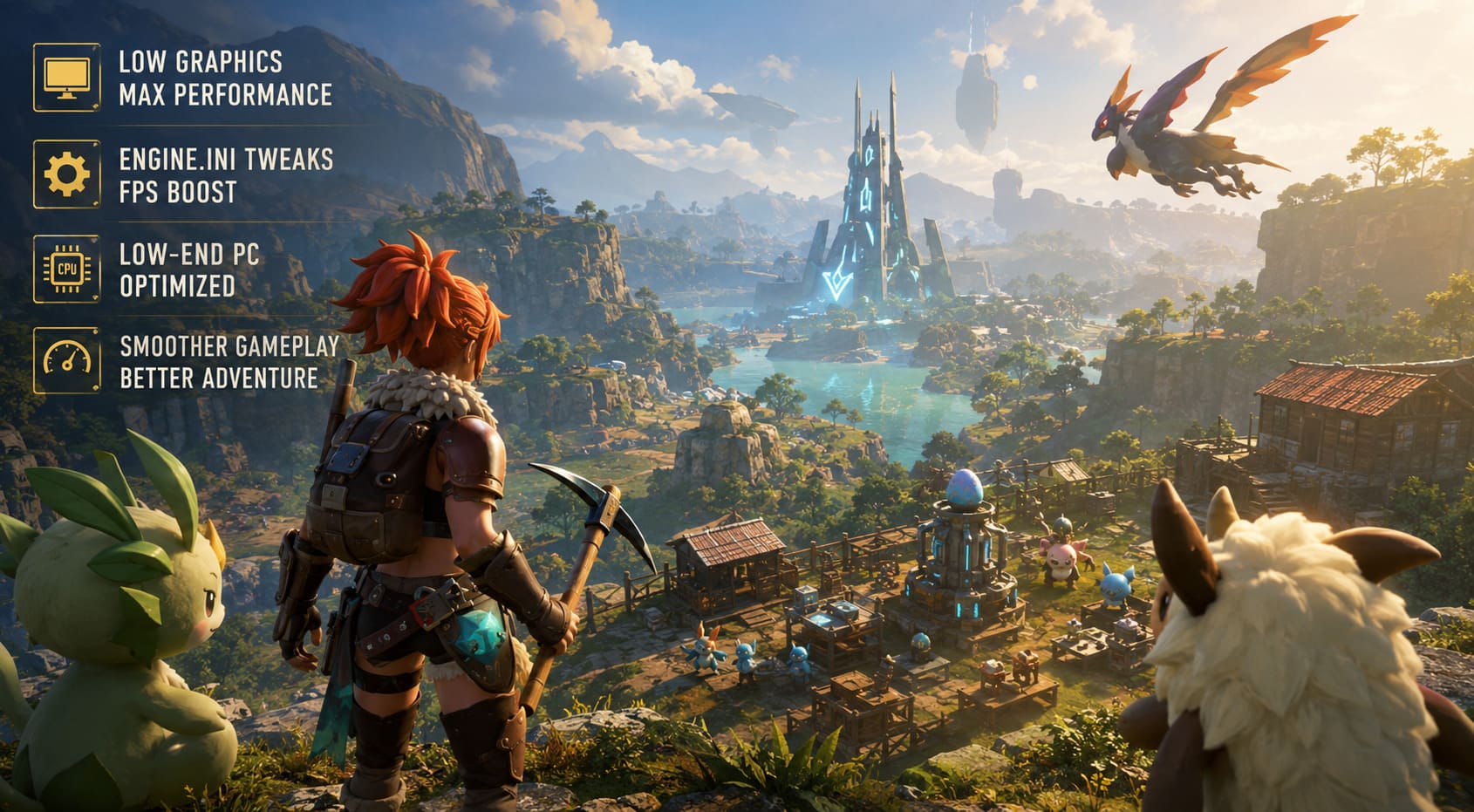
After trying different optimization methods and testing community solutions, I found that Palworld Potato Mode can completely change the way the game feels on low-end systems. By combining aggressive in-game settings with custom Engine.ini tweaks, you can remove unnecessary visual effects, lower hardware demand, and create a much smoother gameplay experience.
This guide covers the best Palworld Potato Mode settings, configuration file edits, CPU optimization methods, and community tricks designed to maximize FPS without completely destroying the game.
Palworld Combat Lag Fix: How to Boost Minimum FPS and Stop Stutters
What Is Palworld Potato Mode and Why Does It Improve FPS?
Potato Mode is a popular gaming term for running a game with extremely reduced graphics settings to achieve better performance. The idea is simple: remove expensive visual features that look nice but do not affect gameplay.
In Palworld, many performance problems come from hidden graphical effects that continue running even when the main graphics preset is already set to Low. Unreal Engine 5 includes advanced lighting, atmospheric effects, object detail systems, and rendering features that can overwhelm weaker computers.
The standard graphics menu helps, but it does not reveal every possible optimization option. This is where Engine.ini modifications become useful because they allow players to manually disable additional effects and reduce rendering quality beyond the normal settings.
The biggest improvements usually come from reducing:
- Internal rendering resolution.
- Shadow calculations.
- Volumetric effects.
- Object detail distance.
- Environmental effects.
- Memory usage during long sessions.
The final result will not look like a high-end PC screenshot, but the difference between an unstable slideshow and smooth playable gameplay is enormous.
Best In-Game Graphics Settings for Palworld Potato Mode
Before editing configuration files, start with the built-in graphics settings. Many players immediately change Engine.ini, but lowering the normal options first creates a much stronger performance foundation.
Open Palworld, enter Graphics Settings, select Custom, and apply these recommended values:
| Setting | Recommended Potato Mode Value |
|---|---|
| Preset | Custom |
| Screen Mode | Windowed |
| Resolution | 1280×720 or 1600×900 |
| Max FPS | 30 or 60 |
| VSync | Off |
| Motion Blur | Off |
| Anti-Aliasing | FXAA or Off |
| View Distance | Low |
| Grass Details | Low |
| Shadows | Low |
| Effects Quality | Low |
| Texture Quality | Low |
| Camera Shake | Off |
The biggest FPS improvement usually comes from lowering resolution. Running a game at 1080p requires your graphics card to process significantly more pixels compared to 720p. On integrated GPUs and older graphics cards, this single change can provide a noticeable performance boost.
If your system is close to the minimum requirements, I recommend starting with 1600×900. It keeps the image relatively clean while reducing GPU pressure. For extremely weak machines, 1280×720 remains the most reliable option.
Which Graphics Options Hurt Performance the Most?
Not every setting affects performance equally. Many players reduce textures first, but shadows, lighting, and environmental effects usually create much bigger problems.
Shadows are one of the biggest FPS killers in Palworld. Every object, structure, tree, and Pal can generate additional calculations. Lowering shadow quality removes a large amount of GPU workload.
Grass is another hidden performance problem. Large open areas filled with vegetation require constant rendering updates while exploring. Lower grass settings can dramatically reduce stuttering when traveling through forests and fields.
Effects quality also matters during battles. When several Pals attack at the same time, particle effects can create sudden FPS drops. Reducing these effects makes combat much more stable.
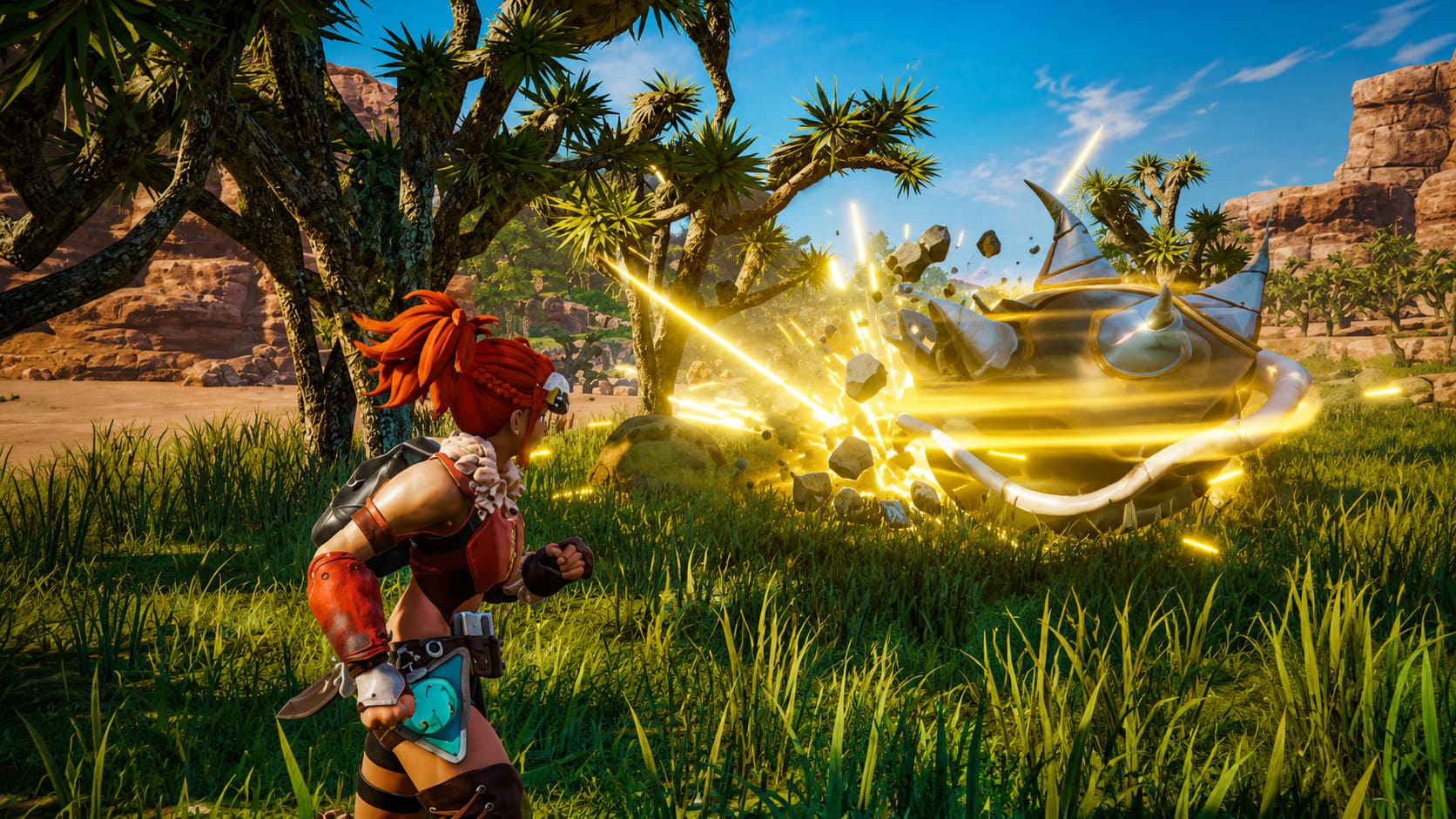
How to Enable True Palworld Potato Mode With Engine.ini Tweaks
The biggest performance improvements come from editing Palworld’s Unreal Engine configuration file. Engine.ini allows you to access advanced settings that are not available in the normal graphics menu.
With these commands, you can disable expensive features such as volumetric fog, advanced shadows, depth effects, and high-detail rendering systems.
How to Find and Edit Engine.ini
Follow these steps carefully:
- Press Windows Key + R to open the Run window.
- Type AppData and press Enter.
- Locate the Palworld configuration folder.
For Steam players, open:
Local > Pal > Saved > Config > Windows
For Xbox Game Pass or PC Game Pass players, open:
Local > Pal > Saved > Config > WinGDK
Find the file called Engine.ini. Open it with Notepad or Notepad++ and scroll to the bottom of the document.
Add the following commands:
[SystemSettings]
r.ScreenPercentage=65
r.ShadowQuality=0
r.Shadow.CSM.MaxCascades=0
r.DistanceFieldShadowing=0
r.AmbientOcclusionQuality=0
r.LensFlareQuality=0
r.FilmGrain=0
r.DepthOfFieldQuality=0
r.BloomQuality=0
r.LightFunctionQuality=0
r.MotionBlurQuality=0
r.BlurGBuffer=0
r.TranslucencyQuality=0
r.VolumetricFog=0
r.VolumetricCloud=0
r.ParticleLightQuality=0
r.DetailMode=0
r.MaterialQualityLevel=0
r.StaticMeshLODDistanceScale=0.5
r.SkeletalMeshLODBias=2
r.ViewDistanceScale=0.4
r.TextureStreaming=1
r.Streaming.PoolSize=1024
Save the file and close it. To prevent Palworld from replacing your custom commands after updates or launches, right-click Engine.ini, select Properties, enable Read-only, and apply the changes.
What These Engine.ini Commands Actually Change
The most important command is r.ScreenPercentage=65. This forces Unreal Engine to render the game internally at 65% of your selected resolution before upscaling the image. The GPU has fewer pixels to process, which can create a major FPS improvement.
For example, if you play at 1600×900 resolution, the game will internally render fewer pixels while keeping the same display resolution. The image becomes slightly softer, but performance improves significantly.
The shadow commands remove advanced shadow calculations, which are among the most expensive effects in Unreal Engine games.
Other important commands include:
- r.VolumetricFog=0 removes demanding fog calculations.
- r.VolumetricCloud=0 disables cloud rendering effects.
- r.AmbientOcclusionQuality=0 removes extra depth shading.
- r.ViewDistanceScale=0.4 reduces object rendering distance.
- r.SkeletalMeshLODBias=2 forces simpler character models.
The visual difference is obvious. Objects become less detailed, distant areas look simpler, and the world loses some atmosphere. However, the performance improvement can be worth the trade-off for players with weaker hardware.

Reduce CPU Load Through Palworld World Settings
Not every performance issue is caused by your graphics card. Palworld can also heavily stress your processor because the game constantly manages world simulation, Pal behavior, base production, and pathfinding.
If your FPS drops around large bases or during exploration, your CPU may be reaching its limit.
| Setting | Recommended Value |
|---|---|
| Pal Appearance Rate | 0.5 |
| Max Dropped Items | Lower Value |
Reducing Pal spawn rates decreases the number of active creatures your system must process. This is especially useful for older processors that struggle with multiple AI calculations.
Dropped items are another overlooked problem. Large bases with hundreds of objects scattered around can increase memory usage and create additional simulation load.
Extra Community Optimization Tips for Low-End PCs
Use Upscaling Tools
Community tools like Lossless Scaling and similar solutions can improve performance by allowing Palworld to run at a lower internal resolution while displaying a larger image.
For example, running the game at 1024×576 and upscaling it can provide smoother performance on older laptops with integrated graphics. The quality will not match native resolution, but the FPS improvement can make the game much more enjoyable.
Check Your RAM Configuration
Memory performance also affects Palworld. If your computer uses a single RAM stick instead of two, you may be running in single-channel mode.
Dual-channel memory can improve frame consistency and reduce small stutters, especially during longer exploration sessions where the game uses more resources over time.
Final Thoughts: Is Palworld Potato Mode Worth Using?
After testing many optimization methods across different survival and open-world games, I believe Palworld Potato Mode is one of the best solutions for players with limited hardware.
You will lose visual quality. Shadows disappear, objects become simpler, and the world looks less detailed. However, gameplay matters more than screenshots. A survival game focused on exploration, combat, and base building is far more enjoyable when the controls feel smooth and responsive.
With the right combination of low graphics settings, Engine.ini tweaks, and CPU optimization, even older systems can achieve a much better Palworld experience.
If your PC struggles to survive the Palpagos Islands, these settings are worth trying before giving up.