Palworld 1.0 Best NVIDIA Control Panel Settings for Max FPS and Performance (2026 Guide)
When I first jumped back into Palworld 1.0, one thing became obvious almost immediately. The new update looks fantastic, but once your base starts filling with dozens of hardworking Pals, conveyor belts, automated factories, and constant combat, even a powerful gaming PC can experience sudden frame drops or annoying stutters.
I’ve spent plenty of time experimenting with different graphics settings over the years, and one lesson keeps proving itself: the in-game graphics menu is only part of the optimization process. NVIDIA’s Control Panel still offers several driver-level options that can noticeably improve frame consistency, reduce latency, and help your GPU maintain stable performance during long gaming sessions.
This guide covers the NVIDIA Control Panel settings I’ve personally found to work best for Palworld 1.0 in 2026, along with a few in-game adjustments that complement them perfectly. None of these settings perform magic, but together they create a much smoother experience without making the game look dramatically worse.
Why I Still Use NVIDIA Control Panel
Some players assume the NVIDIA Control Panel no longer matters because modern games include dozens of graphics options. I don’t completely agree.

Palworld is an unusual mix of survival mechanics, open-world exploration, automation, and creature AI. During quiet exploration your GPU might barely break a sweat, but once a massive base becomes active, the workload changes dramatically.
Driver-level settings can help with:
- More consistent frame pacing
- Lower input latency
- Better GPU utilization
- Reduced micro-stuttering
- Improved stability during long sessions
They’re not replacements for good in-game settings, but they do provide a stronger foundation.
Setting Up a Dedicated Palworld Profile
Instead of changing your global NVIDIA settings, I always recommend creating a profile specifically for Palworld.
To do this:
- Open NVIDIA Control Panel.
- Navigate to Manage 3D Settings.
- Select Program Settings.
- Add Palworld-Win64-Shipping.exe.
- Apply the following settings only to this game.
This prevents other games from inheriting settings that may not suit them.
My Recommended NVIDIA Control Panel Settings
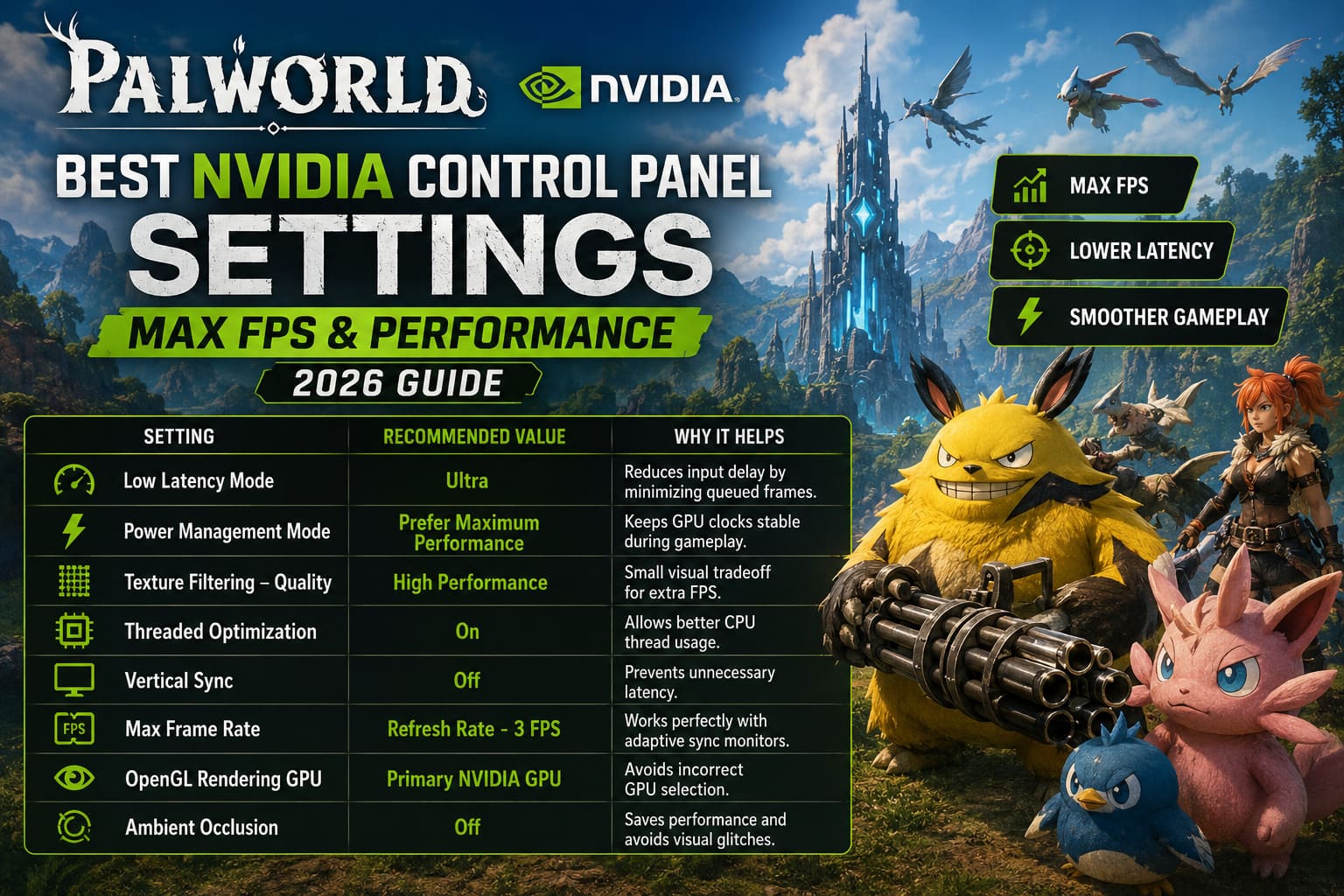
The table below summarizes the options I personally recommend after testing multiple configurations.
| Setting | Recommended Value | Why It Helps |
|---|---|---|
| Low Latency Mode | Ultra | Reduces input delay by minimizing queued frames. |
| Power Management Mode | Prefer Maximum Performance | Keeps GPU clocks stable during gameplay. |
| Texture Filtering – Quality | High Performance | Small visual tradeoff for extra FPS. |
| Threaded Optimization | On | Allows better CPU thread usage. |
| Vertical Sync | Off | Prevents unnecessary latency. |
| Max Frame Rate | Refresh Rate – 3 FPS | Works perfectly with adaptive sync monitors. |
| OpenGL Rendering GPU | Primary NVIDIA GPU | Avoids incorrect GPU selection. |
| Ambient Occlusion | Off | Saves performance and avoids visual glitches. |
The Settings That Make the Biggest Difference
Not every option provides a noticeable improvement.
These are the ones I would prioritize if I only had a few minutes.
Power Management Mode
This is probably the easiest performance gain available.
By default, NVIDIA attempts to save power whenever possible. During exploration or moments with lighter GPU usage, clock speeds may briefly drop before ramping back up.
In Palworld, those constant fluctuations sometimes translate into tiny stutters.
Switching to Prefer Maximum Performance keeps the GPU ready for sudden workload spikes.
Low Latency Mode
Combat feels surprisingly responsive after enabling Ultra.
Whether I’m using firearms, dodging Alpha Pals, or flying across the map, controls simply feel more immediate.
If you value responsiveness over squeezing out every possible benchmark point, this setting is worth enabling.
Texture Filtering Quality
I rarely notice any meaningful image quality loss using High Performance.
Meanwhile, the GPU has slightly more breathing room during large exploration sessions.
It’s one of those settings where the performance gain outweighs the visual difference.
Threaded Optimization
Palworld uses multiple CPU threads quite effectively.
Allowing NVIDIA’s driver to optimize multi-threaded rendering helps distribute work more efficiently, especially once your base becomes heavily automated.
G-SYNC and Frame Limiting
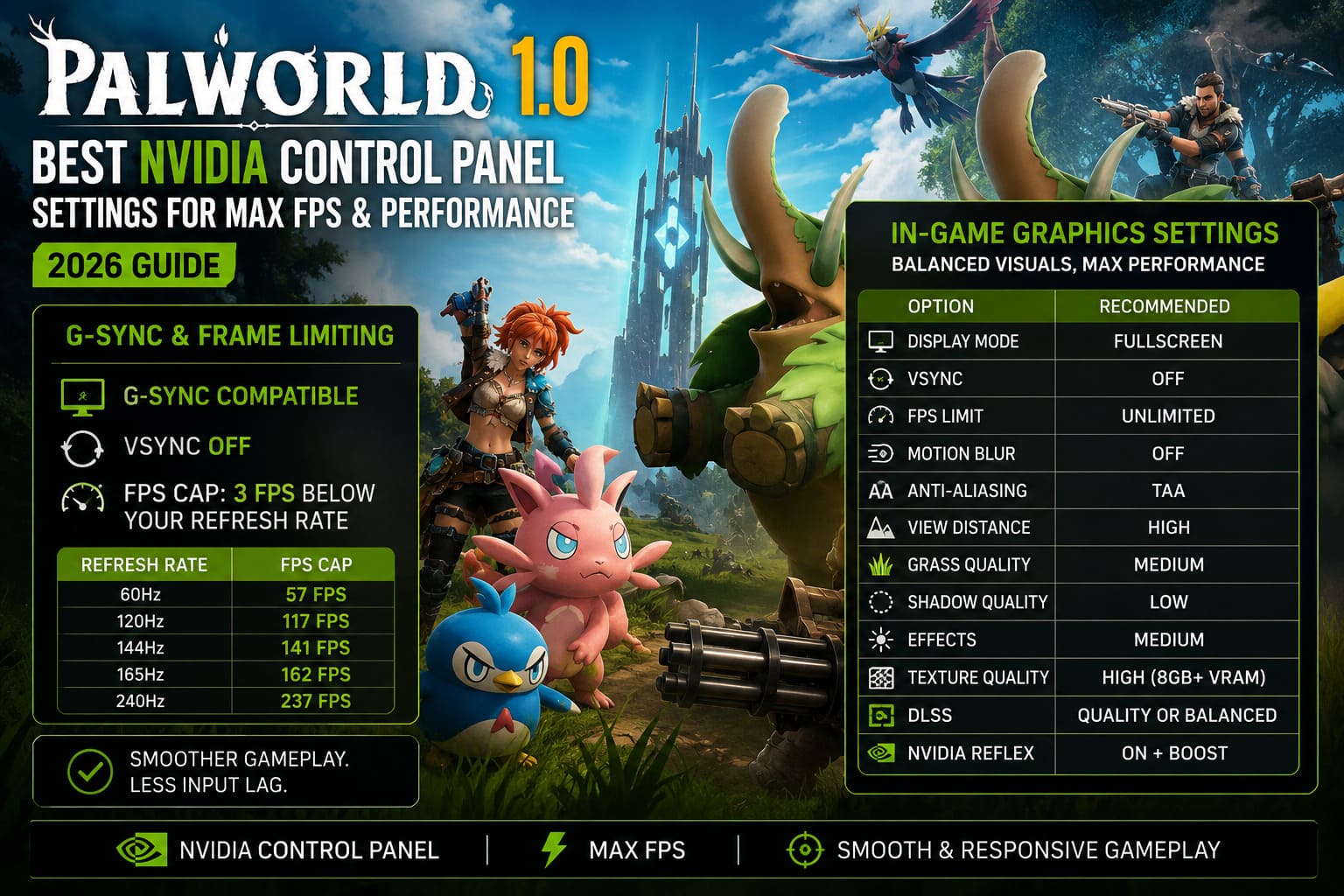
If your monitor supports G-SYNC or Adaptive Sync, there’s a combination I almost always recommend.
Enable:
- G-SYNC Compatible
- VSync Off
- Frame limit set roughly 3 FPS below your monitor’s refresh rate
Examples include:
| Refresh Rate | FPS Cap |
|---|---|
| 60Hz | 57 FPS |
| 120Hz | 117 FPS |
| 144Hz | 141 FPS |
| 165Hz | 162 FPS |
| 240Hz | 237 FPS |
This keeps gameplay incredibly smooth while avoiding unnecessary input lag.
The In-Game Graphics Settings I Actually Use
Driver settings alone won’t solve performance problems.
These are the graphics options that have given me the best balance between visuals and frame rate.
| Option | Recommended Setting |
|---|---|
| Display Mode | Fullscreen |
| VSync | Off |
| FPS Limit | Unlimited |
| Motion Blur | Off |
| Anti-Aliasing | TAA |
| View Distance | High |
| Grass Quality | Medium |
| Shadow Quality | Low |
| Effects | Medium |
| Texture Quality | High (8GB+ VRAM) |
| DLSS | Quality or Balanced |
| NVIDIA Reflex | On + Boost |
Shadows Are Still the Biggest FPS Killer
If someone asked me to change only one graphics setting, it would be Shadow Quality.
Lowering shadows from Epic to Medium—or even Low—often provides a surprisingly large FPS improvement.
Meanwhile, the overall appearance of the game barely changes during regular gameplay.
That makes shadows one of the highest-value settings in the entire graphics menu.
Don’t Overdo View Distance
It’s tempting to push every slider to Epic.
I tried it.
While the scenery certainly looks impressive, I honestly don’t think the additional distant detail justifies the performance cost.
High already offers excellent visibility while keeping GPU usage much more reasonable.
DLSS Is Worth Using
Modern versions of DLSS have improved dramatically.
Quality mode looks excellent at both 1440p and 4K.
Balanced mode is also a great option if you’re targeting higher refresh rates.
Unless you’re taking screenshots, I rarely see a reason to disable DLSS on supported NVIDIA hardware.
Small Tweaks That Help More Than People Think
Performance isn’t only about graphics settings.
Several simple habits consistently improve my experience.
- Install the game on an SSD rather than a traditional hard drive.
- Close unnecessary browser tabs before launching Palworld.
- Update graphics drivers regularly.
- Avoid running multiple monitoring utilities at the same time.
- Keep GPU temperatures under control to prevent thermal throttling.
Each adjustment might seem minor on its own, but together they help maintain smoother gameplay over longer sessions.
Palworld 1.0 Best Graphics Settings for RTX 4060 Laptop (2026 Optimization Guide)
My Overall Experience
After experimenting with different NVIDIA profiles, I found that the biggest improvement wasn’t necessarily the highest average FPS—it was the consistency.
Frame pacing became smoother, sudden camera movement felt more responsive, and large bases with dozens of active Pals were noticeably less prone to hitching.
Palworld will always become more demanding as your world grows. That’s simply the nature of a survival game built around automation and AI. But with the right NVIDIA Control Panel profile and sensible in-game settings, it’s possible to keep performance stable without sacrificing the visual charm that makes exploring its world so enjoyable.
Palworld 1.0 Optimal HDR Calibration Settings PC Guide (2026)
Final Thoughts
If you’re looking for the best Palworld NVIDIA settings for maximum FPS in 2026, I recommend starting with the Control Panel profile above before adjusting individual graphics options. Focus first on Power Management Mode, Low Latency Mode, and Threaded Optimization, then fine-tune your in-game settings around your hardware.
From my experience, chasing the absolute highest frame rate isn’t always the best approach. A stable frame time, responsive controls, and smooth camera movement make a much bigger difference than an extra 15 or 20 FPS on a benchmark chart. Once I switched to these settings, Palworld felt consistently smoother whether I was exploring new islands, defending my base, or managing a bustling workforce of Pals. That’s ultimately the goal of any good optimization guide: making the game feel better every time you press “Play.”