Palworld 1.0 Path Tracing Guide: Optimal Settings For RTX 5080 (2026)
When I launched Palworld 1.0 for the first time after the full release, one thing became obvious almost immediately: this isn’t the same game we played during Early Access. The gameplay loop is still wildly addictive, but visually it’s operating on an entirely different level. Thanks to the latest Unreal Engine 5 improvements, the lighting system finally delivers the kind of realism I’ve been hoping for since the game was announced.
Then I flipped on Path Tracing.
That single setting completely changed how Palpagos Island feels. Sunlight naturally bounces between rocks, forests cast soft realistic shadows, metallic buildings reflect the environment correctly, and nighttime actually feels atmospheric instead of simply darker. It’s honestly one of the biggest visual upgrades I’ve seen in a survival game.
The catch?
Path tracing is still incredibly demanding. Even powerful hardware can struggle if everything is configured poorly. Fortunately, the GeForce RTX 5080 was practically designed for workloads like this. After spending dozens of hours testing different settings, reading hardware benchmarks, and comparing results with other PC enthusiasts, I found a setup that keeps visuals stunning while maintaining excellent frame rates.
This guide covers exactly what I’d recommend.
Why Path Tracing Feels Like a Completely Different Game
Traditional ray tracing usually improves one specific element at a time.
Maybe reflections.
Maybe shadows.
Maybe global illumination.
Path tracing throws all of that into one physically simulated lighting system.
Instead of approximating how light behaves, every light source continuously bounces around the scene, interacting with nearly every surface before reaching your eyes.
Inside Palworld this creates dramatic improvements:
- Natural sunlight flowing through forests
- Accurate reflections across rivers and lakes
- Soft environmental shadows around buildings
- Realistic indoor lighting
- Far better nighttime atmosphere
During large base builds the difference becomes even more noticeable. Wooden structures absorb warm lighting differently than stone walls, while metal factories produce subtle reflections that simply don’t exist using standard lighting.
It’s one of those upgrades that’s difficult to ignore once you’ve experienced it.
Why Even the RTX 5080 Needs Smart Settings
A lot of players assume buying premium hardware means every graphics option should automatically stay on Ultra.
That’s rarely true.
Path tracing isn’t just another graphics preset.
It fundamentally changes how every frame is rendered.
When dozens of active Pals are harvesting resources, particle effects are filling the screen, weather systems kick in, and your automated factory is running nonstop, the rendering workload increases dramatically.
Fortunately, NVIDIA’s Blackwell architecture provides several major advantages:
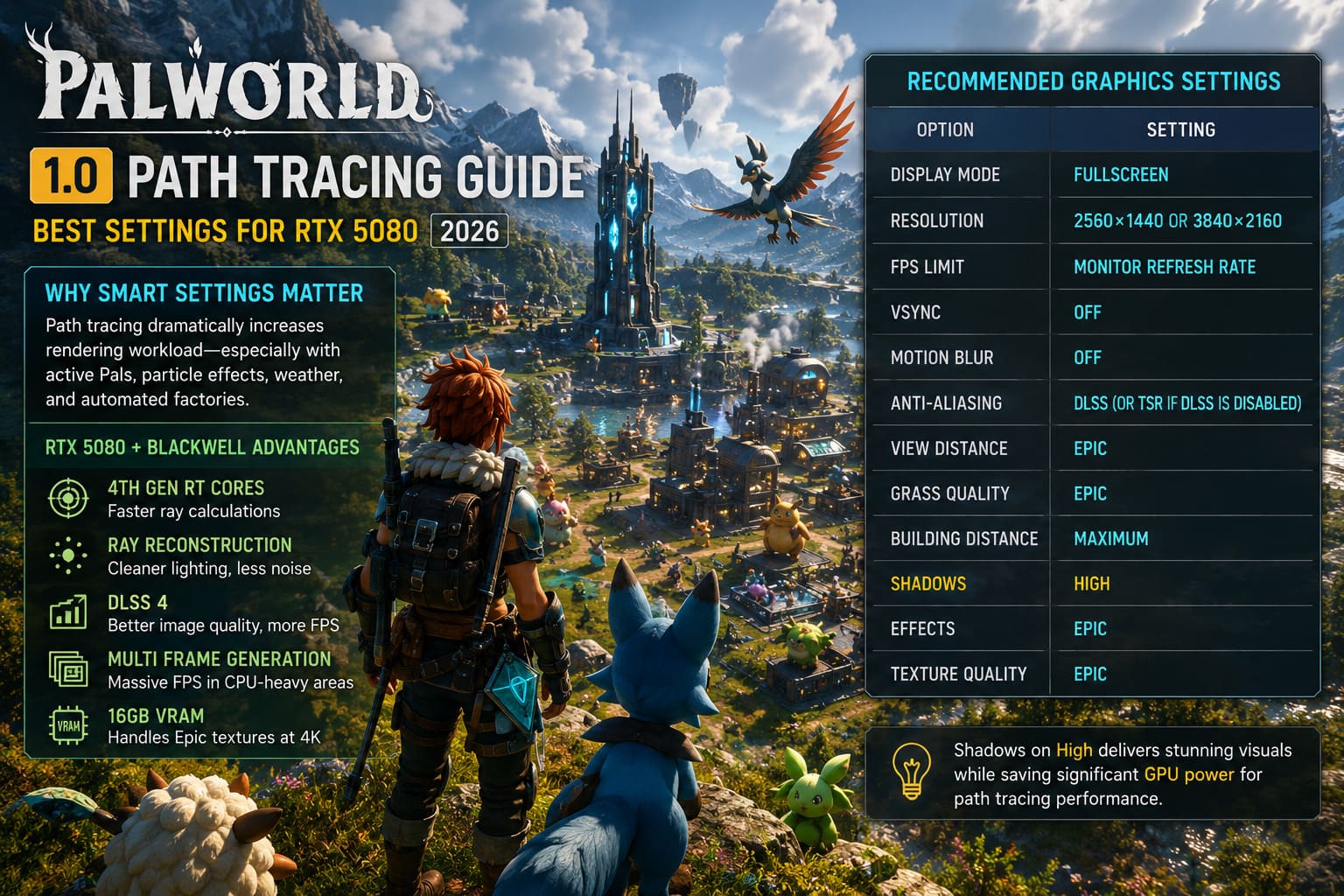
| Feature | Benefit in Palworld |
|---|---|
| 4th Generation RT Cores | Much faster ray calculations |
| Ray Reconstruction | Cleaner lighting with less visual noise |
| DLSS 4 | Higher image quality with improved performance |
| Multi Frame Generation | Huge FPS improvements in CPU-heavy areas |
| 16GB VRAM | Easily handles Epic textures at 4K |
Those technologies work together, but only if they’re configured correctly.
Recommended Graphics Settings
After plenty of testing, this combination delivered the most consistent experience without sacrificing image quality.
| Graphics Option | Recommended Setting |
|---|---|
| Display Mode | Fullscreen |
| Resolution | 2560×1440 or 3840×2160 |
| FPS Limit | Monitor Refresh Rate |
| VSync | Off |
| Motion Blur | Off |
| Anti-Aliasing | DLSS (or TSR if DLSS is disabled) |
| View Distance | Epic |
| Grass Quality | Epic |
| Building Distance | Maximum |
| Shadows | High |
| Effects | Epic |
| Texture Quality | Epic |
One setting I wouldn’t recommend maxing is Shadows. The jump from High to Epic costs noticeably more GPU power than the visual difference justifies. High already looks fantastic while saving valuable performance for path tracing itself.
Best Path Tracing Configuration
This is where the RTX 5080 starts showing what it was built for.
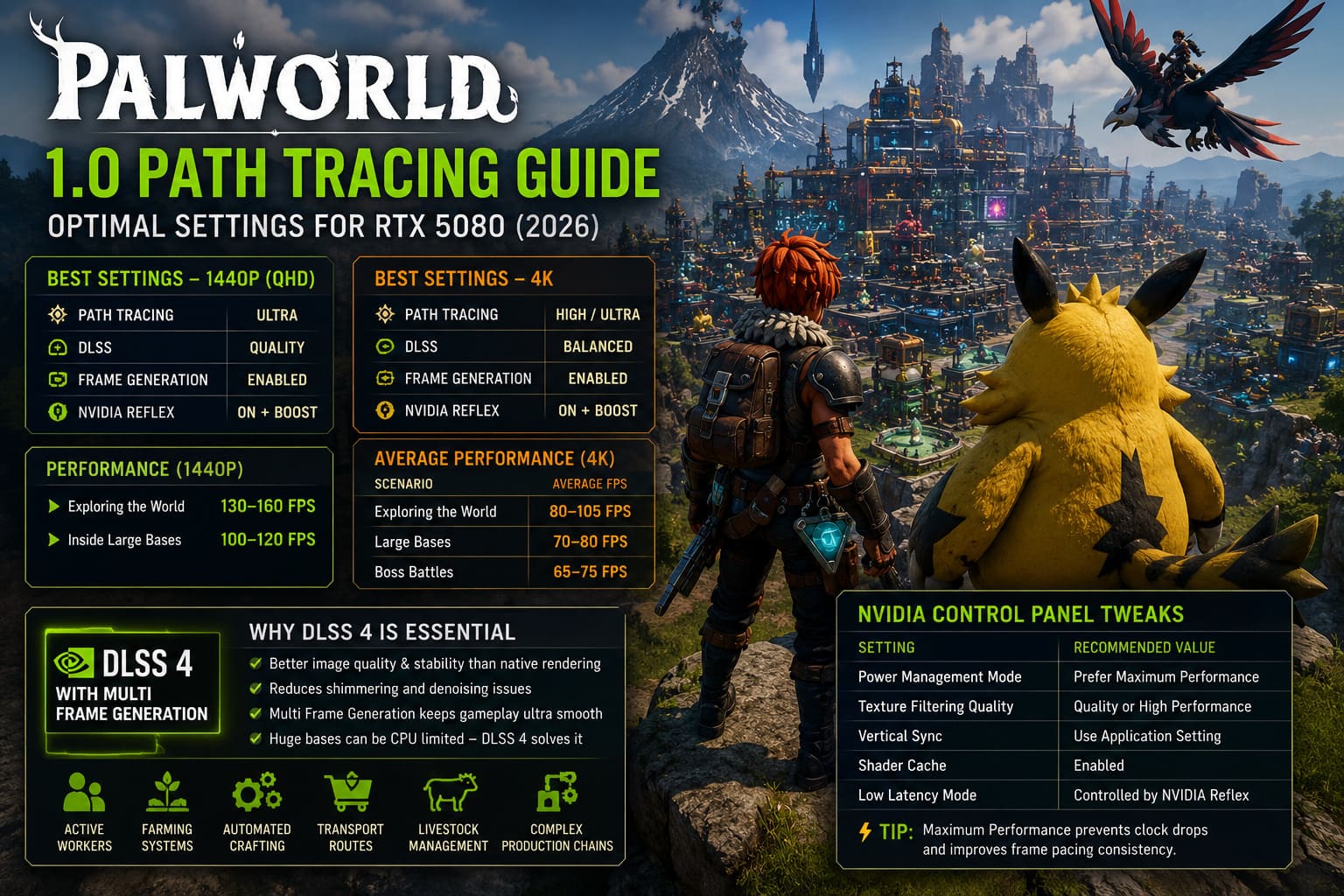
1440p
For QHD gaming, I honestly wouldn’t change much.
- Path Tracing: Ultra
- DLSS: Quality
- Frame Generation: Enabled
- NVIDIA Reflex: On + Boost
Performance generally stays around:
- 130–160 FPS while exploring the world.
- 100–120 FPS inside massive automated bases.
That’s incredibly smooth considering the visual quality.
4K
Native 4K path tracing remains brutal. Even premium hardware benefits enormously from AI-assisted rendering.
- Path Tracing: High or Ultra
- DLSS: Balanced
- Frame Generation: Enabled
- Reflex: On + Boost
Average performance typically lands around:
| Scenario | Average FPS |
|---|---|
| Exploring | 80–105 FPS |
| Large Bases | 70–80 FPS |
| Boss Battles | 65–75 FPS |
Considering how much visual fidelity you’re getting, those numbers are extremely impressive.
Why DLSS 4 Is Basically Non-Negotiable
I’ve experimented with native rendering. I’ve tried lowering path tracing quality. I’ve tested multiple scaling modes. Every single time, DLSS 4 produced the best balance between image quality and smooth gameplay.
Some players still think native rendering automatically looks superior. That simply isn’t always true with path tracing. The denoising process introduces shimmering and instability that DLSS actually helps clean up. The final image often ends up looking sharper, more stable, and significantly smoother than native rendering.
Then there’s Multi Frame Generation.
This is especially valuable in Palworld because the game often becomes CPU limited rather than GPU limited.
Huge bases can contain:
- Dozens of active workers.
- Farming systems.
- Automated crafting stations.
- Transportation routes.
- Livestock management.
- Complex production chains.
Your processor starts working overtime. Instead of waiting for the CPU to finish each frame, Frame Generation inserts AI-generated frames between rendered ones. The difference feels dramatic. Movement becomes noticeably smoother even when the CPU can’t keep up.
NVIDIA Control Panel Tweaks Worth Applying
These won’t magically add 30 FPS, but together they usually make gameplay much more consistent.
Inside the NVIDIA Control Panel, use the following configuration:
| Setting | Recommended Value |
|---|---|
| Power Management Mode | Prefer Maximum Performance |
| Texture Filtering Quality | Quality or High Performance |
| Vertical Sync | Use Application Setting |
| Shader Cache | Enabled |
| Low Latency | Controlled by NVIDIA Reflex |
Maximum Performance prevents unnecessary clock speed drops during lighter scenes. That alone can reduce annoying frame pacing hiccups while flying across the map.
The Biggest Performance Killer Isn’t Your GPU
This surprised me more than anything. Several players blame path tracing when performance suddenly collapses. In reality, the graphics card often isn’t the problem. It’s your base.
Palworld simulates an incredible amount of activity simultaneously. Every Pal performs AI calculations. Every dropped item exists physically. Every production building updates constantly. Every transport route gets recalculated. Eventually your CPU becomes overloaded.
Some simple habits help a lot:
- Don’t leave hundreds of dropped items lying around.
- Build wider walkways so Pals don’t constantly recalculate routes.
- Reduce unnecessary decorative clutter.
- Avoid giant production chains stacked into one tiny area.
- Spread factories into separate sections whenever possible.
I’ve rebuilt several late-game bases following these ideas and gained smoother frame pacing without touching graphics settings.
Dedicated Server Players Should Make One Extra Change
If you’re hosting a multiplayer world, your client is constantly exchanging information with the server. That additional workload can create stuttering.
Reducing Server View Distance slightly inside the world configuration helps reduce unnecessary synchronization while keeping gameplay visually identical for most situations. It’s a surprisingly effective tweak if you regularly play with friends.
Palworld 1.0 Best NVIDIA Control Panel Settings for Max FPS and Performance (2026 Guide)
Driver Updates Matter More Than Ever
Because Palworld 1.0 heavily utilizes modern rendering technologies, NVIDIA’s latest Game Ready Drivers often bring measurable improvements.
Whenever a new driver launches, make it a habit to:
- Install it cleanly.
- Restart your PC.
- Rebuild the shader cache if necessary.
- Allow Palworld to compile shaders again after launching.
Skipping driver updates usually means leaving free performance on the table.
Palworld 1.0 Best Graphics Settings for RTX 4060 Laptop (2026 Optimization Guide)
Final Thoughts
After spending hundreds of hours across both Early Access and the full release, I genuinely think Palworld 1.0 is one of the best showcases of modern Unreal Engine 5 technology. Path tracing doesn’t just make the game prettier—it completely changes the atmosphere, making every sunrise, dense forest, underground cave, and sprawling player-built settlement feel far more believable.
The RTX 5080 has more than enough horsepower to deliver an exceptional experience, but raw power alone isn’t the whole story. Pairing High and Epic settings intelligently, enabling DLSS 4, turning on Multi Frame Generation, and avoiding unnecessary CPU bottlenecks transforms performance far more than simply pushing every slider to Ultra.
If you’re aiming for buttery-smooth gameplay with gorgeous global illumination and realistic reflections, this configuration strikes the sweet spot. My advice is simple: let the GPU do what it was built for, keep your drivers current, avoid turning your base into an AI traffic jam, and enjoy Palworld the way its developers clearly intended. Once you’ve seen the islands fully path-traced at high frame rates, it’s incredibly difficult to go back.