How to Fix Palworld Level.sav File Corrupted Error: Complete 1.0 Guide
Losing a Palworld save is honestly one of the worst feelings I’ve had in a survival game.
You spend dozens—sometimes hundreds—of hours building the perfect base, breeding rare Pals, organizing storage boxes, and collecting resources. Then one day you hit Start Game, and suddenly your world refuses to load. Maybe you’re stuck on a black screen. Maybe the game crashes instantly. Or even worse, Palworld acts like your character never existed and asks you to create a brand-new one.
I’ve seen this happen to a lot of players since the game’s full release, and unfortunately, the infamous Level.sav corrupted error is still one of Palworld’s biggest technical headaches.
The good news? In many cases, your world isn’t gone forever.
After digging through community fixes, server admin discussions, and trying several solutions myself, I found that there are a few methods that can bring your save back to life.
Why the Level.sav File Is So Important
Think of Level.sav as the heart of your entire world.
It doesn’t just store your character information. It keeps track of:
- Base locations
- Buildings and structures
- Storage containers
- Captured Pals
- Wild Pal spawns
- World progression
- Certain multiplayer data
If this file becomes corrupted, Palworld suddenly doesn’t know how your world is supposed to look anymore.
That’s why players experience issues like:
| Problem | What Happens |
|---|---|
| Infinite loading screen | World never finishes loading. |
| Black screen on startup | Save data cannot be read. |
| Game crash | Corrupted data causes engine failure. |
| Character reset | Server fails to match player data. |
| Missing bases and Pals | World information is partially lost. |
The scary part is that this corruption can happen without warning.
What Usually Causes Level.sav Corruption?
After spending way too much time reading forums and troubleshooting my own saves, I noticed that the same problems keep showing up.
1. Crashing During Auto-Save
Palworld auto-saves constantly.
If your PC freezes, loses power, or the game crashes during the save process, the file may only be partially written.
The result? A broken Level.sav file.
2. Massive Bases and Memory Issues
Late-game worlds can become extremely demanding.
Huge production factories, dozens of Pals working at once, and giant bases can push RAM usage surprisingly high.
When memory runs out, the game may suddenly close while writing save data.
I’ve personally seen this happen on dedicated servers with lots of players online.
3. Dedicated Server Restarts
Server owners know this pain.
A restart at the wrong moment can corrupt the save hierarchy and even disconnect character files from the world itself.
That’s why many server administrators keep multiple backups.
Fix #1 – Restore an Older Automatic Backup
This is easily the best solution if you’re playing single-player or hosting locally.
Palworld actually creates backup saves automatically, and many players don’t even know they exist.
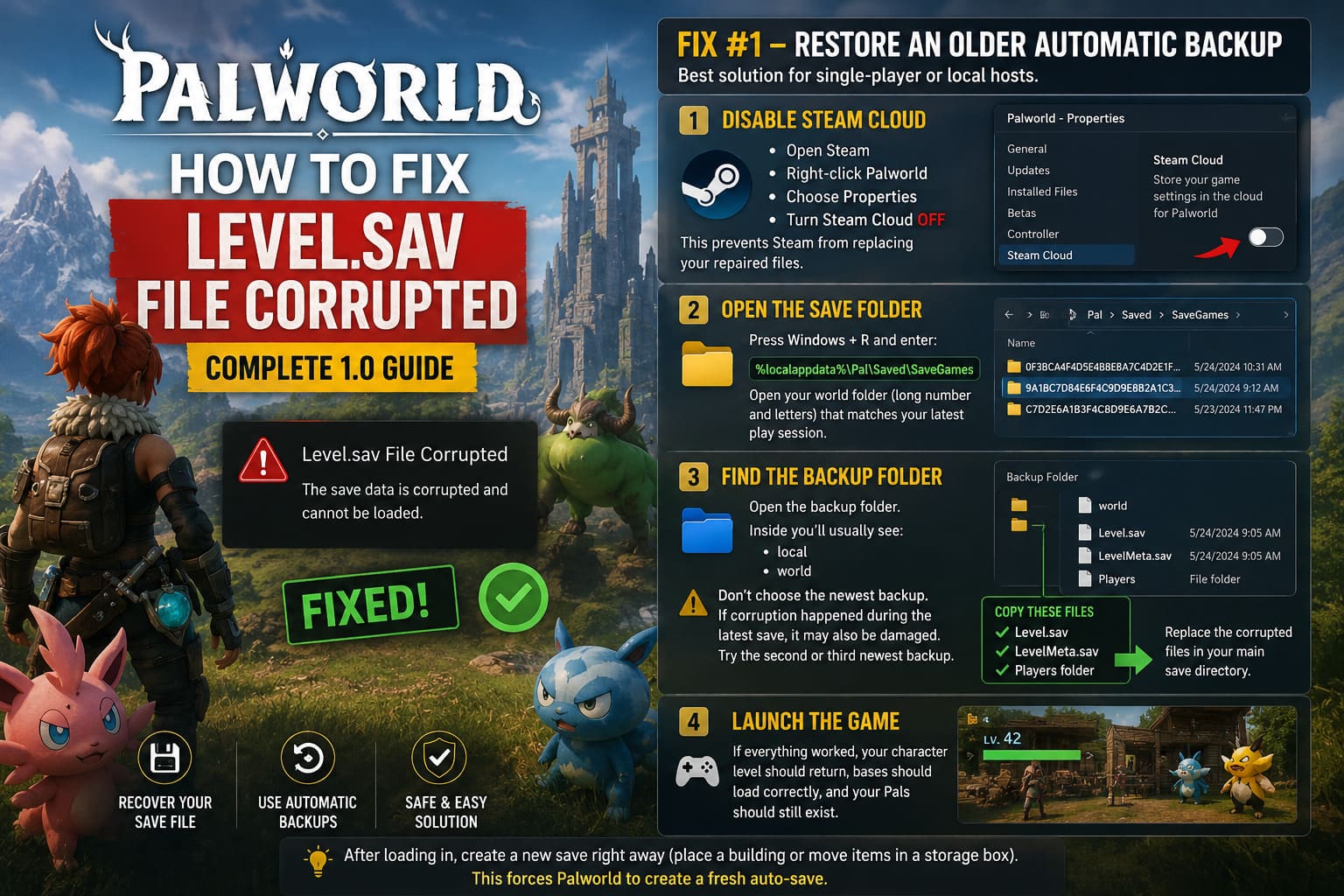
Step 1: Disable Steam Cloud
Before touching your save files:
- Open Steam.
- Right-click Palworld.
- Choose Properties.
- Turn Steam Cloud off.
This prevents Steam from replacing your repaired files with the broken version.
Step 2: Open the Save Folder
Press Windows + R and enter:
%localappdata%\Pal\Saved\SaveGames
Inside you’ll see a folder with a long number and letter combination and several world folders. Choose the world that matches your latest play session.
Step 3: Find the Backup Folder
Open the backup folder.
Inside you’ll usually see:
- local
- world
Do not immediately choose the newest backup. If corruption happened during the latest save, that backup may also be damaged.
Instead, try the second or third newest backup.
Copy these files:
- Level.sav
- LevelMeta.sav
- Players folder
Replace the corrupted files in your main save directory.
Step 4: Launch the Game
If everything worked, your character level should return, bases should load correctly, and your Pals should still exist.
I always recommend making a new save immediately afterward by placing a building piece or moving items in a storage box. That forces Palworld to create a fresh auto-save.
Fix #2 – Dedicated Server Recovery
If you’re running a server through providers like G-Portal, Shockbyte, Nitrado, or a self-hosted Linux machine, the process is a little different.
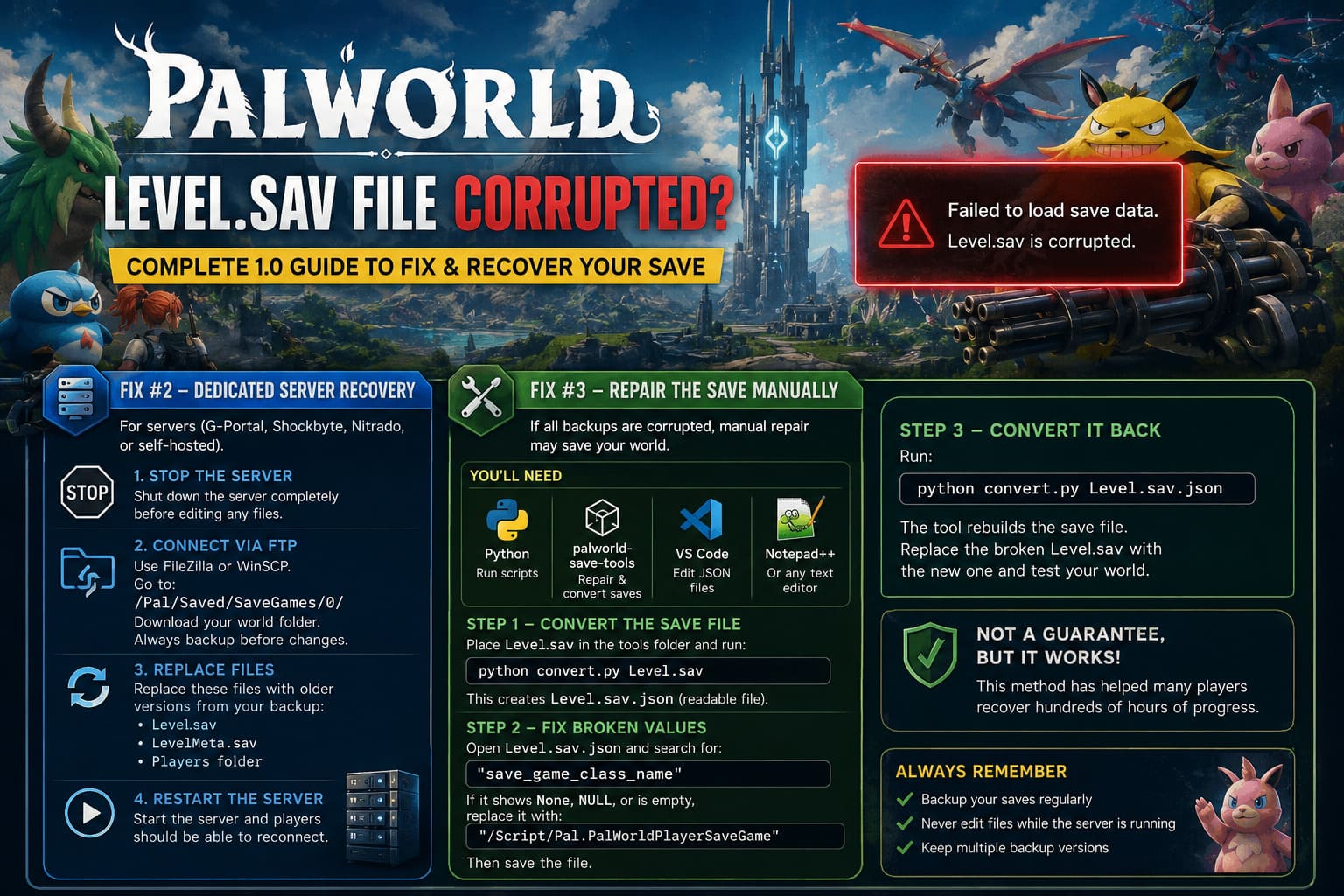
First, Stop the Server
Never edit save files while the server is online.
Seriously. This can make corruption even worse.
Wait until the control panel confirms the server has fully shut down.
Connect Through FTP
Programs like FileZilla and WinSCP make the job much easier.
Navigate to:
/Pal/Saved/SaveGames/0/
Download your entire world folder first. Always create an emergency backup before changing anything.
Then replace:
- Level.sav
- LevelMeta.sav
- Players folder
with older versions from the backup directory.
Restart the server afterward. In many cases, players can reconnect immediately.
Fix #3 – Repair the Save Manually
This method looks scary at first, but it’s actually saved a lot of worlds.
If all your backups are corrupted too, community tools may still be able to fix the file.
You’ll Need
| Tool | Purpose |
|---|---|
| Python | Running scripts. |
| palworld-save-tools | Save conversion and repair. |
| Visual Studio Code | Editing JSON files. |
| Notepad++ | Alternative text editor. |
Convert the Save File
Place Level.sav inside your save tools folder.
Run the following command:
python convert.py Level.sav
The tool will generate Level.sav.json, which is the readable version of your save.
Look for Broken Values
Open Level.sav.json and search for:
save_game_class_name
Sometimes the value becomes None, NULL, or contains empty data.
Replace it with:
/Script/Pal.PalWorldPlayerSaveGame
Then save the file.
Convert It Back
Run:
python convert.py Level.sav.json
The tool rebuilds the save file. Replace the broken Level.sav with the repaired version and try loading your world again.
It won’t work every single time, but I’ve seen people recover hundreds of hours of progress using this method.
Palworld 1.0 Path Tracing Guide: Optimal Settings For RTX 5080 (2026)
How I Avoid Save Corruption Now
After dealing with this problem once, I changed how I play Palworld completely.
I Make Manual Backups
Every few days I copy:
%localappdata%\Pal\Saved\SaveGames
to another folder. It takes less than a minute.
I Don’t Force Close the Game
No Alt + F4. No Task Manager.
I always return to the main menu first. It sounds simple, but it matters.
I Keep Multiple Server Backups
If you’re running a dedicated server, keep several generations of backups.
A backup from five minutes ago might already be corrupted. Having older copies can save an entire community server.
Palworld 1.0 Best NVIDIA Control Panel Settings for Max FPS and Performance (2026 Guide)
Is the Level.sav Error Permanent?
Usually, no.
In my experience, most corrupted worlds can be recovered if you act quickly and avoid overwriting files.
The biggest mistake players make is continuing to launch the game repeatedly, allowing Steam Cloud or additional auto-saves to replace good backups.
As frustrating as this bug is, Palworld does give players several ways to recover their worlds.
And honestly, after spending countless hours catching rare Pals and building giant factories, taking a few extra minutes to maintain backups is absolutely worth it.
Because in a game this addictive, losing an entire world hurts far more than spending five minutes protecting it.