CS2 Low FPS in Main Menu Fix: Stop Menu Lag & Performance Drops (2026 Guide)
There is something uniquely annoying about launching Counter-Strike 2, expecting a smooth 300+ FPS experience, and then watching the main menu turn into a slideshow.
You can be running through a competitive match with excellent performance, clean frame pacing, and completely playable input latency. Then you return to the menu, open your inventory, check the scoreboard, or switch between tabs — and suddenly CS2 drops to 20 FPS, 10 FPS, or even single digits.
It feels ridiculous.
Counter-Strike 2 is supposed to be a competitive shooter built around responsiveness. The fact that some players can maintain hundreds of frames per second during actual gameplay while the menu itself starts stuttering like an old laptop is one of those classic PC gaming problems that makes you question whether the game is actually working correctly.
The good news is that CS2 low FPS in the main menu can usually be fixed. The problem is often connected to the way Source 2 handles its 3D menu environment, shader caching, frame limits, Windows presentation features, GPU power states, and background CPU workloads.
I have spent an absurd amount of time tweaking competitive games, testing launch options, changing driver settings, clearing shader caches, and trying to squeeze stable frame pacing out of systems that absolutely should not be struggling with a game menu. Based on that experience, the biggest mistake is treating this as a normal “lower your graphics settings” problem.
It usually isn’t.
Why Does CS2 Have Low FPS in the Main Menu?
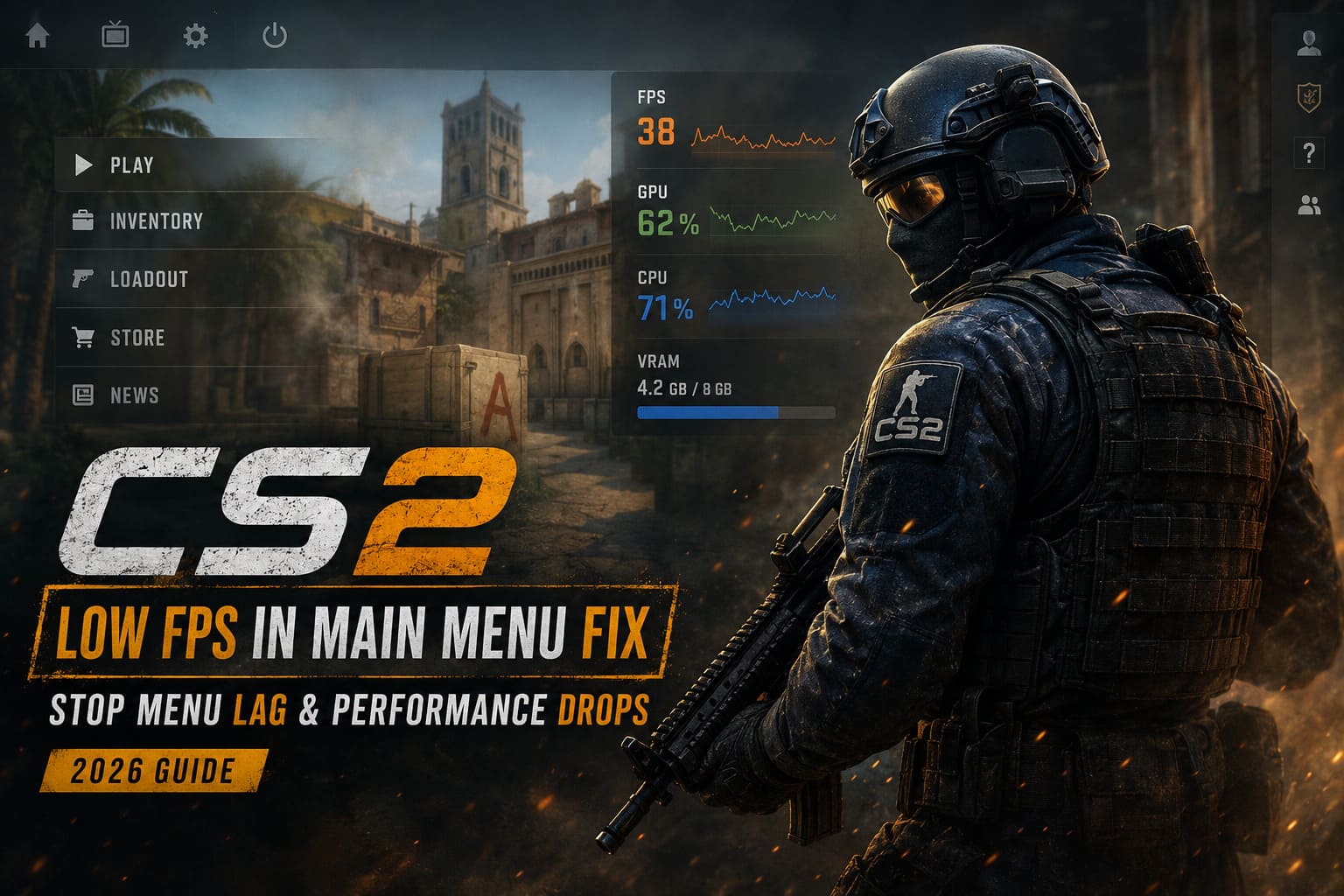
The CS2 main menu is not just a static screen with a few buttons layered over a background. The game is constantly rendering a 3D environment, character models, weapons, lighting effects, animated elements, UI layers, and background assets.
In some situations, the menu can actually create a stranger workload than a normal match.
The most common causes of CS2 menu lag and FPS drops include:
| Problem | What It Can Cause |
|---|---|
| Poor or uncapped menu FPS behavior | GPU spikes and unstable frametimes |
| Heavy 3D menu backgrounds | Excessive rendering load while idle |
| Corrupted shader cache | Stuttering after updates or driver changes |
| Windows fullscreen conflicts | Inconsistent frame presentation |
| CPU thread bottlenecks | Sudden freezes and scoreboard lag |
| GPU power-saving behavior | Low clocks and poor menu performance |
The first thing I would do is avoid randomly changing twenty settings at once. That makes troubleshooting almost impossible. Start with the fixes that directly affect frame pacing and system resource allocation.
Fix 1: Test CPU Affinity Instead of Letting Core 0 Get Hammered
One of the more interesting fixes reported by the CS2 community involves CPU affinity.
On some systems, the game can create a noticeable workload imbalance where one CPU thread becomes heavily loaded while other cores remain relatively underused. Since Windows commonly handles a huge amount of background activity on CPU 0, forcing a demanding game workload onto that same core can sometimes create unnecessary contention.
If your CS2 menu freezes, stutters badly, or your FPS collapses whenever you open UI elements, testing a different CPU affinity configuration is worth trying.
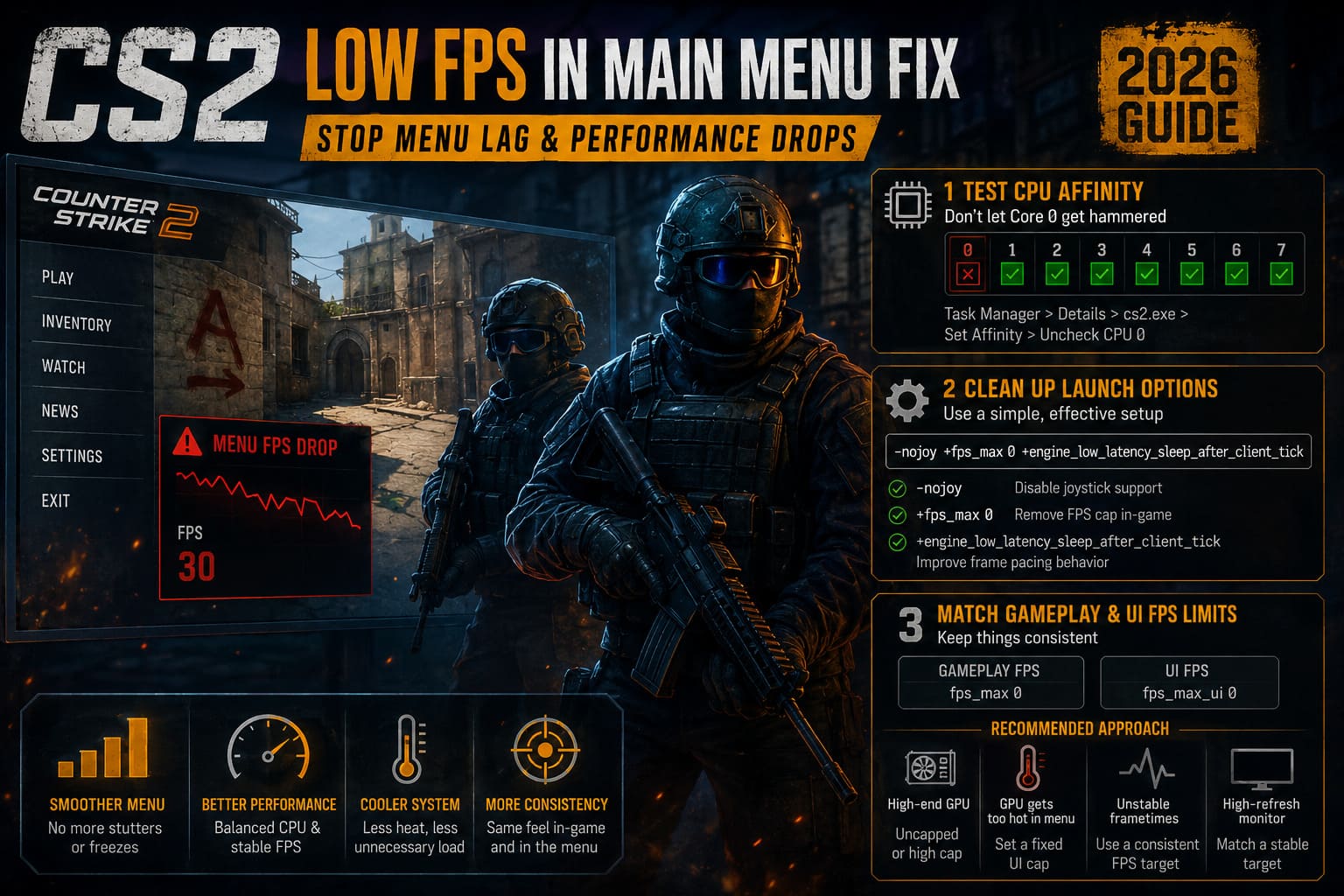
How to Change CS2 CPU Affinity
- Launch Counter-Strike 2 and remain in the main menu.
- Press Ctrl + Shift + Esc to open Task Manager.
- Open the Details tab.
- Find cs2.exe.
- Right-click the process and select Set affinity.
- Uncheck CPU 0 while leaving the other available cores enabled.
- Click OK and test the menu again.
This is not a universal fix. I would not blindly claim that disabling CPU 0 magically fixes every CS2 performance problem. However, on systems suffering from unusual thread contention, it can make a surprisingly noticeable difference.
If the game suddenly feels smoother when navigating the menu or opening the scoreboard, you may have found a genuine CPU scheduling bottleneck.
Fix 2: Clean Up Your CS2 Launch Options
CS2 has inherited a huge amount of launch-option folklore from the CS:GO era.
Some old commands are still useful in specific situations. Others are outdated, misunderstood, or simply copied from random optimization videos without anyone checking what they actually do.
For a clean 2026 setup, I recommend avoiding a giant launch command filled with mysterious parameters. A simple configuration is much easier to troubleshoot.
A commonly used setup to test is:
-nojoy +fps_max 0 +engine_low_latency_sleep_after_client_tick
Here is what these commands are intended to do:
- -nojoy disables joystick support if you do not use a controller.
- +fps_max 0 removes the normal gameplay FPS cap.
- +engine_low_latency_sleep_after_client_tick is intended to improve frame pacing behavior in supported configurations.
Open Steam, right-click Counter-Strike 2, select Properties, and enter your launch options in the General tab.
My advice here is simple: do not stack every launch option you find on Reddit into one giant command. A lot of “FPS boost” commands are placebo, outdated, or can create unexpected problems. If a setting does not have a clear purpose, leave it out.
Fix 3: Match Your Gameplay and UI FPS Limits
This is one of the easiest things to overlook.
Many players have a high gameplay FPS limit but completely ignore the UI limit. That can create an awkward transition between gameplay, the menu, the scoreboard, and other interface elements.
You can test the following commands through the developer console:
fps_max 0
and
fps_max_ui 0
This allows both gameplay and UI rendering to operate without a fixed cap.
However, uncapped FPS is not automatically better. If your GPU runs extremely hot in the menu, the game can waste a ridiculous amount of power rendering hundreds or thousands of frames on a screen you are barely looking at.
For that reason, I personally prefer a stable cap on many systems.
For example:
| Hardware Behavior | Recommended Approach |
|---|---|
| High-end GPU with plenty of thermal headroom | Uncapped or high cap |
| GPU becomes extremely hot in the menu | Set a fixed UI cap |
| Unstable frametimes | Use a consistent FPS target |
| Competitive setup with a high-refresh monitor | Match a stable target to your display |
The important part is consistency. If your gameplay runs at 300 FPS, your menu collapses to 30 FPS, and your GPU constantly changes power states, the transition can feel much worse than the raw FPS numbers suggest.
Fix 4: Clear Corrupted Shader Caches
If your CS2 menu performance became terrible after a game update, graphics driver installation, or major system change, shader cache corruption should be high on your suspect list.
Shader caches exist to prevent the game from compiling the same graphical effects repeatedly. When old cached data no longer matches the current game build or driver, the result can be stuttering, hitching, and bizarre performance drops.
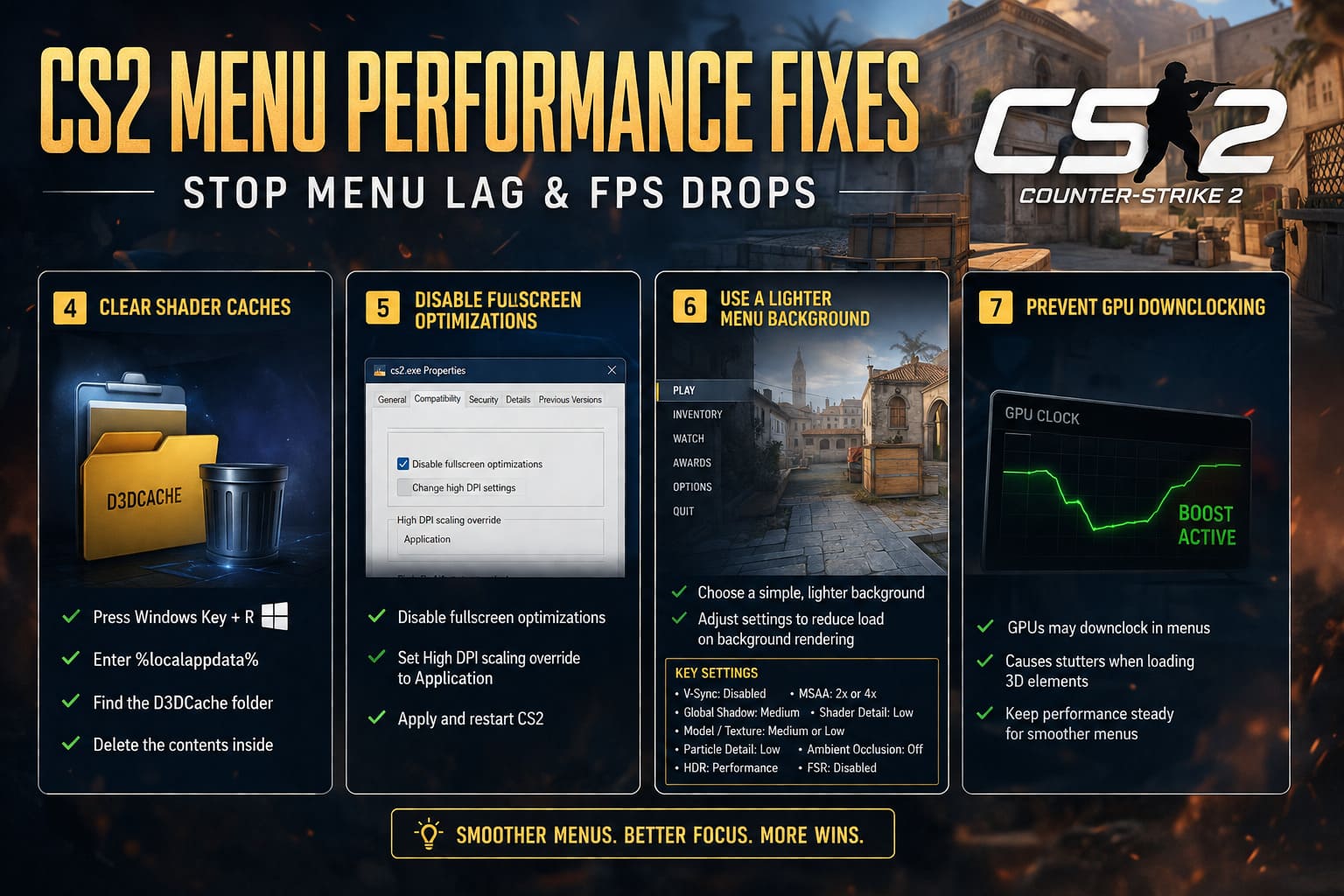
To clear the Windows DirectX cache:
- Press Windows Key + R.
- Enter %localappdata%.
- Press Enter.
- Find the D3DCache folder.
- Delete the contents inside it.
Windows may refuse to remove files currently in use. That is fine. Skip those files.
You can also check the Steam shader cache associated with CS2. The game uses App ID 730, so the relevant folder is typically located inside Steam’s shader cache directory.
After clearing shader data, the first launch may not be perfectly smooth. The game may need to rebuild shader information, and your first match can include temporary stutters.
That is normal.
The mistake is deleting the cache and immediately assuming the fix failed because the first few minutes feel worse. Give the game time to rebuild the necessary data.
Fix 5: Disable Fullscreen Optimizations for CS2
Windows fullscreen features can sometimes create problems for competitive games, particularly when a title is using a mixture of fullscreen, borderless presentation, scaling, and overlay layers.
To test a different configuration:
- Open your Steam Library.
- Right-click CS2.
- Select Manage → Browse local files.
- Navigate to game → bin → win64.
- Find cs2.exe.
- Right-click it and select Properties.
- Open the Compatibility tab.
- Enable Disable fullscreen optimizations.
- Open Change high DPI settings.
- Enable the application scaling override option and set it to Application.
Click Apply and restart the game.
This is especially worth testing if you experience more than just low menu FPS. If the entire game feels inconsistent when switching windows, opening the scoreboard, or interacting with overlays, Windows presentation behavior may be contributing to the problem.
Fix 6: Use a Lighter CS2 Menu Background
This is one of the most obvious fixes, yet players regularly ignore it.
The background scenery in CS2 is not purely decorative. The game is rendering a real 3D scene behind the interface, complete with lighting, models, textures, and effects.
If you have a choice between a simple background and a visually heavy map environment, the lighter option can make a meaningful difference.
I strongly recommend testing a less demanding menu background instead of using a visually complex map such as Inferno or Ancient if your system is already struggling.
Other settings worth adjusting include:
- V-Sync: Disabled for competitive play.
- NVIDIA Reflex: Enabled + Boost if supported by your GPU.
- MSAA: 2x or 4x instead of 8x.
- Global Shadow Quality: Medium.
- Model / Texture Detail: Medium or Low if necessary.
- Shader Detail: Low for troubleshooting menu performance.
- Particle Detail: Low.
- Ambient Occlusion: Disabled.
- HDR: Performance.
- FSR: Disabled on modern GPUs unless you genuinely need additional performance.
The biggest mistake is turning every setting to the lowest possible value without understanding what is actually causing the problem. If the menu is the issue, reducing the settings that affect background rendering and shader complexity makes far more sense than destroying visual quality everywhere.
Fix 7: Stop Your GPU From Downclocking Too Aggressively
Sometimes the problem is not that your graphics card is too weak.
The problem is that your GPU sees the menu as a low-intensity workload and decides to reduce its clocks.
Then CS2 suddenly demands more rendering power when you open a 3D menu element, scoreboard, or animated interface component. The GPU has to ramp back up, and the transition can create stutters or inconsistent frametimes.
NVIDIA Users
Open the NVIDIA Control Panel or NVIDIA App and create a dedicated CS2 profile.
Test these settings:
- Power Management Mode: Prefer Maximum Performance.
- Low Latency Mode: Ultra, if it behaves well with your setup.
- Shader Cache Size: Unlimited.
I would not recommend blindly forcing maximum performance for every game on your entire PC. A per-game profile is much more sensible.
AMD Users
In AMD Software: Adrenalin Edition, open the CS2 game profile and check:
- AMD Anti-Lag: Enabled if desired.
- Radeon Chill: Disabled if it is artificially limiting your FPS.
- Any aggressive power-saving or frame-limiting features: Review and disable them for testing.
If your GPU clocks suddenly drop to extremely low levels while the CS2 menu is stuttering, this is absolutely worth investigating.
CS2 Cache Remake Guide: How to Play Cache in Premier Season 5 (2026)
Final Verdict: Fix the Cause, Not Just the FPS Counter
CS2 main menu lag is one of those problems that can feel completely irrational. Your PC can run a full competitive match at hundreds of frames per second, yet the menu behaves like it is rendering a modern AAA game on a ten-year-old machine.
The most effective troubleshooting path is to work through the problem systematically:
- Test CPU affinity if one core is being overloaded.
- Clean up unnecessary launch options.
- Synchronize or properly cap gameplay and UI FPS.
- Clear old shader caches after updates or driver changes.
- Test disabling Windows fullscreen optimizations.
- Use a lighter menu background and sensible graphics settings.
- Prevent your GPU from aggressively dropping performance states.
Personally, I would start with the menu background, FPS limits, and shader cache before touching more advanced CPU or driver settings. Those are the fixes most likely to produce an immediate difference without creating new problems.
CS2 VacNet 3.0 Anti-Cheat Status & Cache Remake Map Callouts Guide (2026 Update)
And remember: the highest FPS number is not always the smoothest experience. A stable 300 FPS with consistent frametimes is far better than an uncapped menu bouncing between 200 and 1,000 FPS while your GPU runs unnecessarily hot.
Once CS2 stops treating its own main menu like a secret benchmark test, the entire game feels better. Menus open more smoothly, the scoreboard stops hitching, switching between screens becomes less annoying, and you can finally focus on the actual match instead of wondering why a simple interface is destroying your performance.