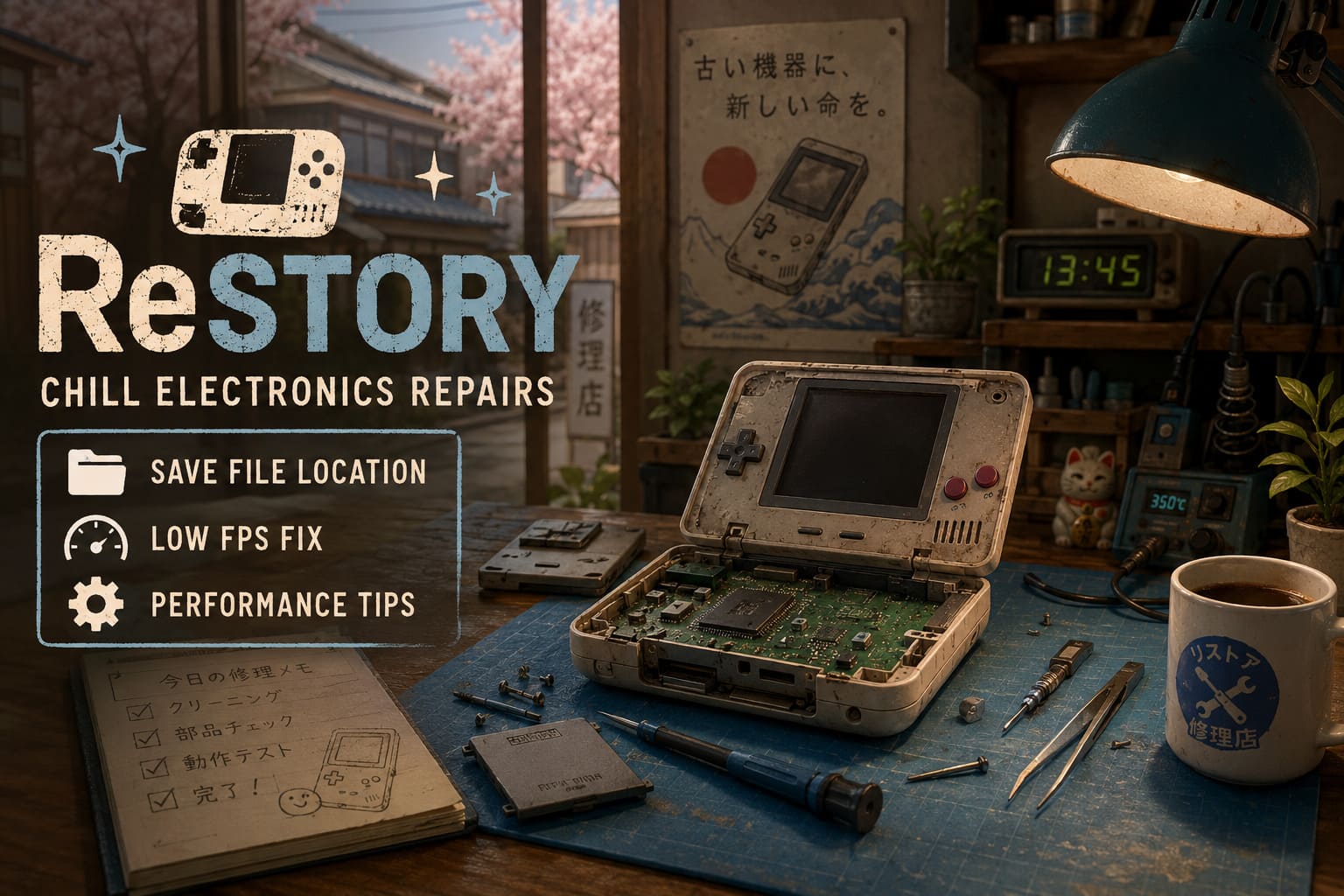
ReStory Chill Electronics Repairs Save File Location & Low FPS Fix Guide
When I first launched ReStory: Chill Electronics Repairs, I expected nothing more than a cozy simulator where I’d spend an hour restoring dusty electronics before moving on to another game. A few hours later, I realized I had completely lost track of time. There’s something strangely satisfying about bringing old gadgets back to life, cleaning decades of grime from forgotten handhelds, and slowly building a successful repair shop inspired by early-2000s Japan.
That relaxing atmosphere makes technical issues even more frustrating. Nothing kills the mood faster than random stuttering, a cleaning minigame that suddenly refuses to recognize your mouse movements, or wondering where your save files disappeared after reinstalling Windows.
After digging through community discussions, testing different Windows settings myself, and experimenting with various performance tweaks, I’ve put together everything worth knowing in one place. Whether you simply want to back up your progress or you’re trying to squeeze a smooth frame rate out of your PC, this guide covers the solutions that make the biggest difference.
Where Are ReStory Save Files Stored?
One of the first things I always do with simulation games is create manual backups. These games often receive updates during their early life, and while patches usually improve stability, unexpected issues can occasionally affect existing save data.
Thankfully, ReStory keeps everything locally on your computer, making backups quick and painless.
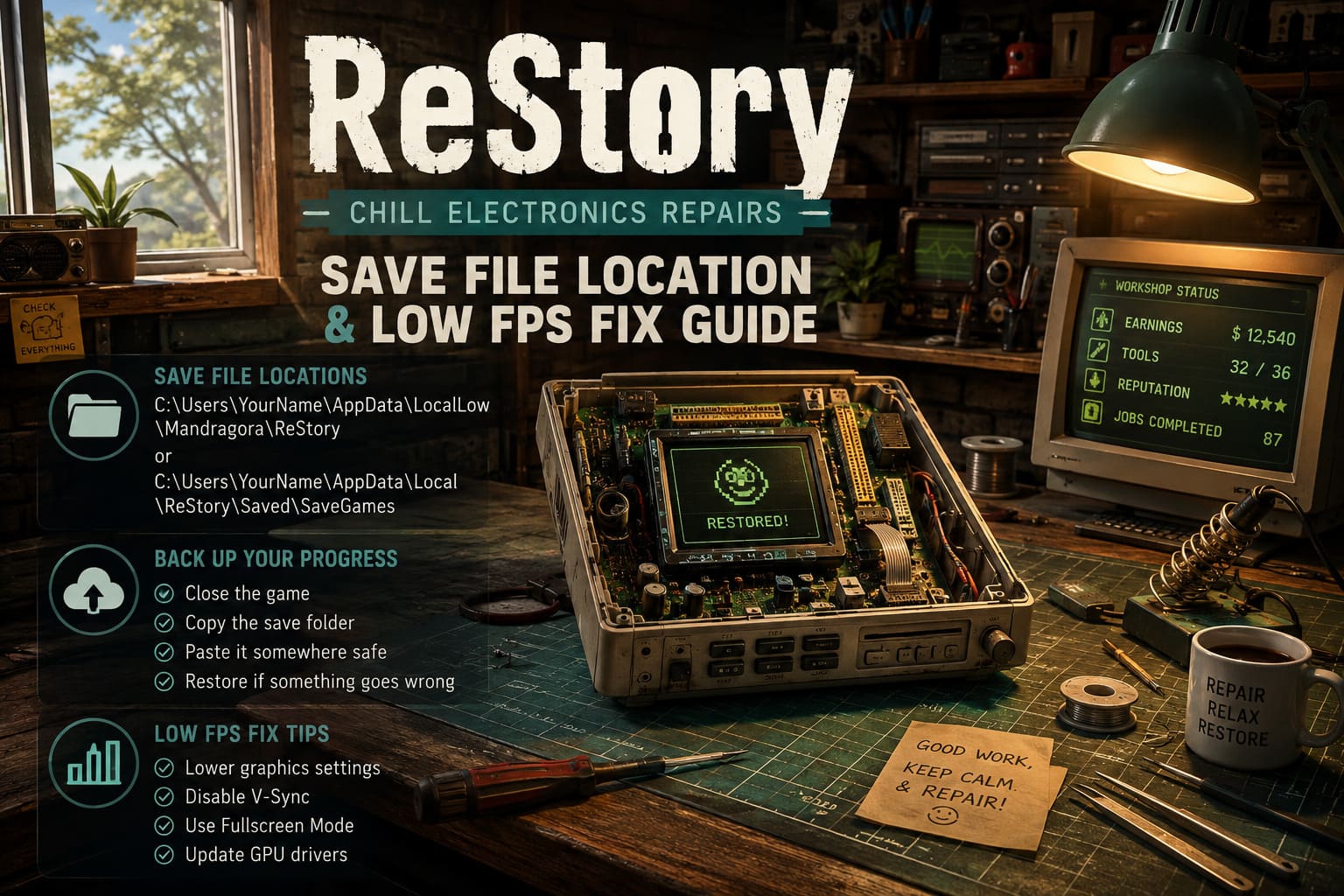
The most common save location is:
C:\Users\[Your Username]\AppData\LocalLow\Mandragora\ReStory
Some installations may instead use:
C:\Users\[Your Username]\AppData\Local\ReStory\Saved\SaveGames
Your progress—including repaired electronics, earned money, unlocked tools, workshop upgrades, and story progression—is typically stored inside these folders.
Finding the Folder Quickly
Instead of digging through hidden folders manually, I usually take the faster route:
- Press Windows + R.
- Type %appdata%.
- Press Enter.
- Return one folder to AppData.
- Open LocalLow (or Local if necessary).
- Browse to the ReStory directory.
If Windows refuses to show AppData, enable Hidden Items inside File Explorer.
Backing Up Your Progress Is Worth the Extra Minute
This isn’t one of those games where losing your save means replaying twenty minutes.
Several hours can disappear surprisingly quickly while restoring devices, unlocking equipment, and expanding your workshop.
Creating backups only takes a few moments:
- Close ReStory completely.
- Copy the entire save folder.
- Paste it somewhere safe.
- Store another copy on a second drive or cloud storage if possible.
If something goes wrong after an update or crash, simply copy the backup back into its original location and replace the damaged files.
I make it a habit before every major patch, especially for indie titles.
Common PC Problems Players Are Running Into
Although ReStory isn’t visually demanding compared to modern AAA releases, its repair mechanics simulate a surprising amount of object interaction.
Tiny screws, removable components, layered dirt effects, lighting, reflections, and interactive tools all add up. Most modern gaming PCs handle it well, but certain systems experience noticeable slowdowns.
The issues players report most often include:
- Sudden FPS drops.
- Heavy stuttering after several in-game days.
- Mouse lag during cleaning.
- CPU usage jumping unusually high.
- Cursor becoming misaligned.
- Random hitching despite powerful hardware.
Fortunately, most of these aren’t caused by insufficient GPU power.
Why Performance Can Drop So Dramatically
One thing became obvious after testing different hardware.
The game isn’t usually limited by graphics horsepower alone. CPU scheduling, Windows background services, and display configuration often have a much bigger impact.
Here’s a quick overview.
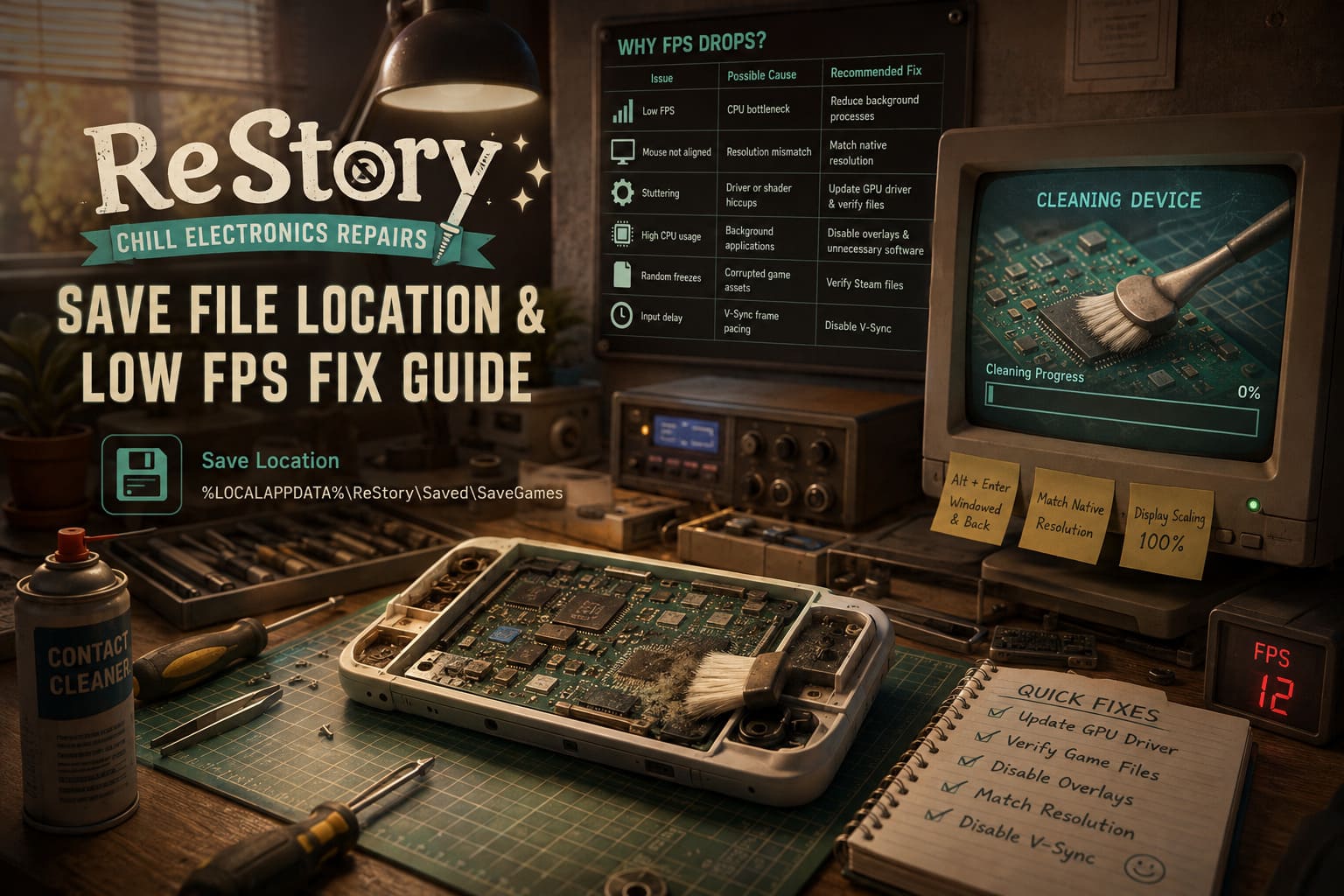
| Issue | Possible Cause | Recommended Fix |
|---|---|---|
| Low FPS | CPU bottleneck | Reduce background processes |
| Mouse not aligned | Resolution mismatch | Match native monitor resolution |
| Stuttering | Driver or shader hiccups | Update GPU driver and verify files |
| High CPU usage | Background applications | Disable overlays and unnecessary software |
| Random freezes | Corrupted game assets | Verify Steam files |
| Input delay | V-Sync frame pacing | Disable V-Sync |
Fix the Cleaning Minigame Cursor Bug
This is probably the strangest issue currently affecting some players.
Everything seems normal until you begin cleaning a device.
The sound effects play.
The brush moves.
Yet the cleaning percentage refuses to increase.
Even worse, frame rates sometimes collapse into single digits.
In many cases, the solution is surprisingly simple.
Switch display modes.
Press Alt + Enter to enter windowed mode, then switch back to fullscreen.
This forces Windows to rebuild the display surface, and for many players the cursor immediately lines up correctly again.
If that doesn’t help, double-check that the game’s resolution exactly matches your monitor’s native resolution.
Windows display scaling can also interfere with cursor positioning.
Setting scaling back to 100% has solved the issue for numerous players.
Graphics Settings That Deliver Better Performance
I usually avoid lowering graphics unless absolutely necessary.
Fortunately, ReStory still looks fantastic even with a few settings reduced.
The biggest improvements come from relatively small adjustments.
Try these changes:
- Disable V-Sync.
- Lower shadow quality to Medium.
- Reduce volumetric effects if available.
- Cap your FPS through NVIDIA Control Panel or AMD Software instead of the game.
- Restart after changing graphics options.
Frame pacing often becomes noticeably smoother after applying a driver-level frame limiter.
Instead of letting frame rates fluctuate wildly between 90 and 170 FPS, locking them close to your monitor’s refresh rate generally produces a more consistent experience.
Give Windows a Little Help
Windows isn’t always great at deciding which application deserves the most resources.
Simulation games can suffer because background software quietly steals CPU time.
I recommend assigning ReStory to Windows’ High Performance graphics profile.
Open Graphics Settings, browse to the game’s executable, and select High Performance.
After that, switch your Windows power profile from Balanced to High Performance (or Ultimate Performance if it’s available).
This prevents aggressive CPU downclocking that occasionally causes inconsistent frame delivery.
Turn Off Unnecessary Overlays
This tip gets repeated for almost every PC game—and for good reason.
Overlays constantly monitor performance, inject hooks into DirectX, and sometimes record gameplay automatically.
Individually, they don’t consume much.
Stack several together and performance begins to suffer.
If you’re troubleshooting FPS problems, temporarily disable:
- Steam Overlay.
- Discord Overlay.
- GeForce Experience Overlay.
- AMD Overlay.
- Xbox Game Bar.
- RGB monitoring software.
- Hardware monitoring utilities running in the background.
I was honestly surprised how much smoother camera movement felt after disabling multiple overlays simultaneously.
ReStory Chill Electronics Repairs Black Screen Fix: How to Solve Crashing and Launch Issues
Verify Game Files After a Crash
If performance suddenly became worse after an unexpected shutdown, don’t immediately assume your hardware is failing.
Corrupted game files happen more often than many players realize.
Steam makes checking them incredibly easy.
- Open your Steam Library.
- Right-click ReStory: Chill Electronics Repairs.
- Select Properties.
- Navigate to Installed Files.
- Click Verify integrity of game files.
Steam will compare your installation against the official version and automatically replace anything that’s missing or damaged.
It only takes a few minutes and has rescued several of my game installations over the years.
ReStory Gameplay Mechanics Explained: Cozy Tech Repair Guide 2026
Final Thoughts
ReStory succeeds because it creates an incredibly relaxing gameplay loop. Restoring forgotten electronics, carefully cleaning every component, and gradually transforming a tiny repair shop into something bigger is surprisingly addictive.
That’s exactly why technical issues stand out so much—they interrupt a game that’s otherwise designed to help you slow down and enjoy the process.
Fortunately, most of the current problems have practical solutions. Keeping regular save backups protects your progress, matching your monitor’s native resolution eliminates many cursor issues, and reducing unnecessary Windows overhead can dramatically improve frame consistency without sacrificing visual quality.
If you’re planning to spend dozens of hours restoring vintage electronics, take five minutes to secure your save files and optimize your system first. You’ll spend far more time enjoying the satisfying repair loop instead of troubleshooting crashes, stutters, or disappearing progress.