How to Fix Space Haven Black Screen on Launch: 2026 Guide
There are few things more annoying than sitting down for a late-night colony management session in Space Haven, hitting “Play” on Steam, and getting absolutely nothing except a frozen black screen staring back at you.
No crash message.
No menu.
No music sometimes.
Just the void.
And honestly? That feels weirdly fitting for a game about surviving in deep space.
I’ve spent an embarrassing amount of hours with Space Haven over the years, especially after the newer updates started expanding ship systems, combat flow, and AI behavior. But somewhere along the line, the black screen launch issue became one of those recurring indie-game headaches that randomly hits players after patches, GPU driver updates, or even Windows changes.
The good news is this: in almost every case, the problem is fixable in under 30 minutes.
After digging through Steam threads, Reddit discussions, Bugbyte patch notes, and my own trial-and-error suffering, I narrowed the issue down to a few common culprits. If Space Haven launches into darkness instead of your crew management screen, these are the fixes actually worth trying in 2026.
Why Space Haven Gets Stuck on a Black Screen
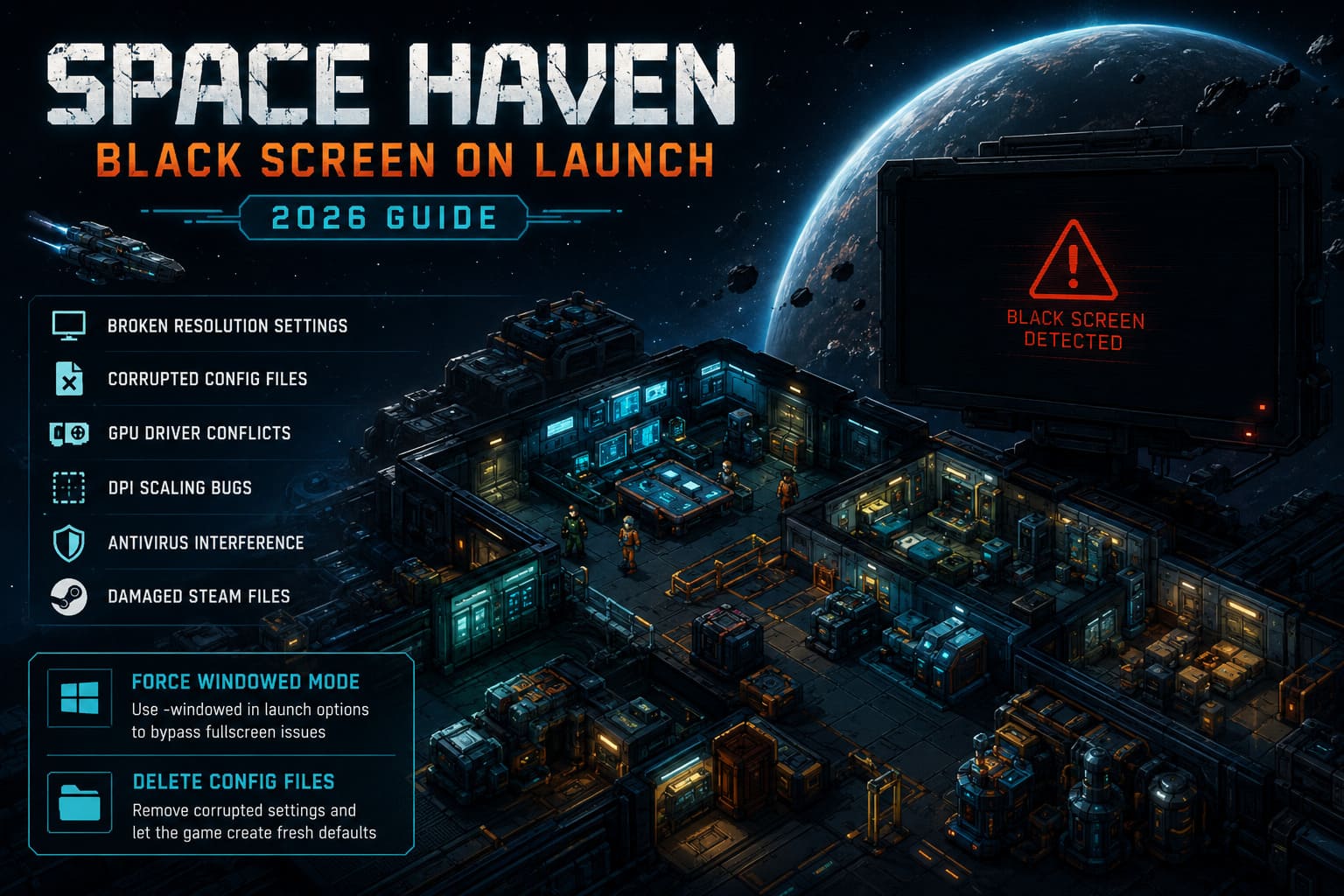
From what I’ve seen, the issue usually comes from one of these:
| Problem | What Happens |
|---|---|
| Broken resolution settings | Game launches off-screen or fails fullscreen initialization |
| Corrupted config files | Engine hangs during startup |
| GPU driver conflicts | Rendering never starts properly |
| DPI scaling bugs | Windows scaling breaks the display |
| Antivirus interference | Game files or save access get blocked |
| Damaged Steam files | Missing startup assets prevent boot |
The tricky thing is that Space Haven often technically launches even when the screen stays black. You might still hear menu sounds or see the app running in Task Manager.
That means the engine itself usually isn’t dead — something is simply blocking the rendering process.
1. Force Space Haven Into Windowed Mode First
This is still the single best fix.
A lot of modern monitors — especially ultrawides, high refresh rate displays, or multi-monitor setups — can confuse older fullscreen initialization systems. Space Haven occasionally struggles with this after updates.
Here’s the quick fix:
On Steam:
- Open your Steam Library
- Right-click Space Haven
- Select Properties
- Find Launch Options
- Type:
-windowed
Launch the game again.
If it suddenly works, congratulations — your fullscreen settings were the problem the whole time.
Once inside the game:
- Set your native resolution manually
- Switch display mode carefully
- Save settings
- Remove the launch option later if you want
I’ve personally seen this fix work instantly on dual-monitor setups where the game tried launching on a “ghost” display after a Windows update.
2. Delete the Broken Config Files
This one feels scary, but it’s completely safe if you back things up first.
Space Haven stores local configuration data that can occasionally become corrupted after:
- GPU changes
- Resolution swaps
- Driver updates
- Experimental beta patches
- Crashes during saving
When that happens, the game loads invalid settings and basically soft-locks before rendering.
Here’s where to check:
Press:
Windows + R
Type:
%appdata%
Then look for:
- Space Haven
- Bugbyte
- settings.xml
- config folders
If you don’t see them in Roaming:
- Check AppData/Local
- Check LocalLow
What to do:
- Copy the files somewhere safe
- Delete the original config/settings files
- Restart the game
The game will generate fresh default settings automatically.
This fix solved the issue for me after I switched from a 1440p monitor to a 4K panel. Apparently the old display profile completely confused the engine.
Space Haven Hyperdrive Guide: How to Build, Power, and Jump Your Spaceship
3. Update Your Graphics Drivers Properly
Not “Windows Update properly.”
I mean actually properly.
One thing I constantly see on Reddit is people assuming their GPU drivers are current because Windows says so. Meanwhile they’re running ancient OpenGL components from six months ago.
Space Haven may look lightweight, but its rendering pipeline still depends on stable GPU communication.
If you use:
- NVIDIA → update through GeForce Experience or official drivers
- AMD → Adrenalin Software
- Intel → Arc & Iris driver package
And if you’ve been having weird issues in multiple games lately, consider doing a clean install.
For NVIDIA users:
- Check Perform Clean Installation
For advanced users:
- Use DDU (Display Driver Uninstaller) in Safe Mode
That sounds extreme, but honestly? Half the “mystery black screen” problems on PC disappear after a proper driver cleanup.
4. Disable High DPI Scaling (Seriously)
This one sounds ridiculous until it suddenly works.
Windows scaling has always had a weird relationship with indie games and custom engines. If you’re using:
- 125%
- 150%
- 200% scaling
…there’s a chance Space Haven is rendering outside visible boundaries.
Fix:
Go to your installation folder through Steam.
Then:
- Right-click SpaceHaven.exe
- Open Properties
- Go to Compatibility
Enable:
- Run as Administrator
Then:
- Click Change high DPI settings
- Enable:
- “Override high DPI scaling behavior”
- Set scaling to:
- Application
Apply everything and relaunch.
This fix feels random, but it’s surprisingly effective on laptops and 4K monitors.
5. Verify Steam Files Before Reinstalling
Please don’t immediately reinstall the game.
Steam already has a built-in repair tool and it works more often than people realize.
Do this first:
- Open Steam Library
- Right-click Space Haven
- Properties
- Installed Files
- Verify integrity of game files
Steam will compare your install against official servers and replace broken files automatically.
I had one corrupted asset file after a power outage that caused permanent black screens until verification fixed it.
Total repair time: About 4 minutes.
6. Antivirus Software Can Absolutely Break Space Haven
Especially aggressive third-party antivirus suites.
I’ve seen:
- Avast
- AVG
- Bitdefender
- Windows Defender Controlled Folder Access
…all interfere with indie games before.
Usually the game executable itself isn’t blocked. Instead, the security software blocks:
- save creation
- temp files
- document folder access
- runtime components
That can freeze the game during startup.
What to whitelist:
- Entire Space Haven folder
- SpaceHaven.exe
- Steam library folder
Also check quarantine history.
You’d be surprised how often antivirus software quietly deletes harmless indie game files.
7. Java & Runtime Dependencies Still Matter in 2026
A lot of people forget this.
Space Haven uses technology stacks that still rely on runtime dependencies behaving correctly behind the scenes. Even if the game ships with bundled components, Windows can sometimes override or conflict with them.
That means:
- outdated Visual C++ packages
- broken Java environment variables
- missing runtime libraries
…can still create launch issues.
Worth updating:
- Visual C++ Redistributables
- Java Runtime Environment
- Windows optional updates
- DirectX runtime libraries
This usually isn’t the main fix, but it helps stabilize stubborn systems where nothing else works.
The Weird Truth About PC Gaming in 2026
The funny thing is that Space Haven isn’t even close to the most broken PC game out there.
Compared to some massive AAA launches lately, this indie colony sim is actually relatively stable. But indie games often rely on smaller custom pipelines, and that means weird compatibility bugs appear after Windows updates, GPU driver changes, or monitor swaps.
That’s just modern PC gaming now.
One month your setup works perfectly.
The next month a random Windows patch decides fullscreen apps should suffer.
The upside is that Space Haven’s black screen issue is usually recoverable without reinstalling Windows, wiping saves, or doing anything drastic.
Most players fix it using one of these:
- Windowed mode
- Config reset
- Driver cleanup
- DPI scaling override
That’s the real “magic combo.”
Final Thoughts
If you’re staring at a black screen in Space Haven, don’t panic — your save files are probably fine, and the game itself usually isn’t permanently broken.
Start simple:
- Force windowed mode
- Verify files
- Reset configs
Then move toward:
- driver cleanup
- DPI fixes
- antivirus exclusions
In most cases, one of those solves it quickly.
And once the game finally loads again? You can get back to what Space Haven does best:
- overengineering oxygen systems,
- panicking during pirate raids,
- and desperately trying to stop your crew from having mental breakdowns halfway across the galaxy.
Which, honestly, is why we keep coming back to it in the first place.