How to Fix The Division Resurgence Steam Deck Controls Map Glitch
Getting The Division Resurgence running on a Steam Deck already feels like a small victory. Ubisoft created this tactical looter-shooter with mobile devices in mind, but the gaming community quickly found ways to bring the experience to Valve’s handheld. After spending years playing shooters across PC, consoles, and portable systems, I was curious how well this ambitious project would feel on the Deck. When everything works properly, the experience is surprisingly comfortable, but one frustrating problem can completely ruin the flow — the infamous Steam Deck controls map glitch.
This issue does not usually affect combat performance or general movement. The real frustration begins when opening the world map. The analog sticks may suddenly stop responding, a mouse cursor appears in the center of the screen, or the interface refuses to recognize controller inputs. During missions, exploration, or when trying to plan your next Dark Zone run, fighting with the menu system becomes much more annoying than dealing with enemies.
After testing different Steam Input profiles, Proton settings, and community solutions, I found several methods that make the experience much smoother. While there is no perfect official fix yet, these workarounds can remove most of the problems and make The Division Resurgence much more enjoyable on Steam Deck.
How to Fix The Division Resurgence Application Not Responding on Windows 11
Why The Division Resurgence Map Controls Break on Steam Deck
The first thing to understand is that this problem is not caused by the Steam Deck hardware. Valve’s handheld is excellent when it comes to controller support. The issue comes from how the game handles multiple input methods at the same time, especially because the title was originally designed around touchscreen controls.
When running the game through compatibility solutions such as Proton, Waydroid, or custom launch methods, The Division Resurgence can become confused about what type of device the player is using. Instead of seeing the Steam Deck as a normal controller, the game may constantly switch between controller input, mouse input, and touchscreen commands.
This creates a strange situation where the game prioritizes the virtual cursor instead of the analog sticks. The map screen becomes the biggest victim because it relies heavily on navigation, zooming, and movement controls. The game is not completely frozen — it simply stops listening to the correct input device.
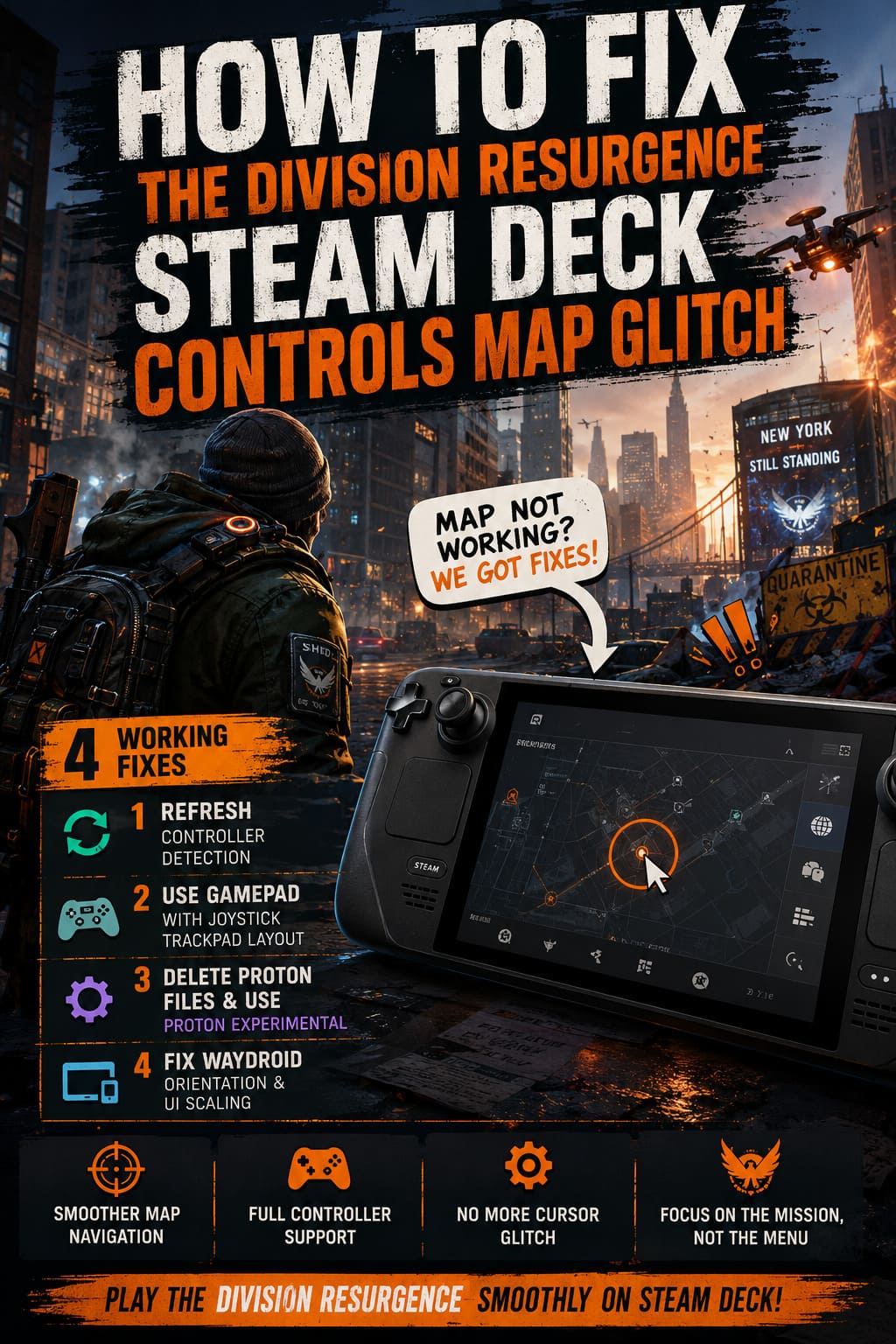
Main causes of the Steam Deck map glitch:
- Steam Input sending mixed controller and mouse signals.
- The game incorrectly detecting touchscreen commands.
- Proton configuration files storing outdated input settings.
- Mobile interface scaling problems when using Waydroid.
Fix 1: Refresh Controller Detection Inside The Game
The easiest solution is also one of the most effective. By forcing the game to switch input methods and return back to controller mode, you can refresh the internal navigation system. This simple trick worked surprisingly well during my testing and usually takes less than a minute.
Follow these steps:
- Launch The Division Resurgence and enter the game world.
- Open the Settings menu.
- Go to the Controls section.
- Change the control type from Controller to Touch/Keyboard.
- Immediately switch it back to Controller.
- Save the changes and return to gameplay.
This forces the game to rebuild its input priority. In many cases, the invisible cursor disappears and the analog sticks start working correctly again on the world map.
I have seen similar issues in other games originally built for mobile platforms. Sometimes the solution is not a complicated configuration change but simply making the game remember what device you are actually using.
Fix 2: Use The Gamepad With Joystick Trackpad Steam Input Layout
Steam Input is one of the best features of the Steam Deck, but it can also create unexpected conflicts. The default controller profile does not always communicate perfectly with games running through unusual compatibility setups.
Switching to a more traditional layout can prevent the game from receiving conflicting signals. The Gamepad with Joystick Trackpad template is one of the most reliable options because it makes the Steam Deck behave closer to a standard console controller.
How to change the layout:
- Press the Steam button while the game is running.
- Open Controller Settings.
- Select the current controller layout.
- Go to Templates.
- Choose Gamepad with Joystick Trackpad.
- Apply the new configuration.
This setup also gives you a useful backup option. If the map starts acting strangely again, the right trackpad can help move the cursor without completely breaking your physical controls.
| Steam Deck Setting | Purpose |
|---|---|
| Gamepad Layout | Improves controller recognition |
| Joystick Trackpad | Provides backup cursor control |
| Steam Input Templates | Reduces conflicting commands |
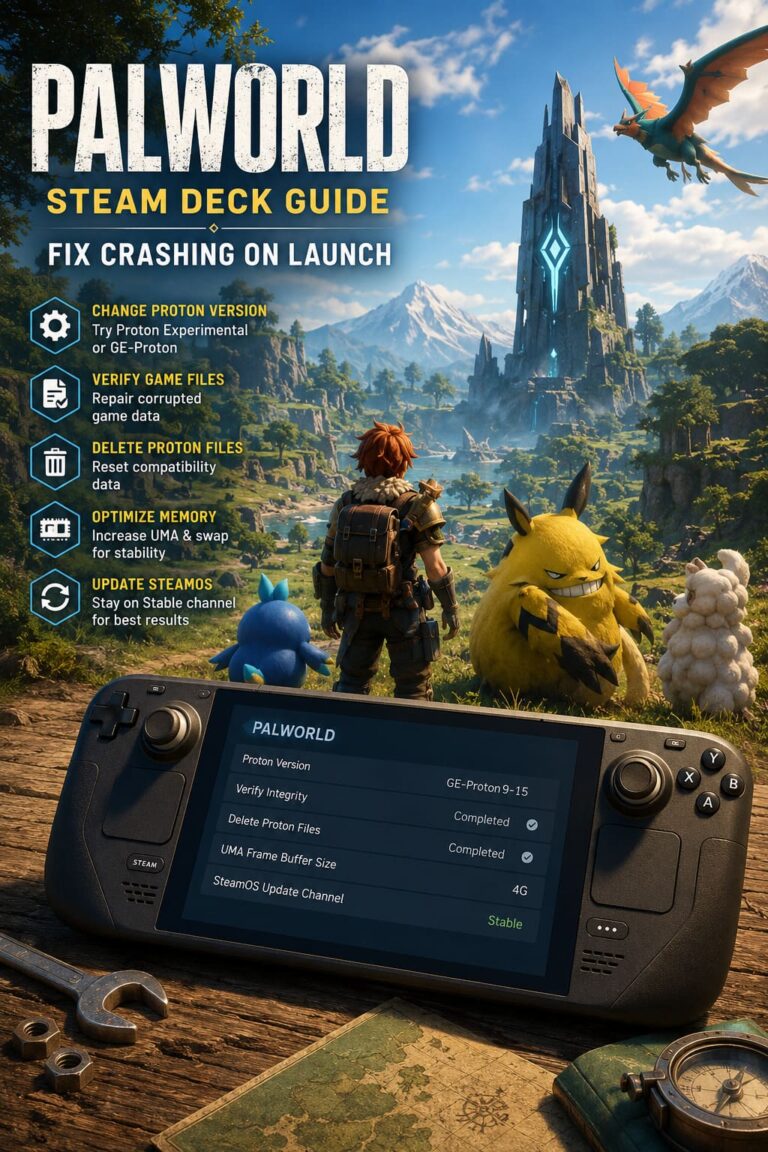
Fix 3: Delete Proton Files and Use Proton Experimental
If the previous solutions do not work, the problem may be connected to cached Proton settings. Compatibility layers store configuration files that control how games communicate with SteamOS. Sometimes these files become outdated after updates or changing controller profiles.
Removing the old files forces Steam Deck to create a clean configuration during the next launch. This method has helped me fix strange input problems in several games, not only The Division Resurgence.
Steps to clear Proton configuration:
- Open your Steam Library.
- Select The Division Resurgence.
- Open Properties.
- Go to the Developer section.
- Select Delete Proton Files.
- Open the Compatibility tab.
- Enable forced compatibility mode.
- Select Proton Experimental.
- Restart your Steam Deck.
After rebuilding the compatibility files, launch the game again and test the map controls. This process may take slightly longer on the first start, but it gives the game a fresh environment.
Fix 4: Solve Waydroid Orientation and UI Scaling Problems
Players running The Division Resurgence through Waydroid may experience a different version of the same problem. Because the game was designed for phones, incorrect screen orientation or scaling can move interface elements away from their expected positions.
The result is a map where buttons appear visually correct but the actual input zones are somewhere else. This makes controller navigation feel completely broken even though the game itself is running.
Recommended Waydroid adjustments:
- Enable developer options.
- Activate landscape orientation support.
- Force application resizing.
- Allow compatibility overrides.
| Option | Effect |
|---|---|
| Override Any Orientation | Prevents incorrect portrait detection |
| Force Resize App | Improves interface scaling |
| Override Landscape Orientation | Matches Steam Deck display format |
These changes help the mobile interface properly adapt to the Steam Deck’s 16:10 screen and improve the accuracy of controller inputs.
Additional Tips To Prevent The Glitch
Even after applying the main fixes, there are a few habits that can reduce the chance of the bug appearing again. Some problems seem to happen more often after switching between input methods or waking the device from sleep mode.
- Restart the game after changing controller profiles.
- Avoid mixing touchscreen and controller input during menus.
- Keep SteamOS updated.
- Use the latest Proton Experimental version.
- Disable unnecessary community controller layouts.
These small adjustments may not completely eliminate every possible issue, but they make the overall experience much more stable.
Why The Mouse Cursor Gets Stuck On The Map
The strange cursor appearing in the middle of the map is probably the most confusing part of this bug. At first, it looks like the game has frozen, but that is not actually what happens. The game simply switches into mouse navigation mode and forgets to return control back to the gamepad.
The Steam Deck can emulate several different input devices at once, which is normally a huge advantage. However, games that were not designed specifically for handheld PCs can sometimes receive too many signals at the same time.
That is why changing the control type or rebuilding Steam Input settings works so well. It forces the game to focus on one input method instead of trying to handle everything at once.
Will Ubisoft Fix The Division Resurgence Steam Deck Controls?
There is a good chance that Ubisoft will continue improving compatibility in future updates. Steam Deck users may not be the main target audience for a mobile-focused release, but the handheld gaming community is large enough that these issues rarely stay unnoticed.
Until an official patch arrives, community solutions remain the best option. Fortunately, once the controls are configured correctly, The Division Resurgence feels much better on the Deck than many players expect.
Final Thoughts
After testing different layouts, Proton settings, and compatibility options, I found that there is no single universal solution for the Steam Deck map glitch. Different setups behave differently depending on whether you are using Proton, Waydroid, or another launch method.
However, refreshing the controller mode, switching to the Gamepad with Joystick Trackpad profile, and rebuilding Proton files solved the issue most consistently. These fixes remove the biggest frustrations and allow you to focus on what actually matters — completing missions, collecting gear, and surviving the dangerous streets of New York.
The Division Resurgence may not have been created specifically for Steam Deck, but with a few adjustments it becomes a surprisingly enjoyable handheld shooter. Hopefully, future updates will make these workarounds unnecessary, but for now they are the best way to keep the map working properly.