How to Fix SpiritVale Crashing on Launch: Ultimate Startup Guide
SpiritVale has that old-school MMORPG charm that immediately reminded me why I fell in love with online RPGs years ago. The pixel-inspired visuals, class-based progression, and cooperative combat create a surprisingly addictive experience. Unfortunately, for many players, the adventure ends before it even begins because the game crashes during startup, freezes on a black screen, or quietly closes without showing an error.
I’ve dealt with launch problems in countless PC games over the years—from huge AAA releases to tiny indie projects—and SpiritVale feels like one of those titles where a few small Windows or Steam issues can completely prevent the game from loading. The good news is that most startup crashes aren’t permanent bugs. They’re usually caused by driver conflicts, damaged files, security software, or Windows settings that don’t play nicely with Unity games.
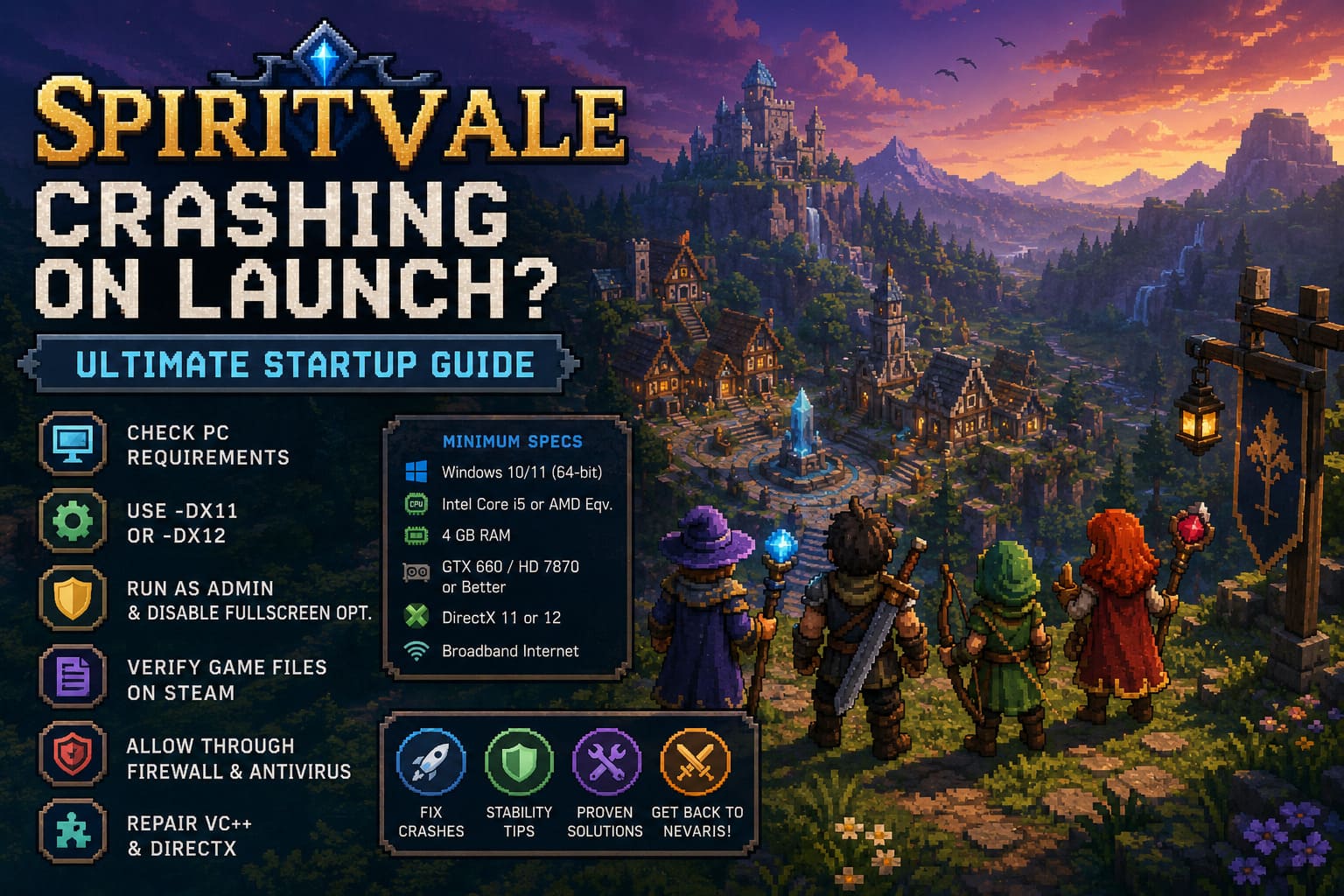
After testing the most common fixes and reading through community reports, these are the solutions that consistently helped players get into Nevaris instead of staring at their desktop.
Bodycam vs Unrecord Co-Op Multiplayer: 2026 Hyper-Realistic Shooter Guide
Check Your PC Before Changing Anything
It’s tempting to start reinstalling drivers or editing Windows settings right away, but I always recommend checking the basics first. Many launch crashes happen because the hardware barely meets the minimum requirements or because Windows is missing updates.
SpiritVale isn’t a demanding MMORPG compared to modern Unreal Engine games, but it still expects a 64-bit version of Windows, a DirectX-compatible graphics card, and enough available RAM. If your PC is running with very little free memory or an aging GPU, the Unity engine may fail during initialization before the first loading screen appears.
| Component | Recommended Minimum |
|---|---|
| Operating System | Windows 10 or Windows 11 (64-bit) |
| Processor | Intel Core i5 or AMD Equivalent |
| Memory | 4 GB RAM |
| Graphics Card | NVIDIA GeForce GTX 660 / AMD Radeon HD 7870 or Better |
| DirectX | Version 11 or Version 12 |
| Internet | Broadband Connection |
Even if your hardware is powerful enough, don’t overlook Windows updates and GPU driver versions. I’ve seen brand-new graphics drivers solve launch issues just as often as I’ve seen older stable drivers work better than the newest release.
Force SpiritVale to Use a Different DirectX Version
One of the oldest tricks in PC gaming is still one of the most effective. Some systems simply don’t agree with the default rendering API chosen by Unity. Instead of letting the game decide automatically, you can manually tell Steam which DirectX version to use.
Open your Steam Library, right-click SpiritVale, choose Properties, and locate the Launch Options box.
First, enter the following launch parameter:
- -dx11
If the game still crashes immediately, remove that command and replace it with:
- -dx12
I’ve used this workaround in several Unity titles over the years, and it’s amazing how often switching DirectX versions completely eliminates black screens and instant crashes. It only takes a minute to test, making it one of the first fixes I recommend.
Run the Game Outside of Steam
This sounds strange, but it has fixed launch issues for me more than once. Instead of pressing the Play button inside Steam, launch the executable directly from the installation folder after adjusting its compatibility settings.
Recommended Compatibility Settings
- Open Manage → Browse Local Files.
- Locate SpiritVale.exe.
- Open Properties.
- Enable Run this program as Administrator.
- Enable Disable Fullscreen Optimizations.
- If needed, test Windows 8 Compatibility Mode.
After saving the changes, launch the executable directly instead of using Steam. Sometimes Steam overlays or Windows permission restrictions interfere with Unity during startup, and this method bypasses both.
Verify the Game Files
Whenever a newly released game receives multiple Early Access patches, corrupted downloads become surprisingly common. If even one important archive is damaged, Unity may simply crash without giving you a useful error message.
How to Verify Game Files
- Open Steam.
- Go to your Library.
- Right-click SpiritVale.
- Select Properties.
- Open the Installed Files tab.
- Click Verify Integrity of Game Files.
Steam will automatically compare every installed file with the official version on its servers and download replacements if anything is missing or corrupted. Personally, this is one of the first things I always try because it fixes a surprising number of launch problems without requiring a full reinstall.
Don’t Let Windows Security Block the Game
Modern versions of Windows are much more aggressive about protecting your system than older releases. Fresh indie games sometimes trigger Windows Defender or third-party antivirus software simply because the executable is new and doesn’t have an established reputation yet.
Since SpiritVale immediately connects to authentication servers during startup, security software may accidentally block the process before the login sequence finishes. This often results in a freeze, black screen, or an instant return to the desktop.
Check These Security Components
- Windows Defender Firewall
- Third-party antivirus software
- Real-time malware protection
- Application whitelist or exclusions
If your antivirus supports folder exclusions, adding the complete SpiritVale installation folder is usually more reliable than excluding only the executable. I wouldn’t recommend disabling security software entirely because a proper whitelist normally solves the issue without reducing your protection.
Repair Visual C++ and DirectX
Whenever someone tells me that a game closes instantly without displaying an error, Microsoft runtime libraries immediately come to mind. Unity relies heavily on Visual C++ Redistributables and DirectX components to initialize correctly.
Installing or repairing both the x86 and x64 Visual C++ Redistributables for the 2015–2022 package is worth the few minutes it takes. After that, reinstall the latest DirectX runtime and restart Windows before trying to launch the game again. It isn’t the flashiest solution, but it’s one of the most dependable fixes for silent startup crashes.
Disable Overlays Before Launching
This step gets overlooked far too often. Programs that inject overlays into games can occasionally interfere with Unity during initialization, preventing SpiritVale from reaching the main menu.
Applications Worth Disabling Temporarily
- Discord Overlay
- NVIDIA GeForce Experience Overlay
- MSI Afterburner
- RivaTuner Statistics Server
- Steam Overlay
I use several of these applications myself, but when troubleshooting launch issues I always disable every overlay first. Once the game starts consistently, you can re-enable them one at a time to determine whether one of them is causing the conflict.
Update or Clean Install Your Graphics Driver
A regular graphics driver update isn’t always enough. If you’ve changed GPUs, installed beta drivers, or switched between NVIDIA and AMD hardware, leftover files from previous installations can cause unusual compatibility problems.
Performing a clean driver installation removes outdated profiles and restores default settings. From my experience, Unity games are particularly sensitive to graphics driver issues, so this step is absolutely worth trying if none of the earlier fixes have worked.
Why Early Access Games Sometimes Crash More Often
After spending years playing Early Access games, I’ve noticed a consistent pattern. Indie developers usually focus on gameplay systems, networking, and new content before they can optimize every possible hardware configuration across thousands of unique PCs.
That doesn’t excuse startup crashes, but it explains why today’s issue may completely disappear after the next hotfix. If you’ve already tried every solution above, don’t automatically assume your PC is the problem. It’s worth checking Steam discussions and recent patch notes because developers often release stability updates within a few days of widespread crash reports.
Final Thoughts
SpiritVale has enough personality to keep me interested despite its rough Early Access launch. Once the game finally loads, the exploration, cooperative gameplay, and classic MMORPG progression create an experience that’s genuinely enjoyable. That’s exactly why I think it’s worth spending a little time troubleshooting instead of uninstalling it after the first crash.
In my experience, launch problems are usually solved by combining several small fixes rather than discovering one magical solution. Switching DirectX versions, verifying Steam files, repairing Visual C++ packages, disabling overlays, updating graphics drivers, and reviewing Windows security settings resolve the vast majority of startup crashes reported by players. If none of these methods work, there’s a strong chance the remaining issue will need an official patch from the developers as SpiritVale continues to evolve throughout Early Access.