Scarlet Deer Inn Cloud Save Conflict: How to Fix Sync Errors and Protect Your Progress
When I first launched Scarlet Deer Inn, I expected to spend my evening enjoying its gorgeous embroidered visuals and haunting Slavic folklore—not troubleshooting Steam. Like many players, I bounce between my desktop, laptop, and Steam Deck, so I rely on Steam Cloud almost every day. Most of the time it works flawlessly. But every now and then, it decides to remind me why backing up save files is still important.
After several hours exploring the world as Elise, I was greeted by one of the most frustrating messages a PC gamer can see: Steam Cloud Save Conflict.
If you’ve ever stared at that popup wondering whether one wrong click will erase hours of progress, you’re definitely not alone.
Over the last few days, I’ve gone through the most common cloud sync issues with Scarlet Deer Inn, tested multiple fixes, and compared my experience with solutions shared by other players across gaming communities. Here’s everything that actually helped me keep my progress safe.
Why Scarlet Deer Inn Cloud Saves Sometimes Break
Steam Cloud is designed to keep your save files synchronized between different devices. Under normal circumstances, every time you save your game, Steam creates both a local save stored on your computer and a matching cloud copy uploaded to Valve’s servers.
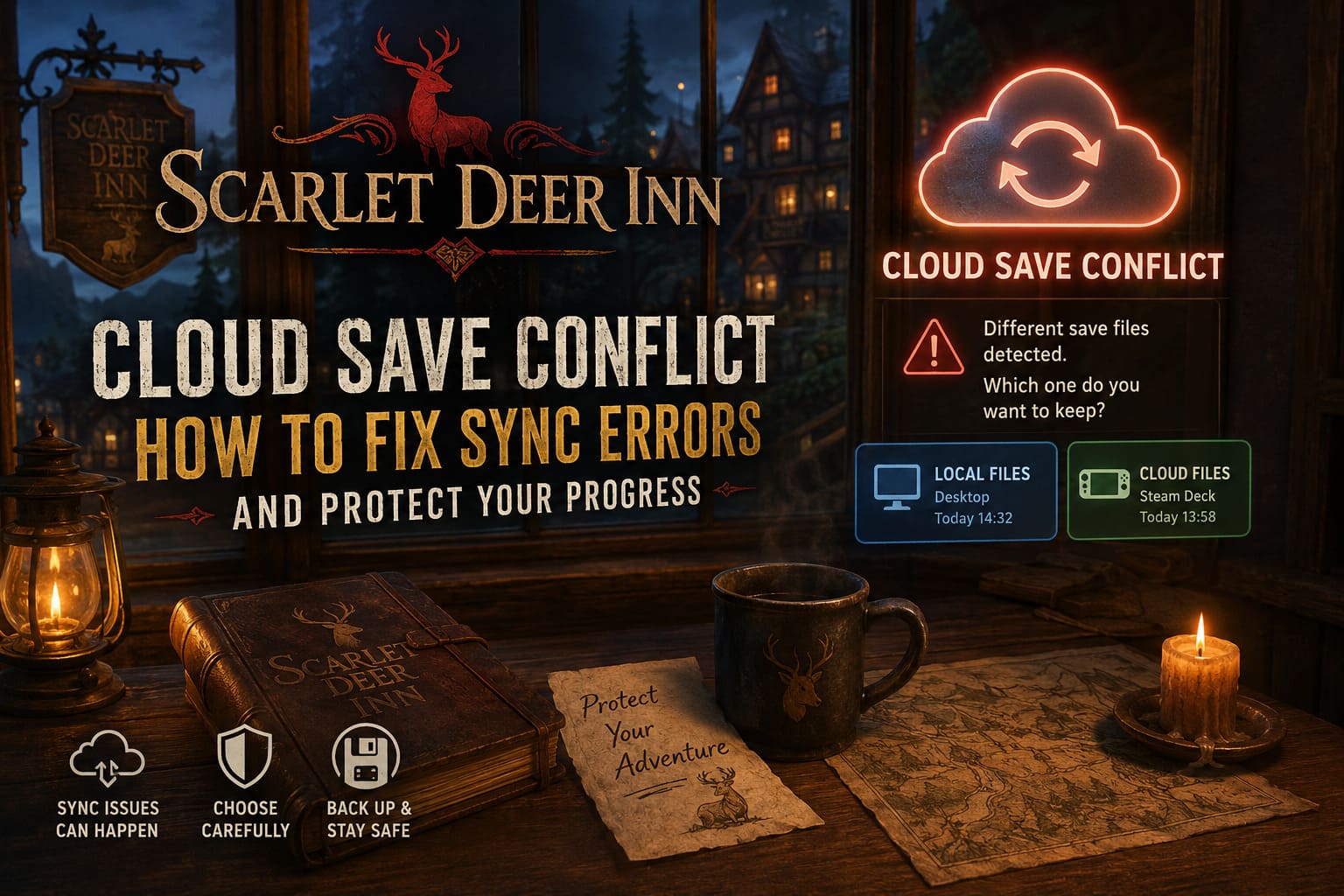
The trouble begins when those two versions no longer match.
Steam isn’t capable of merging game saves together. Instead, it simply detects a mismatch and asks which version should become the “correct” one.
For story-heavy games like Scarlet Deer Inn, that’s stressful because your save contains hours of exploration, hidden discoveries, and story progression that can’t simply be recreated.
The Most Common Causes
| Problem | What Usually Happened |
|---|---|
| Playing on multiple devices | One device didn’t finish uploading before another started the game. |
| Internet interruption | Steam couldn’t upload the newest save. |
| Game or system crash | Steam never completed the cloud synchronization. |
| Forced shutdown | Closing Steam immediately after exiting the game interrupted the upload. |
| Corrupted Steam cache | Steam repeatedly thinks your save is out of sync. |
Personally, the issue happened after switching from my Steam Deck to my desktop within about fifteen minutes.
Don’t Panic When You See the Cloud Conflict Window
My first instinct was to click as quickly as possible just to get back into the game.
That would have been a mistake.
The Steam conflict window actually gives you everything you need to make the right decision.
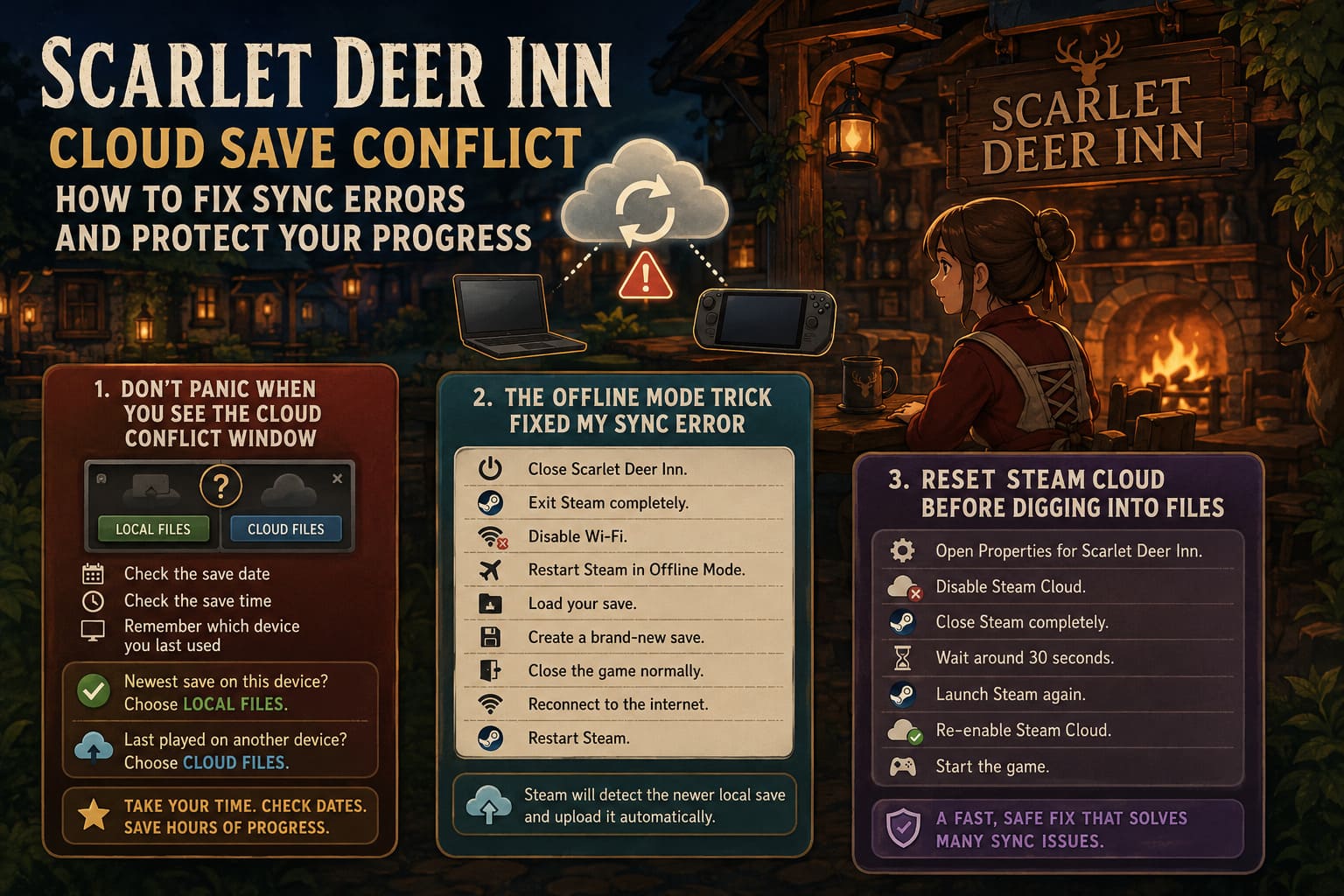
Always compare the following information before choosing either option:
- Date of the save.
- Time the save was created.
- Which device you last used.
If your desktop contains your newest progress, choose Local Files.
If you know you finished your previous session on another PC or your Steam Deck, choose Cloud Files.
The timestamps matter far more than the filenames.
My advice: don’t rush. Spending an extra thirty seconds checking dates is much better than replaying three hours of progress.
The Offline Mode Trick Fixed My Sync Error
One solution surprised me because it sounded almost too simple.
Instead of fighting Steam while it was online, I temporarily disconnected it.
Here’s exactly what I did:
- Closed Scarlet Deer Inn.
- Exited Steam completely.
- Disabled Wi-Fi.
- Restarted Steam in Offline Mode.
- Loaded my save.
- Created a brand-new save.
- Closed the game normally.
- Reconnected to the internet.
- Restarted Steam.
Steam immediately detected a newer local save and uploaded it without another error.
It felt almost like forcing Steam to rebuild its understanding of the save file.
I can’t promise it’ll solve every situation, but it worked perfectly for me.
Reset Steam Cloud Before Digging Into Files
If the conflict appears every single launch, the problem may not be your save at all.
Sometimes Steam itself gets stuck.
One easy thing to try is resetting Cloud Sync.
Follow these steps:
- Open Properties for Scarlet Deer Inn.
- Disable Steam Cloud.
- Close Steam completely.
- Wait around thirty seconds.
- Launch Steam again.
- Re-enable Steam Cloud.
- Start the game.
I’ve had this solve cloud issues in other indie games long before Scarlet Deer Inn released.
It’s quick, safe, and worth trying before touching any save folders.
Back Up Your Saves Before Experimenting
This is probably the habit that has saved me the most frustration over the years.
Before trying any major fix, I always create a manual backup.
Storage is cheap.
Losing progress isn’t.
Most Steam games place save data somewhere inside the Windows AppData folders or inside Steam’s userdata directory.
Scarlet Deer Inn follows that same general pattern.
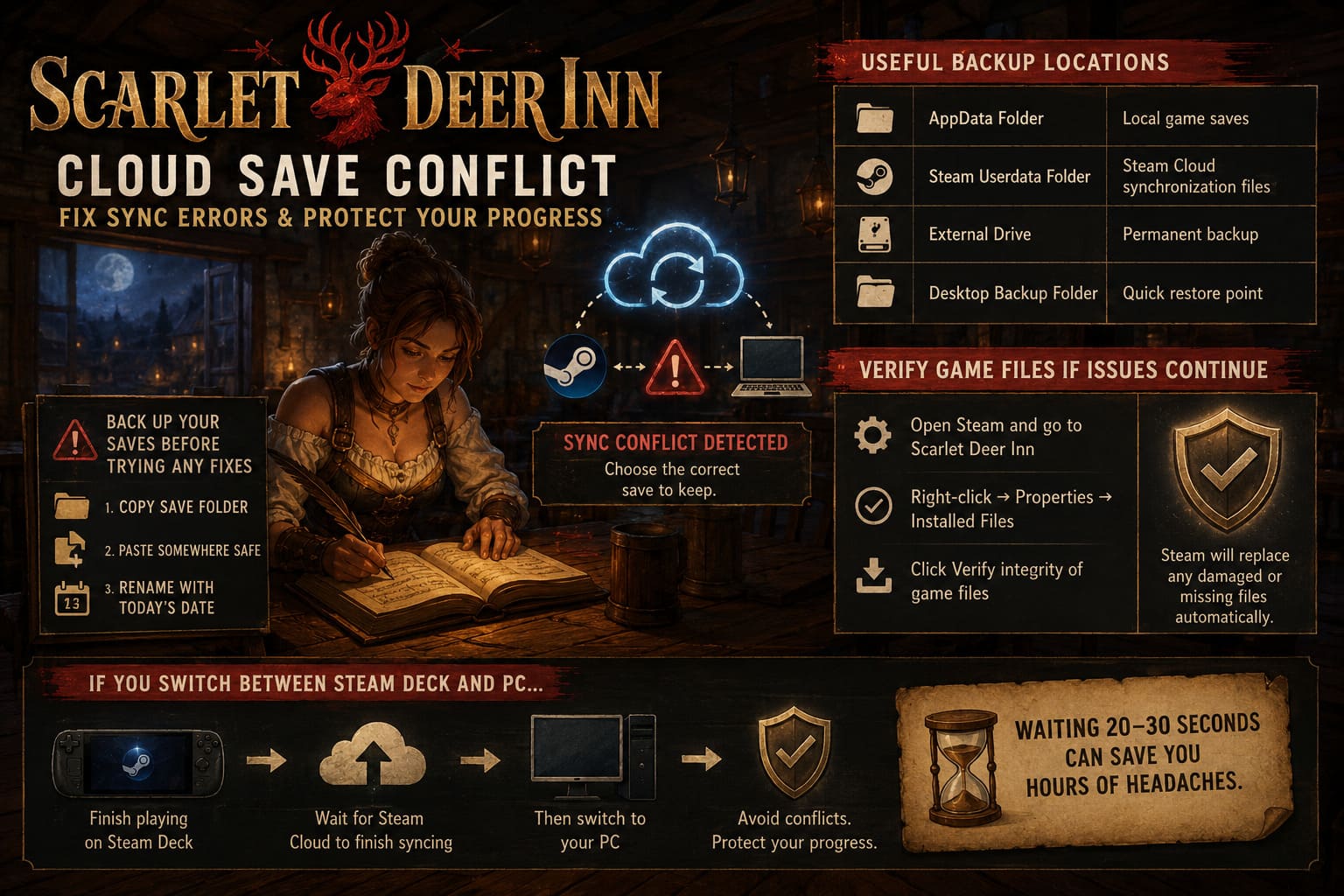
Creating a backup only takes a minute:
- Copy the save folder.
- Paste it somewhere safe.
- Rename the folder with today’s date.
That’s it.
If anything goes wrong, you still have your original files.
Useful Backup Locations
| Location | Purpose |
|---|---|
| AppData folder | Local game saves |
| Steam userdata folder | Steam Cloud synchronization files |
| External drive | Permanent backup |
| Desktop backup folder | Quick restore point |
Having two copies may sound excessive until the day one of them saves your playthrough.
Verify Game Files If Problems Continue
Sometimes the cloud isn’t actually the problem.
Damaged installation files can confuse Steam into thinking saves have changed unexpectedly.
If sync errors keep returning, verify the game’s installation.
Steam will automatically compare every installed file against its official version and replace anything that’s damaged or missing.
It’s one of those maintenance steps that solves more issues than people expect.
If You Switch Between Steam Deck and PC…
This is where I’ve seen the biggest problems.
The temptation is obvious.
Finish playing on Steam Deck.
Put it into sleep mode.
Walk over to your desktop.
Launch the game.
Unfortunately, Steam Cloud often hasn’t finished uploading during that tiny window.
Now both devices think they’re using the newest save.
Steam disagrees.
Instead, I always wait until Steam finishes syncing before shutting down or sleeping a device.
Those extra twenty or thirty seconds can prevent hours of headaches later.
Habits That Have Kept My Saves Safe
Over the years I’ve developed a few simple habits that dramatically reduced cloud problems.
I always follow these rules:
- Wait until Steam shows cloud synchronization is complete.
- Exit games normally instead of force closing them.
- Keep Steam updated.
- Back up saves before major updates.
- Verify files after crashes.
- Avoid switching devices immediately after quitting.
None of these are difficult.
Together, they make save corruption incredibly rare.
Are Third-Party Backup Tools Worth Using?
If you’re someone who spends dozens of hours in RPGs or story-driven adventures, I’d honestly say yes.
Applications like Ludusavi and GameSave Manager can automatically create timestamped backups every time you exit a game.
I’ve used backup utilities for years—not because Steam Cloud is unreliable, but because no cloud system is perfect.
One extra backup can mean the difference between restoring your progress in seconds or starting an entire playthrough over again.
How to Fix Scarlet Deer Inn Low FPS in Torch Light Scenes: Full Optimization Guide
My Overall Experience
Despite running into the cloud conflict, Scarlet Deer Inn has been one of the most memorable indie releases I’ve played this year.
Its embroidered animation style immediately stands out from almost everything else on Steam, and the atmosphere kept pulling me deeper into its mysterious world.
That made protecting my save feel even more important.
Fortunately, most Steam Cloud conflicts aren’t signs that your save is permanently lost.
They’re usually Steam asking which version should become the official one.
As long as you stay calm, compare timestamps carefully, and keep a backup of your local saves, recovering your progress is usually straightforward.
Scarlet Deer Inn Steam Deck Best Graphics Settings: Maximize Battery Life and Visuals
Final Thoughts
Steam Cloud is an excellent feature when everything works as intended, but it’s still a synchronization system—not a magic safety net.
Scarlet Deer Inn deserves to be experienced without worrying about losing hours of progress, and thankfully most cloud save issues have fairly simple solutions.
If I could give only one piece of advice, it would be this: never rush through a Cloud Save Conflict window. Read the timestamps, know which device you used last, and keep a manual backup whenever you’ve made significant progress.
Those small habits have saved me countless hours across dozens of Steam games, and they did exactly the same for Scarlet Deer Inn.