EA Sports UFC 6 Crash on Launch PS5 Black Screen: 9 Ways to Fix the 2026 MMA Game Bugs
When EA Sports UFC 6 finally arrived in June 2026, I was genuinely excited. I’ve spent hundreds of hours across previous UFC titles, and the promise of improved fighter physics, more realistic striking exchanges, deeper career progression, and upgraded visuals sounded exactly like what long-time fans wanted.
Unfortunately, my first few hours with the game weren’t spent inside the Octagon.
Instead, I found myself staring at black screens, frozen loading sequences, and unexpected crashes that kicked me straight back to the PS5 dashboard.
After spending days testing different solutions, reading community reports, and comparing experiences from other players, I discovered that most launch problems can actually be narrowed down to a handful of recurring causes. If UFC 6 refuses to launch properly on your PlayStation 5, this guide covers every workaround worth trying before waiting for another patch.
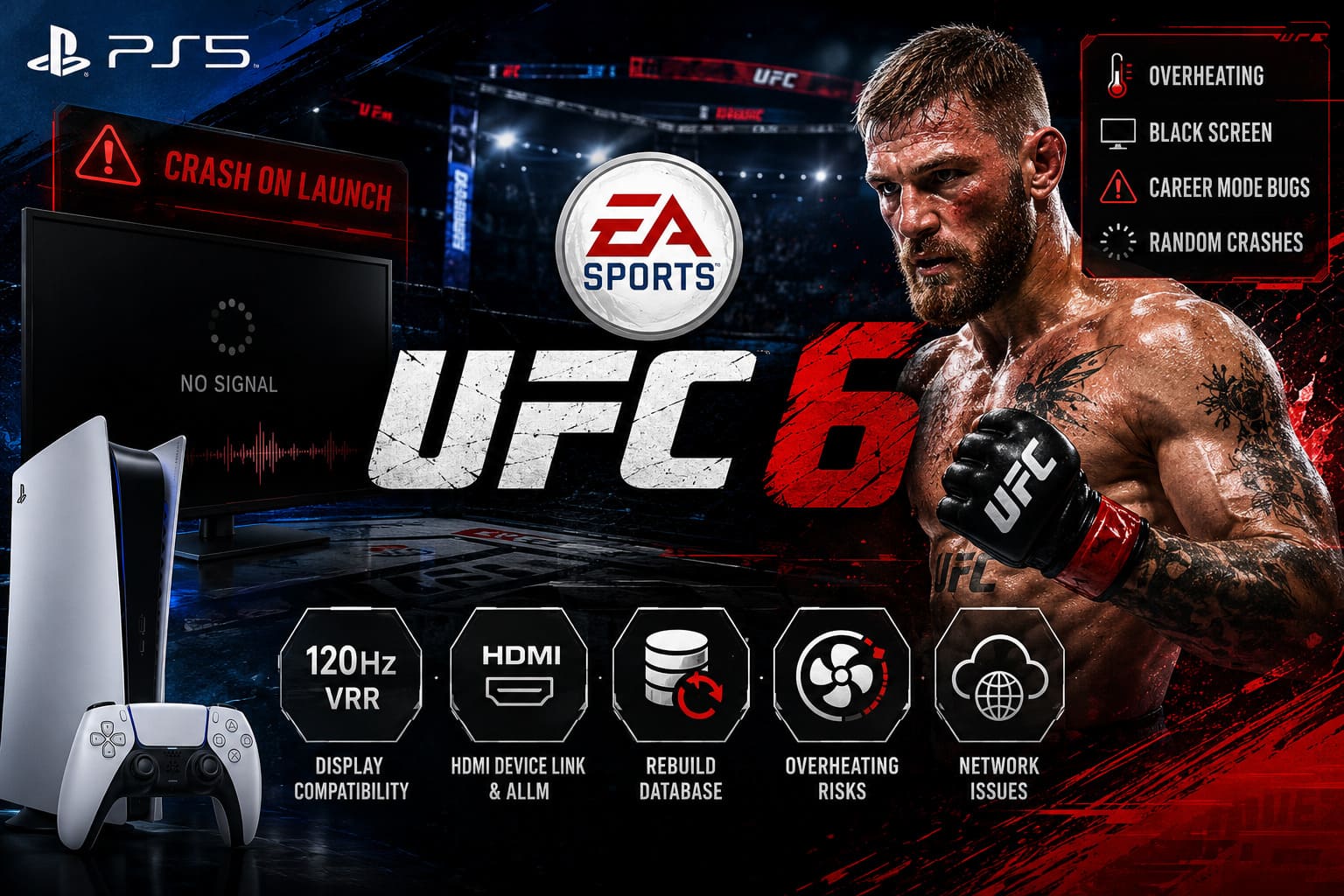
Why Is EA Sports UFC 6 Crashing on PS5?
From everything I’ve seen since launch, there isn’t a single universal cause.
The majority of crashes appear to come from three major areas:
| Issue Category | Typical Symptoms |
|---|---|
| Display Compatibility Problems | Black screen after startup, audio still playing |
| System Cache or Database Errors | Freezing during launch, random dashboard crashes |
| Overheating and Performance Bugs | Console shutdowns, fan noise spikes, instability |
The frustrating part is that different players experience completely different symptoms even on nearly identical hardware setups.
Some never make it past the EA logo.
Others can play exhibition fights without issues but encounter crashes inside Career Mode.
Fix #1: Disable 120Hz Output and VRR
This was the first solution that actually worked for me.
UFC 6 appears to be particularly sensitive when switching between the PS5 dashboard’s display settings and the game’s performance modes.
To test this:
- Close UFC 6 completely.
- Open PS5 Settings.
- Go to Screen and Video.
- Select Video Output.
- Change 120Hz Output to Off.
- Disable VRR (Variable Refresh Rate).
- Turn off Apply to Unsupported Games.
- Restart your console.
Many players reported that the game launched immediately after disabling these options.
If you’re using an older television or a monitor with inconsistent HDMI support, this fix should be your starting point.
Fix #2: Turn Off HDMI Device Link and ALLM
Another surprisingly common culprit is HDMI communication between your television and the console.
Modern TVs constantly exchange information with connected devices, and UFC 6 seems capable of triggering conflicts during startup.
Here’s what I recommend:
- Open Settings > System > HDMI
- Disable HDMI Device Link
- Return to Screen and Video
- Disable ALLM (Auto Low Latency Mode)
After applying these changes, restart both your TV and PS5 before launching the game again.
This simple adjustment has solved black-screen problems for many players whose displays lose signal right after the intro sequence.
Fix #3: Rebuild the PS5 Database
Whenever a game repeatedly crashes during startup, I always rebuild the database before doing anything drastic.
The process is completely safe and does not delete games or save files.
Steps
- Fully power off the PS5.
- Hold the power button until you hear the second beep.
- Connect your DualSense controller via USB.
- Enter Safe Mode.
- Select Clear Cache and Rebuild Database.
- Choose Rebuild Database.
Depending on how much data is stored on your console, the procedure can take anywhere from a few minutes to half an hour.
Several players reported improved stability afterward, especially those who experienced crashes immediately after recent game updates.
Fix #4: Perform a Complete HDMI Power Reset
Sometimes the issue isn’t the game itself.
Sometimes your display chain simply gets stuck after a failed initialization attempt.
I experienced this with another title recently, and the solution was surprisingly simple.
Full Power Cycle Procedure
- Shut down both the TV and PS5.
- Disconnect all power cables.
- Unplug the HDMI cable from both devices.
- Wait at least two minutes.
- Reconnect everything.
- Use a different HDMI port if possible.
- Restart the TV first, then the PS5.
This clears temporary communication errors that normal reboots often fail to remove.
Fix #5: Work Around Career Mode Black Screens
One of the strangest bugs currently affecting UFC 6 appears inside Career Mode.
Many players report reaching a major fight offer, championship opportunity, or progression milestone only for the screen to turn completely black while background audio continues playing.
The game itself hasn’t technically crashed.
Instead, something appears to break during scene loading.
A workaround that has helped many players includes:
- Closing the game.
- Reopening UFC 6.
- Entering Settings before loading Career Mode.
- Switching between Quality Mode and Performance Mode.
- Editing fighter appearance items.
- Changing stance settings.
- Returning to Career progression.
For whatever reason, forcing the game to refresh fighter data often bypasses the broken sequence.
Fix #6: Check for Overheating Issues
This is probably the most serious problem currently affecting UFC 6.
I’ve seen countless reports from players whose consoles completely shut down during menu navigation.
What makes this unusual is that many crashes happen before entering an actual fight.
The menus themselves appear to place unexpected strain on system resources.
Signs of Thermal Problems
Watch for:
- Loud fan activity
- Hot exhaust air
- Sudden power loss
- System warning messages
- Console refusing to restart immediately
Recommended Cleaning Procedure
- Move the PS5 into an open space.
- Avoid enclosed cabinets.
- Remove the side panels.
- Inspect vents and dust collectors.
- Use compressed air to clean buildup.
- Ensure rear airflow remains unobstructed.
Keeping the cooling system clean can dramatically improve stability during demanding games.
Fix #7: Restore PlayStation Licenses
Digital ownership verification can occasionally create launch issues.
This seems especially relevant for:
- EA Play trial users
- Digital Deluxe Edition owners
- Recently upgraded versions
To restore licenses:
- Open Settings.
- Navigate to Users and Accounts.
- Select Other.
- Choose Restore Licenses.
- Confirm the process.
- Restart the console.
The procedure only takes a few minutes and can resolve entitlement-related launch failures.
Fix #8: Reinstall the Game on Internal Storage
Storage configuration matters more than many people realize.
Although PS5 supports external storage devices, next-generation titles perform best when installed directly on the internal SSD.
Recommended Process
- Delete UFC 6.
- Disconnect unnecessary external drives.
- Restart the console.
- Re-download the game.
- Install it exclusively on internal storage.
- Wait for the download to finish completely.
A surprising number of crashes occur because players launch games during partial installation phases.
Always wait for the full installation to complete.
Fix #9: Change DNS Settings
If crashes happen right after the title screen or during online authentication, network routing could be contributing to the problem.
Many players have reported improved results after switching to Google’s public DNS servers.
DNS Configuration
Primary DNS: 8.8.8.8
Secondary DNS: 8.8.4.4
To change them:
- Open Network Settings.
- Select your active connection.
- Enter Advanced Settings.
- Change DNS from Automatic to Manual.
- Input the values above.
- Save and reconnect.
This won’t fix every issue, but it can reduce server authentication delays and startup freezes.
EA Sports UFC 6 Fighter Ratings Guide: Evolution, Mechanics, and Community Meta
My Personal Verdict After Testing Every Fix
After spending far more time troubleshooting than actually fighting inside the Octagon during launch week, I believe UFC 6’s biggest problem isn’t hardware compatibility—it’s optimization.
The game clearly delivers some impressive improvements once it works. The striking feels more responsive, animations look better than ever, and Career Mode has genuine long-term appeal.
However, the launch version still suffers from several technical issues that should have been addressed before release.
If I had to rank the most effective fixes based on community success rates, my order would be:
EA Sports UFC 6 White House Venue Unlock Guide: How to Play in the UFC Freedom 250 Octagon
- Disable 120Hz and VRR.
- Rebuild the database.
- Fix overheating issues.
- Restore licenses.
- Reinstall the game.
- Change DNS settings.
For now, running the game in Performance Mode, keeping the console clean, and avoiding unnecessary display features seems to provide the most consistent experience.
Until EA releases additional stability patches, these workarounds remain the best options for getting UFC 6 running reliably and getting back where we all want to be—inside the cage rather than troubleshooting another black screen.