Echoes of Aincrad Config File Location: PC Optimization & Fixes Guide
If you’ve spent enough time with PC games, especially those built on Unreal Engine 5, you’ve probably noticed a familiar pattern. A game launches with impressive visuals, but once you start playing, the excitement fades a little because of blurry image quality, unnecessary motion effects, or inconsistent performance. Sword Art Online: Echoes of Aincrad unfortunately follows that trend. It looks impressive, but some default settings don’t always make the best use of modern PC hardware.
After testing different graphics options, adjusting configuration files, and comparing results with other PC players, I found that manual config editing gives much more control than the standard in-game menu. If you’re looking for a sharper image, smoother gameplay, or better performance, the Echoes of Aincrad config files are the place where you can unlock additional customization.
As someone who has played plenty of Unreal Engine games, I know that developers often choose visual presets that work for the widest range of systems. That means some effects look great in screenshots but don’t necessarily improve the actual gameplay experience. In Echoes of Aincrad, removing certain effects made combat feel cleaner and exploration much more enjoyable.
How to Disable Upscaler in Echoes of Aincrad: Fix Blurry Graphics and UI
Where to Find the Echoes of Aincrad Config File
One of the first things that confuses many PC players is that the game’s configuration files are not stored inside the Steam installation folder. Unreal Engine games usually keep important settings inside the Windows user profile, which means these files remain hidden unless you know where to look.
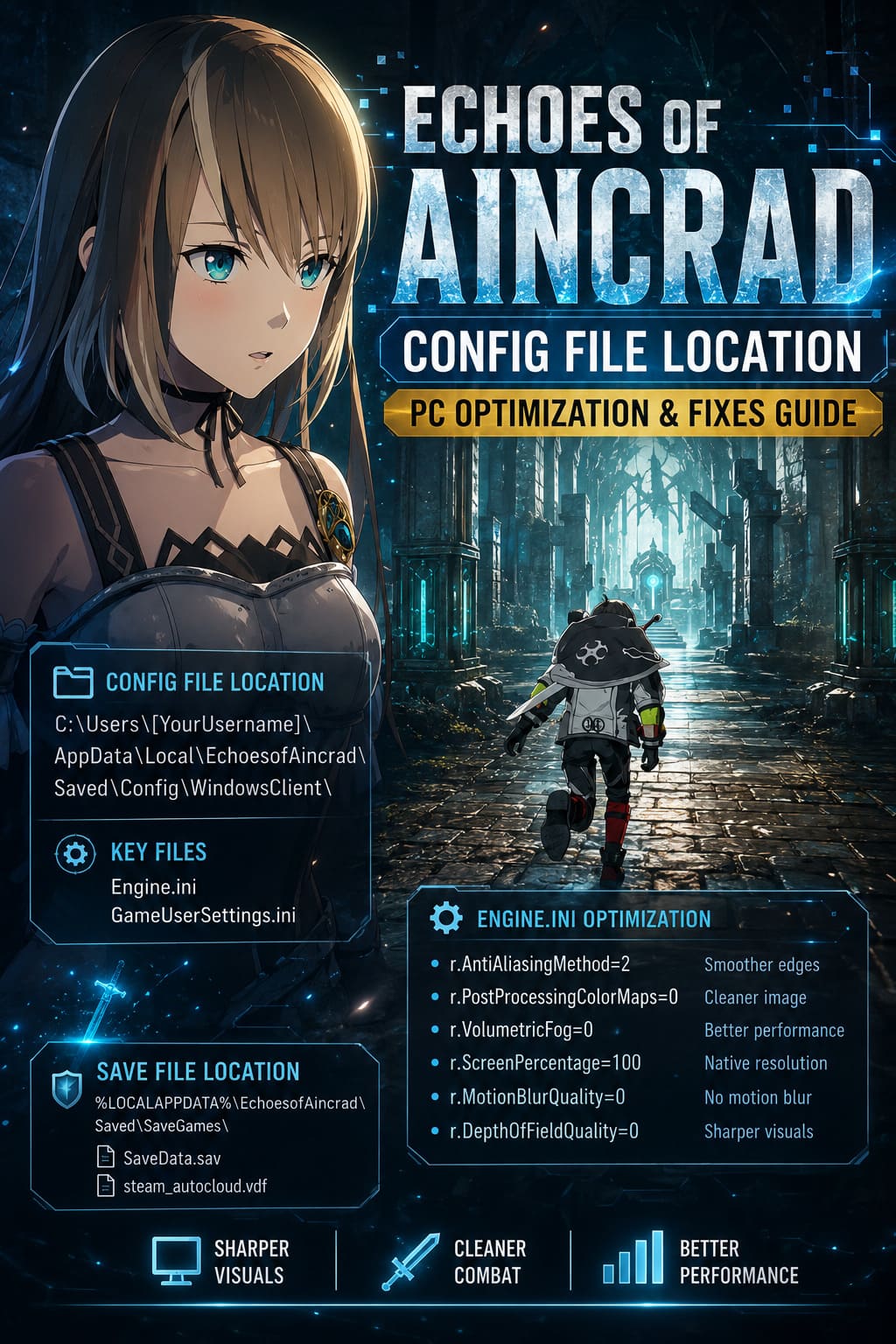
The main configuration folder for Windows users is located here:
| Platform | Config Location |
|---|---|
| Windows | C:\Users\[YourUsername]\AppData\Local\EchoesofAincrad\Saved\Config\WindowsClient\ |
The fastest way to access this folder is by using the Windows Run command:
- Press Windows + R on your keyboard.
- Enter %LOCALAPPDATA%\EchoesofAincrad\Saved\Config\WindowsClient\.
- Press Enter and Windows will open the folder automatically.
Inside this directory, the two most important files are Engine.ini and GameUserSettings.ini. These files control many technical options including graphics scalability, rendering behavior, input settings, and various Unreal Engine parameters.
How to Show the Hidden AppData Folder
If you prefer browsing through your hard drive manually, you may notice that the AppData folder doesn’t appear. This happens because Windows hides several system directories by default to prevent accidental changes.
To reveal the folder, follow these steps:
- Open File Explorer.
- Select the View tab.
- Open the Show menu.
- Enable the option called Hidden items.
After enabling hidden folders, you can navigate manually through this path:
This PC > Local Disk (C:) > Users > Your Username > AppData > Local > EchoesofAincrad > Saved > Config > WindowsClient
Once you locate this folder, accessing configuration files for future Unreal Engine games becomes much easier because many titles use a similar structure.
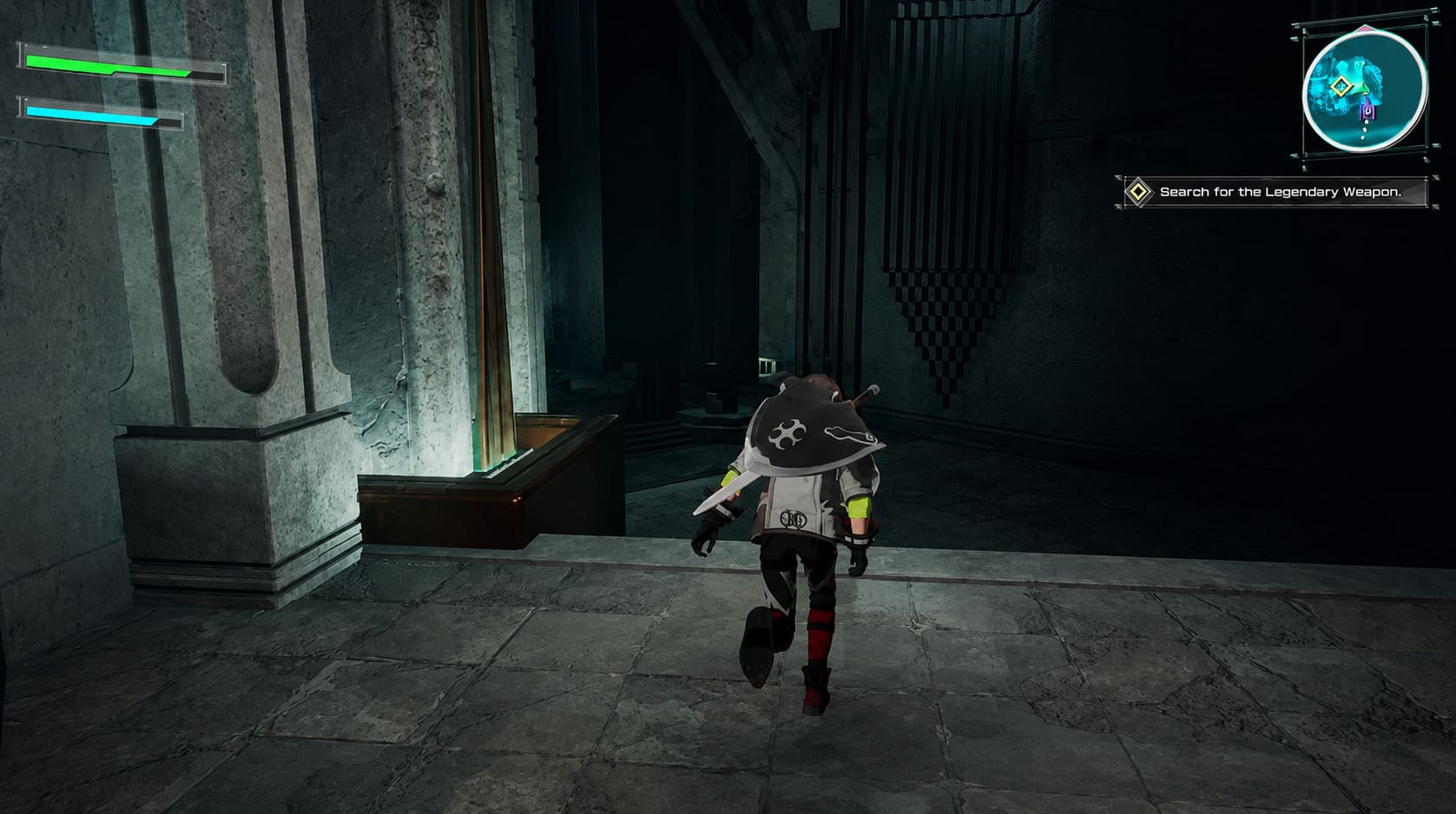
Echoes of Aincrad Config Location on Linux and Steam Deck
Players using Linux or Steam Deck have a slightly different setup because Steam runs the Windows version of Echoes of Aincrad through Proton. Instead of a normal Windows folder structure, the game stores files inside a virtual compatibility environment.
The Linux and Steam Deck configuration path is:
[SteamLibrary-folder]/steamapps/compatdata/2244210/pfx/drive_c/users/steamuser/AppData/Local/EchoesofAincrad/Saved/Config/WindowsClient/
The number 2244210 represents the game’s Steam AppID. To find the folder manually, open Steam, right-click Echoes of Aincrad, select Manage, and choose Browse local files. From there, move back through the directory structure until you reach the compatdata folder.
Steam Deck users who enjoy tweaking games will already be familiar with this process because many Unreal Engine titles store their settings in the same Proton environment.
Best Engine.ini Optimization Tweaks for Echoes of Aincrad
After experimenting with the default settings, I noticed that Echoes of Aincrad uses several visual effects that can make the image appear softer than expected. The heavy post-processing, fog effects, and forced camera effects may look cinematic, but during actual gameplay they can reduce clarity.
For me, the biggest improvements came from disabling unnecessary effects and forcing the game to maintain native rendering resolution. These changes made combat easier to read and removed the slightly blurry appearance that many PC players notice.
Open Engine.ini with Notepad or Notepad++, scroll to the bottom of the file, create a new line, and add these settings:
[SystemSettings]
r.AntiAliasingMethod=2
r.PostProcessingColorMaps=0
r.VolumetricFog=0
r.ScreenPercentage=100
r.MotionBlurQuality=0
r.DepthOfFieldQuality=0
What Each Configuration Setting Changes
| Setting | Effect |
|---|---|
| r.AntiAliasingMethod=2 | Uses Temporal Anti-Aliasing for smoother edges while keeping good performance. |
| r.PostProcessingColorMaps=0 | Reduces additional color processing effects for a cleaner image. |
| r.VolumetricFog=0 | Removes expensive fog rendering and can improve GPU performance. |
| r.ScreenPercentage=100 | Forces the game to render at full native resolution instead of lowering internal resolution. |
| r.MotionBlurQuality=0 | Disables motion blur during movement and combat. |
| r.DepthOfFieldQuality=0 | Removes artificial background blur effects. |
Why I Recommend Disabling Motion Blur and Fog
After playing many action RPGs, I’ve noticed that motion blur is one of those effects that divides players. Some people enjoy the cinematic feeling, but for fast combat systems it often makes the gameplay less responsive.
Echoes of Aincrad benefits from a cleaner visual presentation. With motion blur removed, attacks are easier to follow, enemies stay sharper during movement, and the overall experience feels closer to what a PC action game should deliver.
The volumetric fog adjustment also helped. Instead of losing details behind unnecessary haze, environments became clearer while the GPU had less work to process.
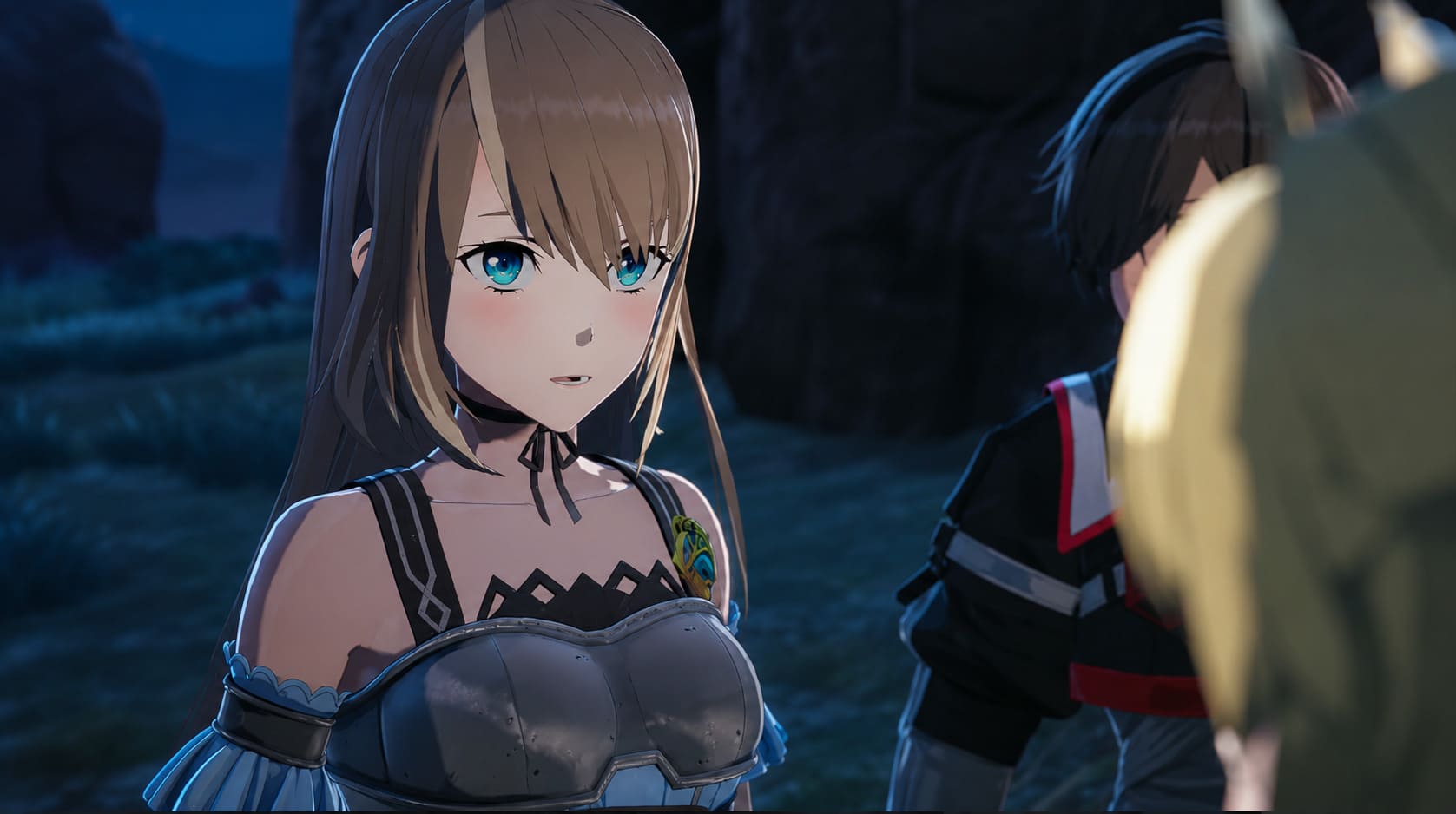
Preventing Echoes of Aincrad From Overwriting Your Changes
One common issue with Unreal Engine games is that custom settings can sometimes disappear after launching the game again. The engine may compare your configuration with the default values and restore its original settings.
To keep your changes permanently:
- Save your edited Engine.ini file.
- Right-click the file and select Properties.
- Find the Attributes section.
- Enable Read-only.
- Click Apply and confirm the changes.
Keep in mind that after enabling Read-only, changing graphics settings inside the game menu will no longer update the file. If you want to make new adjustments, simply disable Read-only, edit the file again, and enable the option afterward.
Echoes of Aincrad Save File Location
Before experimenting with configuration changes, mods, or troubleshooting problems, backing up your save files is always a smart idea. Losing character progress because of a technical issue is frustrating, especially in a progression-heavy RPG.
Your local save files are stored here:
%LOCALAPPDATA%\EchoesofAincrad\Saved\SaveGames\
Inside this folder you will usually find files such as:
- SaveData.sav
- steam_autocloud.vdf
I recommend copying the entire SaveGames folder before deleting files or testing major changes. Keeping a backup takes only a few seconds and protects your progress from unexpected problems.
Final Thoughts
After years of playing PC games, I’ve learned that default settings rarely represent the best possible experience for every player. Developers have to create presets that work across thousands of different hardware combinations, which often means sacrificing some clarity or performance.
Echoes of Aincrad is a good example of a game that benefits from a few manual adjustments. The artwork, environments, and combat already have a strong foundation, so removing excessive post-processing effects actually allows the visuals to stand out more.
If your game feels blurry, performance doesn’t match your hardware, or combat feels less responsive than expected, editing the config files is one of the easiest improvements you can try. Just remember to create backups, change settings carefully, and test what works best for your own system.