How to Fix ZeroSpace (Starlance Studios) Crashing on Launch on Steam (2026 Guide)
There are few things more frustrating than buying a brand-new strategy game, clicking Play, watching the launcher appear for a few seconds, and then… absolutely nothing. No error message, no intro cinematic, no main menu—just an instant return to the desktop.
That has been the experience for quite a few ZeroSpace players during the game’s early days on Steam. After spending time reading community discussions, testing different configurations on my own PC, and comparing dozens of reports from other players, I noticed something interesting: most launch crashes usually come from the same handful of problems.
The good news is that almost all of them can be fixed without reinstalling Windows or replacing your hardware.
In this guide I’ll go through the solutions that have consistently helped players get past startup crashes, black screens, launcher freezes, and unexpected desktop exits.
Why Does ZeroSpace Crash Before It Even Starts?
Unlike older RTS games, ZeroSpace relies on a modern graphics pipeline, current Windows components, Steam services, and multiple runtime libraries working together.
If even one of those pieces isn’t functioning correctly, the game may never reach the main menu.
The most common causes include:
- Damaged game files
- Graphics driver corruption
- Windows permission issues
- Launcher conflicts
- Overlay software
- DirectX initialization failures
The trick is identifying which one is affecting your system.
1. Verify the Game Files First
Whenever a newly released game refuses to launch, this is always my first step.
Steam’s verification tool compares every installed file against the official version stored on Valve’s servers. If even one important file became corrupted during installation or a recent update, Steam automatically downloads a fresh copy.
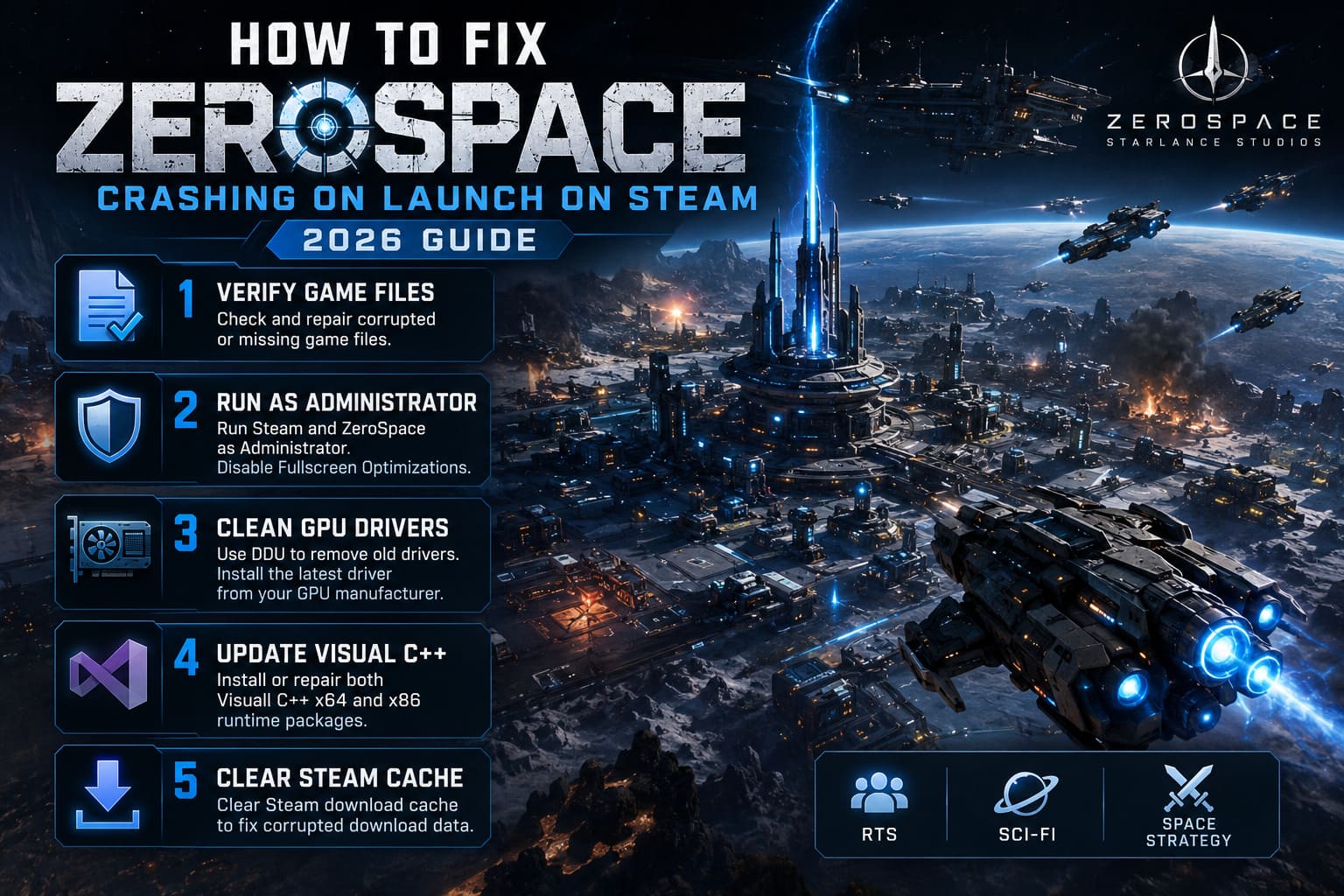
How to do it
- Open your Steam Library.
- Right-click ZeroSpace.
- Select Properties.
- Open Installed Files.
- Click Verify Integrity of Game Files.
The process normally takes only a few minutes and has solved startup crashes for many players after large patches.
2. Launch Steam and ZeroSpace with Administrator Rights
Windows security has become much stricter over the years.
Sometimes games don’t actually crash because they’re broken—they simply aren’t allowed to access certain folders or create temporary files during startup.
Giving both Steam and the game executable administrator privileges removes that restriction.
Recommended settings
- Enable Run this program as Administrator for Steam.
- Enable the same option for ZeroSpace.exe.
- Also enable Disable Fullscreen Optimizations on the game’s executable.
After applying the changes, reboot the PC before testing again.
This simple adjustment often fixes instant desktop crashes that occur before any logos appear.
3. Perform a Clean Graphics Driver Installation
One lesson I’ve learned after years of PC gaming is this: updating GPU drivers isn’t always enough.
Sometimes older driver files remain inside Windows, creating conflicts with newer releases.
That’s why experienced PC users often recommend Display Driver Uninstaller (DDU) instead of a normal update.
A clean installation removes:
- Old registry entries
- Broken driver remnants
- Corrupted shader cache files
- Previous installation leftovers
After removing the existing driver, install the newest version directly from your GPU manufacturer and restart the system.
If you’ve been updating drivers over the top of older versions for months—or even years—this can make a surprisingly big difference.
4. Update Visual C++ Runtime Packages
Many PC games rely on Microsoft’s runtime libraries.
If one package becomes corrupted or goes missing, games may close immediately without displaying any helpful error.
Install or repair both versions:
- Visual C++ x64
- Visual C++ x86
Even on a 64-bit operating system, many games still require the 32-bit libraries.
I always repair both whenever troubleshooting launch issues.
5. Clear Steam’s Download Cache
Steam occasionally stores corrupted download data after interrupted updates or failed installations.
Clearing the cache forces Steam to rebuild those files.
Steps
- Open Steam.
- Go to Settings.
- Select Downloads.
- Click Clear Download Cache.
- Log back into Steam.
You won’t lose installed games, but Steam will refresh important download information that may be causing launch problems.
6. Experiment with DirectX Launch Options
Different PCs behave differently depending on the graphics hardware.
Some systems work perfectly with DirectX 12.
Others are noticeably more stable using DirectX 11.
Steam lets you test different rendering modes without changing any game files.
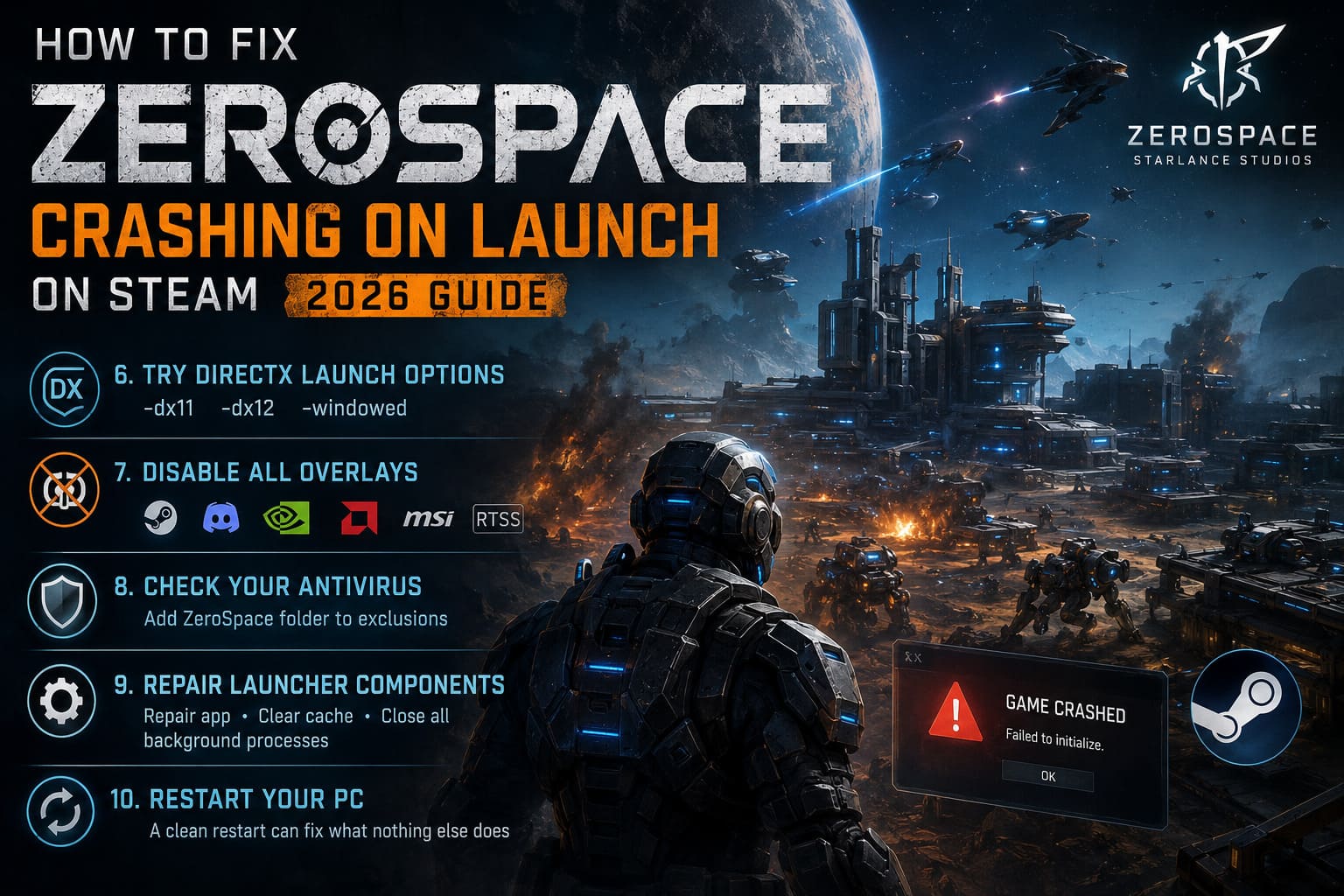
Try one launch option at a time:
- -dx11
- -dx12
- -windowed
Windowed mode is particularly useful because it bypasses some fullscreen initialization issues that can occur on ultrawide displays or multi-monitor setups.
If one option doesn’t work, remove it before trying another.
7. Disable Every Overlay You Can
This is one of those fixes people often skip because it sounds too simple.
Yet overlays regularly cause launch conflicts in new PC games.
Applications worth disabling include:
- Steam Overlay
- Discord Overlay
- NVIDIA Overlay
- AMD Overlay
- MSI Afterburner
- RivaTuner Statistics Server
These tools inject themselves into the game’s rendering process, and occasionally that interaction prevents the game from starting.
Once ZeroSpace launches correctly, you can always enable them one at a time to discover which one caused the problem.
8. Check Your Antivirus
Modern antivirus software sometimes mistakes newly released game executables for suspicious programs.
It’s uncommon, but it definitely happens.
Instead of disabling your antivirus entirely, add the ZeroSpace installation folder to the exclusions list.
That prevents real-time scanning from interfering while the game starts.
Windows Defender users should also make sure Controlled Folder Access isn’t blocking the executable.
9. Repair Secondary Launcher Components
Some Steam games communicate with additional background services during startup.
If one of those services becomes corrupted, the game may freeze before reaching the main menu.
If your installation uses any secondary launcher or companion software:
- Repair the application.
- Clear its cache.
- Fully close every background process before relaunching Steam.
Restarting the computer afterward helps ensure no damaged processes remain in memory.
10. Restart Before Trying Again
It sounds almost too obvious.
But after changing administrator settings, installing new GPU drivers, repairing runtimes, or modifying launch options, restarting Windows matters more than many players realize.
A reboot clears locked processes, unloads old drivers, refreshes memory allocation, and forces Windows to reload important system components.
I’ve seen games magically begin working after a restart, despite failing multiple times beforehand.
ZeroSpace Faction Tier List 2026: Best Main Factions Ranked (Early Access Meta Guide)
Quick Troubleshooting Table
| Problem | Most Likely Cause | Best Solution |
|---|---|---|
| Instant desktop crash | Corrupted files | Verify Steam installation |
| Black screen before logos | GPU driver issue | Clean install drivers with DDU |
| Launcher freezes | Background software conflict | Repair launcher and restart PC |
| Game never opens | Windows permissions | Run Steam and game as Administrator |
| Rendering initialization error | DirectX conflict | Test -dx11, -dx12, or -windowed |
| Crash after update | Broken cache | Clear Steam download cache |
Extra Tips That Are Worth Trying
If nothing above solves the issue, there are still a few smaller tweaks that have helped some players.
- Update Windows completely. Optional updates often include important driver improvements.
- Disconnect unnecessary USB devices. Controllers, RGB software, capture cards, and unusual peripherals occasionally interfere with startup.
- Close hardware monitoring software. Some monitoring utilities hook directly into DirectX and can cause unexpected crashes.
- Avoid overclocking while troubleshooting. Even a perfectly stable CPU or GPU overclock in older games can become unstable with a demanding new release.
Finally, check that your PC actually meets the game’s minimum and recommended system requirements. Launch crashes are sometimes the result of unsupported hardware rather than software issues.
ZeroSpace RTS Macro Guide: Best Beginner Strategy and Base Building Tips
Final Thoughts
ZeroSpace is an ambitious real-time strategy game, and like many modern PC releases, its launch hasn’t been completely smooth for everyone. The encouraging part is that the majority of startup crashes are tied to common Windows or Steam issues rather than serious bugs inside the game itself.
If I had to recommend an order based on what seems to fix the problem most often, I’d start by verifying the game files, performing a clean graphics driver installation, repairing the Visual C++ packages, and disabling every overlay running in the background. Those four steps alone appear to resolve the majority of reported launch failures.
If the game still refuses to start after working through everything here, it’s worth waiting for the next official patch from Starlance Studios, as launch-week hotfixes frequently address compatibility problems affecting specific hardware combinations.
With a little patience and systematic troubleshooting, there’s a very good chance you’ll be commanding your fleets in ZeroSpace instead of staring at your desktop.