How to Fix Brigandine Abyss Crashing on Startup on PC (2026 Guide)
I’ll be honest: few things kill the excitement of a new strategy RPG faster than watching it crash before you even reach the main menu.
That was my first impression with Brigandine Abyss on PC. I was ready to spend the evening messing around with factions, building an army and getting completely lost in tactical battles. Instead, I got a black screen, the opening animation, and then — desktop. No useful error message. No explanation. Just goodbye.
And judging by the number of players reporting similar startup problems, I’m definitely not the only one.
The good news is that Brigandine Abyss crashing on startup doesn’t necessarily mean your PC is too weak or that the game installation is ruined. There are several things worth trying, and some are much quicker than the usual “reinstall Windows and sacrifice your firstborn to the GPU driver” advice.
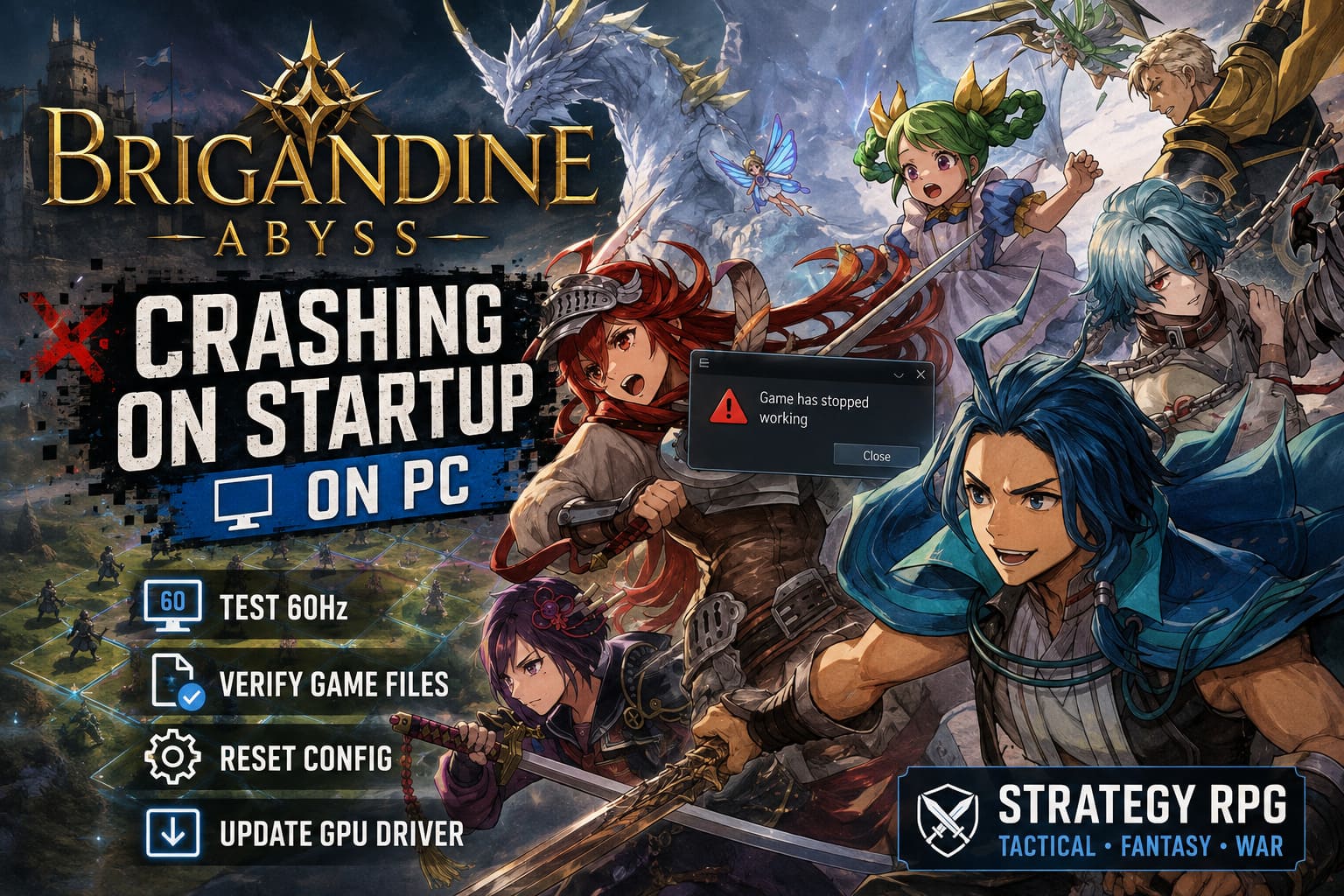
Here’s the troubleshooting route I’d personally take, starting with the fixes that take almost no time.
First Things First: What Kind of Crash Are You Getting?
Before changing half your PC, it helps to identify where Brigandine Abyss actually fails.
| What Happens | What I’d Try First |
|---|---|
| Crashes during opening logos | Skip the intro and test 60Hz |
| Black screen, then desktop | Verify Steam files |
| Freezes before the menu | Reset local configuration |
| Crashes after changing graphics settings | Delete/reset config files |
| Game never reaches the window | GPU driver and Windows updates |
| Suddenly stopped launching | Steam Cloud/save-data check |
This matters because not every crash has the same cause. If the game reaches the title animation every time and then dies, I wouldn’t immediately start reinstalling DirectX. Try the simple stuff first.
1. Try Skipping the Intro Immediately
This is the first thing I would test because it takes about ten seconds.
Some players have reported crashes around the opening presentation, particularly during the transition from the introductory material toward the main menu. If that is where your game is dying, you may be able to get around the problematic sequence rather than fixing the underlying issue immediately.
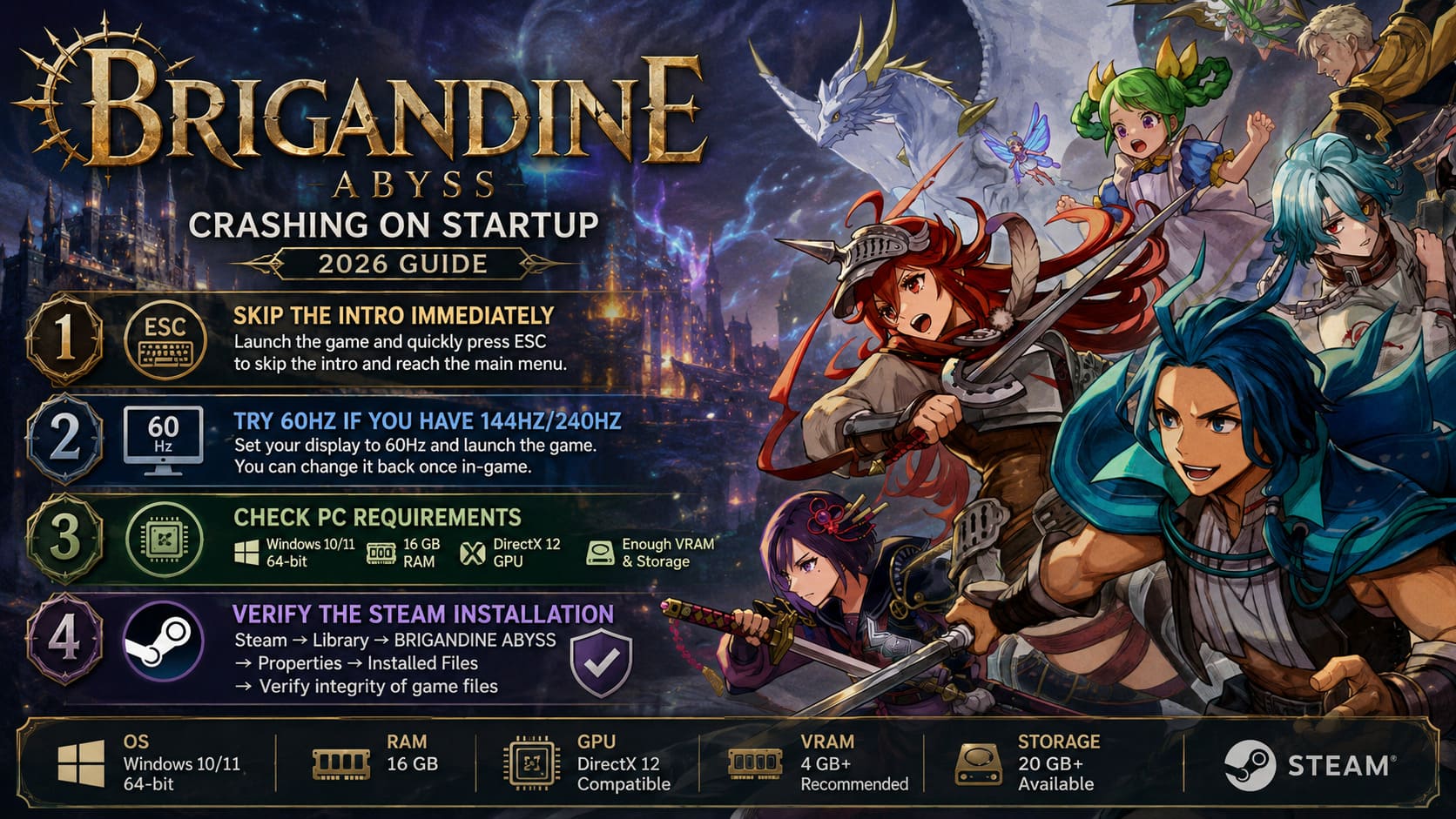
Start the game and, as soon as the window appears, try rapidly pressing ESC to skip whatever can be skipped. If you’re using a controller, try the equivalent cancel/back button.
You can also try clicking through the window if the game appears responsive.
I wouldn’t call this a guaranteed fix — and I’d be suspicious of anyone claiming there is one universal button combination that fixes every PC installation — but it’s such a quick test that there’s no reason not to try it.
If you suddenly reach the main menu, you’ve learned something useful: the crash is probably connected to the startup presentation rather than the entire game being unable to initialize.
2. If You Have a 144Hz or 240Hz Monitor, Test 60Hz
This is one of those old-school PC troubleshooting tricks that sounds ridiculous until it actually works.
If you have a 144Hz, 165Hz, 240Hz or 360Hz monitor, temporarily switch Windows to 60Hz and launch Brigandine Abyss again.
Go to:
Settings → System → Display → Advanced display → Choose a refresh rate → 60Hz
Then launch the game.
Why bother? Some games behave strangely during initialization when unusual refresh-rate, fullscreen and frame-pacing combinations are involved. It doesn’t necessarily mean the game is “broken at high refresh rates”; rather, reducing variables during the first launch makes troubleshooting much easier.
If the game suddenly launches at 60Hz, don’t panic. You don’t have to play the entire campaign like it’s 2012.
Once you’re inside the game, you can experiment with your normal refresh rate and frame-rate settings. I’d also enable V-Sync initially, just to keep the rendering path conservative while testing.
For NVIDIA users, you can also create a game-specific profile in NVIDIA Control Panel rather than changing global settings.
3. Check the PC Requirements Before Going Down the Rabbit Hole
This sounds obvious, but it’s surprisingly easy to overlook system requirements when you’re excited about a new release.
If your hardware is around the minimum specification, startup problems can become much harder to diagnose because you’re potentially dealing with memory pressure, driver limitations, shader compilation or other performance issues at the same time.
The important things to check are:
- Windows version and 64-bit support
- At least 16 GB of RAM
- A DirectX 12-capable GPU
- Enough VRAM for the game’s graphics requirements
- Plenty of free storage
- Current Windows updates
I’d especially avoid troubleshooting on an ancient Windows installation that hasn’t been updated in months.
And one important distinction: don’t assume every crash means you need to upgrade your PC. If your system comfortably exceeds the requirements and other modern games work normally, I’d look at software and configuration issues first.
4. Verify the Steam Installation
This is probably the most boring fix on the list — and one of the most useful.
A bad download, interrupted update or corrupted asset can be enough to stop a game before it reaches the main menu.
In Steam:
Library → BRIGANDINE ABYSS → Properties → Installed Files → Verify integrity of game files
Let Steam finish the process.
If it finds something wrong, it will replace the affected files.
I recommend doing this before reinstalling the entire game. There’s very little point in downloading the whole installation again if Steam can repair the broken files in a few minutes.
And if you’ve been modifying configuration files, installing unofficial tweaks or moving the installation between drives, definitely put file verification near the top of your list.
5. Reset the Local Configuration
Here’s another fix I like because it can solve mysterious crashes without touching the actual game installation.
Sometimes the executable is perfectly fine, but a configuration file created during a previous launch is not.

That can happen after:
- changing resolution;
- switching between fullscreen and windowed mode;
- changing graphics settings;
- crashing during startup;
- changing monitors;
- updating drivers.
The exact save/configuration location can vary, so don’t blindly delete random folders in AppData.
Instead, first back up anything related to Brigandine Abyss. Then look under locations such as:
C:\Users\%USERNAME%\AppData\LocalLow
and other game-specific folders created by the developer or publisher.
If you find a Brigandine-related configuration directory, rename it rather than immediately deleting it. Something like:
Brigandine_backup
Then launch the game.
If it works, you’ve basically proven that the old configuration was the problem.
And that’s much better than discovering three hours later that you accidentally deleted your saves.
6. Be Careful With Steam Cloud
This one is particularly important if the game crashes after previously working correctly.
Steam Cloud is convenient, but if a problematic configuration or save gets synchronized, you can potentially end up restoring the same problem.
If you’re going to test a clean local configuration, temporarily disable Steam Cloud for the game.
Back up your saves first.
Then launch with a fresh local configuration.
If the game works, you can re-enable Cloud afterward and determine which files need to be preserved.
I strongly recommend treating this as a diagnostic step, not “delete everything and hope.” Your save data is more valuable than shaving five minutes off troubleshooting.
7. Update or Clean-Install Your GPU Driver
If Brigandine Abyss is still crashing before the menu, I’d move on to the graphics driver.
Download the latest driver directly from your GPU manufacturer’s official website.
That means NVIDIA, AMD or Intel, depending on your hardware.
If you’re already on the latest driver but the game refuses to launch, a clean driver installation is worth considering. Driver updates sometimes leave behind cached data or settings that don’t play nicely with a new game.
After installing:
- Restart Windows.
- Don’t launch ten other applications.
- Start Steam.
- Launch Brigandine Abyss.
- Give the game a little time during its first startup.
That last point is easy to overlook. Some modern games do additional shader or asset work on their first launch, and the initial boot can behave differently from subsequent launches.
8. Don’t Immediately Blame Your Antivirus
Security software can interfere with games, particularly when a brand-new executable is being launched for the first time.
But I wouldn’t recommend immediately disabling your antivirus completely.
Instead, check Windows Security → Virus & threat protection → Protection history and see whether the game’s executable or a related file was actually blocked.
If you find a legitimate false positive, you can consider adding the game folder as an exclusion.
Also check whether your antivirus is preventing the game from writing to its configuration or save directories.
And while running the executable as administrator can occasionally help diagnose a permissions problem, I wouldn’t use administrator mode as a permanent first-line fix. Most games should launch normally without elevated privileges.
9. Repair the Microsoft Runtime Components
If you’re still staring at your desktop, it’s time to check the boring system components.
Games built with modern engines can depend on Microsoft runtime libraries that aren’t necessarily obvious to the player.
Make sure the current Microsoft Visual C++ Redistributable packages are installed correctly. If Windows reports that the package is already installed, using the repair option can be worthwhile.
DirectX is another area worth checking.
One thing I’d emphasize, though: don’t download random “DirectX fixer” utilities from shady websites. That’s a fantastic way to turn a game crash into a much bigger PC problem.
Use Microsoft’s official redistributable/runtime packages instead.
My Recommended Order of Attack
If I were sitting at my own PC with Brigandine Abyss refusing to launch, I wouldn’t perform all nine fixes immediately.
I’d go in this order:
- Try skipping the intro.
- Switch the monitor to 60Hz.
- Enable V-Sync and test again.
- Verify Steam files.
- Reset the game’s local configuration.
- Temporarily test without Steam Cloud.
- Update or clean-install the GPU driver.
- Check Windows Security and permissions.
- Repair Visual C++/DirectX components.
The reason is simple: start with the fixes that are fast, reversible and low-risk.
There’s no reason to spend an hour reinstalling drivers when switching from 240Hz to 60Hz and restarting the game might tell you exactly where the problem is.
Brigandine Abyss Steam Deck Best Graphics Settings & Performance Guide
One More Thing: Don’t Change Everything at Once
This is probably my biggest piece of advice.
If you change your refresh rate, reinstall the GPU driver, delete AppData, disable Steam Cloud and reinstall the game simultaneously, you won’t know what actually fixed it.
Instead, change one thing, launch the game, and test.
It may feel slower, but it’s much better troubleshooting.
For example, if switching to 60Hz fixes the startup crash, you’ve got a clear lead. You can then return to your normal display settings and determine whether V-Sync, fullscreen mode or another graphics option is responsible.
That’s how I’d approach Brigandine Abyss rather than treating the PC version like a broken black box.
Is Brigandine Abyss Worth Buying? Pre-Order Bonuses, DLC, and Full Review
Final Thoughts
I’m still very much in the “I just want to play the game” camp when it comes to PC troubleshooting.
I don’t want to spend my evening digging through obscure folders or reinstalling half of Windows before I can command an army. Brigandine Abyss is supposed to be about tactical decisions, not tactical decisions about Windows.
If you’re getting an immediate crash, don’t assume the installation is hopeless. Start with the easy checks: skip the opening sequence, test 60Hz, verify the Steam files and reset a potentially broken configuration.
If those don’t work, move toward the more involved fixes — drivers, Windows components, security software and runtime libraries.
And most importantly, back up your saves before deleting anything.
Once you’re finally staring at the title screen instead of your desktop, the frustrating part is over. Then you can get back to what Brigandine does best: building an army, making questionable strategic decisions, and wondering why the enemy AI somehow always seems to have one more unit than you do.