How to Fix Watch Dogs 2 GameProcessWatcher.cpp Error on Windows 11
If you’ve tried launching Watch Dogs 2 on Windows 11 and suddenly got kicked back to the desktop right after the splash screen, you’re definitely not the only one. This is a pretty common issue with Ubisoft’s older PC titles running on modern systems, and it usually shows up as a crash linked to “GameProcessWatcher.cpp Child process abnormal exit.”
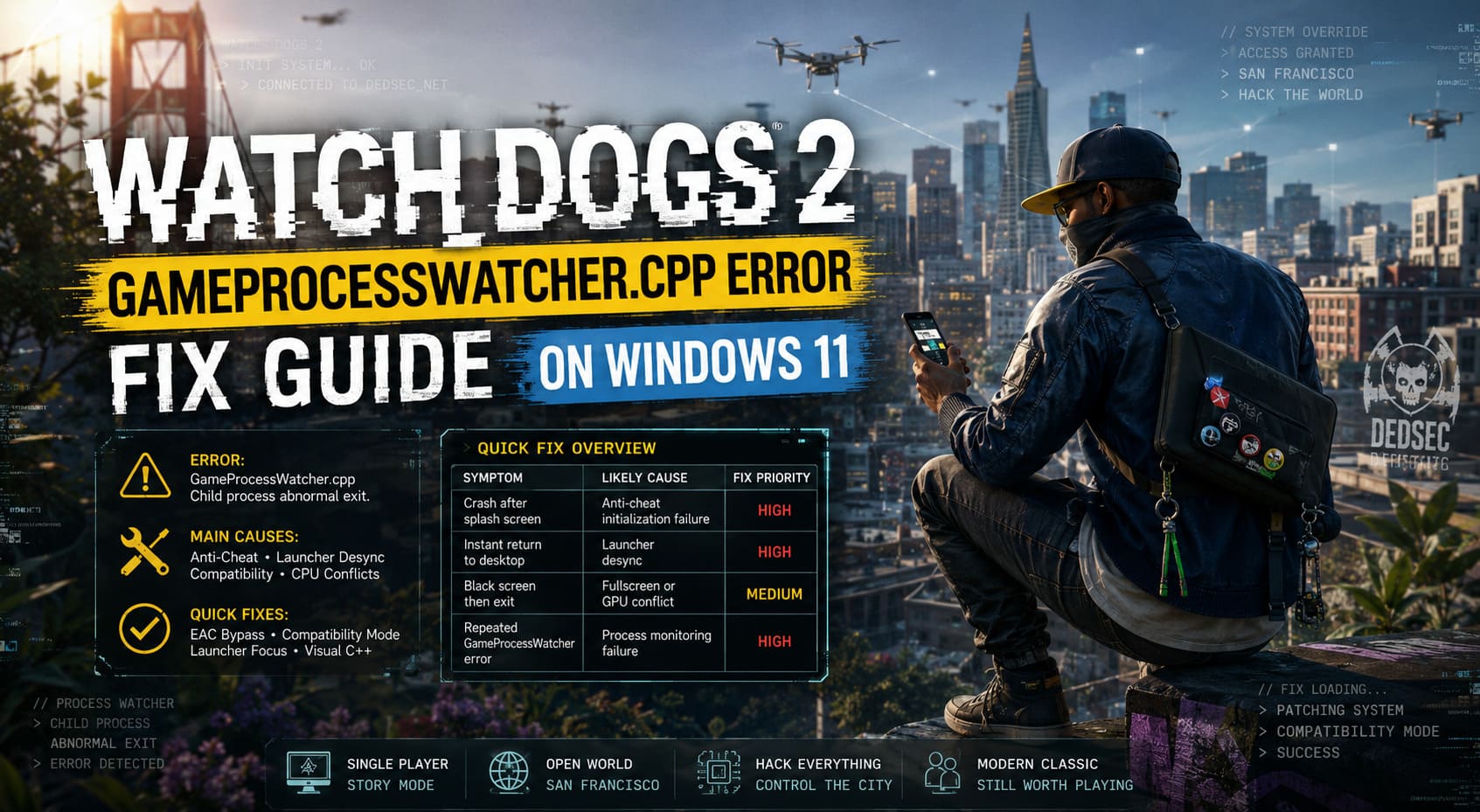
On the surface it looks like a serious engine failure, but in reality it’s almost always a compatibility breakdown between the game, Windows 11, and Ubisoft Connect services.
How to Fix Watch Dogs 2 Stuttering on Intel 13th Gen CPUs
What the GameProcessWatcher.cpp Error Actually Means
Despite the scary name, GameProcessWatcher.cpp is not the game itself—it’s part of the launcher monitoring system. Its job is to track whether the game process is running correctly and stay synced with Ubisoft Connect and anti-cheat components.
When the game fails to properly initialize or gets interrupted during startup, the watcher assumes the child process has crashed and throws the error.
Main causes behind the crash
- Easy Anti-Cheat failing to initialize properly
- Windows 11 background process scheduling conflicts
- Fullscreen optimization issues
- Modern CPU hybrid architecture conflicts (P-cores / E-cores)
- Launcher desync or permission problems
Quick Fix Overview Table
| Symptom | Likely Cause | Fix Priority |
|---|---|---|
| Crash after splash screen | Anti-cheat initialization failure | High |
| Instant return to desktop | Launcher desync | High |
| Black screen then exit | Fullscreen or GPU conflict | Medium |
| Repeated GameProcessWatcher error | Process monitoring failure | High |
Fix 1: Bypass Easy Anti-Cheat (Single Player Method)
One of the fastest and most reliable fixes is bypassing Easy Anti-Cheat when you’re only playing the single-player campaign of Watch Dogs 2.
Steps
- Open Steam, Epic Games, or Ubisoft Connect
- Go to Watch Dogs 2 in your library
- Open Properties / Launch Options
- Add the command: -eac_launcher
This prevents the game from initializing Easy Anti-Cheat, which is often the root cause of the GameProcessWatcher.cpp crash.
Important: This disables multiplayer functionality but keeps the full story mode playable.
Fix 2: Launcher Focus Timing Trick
On Windows 11, one unusual cause of this crash is how the system handles foreground application focus during launch.
Steps
- Start Watch Dogs 2 normally
- When the splash screen appears, press Alt + Tab immediately
- Manually open Ubisoft Connect again
- Keep both the game and launcher active
This prevents Windows from prematurely suspending the launcher-game handshake process.
Fix 3: Compatibility Mode and Administrator Settings
Older Ubisoft titles often behave better when forced into legacy compatibility modes on modern systems.
Steps
- Go to the game installation folder (bin directory)
- Right-click WatchDogs2.exe → Properties
- Open Compatibility tab
- Enable Windows 8 compatibility mode
- Check “Disable fullscreen optimizations”
- Check “Run as administrator”
Repeat the same steps for UbisoftConnect.exe in the launcher directory.
Fix 4: Intel CPU Hybrid Architecture Issue
Modern CPUs using hybrid architecture (Performance cores and Efficiency cores) can confuse older game engines like Watch Dogs 2.
What happens
The game schedules threads incorrectly, which breaks timing-sensitive launcher communication and leads to a false crash detection.
Possible solutions
- Disable E-cores in BIOS temporarily
- Disable Hyper-Threading (advanced users)
- Use Windows compatibility tools to apply CPU core fixes
This fix is especially relevant for Intel 12th, 13th, and 14th generation processors.
Fix 5: Reinstall Visual C++ Redistributables
Since the error references a C++ (.cpp) file, corrupted runtime libraries can also trigger the crash.
Steps
- Open Windows Settings → Apps → Installed Apps
- Find Microsoft Visual C++ Redistributables
- Repair or reinstall versions 2015–2022
- Install both x86 and x64 packages
- Restart your PC
This ensures that all required runtime dependencies for Ubisoft Connect and the game engine are properly loaded.
Fix 6: Clean Reset and Final Troubleshooting
If nothing else works, a full reset of launch conditions usually resolves remaining conflicts.
Final checklist
- Verify game files in launcher
- Disable overlays (Discord, Steam, GeForce Experience)
- Clear Ubisoft Connect cache
- Restart system completely
This removes lingering process hooks that may interfere with startup.
Conclusion
The Watch Dogs 2 GameProcessWatcher.cpp error on Windows 11 is frustrating, but it is not a broken game or a hardware failure. It’s simply a compatibility issue between an older game engine and modern system behavior.
In most cases, one of these fixes will solve the problem:
- Disabling Easy Anti-Cheat for single-player
- Adjusting compatibility settings
- Fixing CPU scheduling conflicts
Once resolved, Watch Dogs 2 runs surprisingly well even today, offering a still-unique open-world hacking experience set in a vibrant digital version of San Francisco.