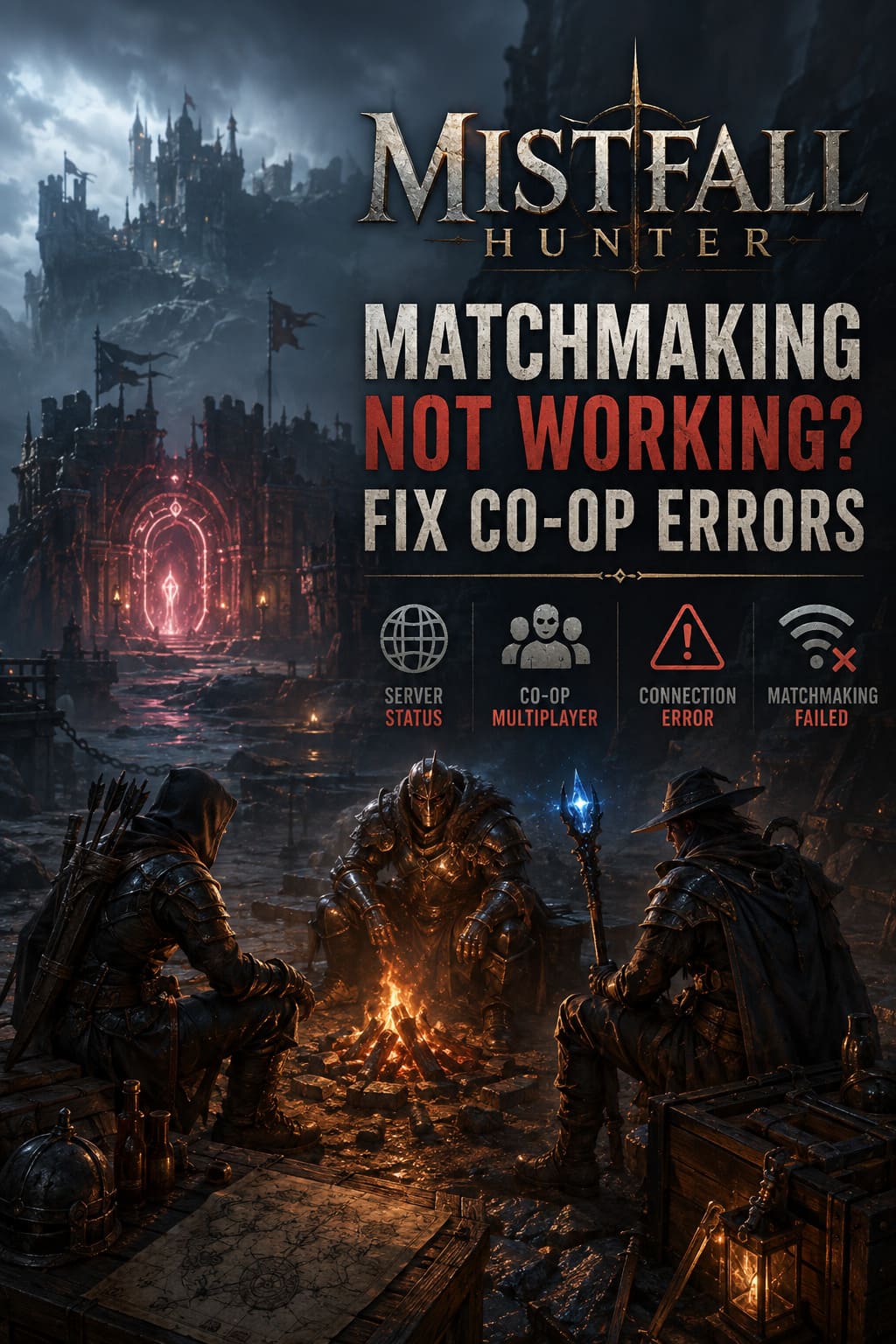
How to Fix Mistfall Hunter Matchmaking Not Working and Co-Op Multiplayer Errors
There are few things more frustrating than gearing up for a dangerous extraction run, inviting your friends, and then spending the next twenty minutes staring at a matchmaking screen that never ends. That has happened to me more than once in Mistfall Hunter, and judging by the number of discussions across gaming communities, I know I’m far from the only player dealing with it.
Mistfall Hunter delivers some of the most satisfying melee combat and tense extraction gameplay I’ve played recently. Every expedition feels meaningful because every weapon, resource, and piece of armor matters. Unfortunately, the online experience doesn’t always keep up with how good the gameplay itself is.
After testing different fixes, reading community reports, and comparing what has worked for other players, I put together the methods that consistently produce the best results. None of these are miracle solutions—server-side problems still happen—but together they’ve dramatically reduced matchmaking failures, connection errors, and party issues on my system.
If your co-op sessions keep failing or matchmaking refuses to cooperate, this guide is worth trying before giving up.
Why Mistfall Hunter Matchmaking Stops Working
The first mistake many players make is assuming there’s a single bug causing every multiplayer issue. In reality, several different problems can produce nearly identical symptoms.
Some are completely outside your control, while others are caused by your PC or network configuration.
The most common reasons include:
- Overloaded game servers during peak hours
- Incorrect server region assignment
- Network handshake failures
- Windows security blocking connections
- Firewall permission problems
- Corrupted local networking cache
- Damaged game files
- Overlay and background software conflicts
Knowing which category your issue falls into makes troubleshooting much easier.
Check Whether the Servers Are Actually Online
This sounds obvious, but it’s surprising how often people spend an hour changing Windows settings during scheduled maintenance.
Whenever matchmaking suddenly stops working, the first thing I check is whether everyone else is having the same problem.
If social channels, Discord communities, Reddit, and Steam discussions are suddenly flooded with identical complaints, chances are the servers are experiencing maintenance or unexpected downtime.
When this happens, no amount of reinstalling or network tweaking will solve the issue.
Sometimes the smartest solution is simply waiting for the servers to stabilize.
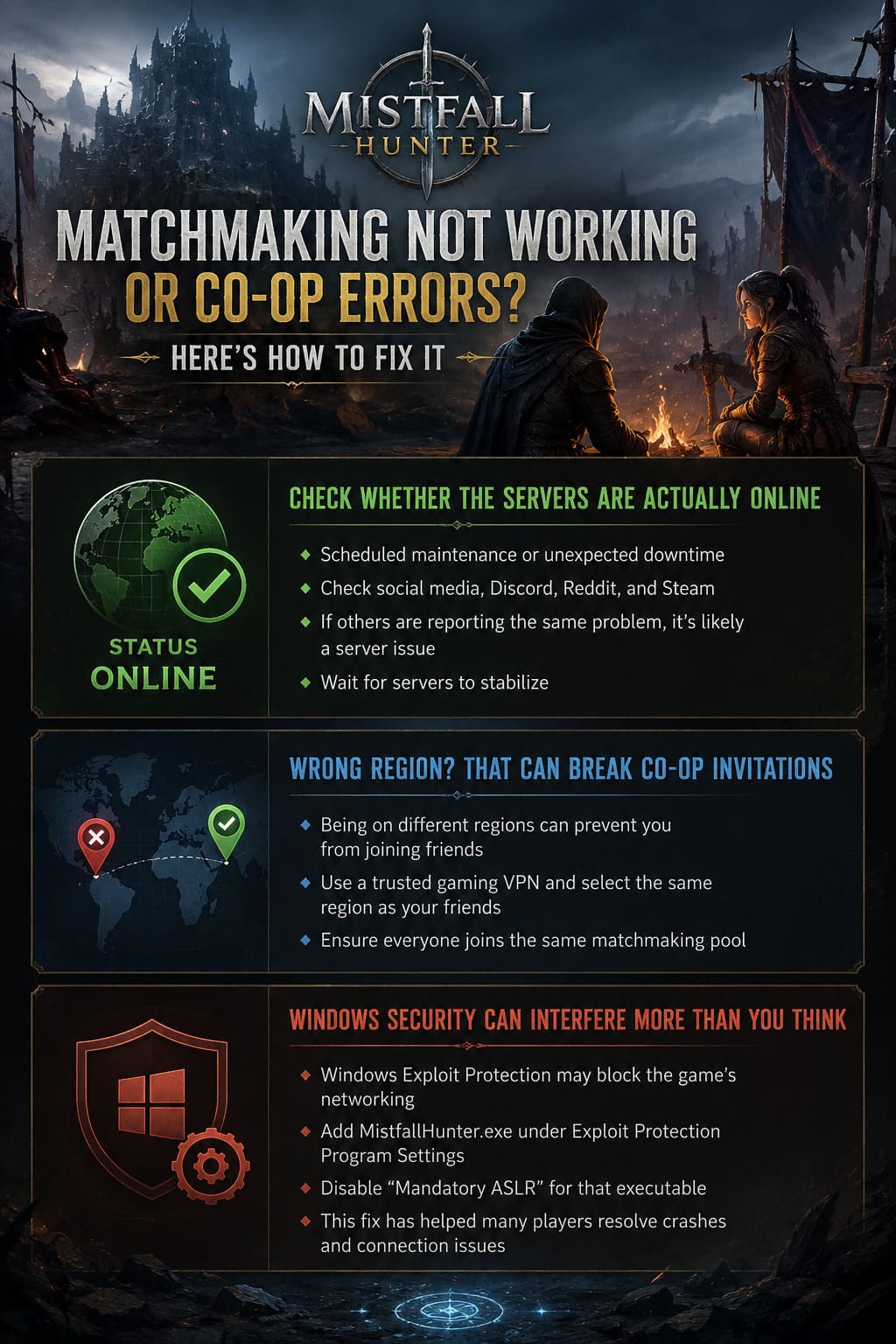
Wrong Region? That Can Break Co-Op Invitations
One issue I encountered was being connected to the wrong regional server.
Even with a stable internet connection, my friend and I couldn’t join each other’s lobby because the game had assigned us to different regions.
If your menu displays an unexpected region, restarting the game may not always fix it.
Many players have reported success by temporarily routing their connection through a reputable gaming VPN and selecting the same location as their friends before launching the game.
This isn’t about reducing ping.
It’s about making sure everyone joins the same regional matchmaking pool from the beginning.
Windows Security Can Interfere More Than You Think
One of the stranger discoveries surrounding Mistfall Hunter involves Windows Exploit Protection.
Certain memory protection settings appear to interfere with the game’s networking process, especially while joining multiplayer sessions.
Adding MistfallHunter.exe under Exploit Protection Program Settings and disabling Mandatory ASLR for that executable has solved crashes and connection failures for many players.
This is one of those fixes that sounds unusual but has consistently appeared in community troubleshooting discussions.
If you’re comfortable modifying Windows security settings, it’s definitely worth trying.
Don’t Forget Windows Firewall
Firewall rules are another surprisingly common culprit.
Whenever Windows blocks either Steam or the game executable, matchmaking may fail before a connection is fully established.
Make sure both applications have permission on:
- Private Networks
- Public Networks
If the game isn’t already listed, manually add the executable from your Steam installation folder.
After saving the changes, reboot the computer before testing multiplayer again.
Reset Your Network Before Blaming the Game
Networking problems don’t always originate from the game itself.
Windows sometimes stores outdated DNS information or corrupted network socket data, especially after ISP interruptions or router restarts.
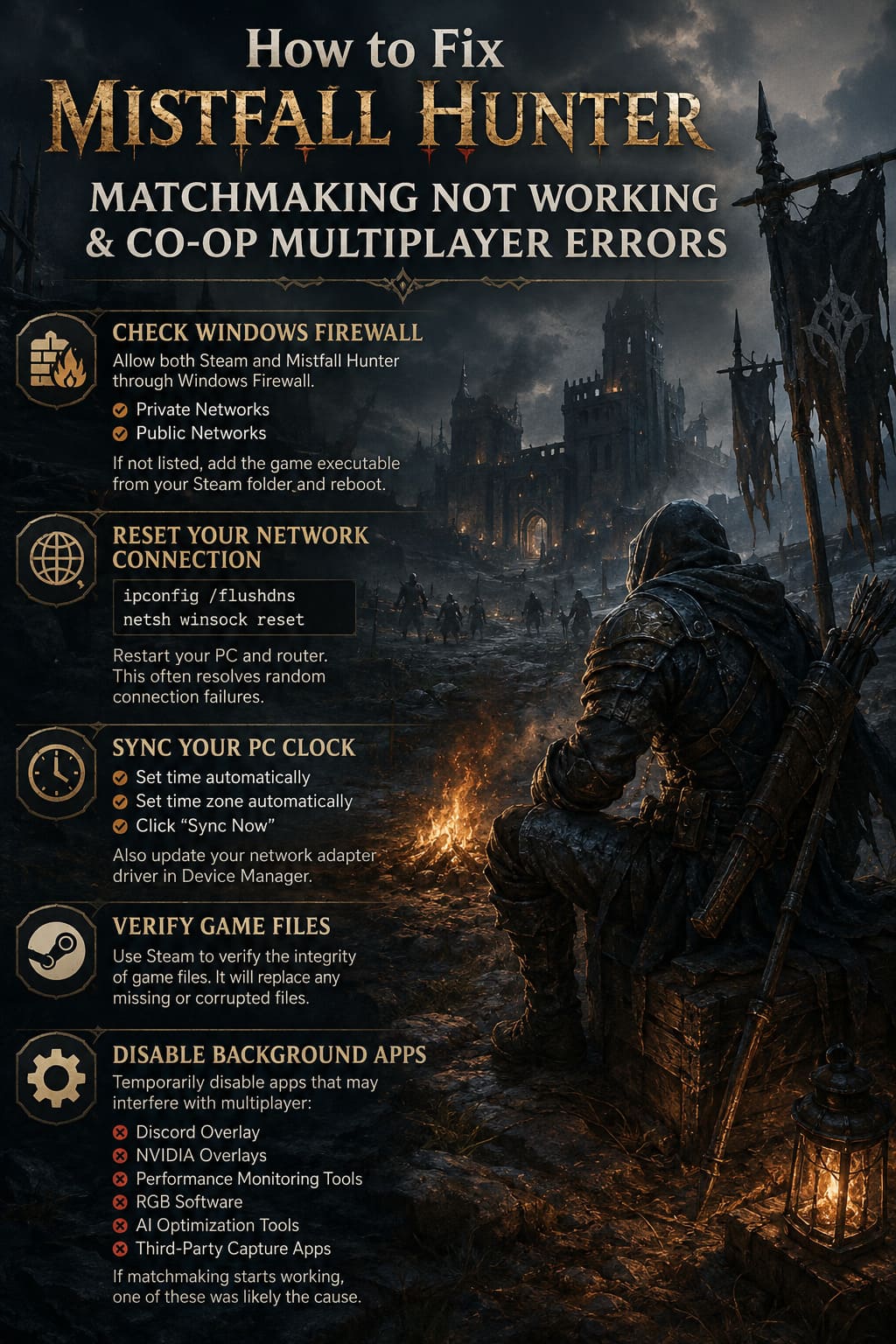
I usually perform two quick commands:
ipconfig /flushdnsnetsh winsock reset
Afterward, I restart both my computer and router.
It only takes a few minutes, but I’ve seen it eliminate random connection failures in multiple online games—not just Mistfall Hunter.
Make Sure Your PC Clock Is Correct
This is one of the easiest things to overlook.
If Windows time synchronization is disabled or inaccurate, authentication with online services can occasionally fail.
Enable the following options:
- Set time automatically
- Set time zone automatically
- Click “Sync Now”
While you’re there, it’s also a good opportunity to update your network adapter driver through Device Manager.
Driver updates rarely receive much attention, but newer networking firmware can improve stability.
Verify the Integrity of Your Game Files
Whenever multiplayer behaves strangely after an update, verifying game files is one of the safest things you can do.
Steam compares your installation with the official version and automatically downloads anything that’s missing or corrupted.
The process usually takes only a few minutes and has fixed matchmaking issues for me after several game patches.
Background Software Can Cause Unexpected Problems
Modern gaming PCs run a surprising number of background applications.
Some inject overlays, others monitor hardware, while some automatically record gameplay.
Although these utilities are useful, newly released online games occasionally conflict with them.
If matchmaking keeps failing, temporarily disable:
- Discord Overlay
- NVIDIA overlays
- Performance monitoring utilities
- RGB software
- AI optimization tools
- Third-party capture applications
If multiplayer suddenly starts working afterward, you’ve probably found the source of the conflict.
Duo Players Should Understand Team Fill
One thing that confused several friends was how the matchmaking system handles parties of two.
Mistfall Hunter is largely balanced around three-player squads.
If you enter matchmaking as a duo, the game usually searches for a random third teammate.
Disabling Team Fill doesn’t move you into an easier playlist.
Instead, you’ll often face coordinated three-player teams while missing a teammate yourself.
Unless you’re intentionally looking for an extra challenge, keeping Team Fill enabled generally creates more balanced matches.
Waterpark Simulator Custom Slide Design Guide: Master Physics & Layouts
Quick Troubleshooting Checklist
| Problem | Recommended Fix |
|---|---|
| Endless matchmaking | Check server status and restart the game. |
| Friends cannot join | Verify everyone is connected to the same region. |
| Connection Failed errors | Flush DNS and reset Winsock. |
| Frequent disconnects | Restart your router and update network drivers. |
| Matchmaking crashes | Verify game files and review Windows security settings. |
| Random multiplayer failures | Disable overlays and unnecessary background utilities. |
Final Thoughts
After experimenting with nearly every fix available, I’ve noticed one important pattern.
If matchmaking breaks for everyone at the same time, it’s almost always a server-side issue.
If it only affects you, the solution is usually something local—firewall permissions, Windows security, outdated networking settings, or software running quietly in the background.
Another lesson I’ve learned is to avoid taking expensive gear into raids whenever the servers seem unstable.
Even if your internet is perfectly fine, an unexpected disconnect during extraction can sometimes ruin an otherwise successful run. I’d rather spend one evening farming replacement equipment than lose my best loadout because the servers decided to have a bad day.
Mistfall Hunter is still growing, and Bellring Games continues improving its online infrastructure with each update. Multiplayer stability has already become noticeably better than it was during the early days, so I’m optimistic things will continue moving in the right direction.
Until then, these troubleshooting methods remain the most reliable way I’ve found to reduce matchmaking problems and get back into the action faster. If you’re still experiencing issues after trying everything above, the odds are good that the problem is happening on the game’s backend rather than your own PC. In those situations, keeping an eye on future updates and official announcements is usually far more productive than endlessly reinstalling the game.