Scarlet Deer Inn Steam Deck Best Graphics Settings: Maximize Battery Life and Visuals
Some games are easy to optimize because you’re only chasing higher frame rates. Scarlet Deer Inn isn’t one of them.
After spending several hours playing on Steam Deck, I realized that this isn’t the type of game where squeezing out 90 FPS makes the experience any better. In fact, pushing the hardware harder than necessary only creates more fan noise, more heat, and a battery that disappears much faster than it should.
The real beauty of Scarlet Deer Inn comes from something completely different. Every embroidered character, every carefully painted background, and every piece of lighting deserves to be seen clearly rather than rushed past at the highest possible frame rate.
If you’re looking for Steam Deck settings that preserve the game’s artistic style while keeping battery life surprisingly long, these are the options I’d recommend.
Why Scarlet Deer Inn Feels Perfect on Steam Deck
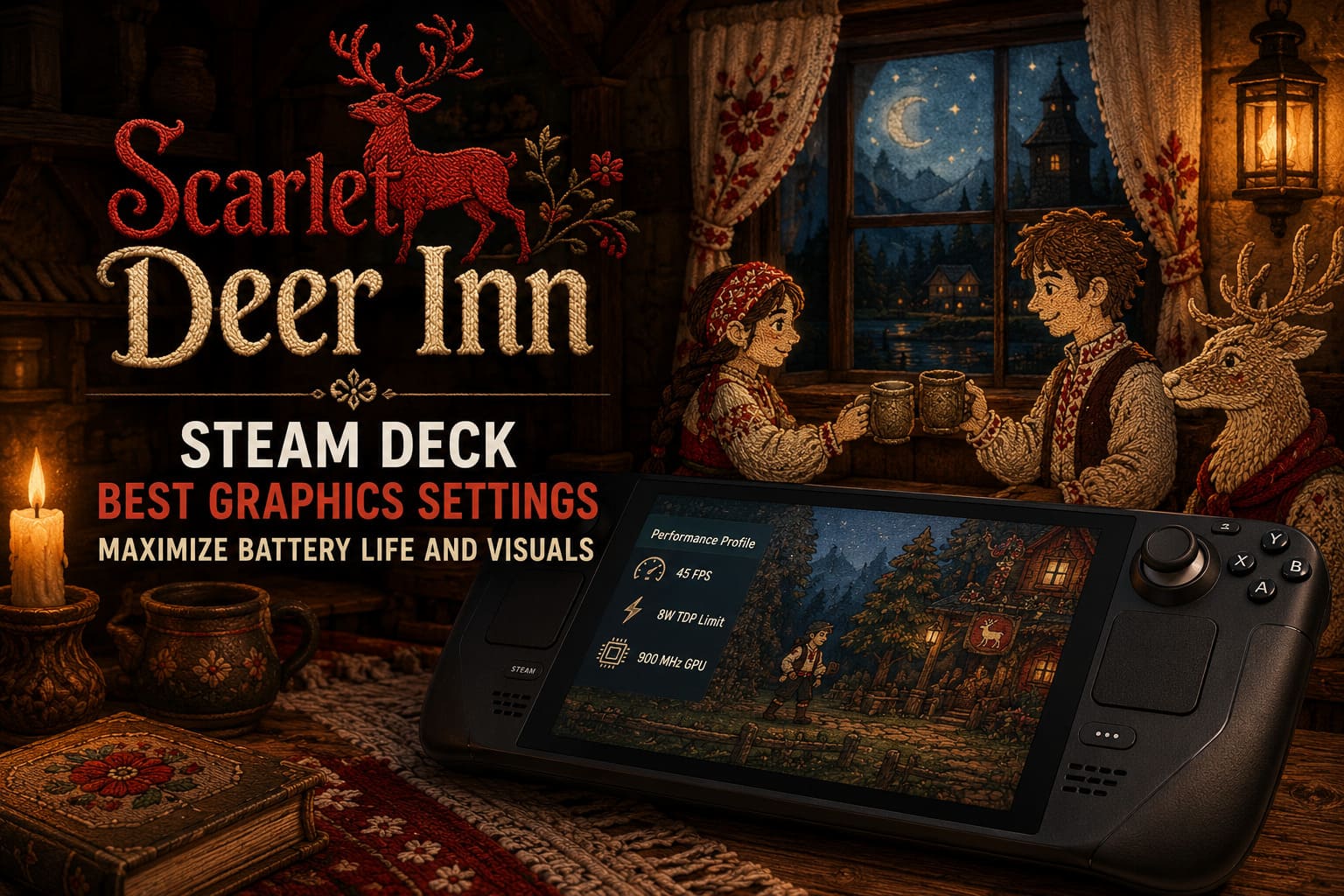
Attu Games created something that immediately stands out from almost everything else released this year. Instead of relying on flashy visual effects or photorealistic graphics, the developers built a world inspired by Slavic folklore using embroidered animation combined with painted environments.
The result is unusual in the best possible way.
Playing it on a handheld somehow feels even more natural than sitting in front of a large monitor. The smaller 800p display actually helps hide minor imperfections while making the stitched character animations appear incredibly crisp.
Performance is also much lighter than many modern releases. Even though the game includes dynamic lighting and atmospheric effects, it never pushes the Steam Deck anywhere near its limits unless you intentionally leave everything uncapped.
That’s good news because it gives us room to optimize for efficiency instead of raw speed.
My Recommended Graphics Settings
After trying multiple combinations, I kept coming back to the same setup. It offers excellent image quality without wasting battery on visual features that barely change what you actually see during gameplay.
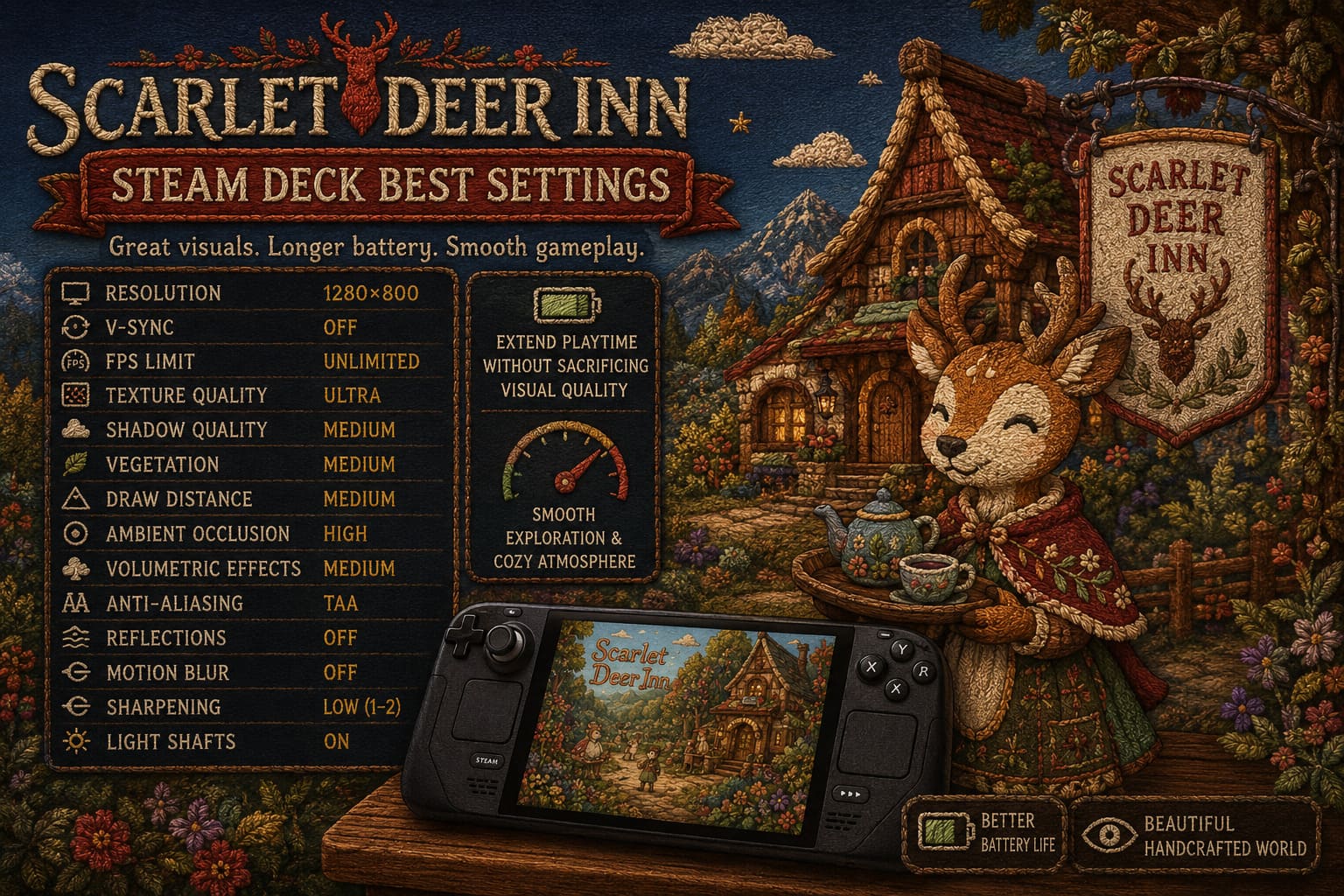
| Setting | Recommended Value |
|---|---|
| Resolution | 1280×800 |
| V-Sync | Off |
| FPS Limit (In-Game) | Unlimited |
| Texture Quality | Ultra |
| Texture Filtering | 16x |
| Anti-Aliasing | TAA |
| FXAA | Off |
| Motion Blur | Off |
| Sharpening | Low (1–2) |
| Shadow Quality | Medium |
| Vegetation | Medium |
| Draw Distance | Medium |
| Ambient Occlusion | High |
| Volumetric Effects | Medium |
| Light Shafts | On |
| Reflections | Off |
I wouldn’t lower the texture quality.
The embroidered artwork is literally the biggest selling point of Scarlet Deer Inn, and reducing textures makes those stitched details noticeably softer. Thankfully, the Steam Deck handles Ultra textures without any real issue.
The biggest performance gains come from lowering shadows and volumetric effects instead. Those options cost GPU power while offering relatively small improvements during normal gameplay.
SteamOS Settings That Make the Biggest Difference
The in-game graphics menu is only half of the equation.
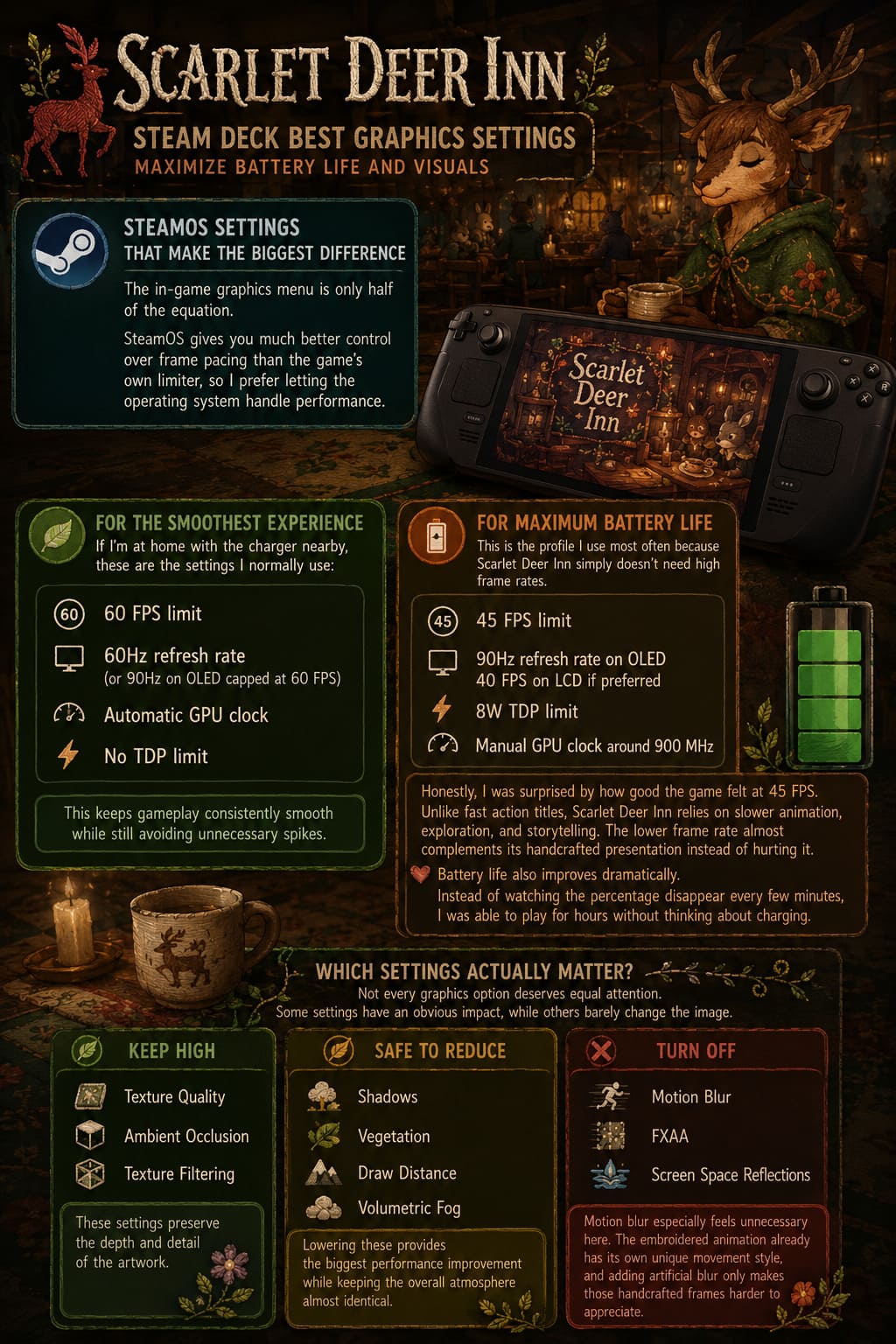
SteamOS gives you much better control over frame pacing than the game’s own limiter, so I prefer letting the operating system handle performance.
For the Smoothest Experience
If I’m at home with the charger nearby, these are the settings I normally use:
- 60 FPS limit
- 60Hz refresh rate (or 90Hz on OLED capped at 60 FPS)
- Automatic GPU clock
- No TDP limit
This keeps gameplay consistently smooth while still avoiding unnecessary spikes.
For Maximum Battery Life
This is the profile I use most often because Scarlet Deer Inn simply doesn’t need high frame rates.
- 45 FPS limit
- 90Hz refresh rate on OLED
- 40 FPS on LCD if preferred
- 8W TDP limit
- Manual GPU clock around 900 MHz
Honestly, I was surprised by how good the game felt at 45 FPS.
Unlike fast action titles, Scarlet Deer Inn relies on slower animation, exploration, and storytelling. The lower frame rate almost complements its handcrafted presentation instead of hurting it.
Battery life also improves dramatically.
Instead of watching the percentage disappear every few minutes, I was able to play for hours without thinking about charging.
Which Settings Actually Matter?
Not every graphics option deserves equal attention.
Some settings have an obvious impact, while others barely change the image.
Here’s how I’d prioritize them.
Keep High
- Texture Quality
- Ambient Occlusion
- Texture Filtering
These settings preserve the depth and detail of the artwork.
Safe to Reduce
- Shadows
- Vegetation
- Draw Distance
- Volumetric Fog
Lowering these provides the biggest performance improvement while keeping the overall atmosphere almost identical.
Turn Off
- Motion Blur
- FXAA
- Screen Space Reflections
Motion blur especially feels unnecessary here.
The embroidered animation already has its own unique movement style, and adding artificial blur only makes those handcrafted frames harder to appreciate.
Steam Deck LCD vs OLED
I’ve seen plenty of discussions claiming that one version is dramatically better than the other for Scarlet Deer Inn.
Personally, I don’t think that’s really true.
The OLED screen certainly gives darker forests, candlelight, and nighttime scenes more contrast, making the atmosphere even stronger.
The LCD model, however, still looks excellent because the game’s art style relies much more on texture and color than deep HDR effects.
Performance between both systems is extremely similar.
The OLED simply enjoys the advantage of better battery efficiency and the option to pair a 45 FPS cap with its 90Hz display.
Neither model struggles with the game when using sensible settings.
Small Tweaks That Help More Than Expected
There were a few adjustments outside the graphics menu that noticeably improved my experience.
Always launch at 1280×800.
Sometimes updates or configuration resets change the resolution to 1280×720.
It doesn’t sound like much, but running below the native display resolution introduces slight softness that becomes surprisingly noticeable with detailed embroidered textures.
Don’t chase maximum FPS.
I know it’s tempting to unlock everything and let the Deck run flat out.
I tried that.
The result?
More fan noise.
More heat.
More battery drain.
Very little improvement to gameplay.
Scarlet Deer Inn simply isn’t built around ultra-high refresh rates.
Use a per-game performance profile.
This is one of the most useful SteamOS features.
Instead of changing your global settings every time you launch another game, create a dedicated profile specifically for Scarlet Deer Inn.
Once it’s configured, you never have to think about it again.
Docked Mode Advice
Playing on a television changes the situation quite a bit.
The Steam Deck will often attempt to render at the display’s native resolution, which can become unnecessarily demanding.
For a 1080p television, I recommend setting the output resolution manually and enabling AMD FSR through SteamOS.
The image remains surprisingly clean while maintaining stable performance.
Trying to render everything natively simply isn’t worth the extra workload for this type of game.
Scarlet Deer Inn Ending Explained: The Full Plot Summary & Slavic Lore Breakdown
Is Increasing VRAM Worth It?
This is probably one of the most debated Steam Deck tweaks.
Some players recommend changing the UMA Frame Buffer in the BIOS from 1GB to 4GB.
In my experience, Scarlet Deer Inn doesn’t absolutely require it.
If you’ve already made the change because you play lots of modern games, there’s no reason to switch back.
However, I wouldn’t modify BIOS settings solely for this title.
The game already runs comfortably enough that most players won’t notice a meaningful difference.
Scarlet Deer Inn Gameplay Review: Why This Hand-Embroidered Dark Folk Tale is 2026’s Best Indie Game
Final Thoughts
Scarlet Deer Inn reminded me why I enjoy indie games so much.
It doesn’t rely on cutting-edge graphics technology or massive open worlds to leave an impression. Instead, it succeeds because every environment feels handcrafted with genuine care. The embroidered animation gives the game a personality that screenshots simply can’t capture.
That’s also why I don’t recommend treating it like a benchmark.
You don’t need to squeeze every possible frame out of your Steam Deck. A stable 40–45 FPS, Ultra textures, Medium shadows, and an 8W power limit create a much better balance than running everything uncapped.
The Deck stays cooler, the fan remains quiet most of the time, and battery life becomes good enough for long trips without constantly searching for a charger.
After experimenting with countless combinations, this is the setup I keep returning to. It lets the artwork shine, keeps gameplay consistently smooth, and makes Scarlet Deer Inn feel exactly like the cozy handheld experience it was meant to be.