How to Fix Onimusha Way of the Sword Crashing on Launch on PC
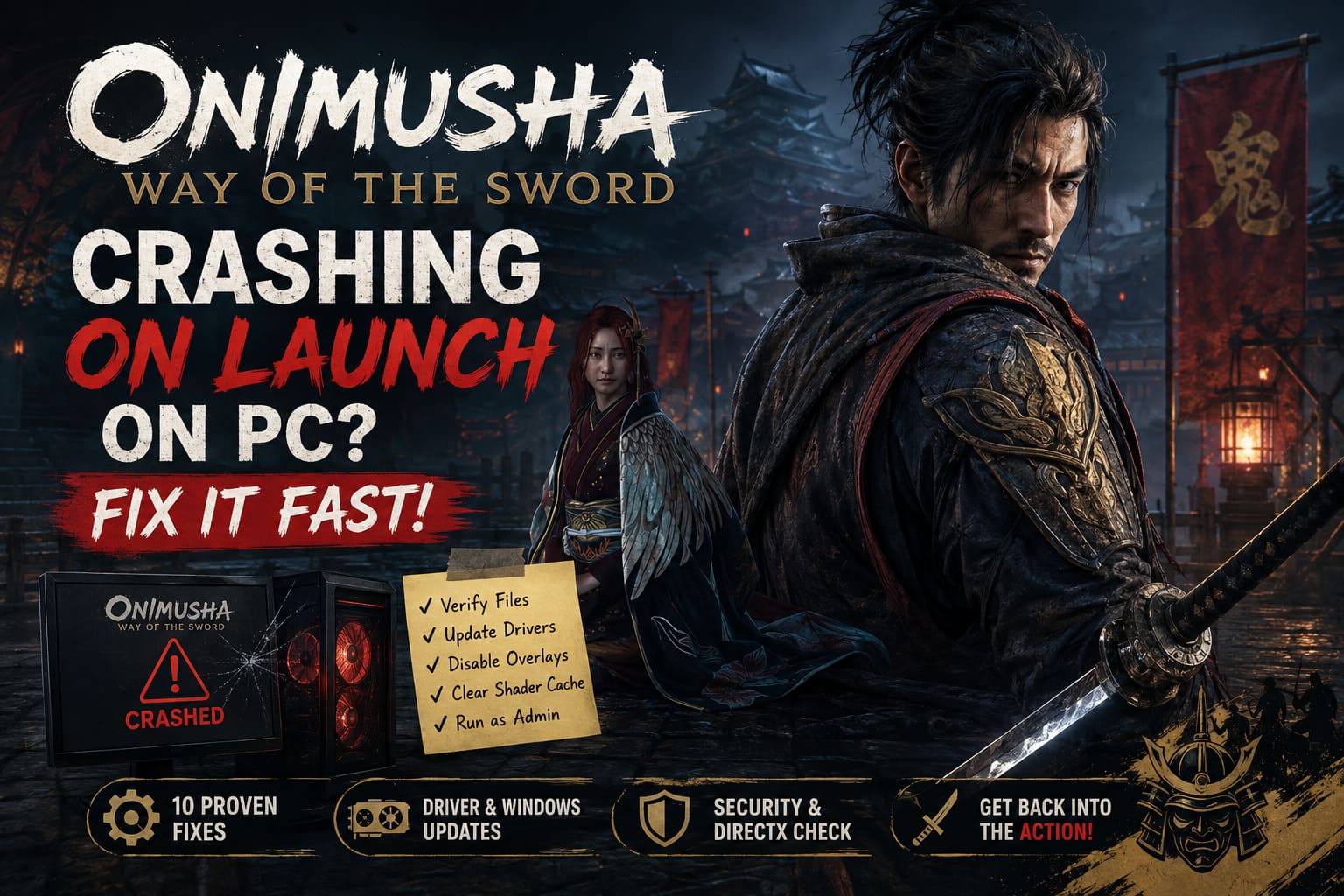
There are few things more annoying than getting excited to play a new game, hitting Play, and watching absolutely nothing happen. You wait a few seconds, maybe a black screen appears, and then you are suddenly staring at your desktop again. That is exactly the kind of frustration some PC players are running into with Onimusha: Way of the Sword, Capcom’s long-awaited return to its legendary samurai action series.
I have spent enough time troubleshooting PC games to know that launch crashes rarely have one magical solution. Sometimes it is a broken game file, sometimes Windows is getting in the way, and sometimes an overlay or graphics driver decides that today is the perfect day to cause trouble. With a modern RE Engine title like Onimusha: Way of the Sword, there are quite a few things that can go wrong before Miyamoto Musashi even gets a chance to swing his sword.
The good news is that a crash on startup does not automatically mean your PC cannot handle the game. If Onimusha: Way of the Sword crashes on launch, freezes on a black screen, closes immediately, or refuses to start, work through the fixes below in order. I would start with the simple solutions before touching anything complicated.
Crimson Moon Best PC Graphics Settings: 2026 Optimization Guide for High FPS
First, Check Your PC Before Blaming the Game
Before spending an hour changing Windows settings, make sure your system actually meets the game’s requirements. There is no point fighting with drivers and compatibility settings if the hardware or operating system is below the expected specification.
| Component | Minimum Requirement |
|---|---|
| Operating System | Windows 11 64-bit |
| Processor | Intel Core i5-8400 / AMD Ryzen 3 3100 |
| Memory | 16 GB RAM |
| Graphics | NVIDIA GeForce GTX 1660 / AMD Radeon RX 5500 XT |
| DirectX | Version 12 |
| Storage | 50 GB SSD |
The Windows 11 requirement is particularly important. If you are trying to run the game on an older operating system, that alone could explain certain startup problems. An SSD is also strongly recommended, especially for a modern game built around a demanding engine and large amounts of streamed data.
And yes, I know the classic PC-gamer reaction: ‘But my hardware is technically powerful enough.’ That may be true, but operating system compatibility and software configuration can matter just as much as raw GPU performance.
1. Verify the Onimusha: Way of the Sword Game Files
This is the first thing I would try, simply because it is quick and has almost no downside.
Game installations can become corrupted for surprisingly boring reasons. An interrupted update, a failed download, a launcher hiccup, or even a storage problem can leave you with files that look perfectly normal but cause the game to crash during startup.
Steam
- Open Steam and go to your Library.
- Right-click Onimusha: Way of the Sword.
- Select Properties.
- Open Installed Files.
- Select Verify integrity of game files.
- Let Steam finish the scan and repair process.
Steam will replace damaged or missing files automatically.
Epic Games Store
- Open the Epic Games Launcher.
- Go to your Library.
- Find Onimusha: Way of the Sword.
- Click the three-dot menu.
- Select Manage.
- Click Verify.
If the crash was caused by a damaged installation, this can be all you need.
2. Update Your GPU Driver and Windows
Modern PC games can be extremely sensitive to graphics driver versions, particularly when they rely heavily on DirectX 12. A driver that works perfectly for five other games can still cause problems with a brand-new release.
For NVIDIA users, open the NVIDIA App and check for the latest Game Ready Driver. AMD players should open AMD Software: Adrenalin Edition and check for an available driver update.
I also recommend checking Windows Update rather than assuming your operating system is current. Install pending updates, restart the PC, and then try launching the game again.
That restart is worth doing, by the way. I have lost count of how many times a Windows update appears to finish successfully while some background component does not properly settle until after a reboot.
3. Try Running the Game as Administrator
Windows permissions can occasionally interfere with games during startup. If the game cannot properly access a required folder or system resource, you may get a crash before the main menu ever appears.
Find the game’s installation directory through your launcher and locate the main executable, OnimushaWotS.exe.
Right-click it, select Properties, and open the Compatibility tab. Enable Run this program as an administrator and also try Disable fullscreen optimizations.
One thing I would not do is blindly enable old compatibility modes. Onimusha: Way of the Sword is a modern PC game, not a 2003 executable that needs to pretend it is running on Windows XP. Leave Compatibility Mode itself disabled unless a specific support recommendation tells you otherwise.
4. Make Sure Windows Uses Your Dedicated GPU
This one is especially relevant to gaming laptops, but it can also matter on desktop systems with integrated graphics.
Windows sometimes chooses the wrong GPU for an application. Obviously, launching a demanding game on integrated graphics is not going to produce the experience you want, and in some configurations it can contribute to startup failures.
- Open Windows Settings and search for Graphics Settings.
- Under the app options, add the Onimusha executable.
- Open the game’s graphics preferences.
- Set the game to High Performance.
- Make sure Windows is targeting your dedicated NVIDIA or AMD graphics card.
- Save the setting and try launching the game again.
If you have a laptop with both integrated and dedicated graphics, this is one of the first things I would check.
5. Clear the DirectX and Shader Cache
Shader compilation is one of those things PC players often forget about until it causes trouble.
Games can store shader data generated from previous driver installations or earlier versions of the game. If that cache becomes corrupted or incompatible after a driver update, the game may freeze or crash while loading.
You can clear the DirectX Shader Cache using Windows’ Disk Cleanup utility. Search for Disk Cleanup from the Start menu, select your system drive, and look for DirectX Shader Cache.
You can also check the shader-cache settings in your NVIDIA or AMD graphics software.
Do not be alarmed if the first launch after clearing the cache takes longer. The game may need to rebuild shader data, which is completely normal.
6. Check Windows Security and Antivirus Software
Security software is useful, but it can occasionally be a little too enthusiastic.
Modern games use complicated executable files, anti-tamper technology, launchers, and background services. Security software can sometimes interfere with these components and prevent the game from starting correctly.
If you are confident that your installation is legitimate and obtained through an official store, check whether Windows Security or your third-party antivirus has quarantined anything related to the game.
In Windows Security, open Virus & threat protection, then review the protection history. If the game executable has been incorrectly blocked, restore it only if you are certain it is legitimate.
You can also add the game’s installation folder as an exclusion if necessary. However, I would treat exclusions as a troubleshooting step rather than something you should automatically enable without checking what your antivirus actually blocked.
7. Repair Microsoft Visual C++ and DirectX Components
Ever seen a PC game throw some cryptic DLL error before immediately disappearing? That is often a sign that Windows is missing or has a damaged runtime dependency.
Installing the latest supported Microsoft Visual C++ Redistributable packages can resolve problems involving missing runtime libraries. On a 64-bit Windows installation, having both x86 and x64 redistributables available is useful because individual applications can depend on different architectures.
DirectX components are another area worth checking. Even though Windows includes modern DirectX versions, individual games can still rely on supporting runtime components.
If Onimusha: Way of the Sword crashes with a specific DLL message, write down the exact filename. That information is much more useful than simply searching for a generic ‘game won’t launch’ solution.
8. Turn Off Overlays Before Launching
Personally, this is one of my favorite troubleshooting steps because it takes about a minute and can eliminate a surprising number of weird problems.
Overlays from Discord, Steam, NVIDIA software, recording utilities, performance monitors, and other applications can hook into a game’s rendering process. Most of the time they work perfectly, but occasionally two pieces of software do not get along.
Try disabling:
- Discord Overlay
- Steam Overlay
- NVIDIA in-game overlay
- Third-party recording overlays
- Hardware monitoring overlays
- FPS counters
Then completely close the related applications and start the game again.
If Onimusha suddenly launches, you have found the culprit. You can then re-enable your overlays one at a time to figure out which one caused the conflict.
9. Remove Unnecessary Background Software
This is the broader version of the overlay fix.
Before launching the game, close applications that hook into games, modify graphics behavior, monitor hardware, or inject additional functionality. RGB utilities, aggressive monitoring programs, overclocking tools, capture software, and similar applications can occasionally create conflicts.
You do not need to turn your PC into a completely empty Windows desktop every time you want to play. Start with the programs you know interact directly with games.
If the game launches normally after a clean boot or with background software closed, gradually reopen your applications until you find the one causing the conflict.
10. Reinstall the Game as a Last Resort
If you have reached this point and Onimusha: Way of the Sword still crashes immediately, I would consider a clean reinstall.
Yes, reinstalling a large game is boring. Nobody enjoys waiting for tens of gigabytes to download again. But if the installation has somehow become seriously corrupted, repeatedly changing Windows settings is not going to magically repair it.
- Uninstall the game through Steam or Epic Games.
- Check whether the old installation folder has been completely removed.
- Restart your PC.
- Install the game again.
- Whenever possible, choose a fast SSD with plenty of available space.
Once the installation finishes, launch the game before reinstalling every overlay, mod, performance utility, and customization tool you normally use. That gives you a clean baseline and makes troubleshooting much easier.
What I Would Try First
If I personally sat down at a PC and Onimusha: Way of the Sword refused to launch, I would not immediately start changing ten Windows settings at once. That makes it almost impossible to figure out what actually fixed the problem.
My order would be:
- Check the system requirements.
- Verify the game files.
- Update the GPU driver and Windows.
- Disable overlays and background game utilities.
- Make sure the dedicated GPU is being used.
- Clear the DirectX shader cache.
- Check antivirus protection history.
- Repair Visual C++ and DirectX components.
- Try administrator mode.
- Perform a clean reinstall if nothing else works.
That approach keeps things relatively painless and starts with the fixes that are easiest to reverse.
Final Thoughts
A launch crash is a terrible way to begin a samurai adventure, especially when you have been waiting for Onimusha: Way of the Sword and just want to get into the action. Fortunately, most startup problems are usually connected to something outside the actual gameplay itself: corrupted files, outdated drivers, Windows configuration, shader data, security software, or third-party overlays.
The biggest mistake is changing everything simultaneously. Try one fix at a time, launch the game, and see what happens. That way, if Musashi finally appears on screen, you will actually know which solution did the job.
And once the game finally starts without crashing, I would leave the system alone for a while. There is nothing worse than spending an hour fixing a launch problem, finally reaching the title screen, and then immediately reinstalling three overlay programs because you forgot why you disabled them in the first place.