How to Fix Controller Not Recognized in Onimusha: Way of the Sword on PC
There are few things more annoying than launching a new action game, sitting down ready for some proper sword fighting, and discovering that your controller might as well not exist. Onimusha: Way of the Sword is exactly the kind of game where I would rather use a gamepad than a keyboard and mouse. The combat depends on quick reactions, precise movement, dodges, attacks, and well-timed inputs, so fighting with a controller that randomly refuses to work can ruin the experience before the first serious battle even begins.
Having played plenty of PC games with everything from Xbox pads and DualSense controllers to older DualShock 4s and inexpensive third-party gamepads, I’ve learned that controller problems are rarely caused by one single thing. Sometimes Steam Input is getting in the way. Sometimes Windows sees the controller perfectly but the game doesn’t. Other times the problem is as simple as a bad USB cable or a wireless connection that isn’t as reliable as it looks.
The good news is that Onimusha: Way of the Sword controller not recognized problems can usually be solved without doing anything extreme. The trick is to work through the possible causes in the right order instead of changing ten settings at once and having no idea which one actually fixed the problem.
How to Fix Onimusha Way of the Sword Crashing on Launch on PC
Before Changing Anything, Check Whether Windows Sees the Controller
I’d start here because it immediately tells you whether you’re dealing with a game problem or a Windows or hardware problem.
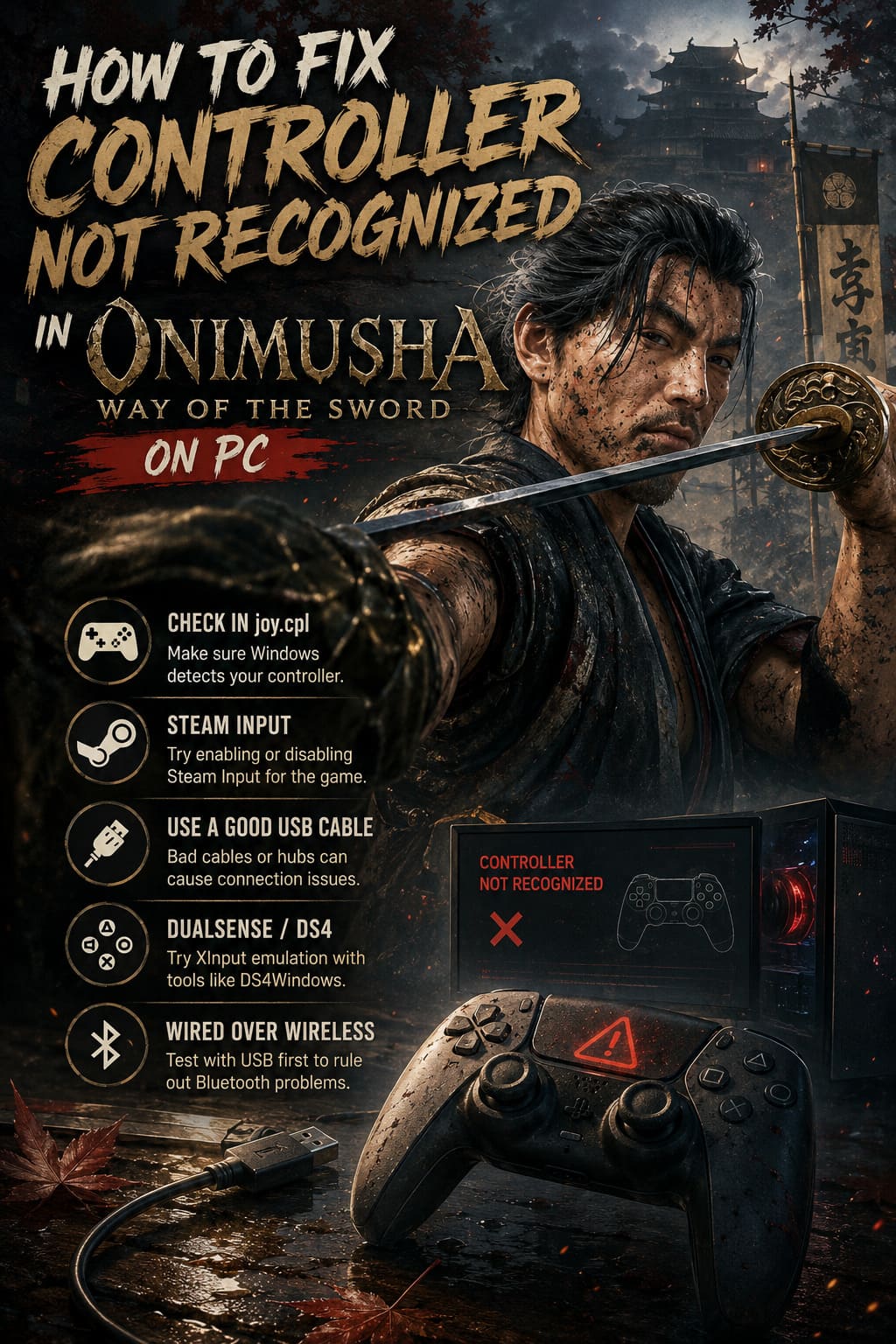
Connect your controller and check whether Windows reacts to it. You can also press Windows + R, type joy.cpl, and press Enter. The Game Controllers window should display your connected device.
If the controller appears there and its buttons and sticks respond correctly, that’s good news. Your hardware is probably fine, and the problem is more likely related to Steam Input, another controller utility, or how Onimusha: Way of the Sword is receiving the input.
If the controller doesn’t appear in joy.cpl at all, don’t start messing around with game settings yet. Concentrate on the USB connection, Bluetooth pairing, Windows drivers, and the controller itself.
1. Experiment With Steam Input First
Steam Input is one of the first things I’d check because it can be incredibly useful in one game and surprisingly troublesome in another. It essentially acts as a translation layer between your physical controller and the game, and when another input system is involved, the two don’t always play nicely together.
Right-click Onimusha: Way of the Sword in your Steam library and open Properties. Find the Controller section and look for the per-game Steam Input setting.
Try forcing Enable Steam Input first. Start the game and check the analog sticks, triggers, D-pad, and face buttons.
If nothing happens, completely close the game and return to the same menu. This time, try Disable Steam Input.
This second option is especially worth testing with Xbox controllers because they already use Microsoft’s XInput standard. In my experience, if a game supports XInput properly, adding another translation layer isn’t always helpful. Sometimes the cleanest solution is simply letting Windows and the game communicate directly.
The Important Part
Don’t change the setting while the game is running and expect an immediate miracle. Close the game completely after changing Steam Input, then launch it again.
That small detail has saved me from plenty of unnecessary troubleshooting over the years.
2. Check Steam’s Global Controller Settings
If changing the individual game profile doesn’t help, take a look at Steam’s general controller configuration.
Open Steam’s settings and find the controller section. Make sure the appropriate support option is enabled for the controller you’re actually using.
- Xbox controller: make sure Xbox-related controller support is enabled.
- DualSense or DualShock 4: enable PlayStation controller support.
- Third-party controller: check whether it is being detected and whether Steam recognizes its input correctly.
After changing these settings, restart Steam rather than immediately launching the game.
I’d also avoid running several controller remapping applications simultaneously. Steam Input, DS4Windows, reWASD, manufacturer software, and other utilities can potentially create overlapping virtual devices. If you have multiple mapping programs active, temporarily close everything except the one you actually need.
3. Using a DualSense or DualShock 4? Try XInput Emulation
PlayStation controllers can be fantastic on PC, but compatibility isn’t always as painless as it is with an Xbox controller.
If Onimusha: Way of the Sword isn’t responding properly to your DualSense or DualShock 4, an XInput translation utility can be worth trying. One commonly used option is DS4Windows, which can make a PlayStation controller appear to Windows games as an Xbox-style controller.
The idea is simple: instead of asking the game to understand the PlayStation controller directly, the software creates an Xbox 360-style virtual controller that many PC games understand immediately.
After configuring the controller, pay attention to the Hide DS4 Controller option. The reason is double input. If Windows sees the original PlayStation controller while DS4Windows simultaneously presents a virtual Xbox controller, the game can receive two sets of commands.
That’s when you can get weird behavior such as menus moving twice, characters responding strangely, or buttons apparently doing something before you’ve even touched the controller.
Use one input path whenever possible. That’s a much better approach than stacking multiple remapping programs on top of one another.
4. Don’t Ignore the USB Cable
This sounds ridiculously basic, but I’ve wasted more time than I’d like to admit troubleshooting controllers when the actual problem was the cable.
A USB-C cable isn’t automatically a data cable just because it fits your controller. Some inexpensive cables are designed primarily for charging and may not provide the data connection your PC needs.
If you’re using a wired controller and Windows behaves inconsistently, swap the cable.
Try a known-good data cable and connect the controller directly to the PC.
I’d also skip USB hubs while troubleshooting. Plugging the controller into a rear motherboard USB port is usually a better test than connecting it through a monitor, keyboard hub, or cheap external splitter.
A Quick Hardware Checklist
- Try another known-good data cable.
- Try a different USB port.
- Prefer a rear motherboard port.
- Disconnect unnecessary USB devices temporarily.
- If possible, test the controller on another PC.
- If using Bluetooth, test the controller through USB.
That last test is particularly useful. If the controller works perfectly over USB but fails over Bluetooth, you’ve already narrowed the problem down considerably.
5. Test Bluetooth Instead of Assuming It’s Fine
Wireless controllers are convenient, but they introduce another layer of possible problems.
If your DualSense, DualShock 4, or Xbox controller keeps disconnecting, disappears from the game, or simply isn’t detected, temporarily switch to a wired connection.
This isn’t necessarily the permanent solution. It’s a diagnostic step.
If the controller suddenly works flawlessly when connected by cable, investigate Bluetooth pairing, interference, adapter drivers, and other wireless devices before blaming the game.
I’d also temporarily disconnect unnecessary wireless peripherals while testing. A crowded wireless environment can make troubleshooting considerably harder because you don’t know whether you’re looking at a game compatibility problem or a connection problem.
6. Check Windows USB Power Management
Windows sometimes tries to be clever about power consumption when you really just want your hardware to keep working.
USB devices can be affected by Windows power-management settings, particularly when the system decides that a device isn’t being actively used. While this isn’t the first thing I’d blame for a controller that never works, it’s worth checking if the controller disconnects after periods of inactivity or behaves inconsistently.
Right-click the Windows Start button and open Device Manager.
Expand Universal Serial Bus controllers and look for USB Root Hub or Generic USB Hub entries. Open their properties and check the Power Management tab when available.
If you see an option allowing Windows to turn off the device to save power, you can disable it for troubleshooting.
Restart the PC afterward.
I wouldn’t randomly change every power setting on your computer just because a controller isn’t working, though. Make the change when you’re specifically dealing with disconnects or intermittent USB behavior.
7. Use joy.cpl to Check the Actual Inputs
This is one of my favorite Windows troubleshooting tools because it cuts through a lot of guesswork.
Press Windows + R, type joy.cpl, and press Enter.
Select your controller and open Properties. From there, test every button, trigger, D-pad direction, and analog stick.
If everything responds inside the Windows controller panel, you have strong evidence that the physical controller is functioning correctly.
You can also use the calibration tools if the analog sticks appear to have incorrect ranges or aren’t reaching their full movement.
However, don’t recalibrate a perfectly functioning controller just because the game isn’t detecting it. Calibration won’t magically repair a Steam Input conflict.
8. Reinstall the Controller Device
If Windows recognizes the controller inconsistently, the driver installation may be worth refreshing.
Open Device Manager and inspect the Human Interface Devices section as well as relevant USB and controller entries. Locate the device associated with your controller and, if appropriate, choose Uninstall device.
Disconnect the controller afterward, wait a few seconds, and reconnect it.
Windows should detect the hardware again and reinstall the necessary driver components.
This is particularly useful when the controller worked previously but suddenly stopped appearing correctly after a Windows update, hardware change, or software installation.
9. Close Other Controller Software
Another common PC gaming headache is having too many applications trying to control the same device.
Before launching Onimusha, temporarily close software such as:
- DS4Windows
- reWASD
- Controller Companion
- Manufacturer-specific controller utilities
- Other virtual gamepad software
You don’t necessarily need to uninstall these applications. Just remove them from the equation while testing.
The goal is to create a simple setup: controller → Windows → Steam/game.
Once you’ve found a working configuration, you can start adding your other software back if necessary.
10. The Fastest Troubleshooting Order I’d Use
If I were sitting at my PC with Onimusha: Way of the Sword refusing to recognize my controller, I wouldn’t go through every possible Windows setting immediately. I’d work through the following order because it eliminates the most common causes quickly.
| Step | What to Test | Why It Matters |
|---|---|---|
| 1 | joy.cpl | Confirms whether Windows sees the controller |
| 2 | Different USB cable | Eliminates a surprisingly common hardware problem |
| 3 | Different USB port | Rules out port or hub issues |
| 4 | Steam Input ON | Useful for controllers needing translation |
| 5 | Steam Input OFF | Often preferable for native XInput devices |
| 6 | Close remapping software | Prevents virtual-controller conflicts |
| 7 | XInput emulation | Useful for PlayStation controllers |
| 8 | Driver refresh | Helps when Windows detection is broken |
| 9 | Bluetooth vs USB | Separates wireless problems from game problems |
| 10 | USB power settings | Worth checking for random disconnects |
What I’d Try First for Each Controller
The best solution depends heavily on your controller. There isn’t one universal setting that fixes every PC gamepad.
Xbox Controller
I’d start with Steam Input disabled, then test the controller in joy.cpl. Xbox controllers generally have the advantage of native XInput compatibility, so I prefer keeping the input path as simple as possible.
DualSense
I’d try Steam Input first. If that doesn’t work correctly, I’d test a wired connection and then consider XInput emulation through DS4Windows.
DualShock 4
I’d follow a similar approach to the DualSense, especially if I’m using Bluetooth. Wired testing is an excellent way to determine whether the issue is actually wireless rather than game-related.
Third-Party Controller
I’d check Windows detection first, then Steam’s controller settings. Some cheaper gamepads advertise multiple input modes, so switching between XInput and DirectInput modes can also make a major difference.
Don’t Change Everything at Once
This is probably the most useful piece of advice I can give.
When a controller doesn’t work, it’s tempting to enable Steam Input, install DS4Windows, change USB power settings, reinstall drivers, switch cables, and reboot everything in one giant troubleshooting session. If the controller suddenly works, you’ve got no idea why.
Instead, change one thing at a time.
Test Steam Input. If that doesn’t work, revert it and test the next option. Try another cable. Test joy.cpl. Then move to drivers or controller emulation if necessary.
That approach takes slightly more patience, but it gives you a working configuration you actually understand.
Final Thoughts
A controller that isn’t recognized by Onimusha: Way of the Sword on PC can make an otherwise exciting action game feel broken, especially when you’re expecting tight swordplay and fast reactions. The good news is that most controller failures come down to a relatively small number of problems: Steam Input conflicts, PlayStation/XInput compatibility, faulty cables, USB connection issues, wireless interference, or Windows device configuration.
Personally, I’d start with the boring stuff before touching anything complicated: check joy.cpl, replace the cable, try another USB port, and test Steam Input both enabled and disabled. Those steps can solve the problem surprisingly often.
If you’re using a PlayStation controller, XInput emulation becomes a much more interesting option. And if Windows itself can’t see your controller, don’t waste time changing game settings—the problem needs to be fixed at the operating-system or hardware level first.
Once you’ve eliminated those variables, getting Onimusha: Way of the Sword to recognize your gamepad becomes much less of a guessing game. And honestly, after spending enough time troubleshooting PC games, that’s exactly what I want: fewer mystery settings, fewer virtual controllers fighting each other, and more time actually playing.