How to Fix How to Fish (Dazed Games) Black Screen on Launch – Troubleshooting Guide (2026)
There are few things more annoying than buying a new game, getting everything ready for a relaxing evening with friends, and then being greeted by a completely black screen. That is exactly the kind of problem some players are running into with How to Fish from Dazed Games.
And honestly, I can understand the frustration. How to Fish is supposed to be the sort of wonderfully chaotic multiplayer game where you jump into a boat, mess around with your friends, catch ridiculous fish, fire a shotgun at things you probably shouldn’t be shooting, and generally create stories that make no sense the next morning. Getting stuck before the main menu is the opposite of that experience.
The good news is that a black screen at launch does not automatically mean your GPU is dying or that you need to reinstall Windows. In many cases, the problem comes down to fullscreen settings, GPU selection, overlays, corrupted files, or Windows display behavior.
I’ve put together the fixes I’d actually try myself, starting with the quick solutions and moving toward the more technical ones. You don’t need to perform every step. Try them in order and stop as soon as How to Fish starts normally.
First, Figure Out What Kind of Black Screen You’re Getting
Before changing a dozen Windows settings, pay attention to what happens when you press Play.
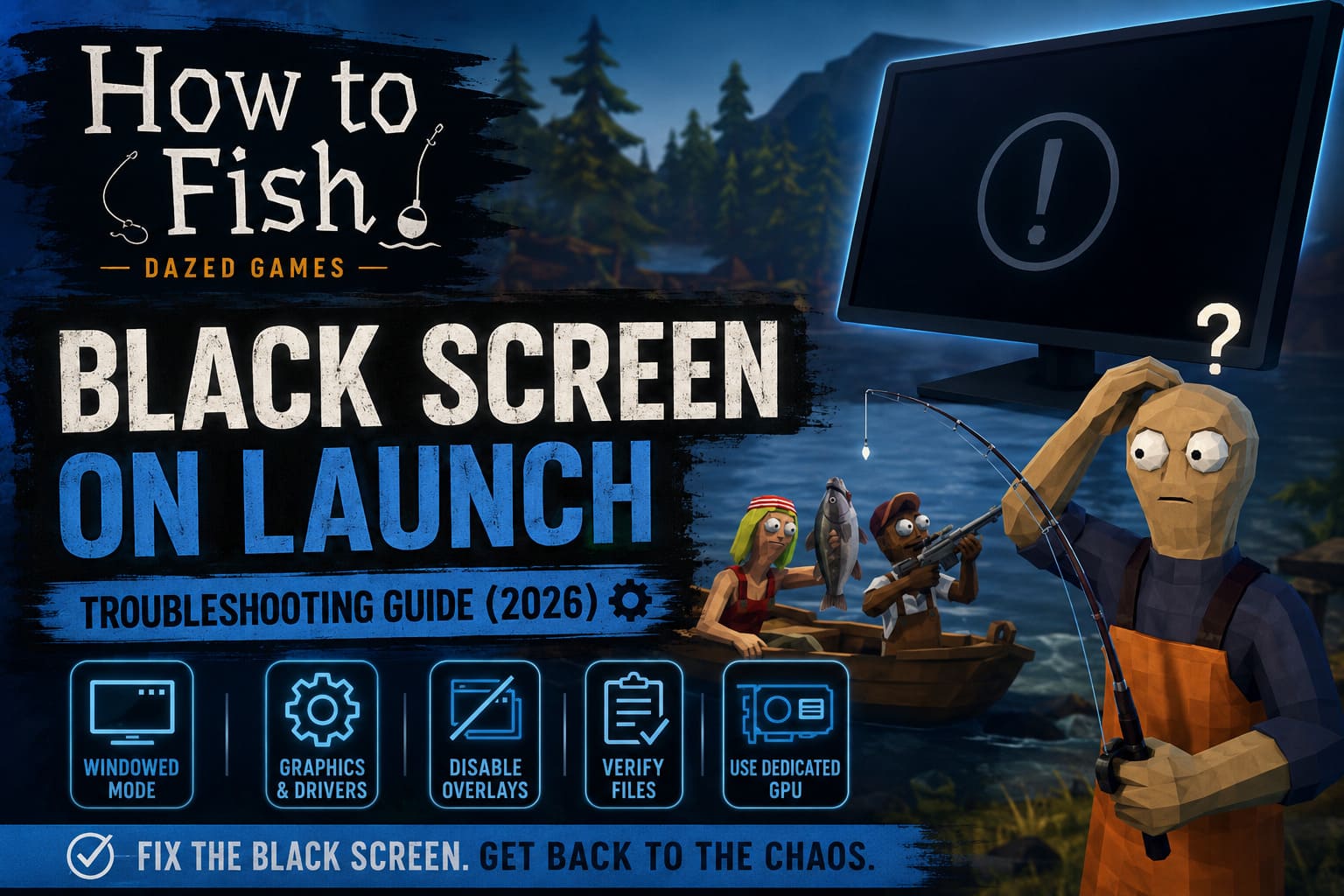
If you get a black screen but can still hear music, menu sounds, water, or other game audio, that’s a very different situation from the game crashing immediately back to Steam.
| What You See | Most Likely Area to Check |
|---|---|
| Black screen with game audio | Display mode or resolution |
| Black screen immediately after launch | GPU or graphics initialization |
| Game closes after a black screen | Corrupted files or driver conflict |
| Screen flickers and goes black | Windows display/driver issue |
| Black screen only in fullscreen | Fullscreen optimization |
| Game works in windowed mode | Resolution or monitor configuration |
That distinction can save a lot of time.
1. Force How to Fish Into Windowed Mode
This would be my first fix. It takes less than a minute and doesn’t involve changing anything complicated.
Some games don’t behave particularly well when they try to select fullscreen resolution automatically. This can become even more annoying if you’re using multiple monitors, an ultrawide display, unusual scaling, or a resolution that isn’t the game’s preferred configuration.
To force a safer startup:
- Open Steam.
- Go to your Library.
- Right-click How to Fish.
- Select Properties.
- Stay on the General tab.
- Find the Launch Options field.
- Enter
-window.
Close the Properties window and launch the game.
If the game suddenly appears in a window, that’s a very useful clue. It means the game itself may be working correctly and the problem is probably related to its fullscreen display configuration.
Once you’re inside the main menu, open the graphics settings and select your monitor’s native resolution. Try borderless fullscreen first rather than immediately jumping back into exclusive fullscreen.
After confirming that the game launches correctly, remove -window from Steam’s Launch Options and test a normal startup.
2. Try Alt + Enter on the Black Screen
This is one of those old-school PC gaming tricks that I still keep in my mental toolbox.
If How to Fish launches but gives you a black display while audio continues playing, press Alt + Enter.
This usually switches between fullscreen and windowed display modes.
Give it a couple of seconds after pressing the shortcut. If nothing happens, try it again.
I wouldn’t hammer the combination ten times in a row. The goal is simply to force the game to reconsider its current display mode. If the picture appears after the switch, go directly into the graphics settings and choose a more conventional resolution.
For me, this is worth trying before messing around with drivers or system files.
3. Disable Fullscreen Optimizations
Windows’ fullscreen behavior can occasionally cause headaches with games, particularly newer or smaller PC releases.
If the game consistently produces a black screen when attempting fullscreen, disabling Windows fullscreen optimizations is a reasonable next step.
Open the game’s installation directory through Steam:
Steam Library → Right-click How to Fish → Manage → Browse local files
Find the game’s main executable. Depending on the current build, the filename may differ, so don’t worry if it isn’t exactly the same name you expected.
Right-click the executable and select Properties.
Open the Compatibility tab and enable:
- Disable fullscreen optimizations
- Run this program as an administrator
Click Apply, then OK.
Now try launching the game again.
I wouldn’t automatically recommend running every game as administrator forever, but for troubleshooting a stubborn launch problem, it’s a useful test. If it makes no difference, you can always undo the setting later.
4. Restart the Windows Graphics Driver
Here’s another quick fix that sounds almost too simple.
If How to Fish is running in the background but your monitor has gone black, press Windows + Ctrl + Shift + B.
Windows will restart the graphics driver subsystem. Your display should briefly flicker, and you may hear a notification sound.
This doesn’t reboot your PC and doesn’t close your applications.
It’s particularly useful when the game has successfully launched but the transition between the desktop and game display has gone wrong.
If the picture comes back, don’t immediately close the game. Give it a moment and see whether the menu becomes responsive.
This shortcut is also worth remembering for other PC games. I’ve had situations where a display problem looked much more serious than it actually was, and this simple reset brought everything back.
5. Make Sure Windows Is Using Your Dedicated GPU
This one matters most for gaming laptops and hybrid graphics systems.
Many laptops have both integrated graphics and a dedicated NVIDIA or AMD GPU. Windows normally makes the choice automatically, but automatic doesn’t always mean correct.
To force How to Fish to use your dedicated graphics card:
- Open Windows Settings.
- Go to System → Display → Graphics.
- Add the game’s executable under the list of applications.
- Select How to Fish.
- Choose Options.
- Select High Performance.
- Save the setting.
On an NVIDIA system, you can also check the NVIDIA Control Panel → Manage 3D Settings → Program Settings section and assign the game to your high-performance NVIDIA GPU.
If you have an AMD graphics card, look for the equivalent application-specific performance option in AMD’s software.
After making the change, completely close the game and launch it again.
6. Verify the Game Files in Steam
If the black screen started after an update, interrupted download, or unusual installation problem, I’d definitely verify the files.
Steam makes this surprisingly painless.
Go to:
Steam Library → How to Fish → Properties → Installed Files
Then choose Verify integrity of game files.
Steam will compare the files on your PC against the expected installation data and download replacements where necessary.
This is one of the safest troubleshooting steps because it doesn’t require manually deleting game folders or reinstalling the entire title.
If Steam finds something wrong, let the process finish completely before launching the game again.
7. Temporarily Disable Steam and Third-Party Overlays
This is another fix I wouldn’t skip, especially if you have a lot of gaming software running at the same time.
Overlays are useful, but every additional program hooking into a game creates another possible point of failure.
For testing, temporarily disable:
- Steam Overlay
- Discord Overlay
- MSI Afterburner
- RivaTuner Statistics Server
- Recording software
- Performance monitoring tools
- Third-party controller remappers
You can disable the Steam Overlay from the game’s Steam Properties under the appropriate General settings.
Then completely exit the other programs rather than simply minimizing them.
Launch How to Fish again.
If the black screen disappears, you’ve probably identified a software conflict. You can then turn the programs back on one at a time to find the culprit.
8. Check Controller and Steam Input Conflicts
Because How to Fish is built around multiplayer interaction and controller-friendly gameplay, input software is another area worth checking.
If you’re using a complicated controller setup, custom remapping software, or multiple virtual controllers, simplify everything for the first launch.
Try using a standard Xbox or PlayStation controller configuration through Steam Input.
If you normally use a controller emulator, close it completely and launch the game with only Steam handling the controller.
This isn’t the first thing I’d blame for a black screen, but if the game starts successfully without your custom controller software, you’ve found a valuable clue.
9. Check Windows System Files
If How to Fish still refuses to launch and you’re seeing other strange Windows behavior, it may be worth checking system files.
Open Command Prompt as Administrator and run:
sfc /scannow
Let Windows finish the scan.
If it reports corrupted system files and repairs them, restart your PC afterward.
I wouldn’t run system repair commands simply because one game has a black screen. But if you’re experiencing several applications crashing, display glitches, or other Windows errors, this becomes much more relevant.
10. Increase the Windows Pagefile Only If You Actually Need It
Virtual memory is another possible source of problems when a game is consuming a lot of system memory.
Windows normally manages the pagefile automatically, and I’d leave it that way unless you have a specific reason to change it.
If your system has limited RAM or you’re seeing memory-related crashes, you can inspect the virtual memory settings through:
System Properties → Advanced → Performance Settings → Advanced → Virtual Memory
A commonly used manual troubleshooting configuration is an 8192 MB initial size and 16384 MB maximum size on a suitable system drive.
However, this isn’t a magic black-screen fix. If your PC already has plenty of RAM and Windows is managing virtual memory correctly, changing the pagefile may accomplish absolutely nothing.
I’d put this near the bottom of the troubleshooting list rather than starting here.
How to Fish (Dazed Games) Weapon Unlock Guide: Catching Fish with Guns
My Recommended Order of Fixes
If you don’t want to spend your entire evening experimenting with Windows settings, here’s the order I’d personally use:
- Try Alt + Enter
- Launch with
-window - Restart the graphics driver with Windows + Ctrl + Shift + B
- Disable fullscreen optimizations
- Force the dedicated GPU
- Verify Steam game files
- Disable overlays and background monitoring software
- Simplify controller/Steam Input settings
- Run SFC if Windows itself seems unstable
- Investigate virtual memory only if you’re seeing memory-related issues
The first few are quick and reversible. That’s where I’d start.
Is How to Fish (Dazed Games) Coming to PS5 and Xbox Series X/S?
Final Thoughts
A black screen is one of those PC gaming problems that makes a game look completely broken when the underlying issue can actually be something surprisingly small. A bad fullscreen handshake, a confused GPU assignment, an overlay hooking into the renderer, or a damaged game file can all create a very convincing impression that How to Fish simply doesn’t work.
The good thing is that most of these fixes are low-risk and easy to reverse.
Personally, I’d start with windowed mode and the Alt + Enter trick before touching anything more complicated. If you can get the game to display once, immediately configure the resolution and display mode properly. After that, verify the game files and eliminate overlays if the problem keeps returning.
And if you’re still stuck on a black screen after all of this, don’t assume the problem is necessarily your hardware. A newly released multiplayer game can have genuine launch bugs that no amount of Windows tweaking will magically fix. At that point, checking recent player reports and waiting for a patch may genuinely be the smartest move.
After all, the whole point of How to Fish is to spend your time causing ridiculous problems on the water, not staring at a black monitor.