How to Fix Geronimo VR Crash on Launch on Windows 11 (2026 Guide)
Nothing kills the excitement of jumping into a tactical VR mission faster than watching Geronimo VR crash before you even reach the main menu. After spending time reading community discussions, testing different Windows configurations, and comparing what worked for other VR players, I noticed a clear pattern: most startup crashes aren’t caused by the game itself. They’re usually triggered by conflicts between Windows, SteamVR, OpenXR, headset software, or background applications.
Unlike traditional PC games, VR titles depend on several layers working together perfectly. Your graphics driver, USB controller, VR runtime, headset software, Windows services, and the game all have to communicate correctly. If even one of those components behaves unexpectedly, the result is often an instant crash, a black screen, or the game silently closing back to the desktop.
The good news is that these problems are usually fixable without reinstalling Windows or replacing hardware.
Below are the solutions I would try first if Geronimo VR refused to launch on my own gaming PC.
Why Geronimo VR Crashes Before Launch
One thing I quickly realized is that there isn’t a single universal cause. Instead, several common issues appear repeatedly across VR communities.
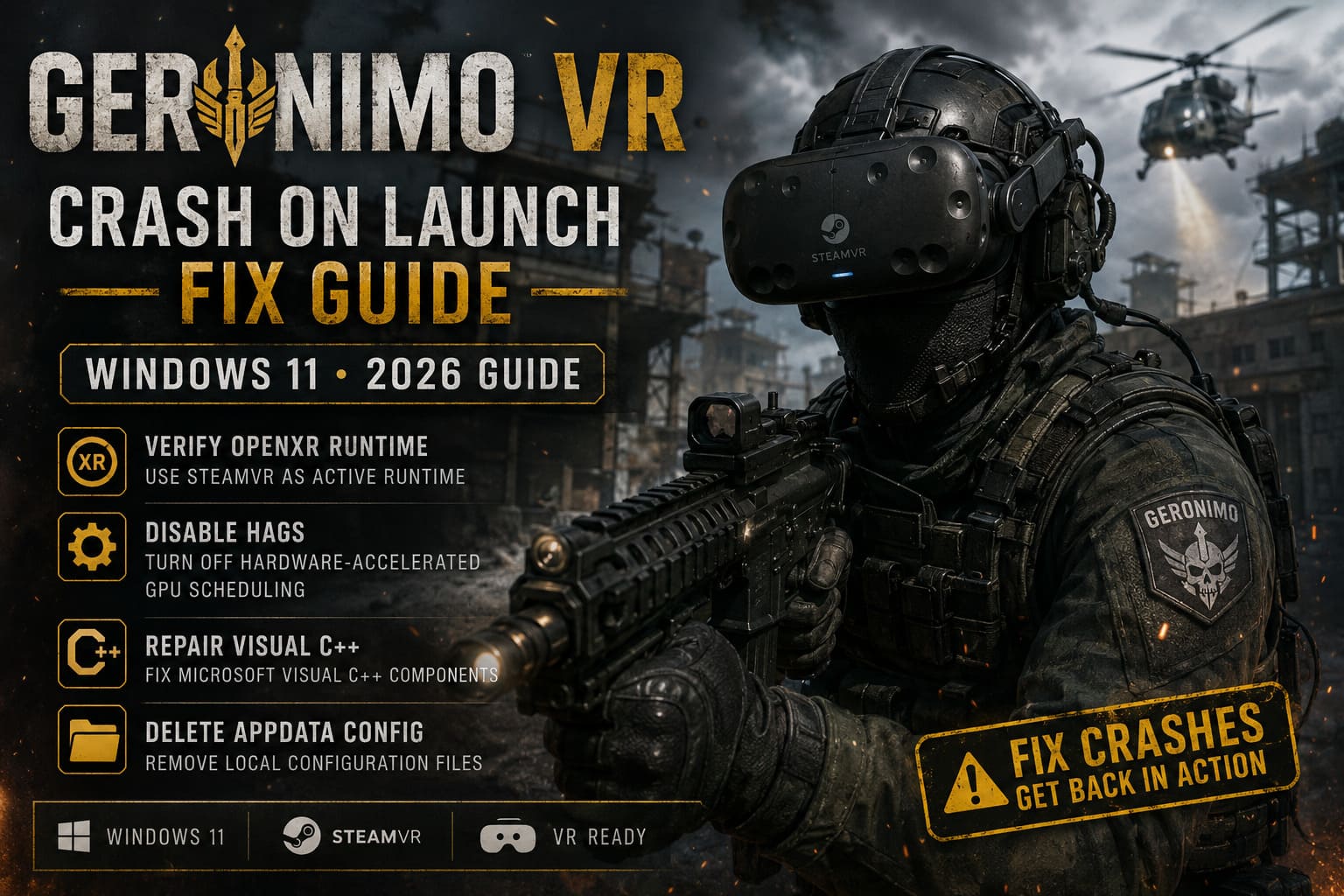
The most frequent reasons include:
- Incorrect OpenXR runtime selection
- Corrupted local configuration files
- SteamVR overlay conflicts
- Windows graphics scheduling issues
- Damaged Microsoft runtime libraries
- USB communication problems with VR hardware
Most players only experience one of these issues, so you usually don’t need to perform every fix on this list.
1. Make Sure SteamVR Is the Active OpenXR Runtime
If you’re using a Valve Index, HTC Vive, or Meta Quest through SteamVR, this should be the first thing you verify.
I’ve seen many cases where another runtime becomes the default after installing new VR software. Geronimo VR then attempts to launch using the wrong OpenXR environment and immediately exits.
Open SteamVR and check that:
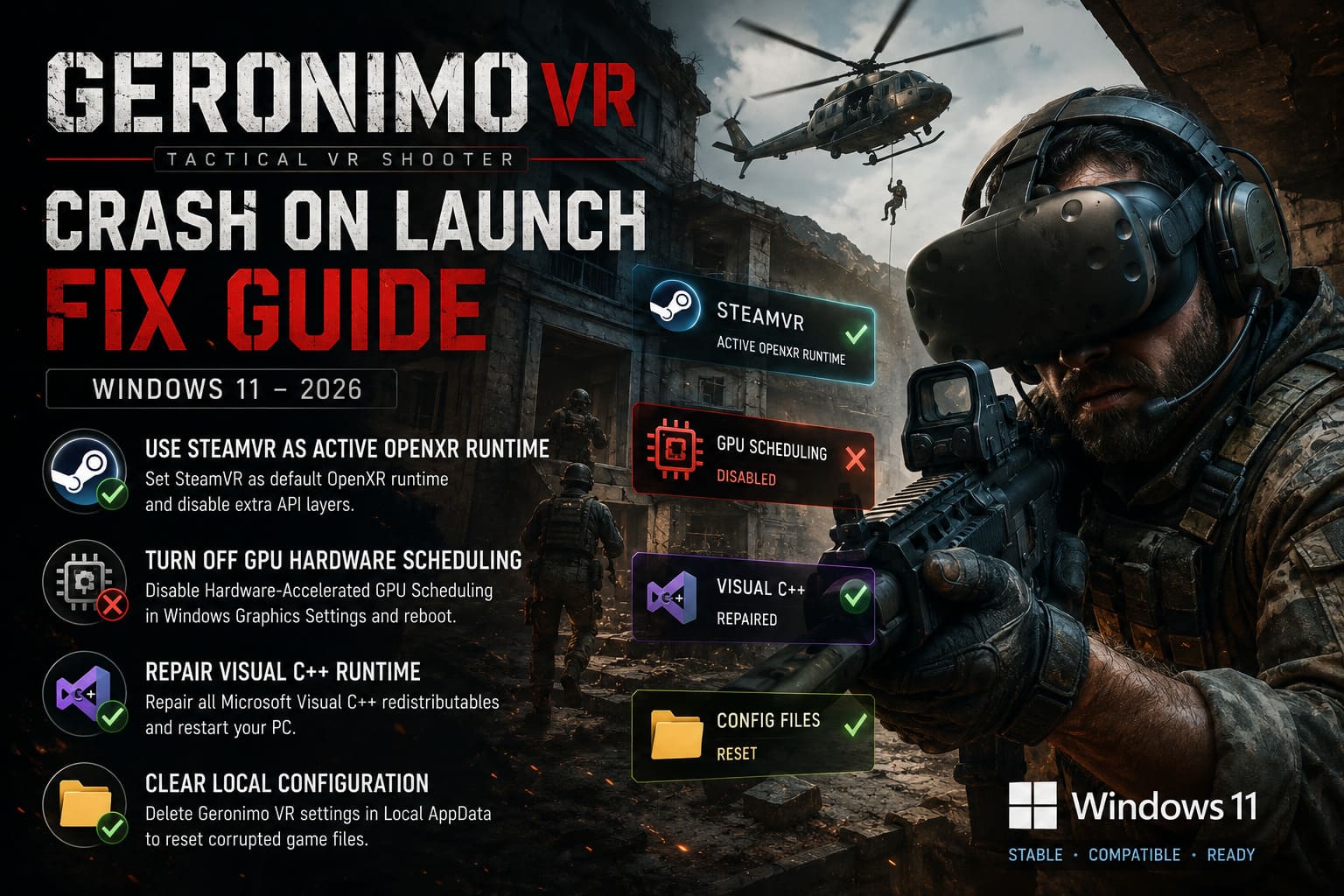
- SteamVR is selected as the Active OpenXR Runtime.
- Any unnecessary API layers are disabled.
- Experimental runtime modifications are turned off.
If you’ve experimented with VR injectors, visual mods, or debugging tools in the past, temporarily disable them until the game launches normally.
This simple adjustment fixes more launch problems than many people expect.
2. Disable Hardware-Accelerated GPU Scheduling
Windows 11 introduced Hardware-Accelerated GPU Scheduling (HAGS) to improve graphics performance, but VR compatibility has always been somewhat inconsistent.
Personally, I’ve seen HAGS improve frame pacing in some flat-screen games while making VR software significantly less stable.
If Geronimo VR crashes immediately after pressing Play, disabling HAGS is worth testing.
Navigate to Windows Graphics Settings, turn the feature off, reboot your computer completely, and try launching the game again.
Even if you later decide to re-enable it, testing with HAGS disabled helps determine whether Windows graphics scheduling is involved.
3. Repair Microsoft Visual C++ Components
Many Unreal Engine games rely heavily on Microsoft’s runtime libraries.
If one of these packages becomes corrupted after Windows updates or software installations, games may fail during initialization without displaying any useful error message.
Instead of uninstalling every runtime package, simply use the Repair option available for each installed Microsoft Visual C++ Redistributable.
After the repair process finishes, restart Windows before launching Steam again.
This takes only a few minutes and eliminates one of the most overlooked causes of startup crashes.
4. Delete Geronimo’s Local Configuration Folder
This is probably my favorite troubleshooting step because it’s surprisingly effective.
Games constantly save graphics settings, controller mappings, shader information, and user preferences inside the AppData folder. Occasionally one damaged configuration file is enough to prevent the entire game from loading.
Rather than reinstalling the game—which often leaves these files untouched—delete (or back up) Geronimo’s folder inside Local AppData.
Once it’s removed:
- Launch Steam.
- Verify the game files.
- Start Geronimo VR.
The game automatically generates fresh configuration files during its next launch.
I’ve fixed several PC games this way over the years, and VR titles seem especially sensitive to corrupted local settings.
5. Give Windows Fewer Reasons to Interfere
Windows 11 includes various optimization features that generally help standard desktop games.
VR software, however, doesn’t always appreciate these extra layers.
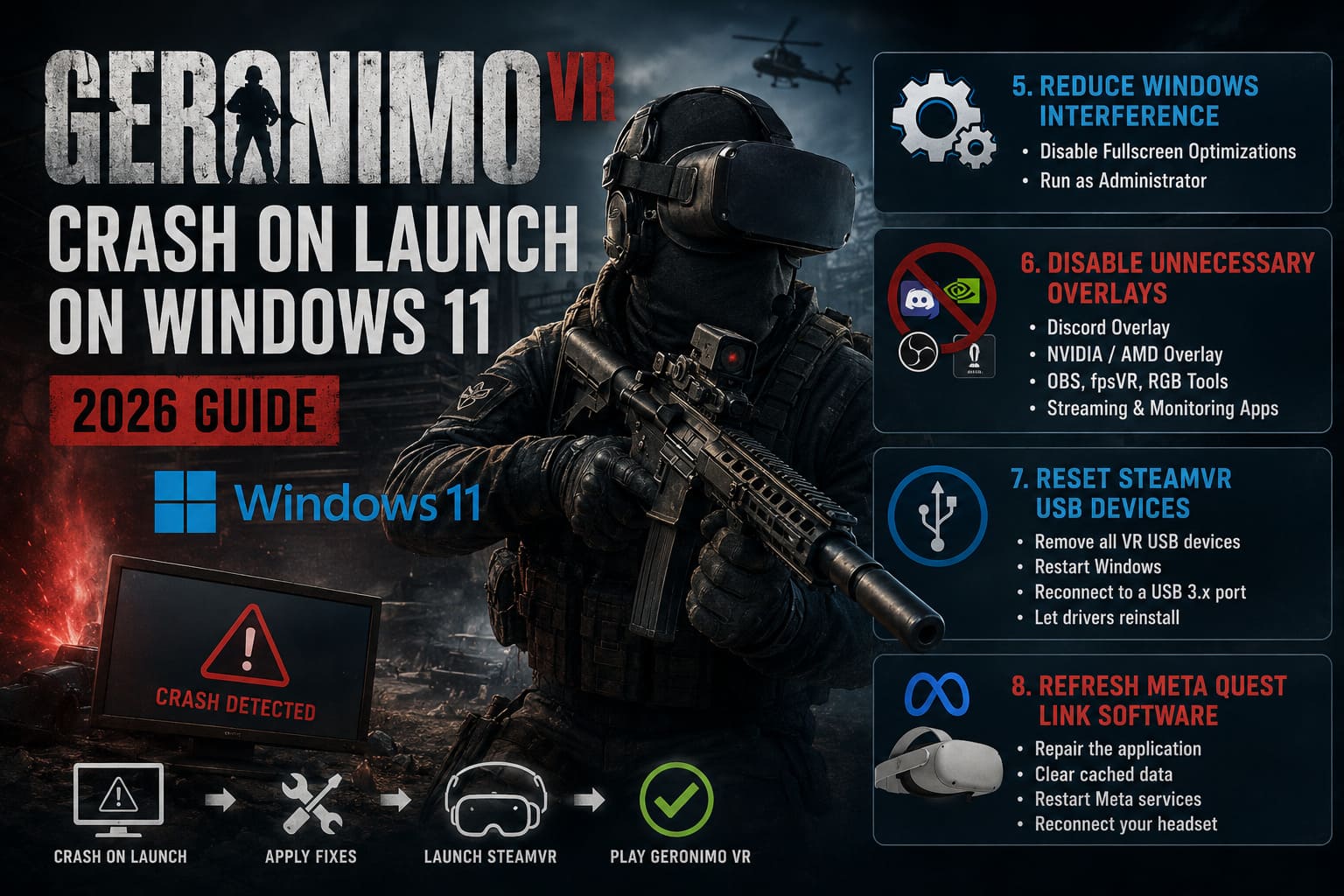
I recommend changing two compatibility options for the game’s executable:
- Disable Fullscreen Optimizations
- Run as Administrator
Neither option magically increases performance, but they often eliminate permission issues and presentation conflicts during startup.
These settings are easy to reverse later if they don’t improve stability.
6. Turn Off Every Overlay You Don’t Need
This is another issue that appears constantly across VR communities.
Programs like Discord, GeForce Experience, AMD Software, OBS, fpsVR, RGB utilities, hardware monitors, and streaming tools all attempt to hook into graphics applications.
Normally that’s harmless.
In VR, however, multiple overlays competing for rendering access can cause immediate crashes before the headset even finishes initializing.
Before troubleshooting anything complicated, temporarily close applications such as:
- Discord Overlay
- NVIDIA Overlay
- AMD Overlay
- OBS Studio
- fpsVR
- OVR Advanced Settings
If Geronimo suddenly launches successfully, reopen them one at a time until you identify the culprit.
7. Reset SteamVR USB Devices
USB communication problems are much more common in VR than many gamers realize.
Unlike a keyboard or mouse, VR headsets continuously transfer massive amounts of tracking and display data.
One unstable USB controller or power management hiccup can terminate the connection during startup.
SteamVR includes a useful option that removes all previously installed VR USB devices.
After using it:
- Disconnect your headset.
- Restart Windows.
- Connect the headset to another USB 3.x motherboard port.
- Allow Windows to reinstall the drivers automatically.
If you’re using front-panel USB ports, testing the rear motherboard ports is often worthwhile because they’re generally more reliable.
8. Meta Quest Users Should Refresh the Link Software
Players using Meta Quest through Link Cable or Air Link have one extra variable to consider.
The Quest desktop application occasionally develops cached service data that interferes with establishing the initial VR connection.
Instead of reinstalling the software immediately, try:
- Repairing the application.
- Resetting cached data.
- Restarting Meta services.
- Reconnecting the headset afterward.
It’s a much quicker solution than performing a complete reinstall.
Quick Troubleshooting Priority
If I had to troubleshoot a fresh Geronimo VR installation today, this would be my order of operations.
| Priority | Fix | Difficulty | Success Rate |
|---|---|---|---|
| 1 | Verify OpenXR Runtime | Easy | Very High |
| 2 | Delete AppData Configuration | Easy | High |
| 3 | Verify Steam Files | Easy | High |
| 4 | Disable Background Overlays | Easy | High |
| 5 | Disable HAGS | Easy | Medium |
| 6 | Repair Visual C++ Packages | Medium | Medium |
| 7 | Reset SteamVR USB Devices | Medium | Medium |
| 8 | Repair Meta Quest Link | Medium | Situational |
Starting with the quickest solutions saves a surprising amount of time.
Geronimo VR Launch Weapons Guide: Full Armory & Loadout Breakdown
Additional Tips That Can Improve Stability
While these aren’t direct crash fixes, they’ve helped keep my VR setup more stable over long gaming sessions.
- Keep GPU drivers reasonably current. You don’t always need the newest release on day one, but extremely outdated drivers often create compatibility issues with newer VR titles.
- Avoid aggressive overclocks. A PC that appears perfectly stable in regular games may become unstable in VR because headset rendering pushes hardware differently.
- Restart SteamVR occasionally. Long VR sessions can leave background services in an inconsistent state, especially after switching between multiple games.
- Use motherboard USB ports whenever possible. External hubs and front-panel connectors aren’t always ideal for high-bandwidth VR devices.
Small improvements like these won’t solve every startup issue, but together they create a much more reliable VR environment.
Geronimo VR Best Firearms Loadout Guide: Tactical CQB Setup for Meta Quest and PCVR (2026)
Final Thoughts
After comparing dozens of player reports and experimenting with similar Unreal Engine VR titles, I’ve come to one conclusion: Geronimo VR launch crashes are usually environmental rather than game-breaking bugs.
Most problems originate from the software ecosystem surrounding the game—SteamVR, OpenXR, Windows settings, USB drivers, overlays, or cached configuration files—not from Geronimo itself.
If I were helping a friend troubleshoot this issue, I’d begin with the OpenXR runtime, remove the AppData configuration folder, verify the Steam installation, and disable every unnecessary overlay before touching anything more advanced. Those four steps alone seem to resolve the majority of startup failures.
VR gaming is undeniably more complex than launching a standard PC title, but once the software stack is configured correctly, Geronimo VR becomes far more dependable. Spending twenty minutes cleaning up your VR environment now can save hours of frustration later—and gets you back where you actually want to be: clearing rooms instead of reading crash logs.