How to Fix Controller Positioning Offset Glitch in GERONIMO VR (2026 Guide)
If you’ve spent even an hour in GERONIMO VR, you’ve probably noticed how demanding the game is when it comes to tracking accuracy. This isn’t an arcade shooter where being a few centimeters off doesn’t matter. Every reload, every corner peek, and every sight picture depends on your virtual hands matching your real ones.
That is exactly why the controller offset issue has frustrated so many players since launch.
I first noticed it while clearing a training building. My rifle looked fine at rest, but as soon as I aimed down the sights, the barrel pointed slightly left of where my hands naturally lined up. At first I assumed I simply needed more practice. After testing several headsets, changing runtimes, and reading dozens of discussions across the VR community, it became obvious that this wasn’t just muscle memory—it was a tracking calibration problem.
The good news is that this issue usually isn’t permanent. In most cases, it’s caused by software configuration rather than defective hardware.
This guide focuses on the fixes that consistently produce results instead of random tweaks that waste your time.
Why Controller Offset Happens in GERONIMO VR
GERONIMO VR is built around realistic weapon handling. Unlike many shooters that hide small tracking inconsistencies with generous aim assistance, this game exposes every tiny error.
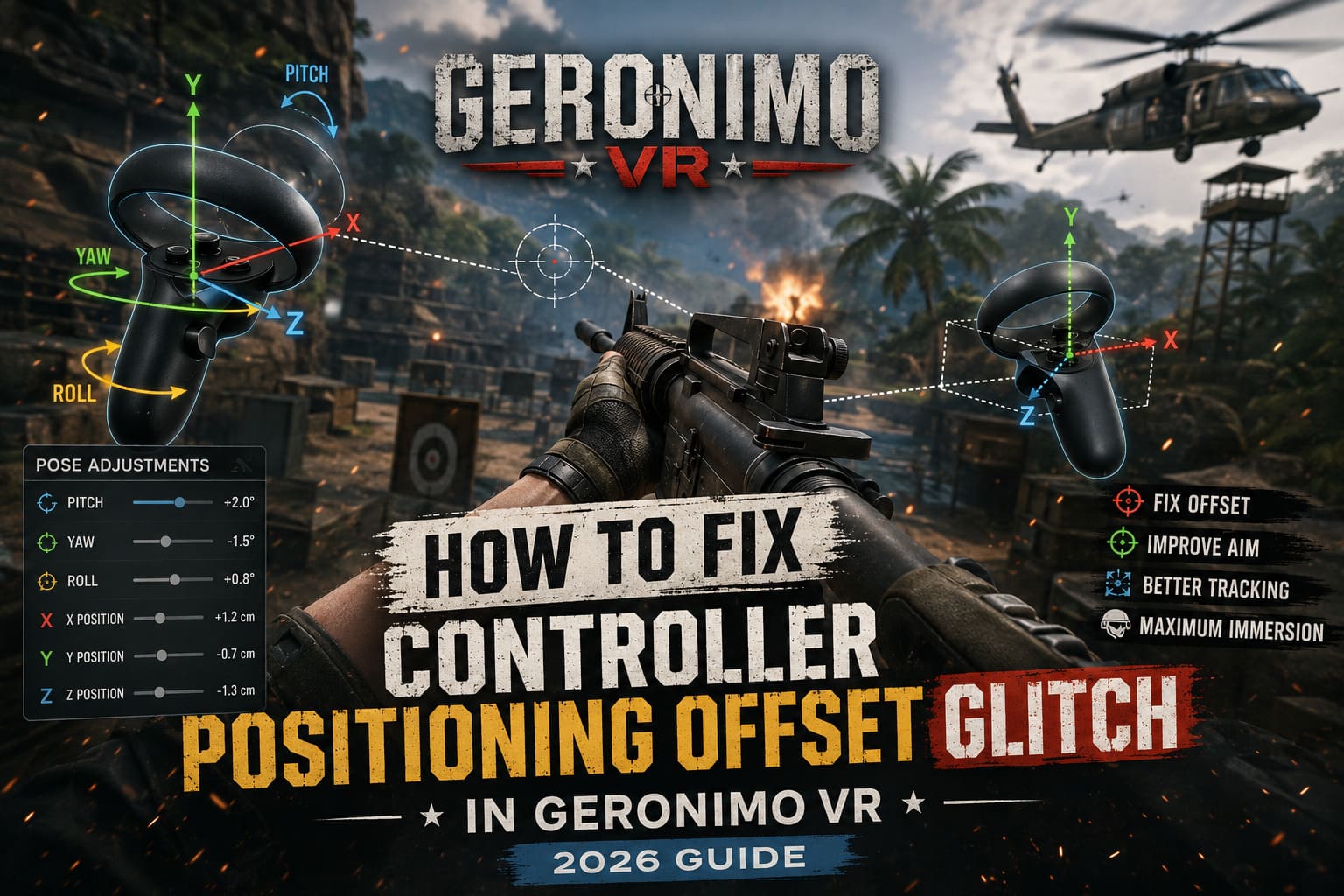
Several things can introduce a controller offset:
- SteamVR and OpenXR disagree on controller orientation.
- A headset runtime isn’t configured correctly.
- Old Guardian or Room Setup calibration data shifts your tracking origin.
- Custom overlays modify your tracking space.
- Environmental tracking conditions reduce positional accuracy.
None of these automatically mean something is broken. Sometimes they’re simply different software layers interpreting the same controller position differently.
The First Fix I’d Try Every Time
If someone asked me for only one recommendation, I’d point them toward SteamVR controller pose adjustments.
Many players jump straight into reinstalling drivers or resetting Windows before checking controller bindings, but the built-in pose editor often fixes the problem in minutes.
Open SteamVR, select GERONIMO VR from your controller bindings, and switch the default pose to a custom controller pose.
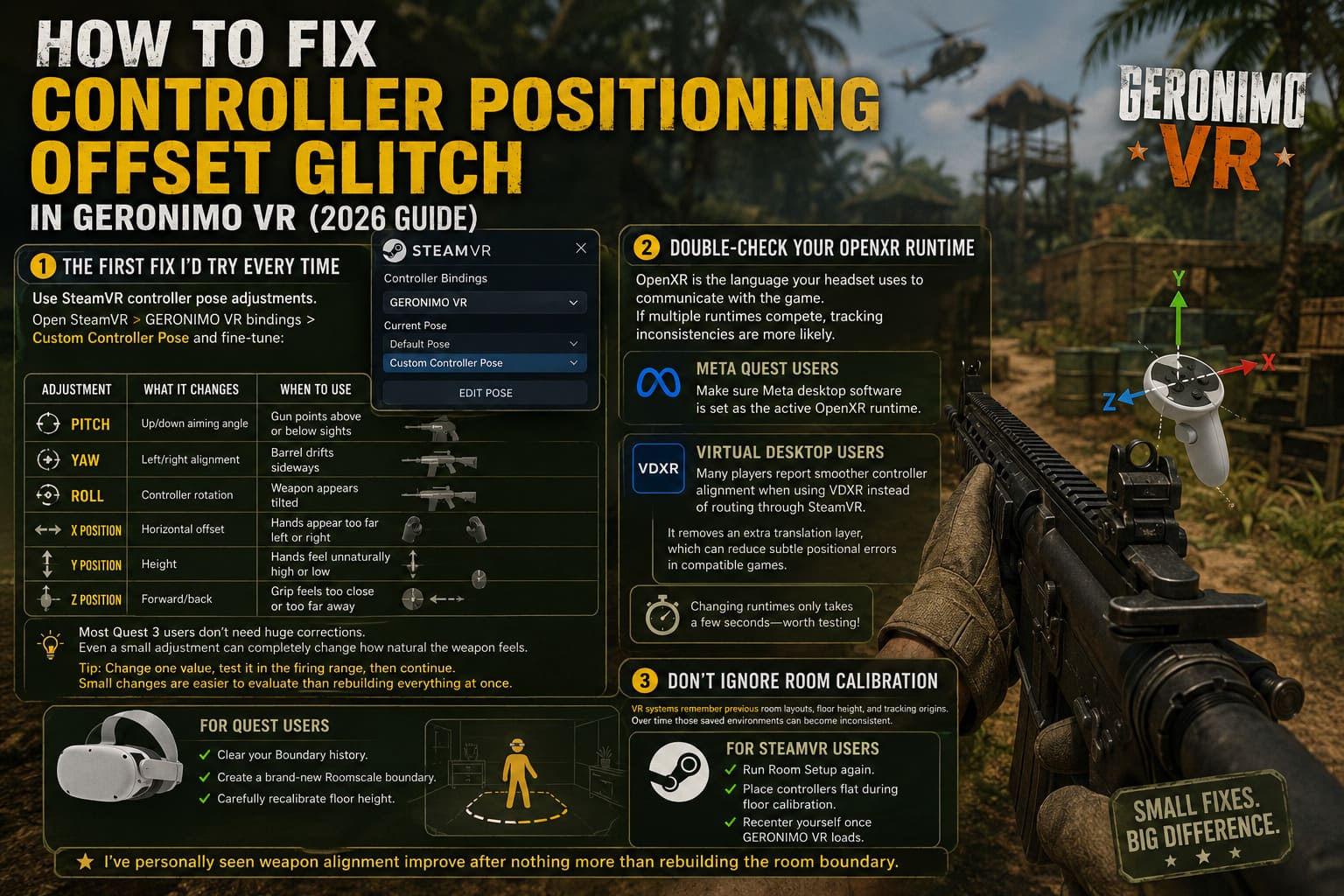
From there you can fine-tune:
| Adjustment | What It Changes | When to Use |
|---|---|---|
| Pitch | Up/down aiming angle | Gun points above or below sights |
| Yaw | Left/right alignment | Barrel drifts sideways |
| Roll | Controller rotation | Weapon appears tilted |
| X Position | Horizontal offset | Hands appear too far left or right |
| Y Position | Height | Hands feel unnaturally high or low |
| Z Position | Forward/back | Grip feels too close or too far away |
Most Quest 3 users don’t need huge corrections. Even a small adjustment can completely change how natural the weapon feels.
One mistake I see frequently is overcorrecting everything at once. Change a single value, jump into the firing range, test it, then continue. Small changes are much easier to evaluate than rebuilding your entire controller profile.
Double-Check Your OpenXR Runtime
This sounds boring, but it solves an amazing number of problems.
OpenXR is effectively the language your headset uses to communicate with the game. If multiple runtimes compete for control, tracking inconsistencies become much more likely.
For Meta Quest users, make sure the Meta desktop software is actually configured as the active OpenXR runtime.
Virtual Desktop users should also verify which runtime they’re using.
One interesting discovery from community testing is that many players report smoother controller alignment when switching to VDXR instead of routing everything through SteamVR. It removes an extra translation layer, which can reduce subtle positional errors in compatible games.
It’s not guaranteed to fix every setup, but it’s worth testing because changing runtimes only takes a few seconds.
Don’t Ignore Room Calibration
This is probably the least exciting solution—and one of the most effective.
VR systems remember previous room layouts, floor height, and tracking origins. Over time those saved environments can become surprisingly inconsistent, especially if you regularly move furniture or play in different rooms.
A fresh calibration often eliminates problems that appear completely unrelated.
For Quest users:
- Clear your Boundary history.
- Create a brand-new Roomscale boundary.
- Carefully recalibrate floor height.
For SteamVR users:
- Run Room Setup again.
- Place controllers flat during floor calibration.
- Recenter yourself once GERONIMO VR loads.
I’ve personally seen weapon alignment improve after nothing more than rebuilding the room boundary.
Environmental Tracking Matters More Than People Think
It’s easy to blame software, but hardware tracking conditions deserve attention too.
Inside-out tracking systems rely heavily on cameras. If those cameras receive inconsistent visual information, controller positions become less stable.
Some common troublemakers include:
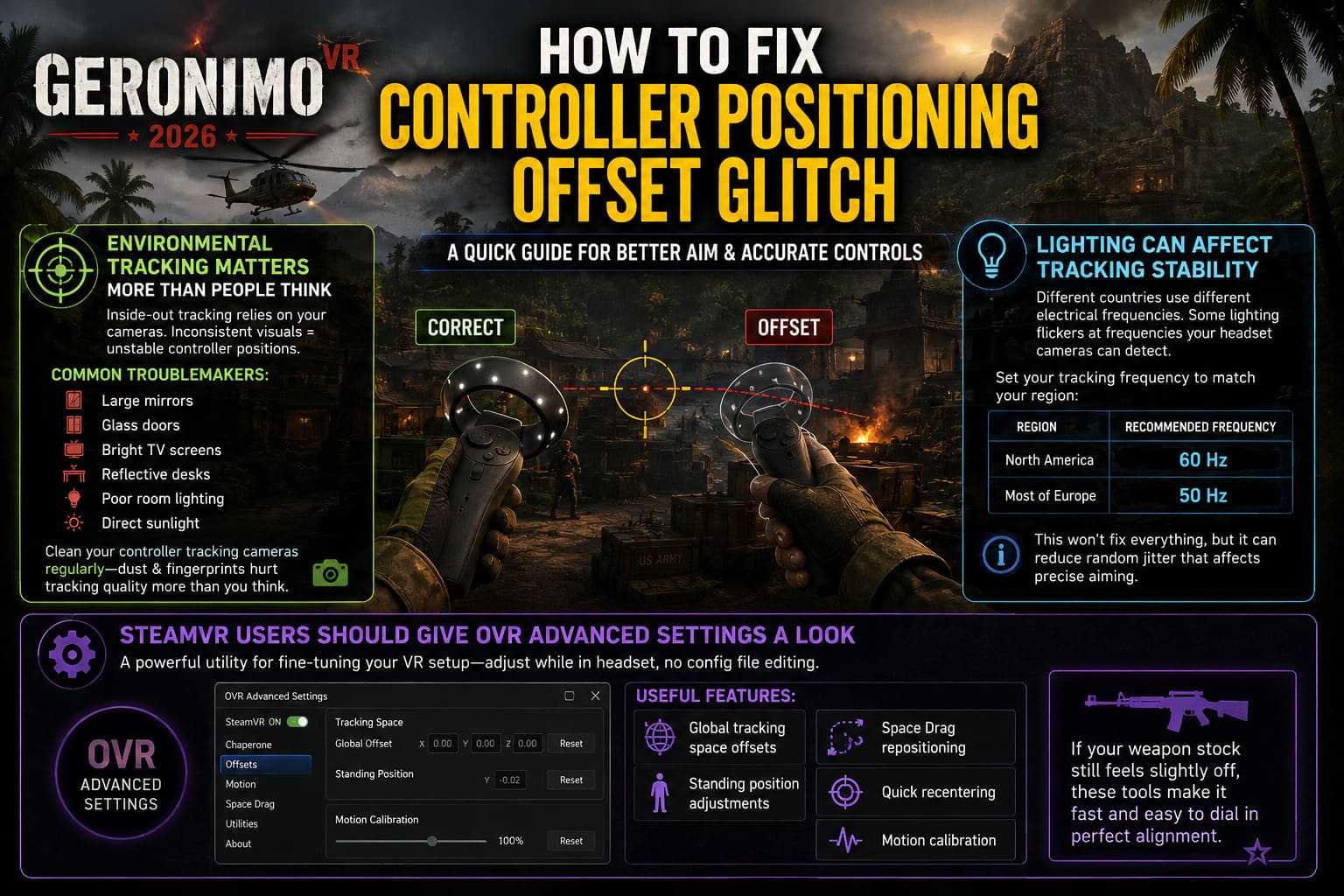
- Large mirrors.
- Glass doors.
- Bright television screens.
- Highly reflective desks.
- Poor room lighting.
- Direct sunlight.
These surfaces can confuse infrared tracking and produce small jumps in controller position.
Cleaning your controller tracking cameras is another surprisingly overlooked maintenance task. Dust and fingerprints reduce tracking quality more than most people realize.
Lighting Can Affect Tracking Stability
Different countries use different electrical frequencies.
That matters because certain lighting types flicker at frequencies your headset cameras can detect.
If your headset allows manual tracking frequency selection, choose the setting appropriate for your region:
| Region | Recommended Frequency |
|---|---|
| North America | 60 Hz |
| Most of Europe | 50 Hz |
This won’t solve every offset issue, but it can reduce random jitter that eventually throws off precise aiming.
SteamVR Users Should Give OVR Advanced Settings a Look
One utility that has remained popular for years is OVR Advanced Settings.
I wouldn’t call it mandatory, but it’s extremely useful if you enjoy tweaking your VR setup.
Instead of constantly editing configuration files, you can make adjustments while wearing your headset.
Some of the most useful features include:
- Global tracking space offsets.
- Standing position adjustments.
- Space Drag repositioning.
- Quick recentering.
- Motion calibration.
If your weapon stock consistently feels slightly off despite proper controller tracking, these tools make experimentation much faster.
Things That Usually Don’t Fix the Problem
After reading countless community posts, I’ve noticed a few “solutions” that rarely accomplish much.
Avoid assuming these are miracle fixes:
- Reinstalling the entire game.
- Updating GPU drivers repeatedly.
- Rebooting Windows over and over.
- Buying replacement controllers immediately.
- Resetting every SteamVR setting without identifying the cause.
Sometimes people spend hours reinstalling software when the real issue is a five-minute room calibration.
My Recommended Troubleshooting Order
Rather than trying random fixes, I’d go through them in this order:
- Verify your OpenXR runtime.
- Reset your room or Guardian calibration.
- Test SteamVR controller pose adjustments.
- Remove reflective objects from your play area.
- Clean controller tracking sensors.
- Experiment with OVR Advanced Settings if needed.
Working through the list from top to bottom usually identifies the problem much faster than changing multiple variables simultaneously.
How to Fix Geronimo VR Crash on Launch on Windows 11 (2026 Guide)
Is This Actually a GERONIMO VR Bug?
In my opinion, only partially.
GERONIMO VR asks far more from VR tracking than the average shooter. Small inconsistencies that go unnoticed in casual games become obvious here because the weapon handling is designed around realistic positioning.
That’s why some players believe the game itself is broken while others experience perfect tracking.
The reality is somewhere in the middle.
Different headset ecosystems, runtimes, controller generations, and tracking environments all interact differently with the game’s weapon system. A Quest 3 connected through Link can behave differently from the same headset running through Virtual Desktop, while Valve Index users often encounter entirely different calibration quirks.
The developers can certainly continue improving compatibility, but every VR platform introduces its own variables that no single update can completely eliminate.
Geronimo VR Launch Weapons Guide: Full Armory & Loadout Breakdown
Final Thoughts
GERONIMO VR rewards precision more than almost any tactical VR shooter released in recent years. Once your controller alignment is dialed in, the difference is immediately noticeable. Weapon transitions become smoother, aiming feels instinctive, reloads stop fighting against muscle memory, and room clearing becomes much more satisfying.
If you’re struggling with controller offsets, don’t immediately assume your hardware is failing. In most cases, the problem comes down to runtime configuration, calibration data, or a small controller pose adjustment. Spending twenty minutes carefully working through those areas is usually far more effective than endlessly reinstalling software.
After finally getting everything aligned on my own setup, the game felt completely different. My optics lined up naturally, shoulder transitions stopped feeling awkward, and I could focus on tactics instead of constantly fighting the controls. For a game built around realistic CQB, that kind of 1:1 tracking isn’t just a quality-of-life improvement—it’s part of the experience itself.