How to Fix FUMES Multiplayer Black Screen on Launch (2026 Co-Op Guide)
After spending countless hours with different multiplayer games, from chaotic arcade racers to hardcore co-op survival titles, I have learned one frustrating truth: nothing kills the excitement faster than a game refusing to even show the main menu. FUMES is exactly the type of game that makes you want to jump in immediately with friends, destroy enemy vehicles, upgrade your machine, and create complete chaos in its retro-inspired wasteland. That is why the multiplayer black screen problem feels especially frustrating.
With the arrival of the 2026 FUMES co-op and multiplayer updates, thousands of players are jumping back into the game or trying it for the first time. Unfortunately, many users are experiencing a strange launch issue where the screen turns completely black after pressing Play or attempting to enter a multiplayer lobby. Sometimes the engine sounds continue playing in the background, while other players encounter a frozen display, crash, or forced return to the desktop.
Having played many PC games with similar launch problems, I know these errors are rarely caused by one single thing. Usually, the problem comes from a combination of graphics settings, outdated drivers, corrupted files, or software conflicts. The good news is that most FUMES black screen issues can be fixed without reinstalling the entire game.

This guide covers the most effective solutions for the FUMES multiplayer black screen on launch error, including display fixes, GPU configuration, Steam file repairs, and performance adjustments that can help you get back into the wasteland quickly.
FUMES Co-Op 2026 Optimization Guide: Max FPS and Low Poly Graphics Fixes
Why Does FUMES Get a Black Screen When Starting Multiplayer?
Before changing random settings, it helps to understand why this issue happens. Multiplayer games often load several systems at the same time, including graphics rendering, online connection features, shaders, and additional gameplay files. If one part fails during startup, the result can be a black screen before the main menu appears.
The most common reasons behind the FUMES black screen launch problem include:
| Possible Cause | What Happens |
|---|---|
| Incorrect Resolution Settings | The game launches with a resolution or refresh rate your monitor cannot properly display. |
| Corrupted Game Files | Missing or damaged files after an update prevent correct loading. |
| GPU Detection Problems | The game uses integrated graphics instead of your dedicated Nvidia or AMD card. |
| Driver Conflicts | Old or unstable graphics drivers interrupt the rendering process. |
| Overlay Conflicts | Steam, Discord, or GPU overlays interfere with the game window. |
| Unstable FPS Settings | Unlimited frame rates can cause startup rendering problems on modern hardware. |
The important thing is not to immediately delete and reinstall FUMES. In many cases, a simple change in launch settings or a quick driver adjustment is enough to solve the problem.
Fix 1: Launch FUMES in Windowed Mode With Native Resolution
One of the most common causes of black screens in PC games is a fullscreen resolution conflict. This happens especially with players using ultrawide monitors, high refresh rate displays, or multiple monitor setups.
If you can hear the game audio but see nothing, FUMES may actually be running correctly. The problem is often that the game is sending a video signal your monitor cannot handle.
To force FUMES into windowed mode, follow these steps:
- Open your Steam Library.
- Right-click FUMES and select Properties.
- Find the Launch Options section.
- Enter the command: -windowed
You can also force a specific resolution by using:
-screen-width 1920 -screen-height 1080
Replace the numbers with your monitor’s native resolution if necessary.
After launching the game successfully, you can switch back to fullscreen through the in-game settings menu. Another useful trick is pressing Alt + Enter while the game is running. This shortcut changes between windowed and fullscreen modes and can sometimes instantly recover a broken display setting.

Fix 2: Make Sure FUMES Uses Your Dedicated Graphics Card
This solution is especially important for gaming laptop users. Many laptops have both integrated graphics and a dedicated GPU. Windows sometimes automatically chooses the weaker graphics processor, causing performance problems or a black screen during multiplayer startup.
The increased load from the FUMES 2026 co-op update may require your dedicated graphics card to handle rendering properly.
Nvidia GPU Users
- Open Nvidia Control Panel.
- Select Manage 3D Settings.
- Open the Program Settings tab.
- Add FUMES if it is not already listed.
- Select the game’s executable file from your Steam folder.
- Change the preferred graphics processor to High-performance NVIDIA processor.
- Click Apply.
AMD GPU Users
- Open AMD Software Radeon Settings.
- Go to the Gaming section.
- Select FUMES.
- Change the graphics profile to Performance Mode instead of power saving.
After changing these settings, completely restart the game. Many players solve launch issues simply by forcing the correct GPU.
Fix 3: Limit FPS and Enable VSync
Modern gaming PCs can easily push hundreds of frames per second in lightweight or retro-style games. While that sounds great, some game engines do not always handle unlimited FPS correctly during startup.
I have seen similar problems in several indie games where the engine becomes unstable because the graphics card renders frames faster than the menu system can process. FUMES can experience similar behavior on powerful hardware.
Try limiting your frame rate:
- Open Nvidia Control Panel or AMD Radeon Software.
- Create a profile for FUMES.
- Enable the maximum frame rate option.
- Set the limit based on your monitor refresh rate.
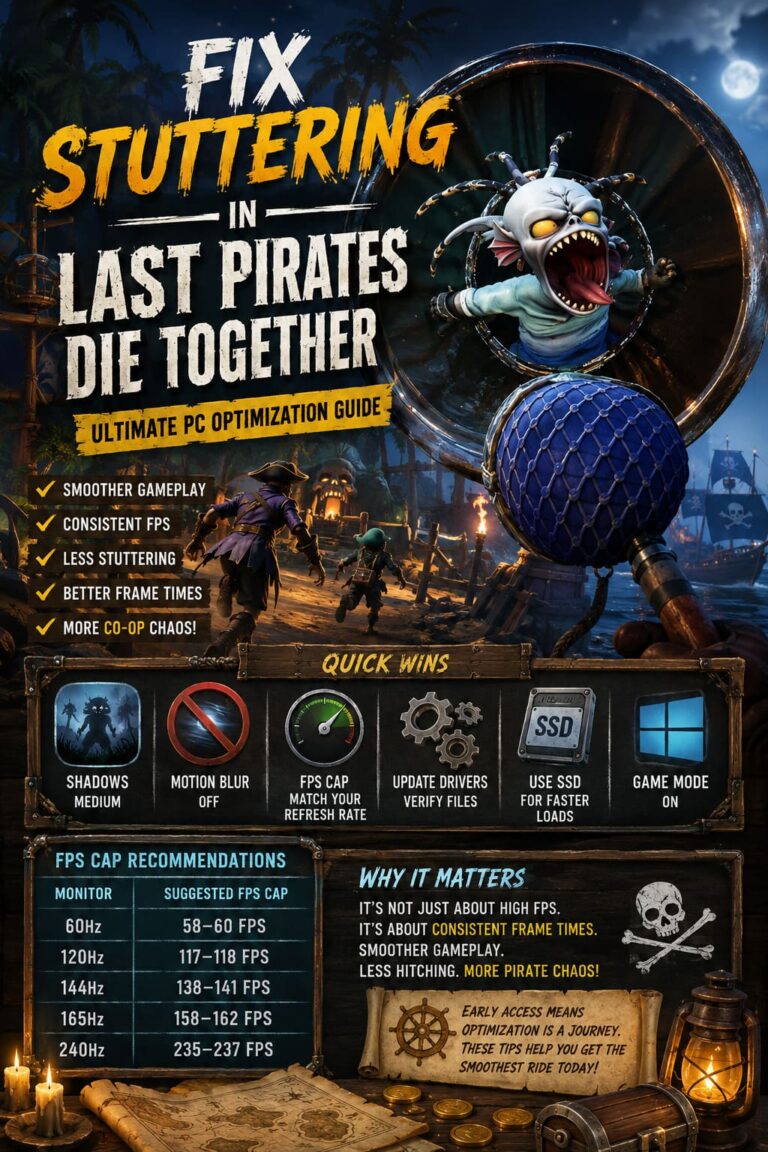
| Monitor Refresh Rate | Recommended FPS Limit |
|---|---|
| 60Hz | 60 FPS |
| 120Hz | 120 FPS |
| 144Hz | 144 FPS |
Also enable VSync or allow the application to control synchronization settings. This can prevent rendering crashes during startup.
Fix 4: Disable Steam and Discord Overlays
Overlays are convenient because they provide notifications, screenshots, voice features, and performance information. However, they are also one of the most common causes of problems in multiplayer games.
These programs inject themselves into the game’s graphics process. When FUMES is trying to connect to multiplayer servers, an overlay conflict can stop the game from displaying correctly.
Disable Steam Overlay
- Open Steam.
- Right-click FUMES.
- Select Properties.
- Disable Enable the Steam Overlay while in-game.
Disable Discord Overlay
- Open Discord.
- Go to User Settings.
- Select Game Overlay.
- Turn off Enable in-game overlay.
If the issue continues, temporarily disable other overlays such as Nvidia GeForce Experience, recording software, or performance monitoring tools.

Fix 5: Verify FUMES Files and Clear Steam Cache
If the black screen started immediately after the multiplayer update, damaged files may be preventing the game from loading properly. This is common after large patches when downloads are interrupted or files fail to update correctly.
Steam includes a built-in repair option that checks the installation and replaces missing files.
Verify Game Files
- Open Steam.
- Right-click FUMES.
- Select Properties.
- Open Installed Files.
- Click Verify integrity of game files.
- Wait until the process reaches 100%.
Steam will automatically download any damaged or missing files.
Clear Steam Cache
- Exit Steam completely.
- Open your Steam installation folder.
- Delete the appcache folder.
- Restart Steam.
Steam will rebuild the cache automatically. This simple fix has solved many strange launch problems in multiplayer games after major updates.
Fix 6: Reset Your Windows Graphics Driver During the Black Screen
Sometimes FUMES is actually running, but the graphics driver becomes stuck. Instead of forcing a full system restart, Windows has a built-in shortcut that refreshes the graphics subsystem.
While stuck on the black screen, press:
Windows Key + Ctrl + Shift + B
Your screen may briefly flash and you might hear a short notification sound. This command restarts the graphics driver connection and can recover games that are frozen during rendering.
Additional Tips to Prevent Future FUMES Launch Problems
After fixing the black screen issue, it is worth keeping your system prepared for future updates. Multiplayer games constantly receive patches, and small compatibility problems can appear unexpectedly.
- Keep Nvidia or AMD drivers updated.
- Install Windows updates regularly.
- Close unnecessary background applications.
- Disable unused overlays.
- Avoid forcing unusual resolutions.
- Restart Steam after large updates.
FUMES is designed around fast action, vehicle destruction, and multiplayer chaos. The last thing anyone wants is spending time troubleshooting before even reaching the battlefield. Keeping your system optimized will make future sessions much smoother.
Final Thoughts: Getting Back Into FUMES Multiplayer
The FUMES multiplayer black screen bug is frustrating, but it is usually much easier to fix than it first appears. In most cases, forcing windowed mode, selecting the correct graphics card, disabling overlays, or repairing Steam files will solve the problem.
After playing many different PC games, I have learned that small technical conflicts can create the biggest headaches. A single graphics setting or background application can completely break the launch process. Thankfully, the solutions are simple and most players should be able to return to the wasteland quickly.
So customize your vehicle, prepare your weapons, invite your friends, and get ready for the destructive multiplayer madness that makes FUMES worth playing.