FUMES Co-Op 2026 Optimization Guide: Max FPS and Low Poly Graphics Fixes
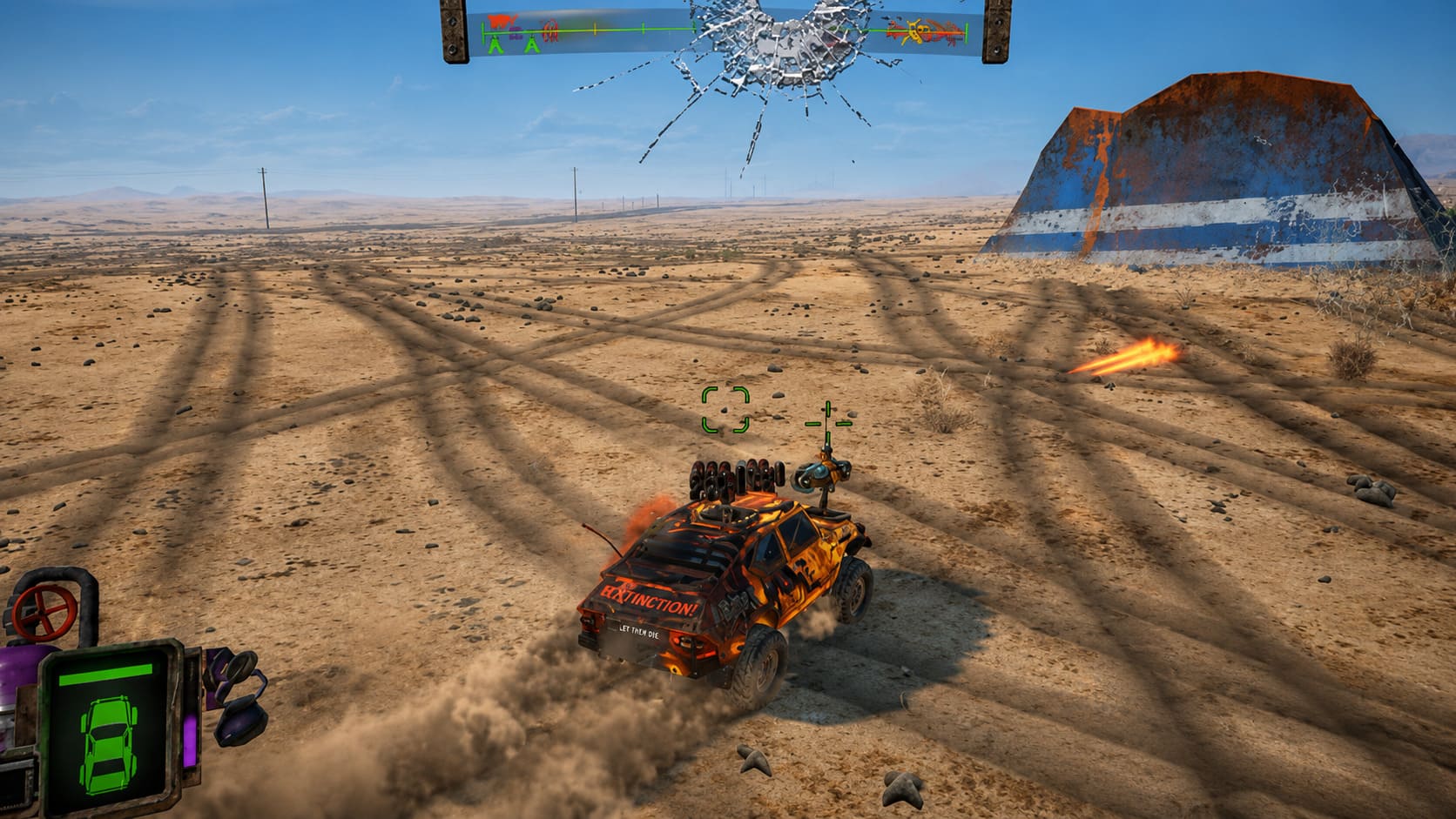
After spending years playing everything from modern open-world racers to chaotic arena combat games, I have to admit that FUMES feels like a rare throwback that understands why old-school vehicle destruction was so much fun. It does not try to copy realistic racing simulators or chase ultra-detailed graphics. Instead, it focuses on speed, explosions, ridiculous weapons, and the simple joy of smashing another car into a pile of scrap.
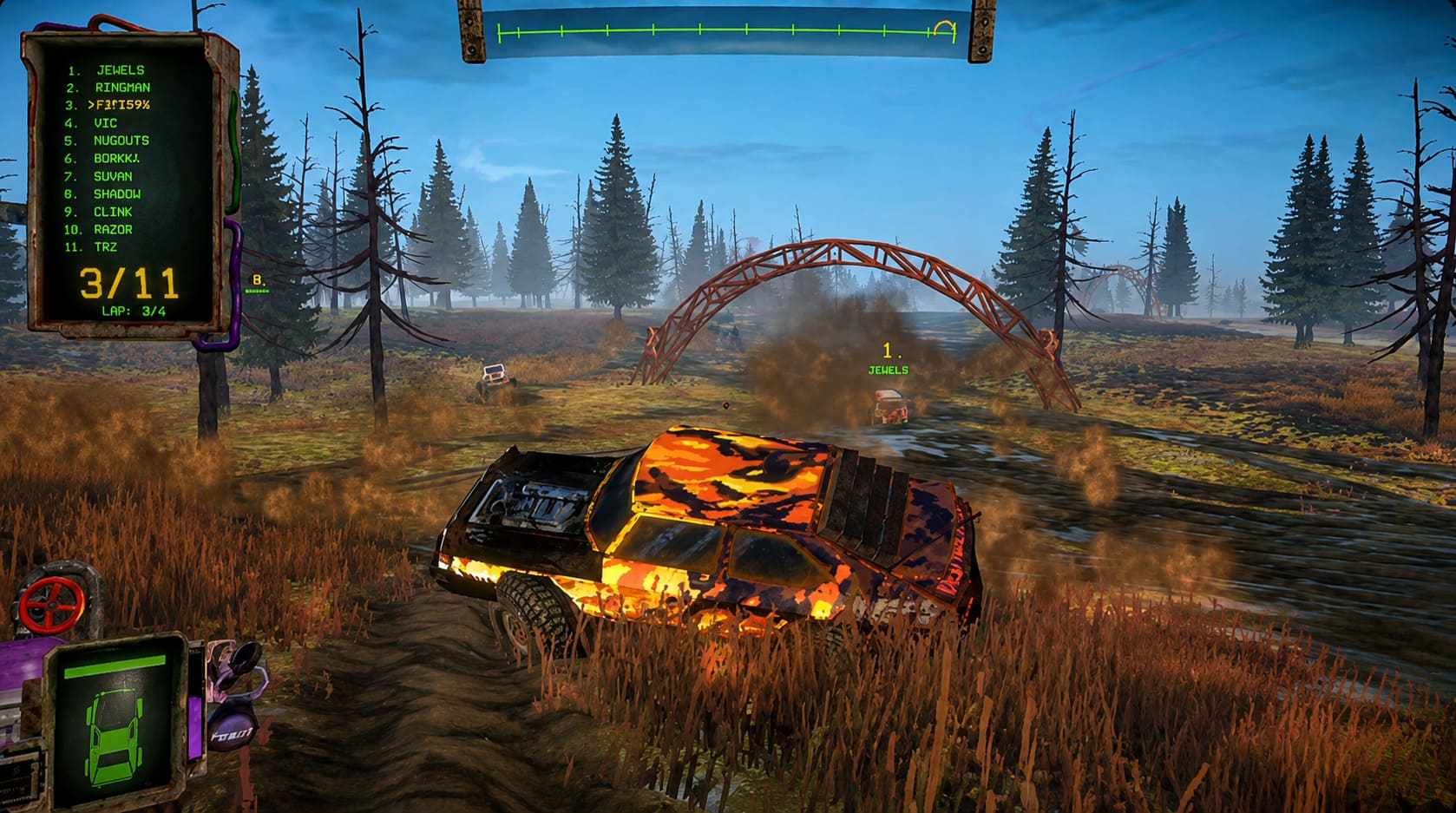
The game immediately reminds me of classics like Twisted Metal and Vigilante 8, but with a modern indie approach. The FUMES Team managed to capture that aggressive PlayStation-era feeling while adding procedural wastelands, customizable vehicles, and physics that make every battle unpredictable. The 2026 Co-Op Update (v0.2) pushed the experience even further, turning lonely desert fights into complete multiplayer chaos.
However, there is one problem that many players discovered quickly: FUMES may look like a simple low-poly game, but large multiplayer battles can seriously punish your hardware. Once several vehicles, explosions, smoke effects, and physics calculations appear on screen, even powerful PCs can experience FPS drops and stuttering.
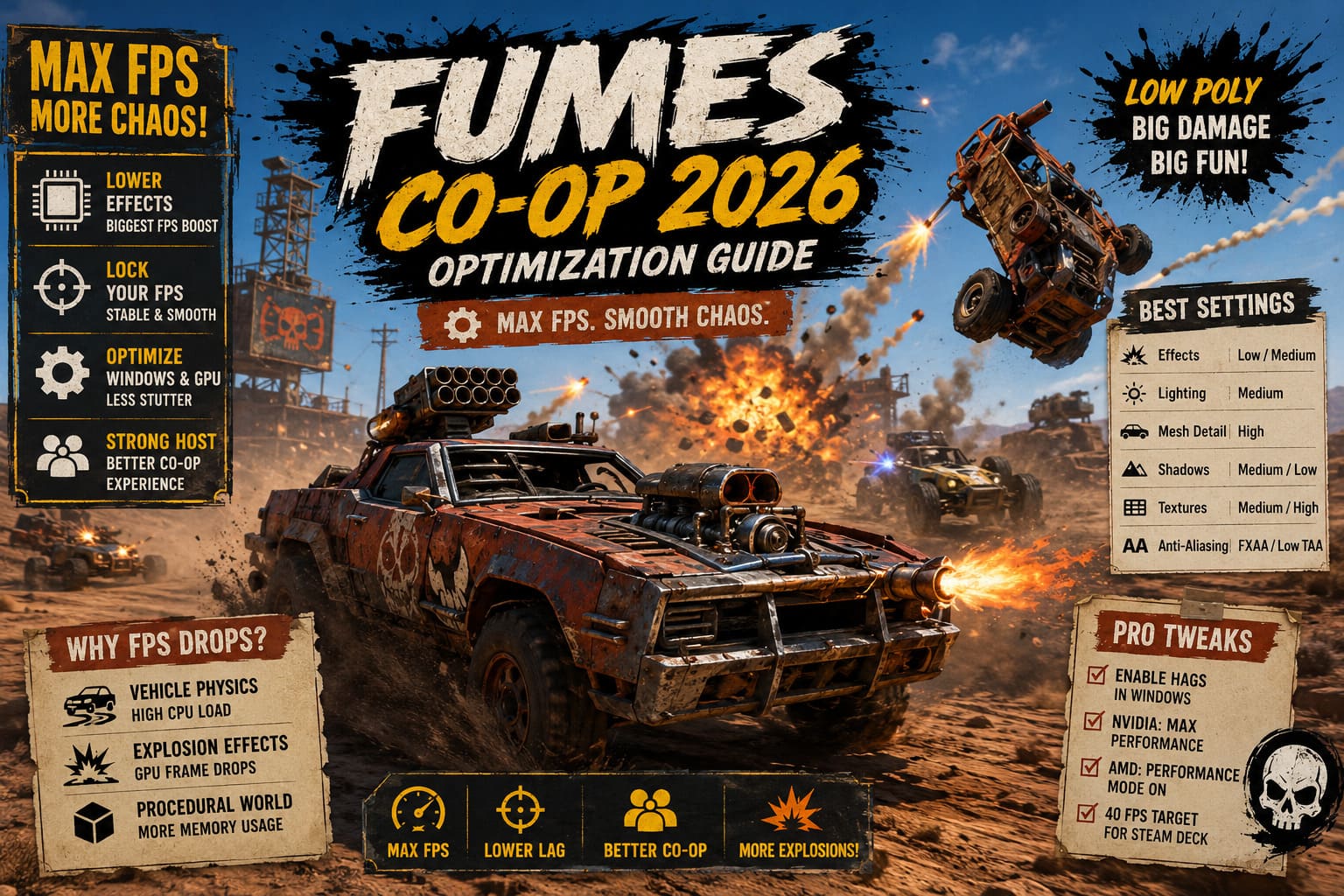
This FUMES Co-Op optimization guide covers the best settings, PC tweaks, and performance fixes to help you achieve smoother gameplay, higher FPS, and fewer frame drops during massive multiplayer battles.
DragonSword Awakening: How to Defeat the Reawakened Dragon Final Boss (Complete Guide)
Why FUMES Can Run Poorly Despite Its Low-Poly Graphics
One of the biggest mistakes players make is assuming that low-poly visuals automatically mean perfect performance. After playing hundreds of indie games, I have seen this happen many times. A game can look simple but still have demanding systems running behind the scenes.
FUMES uses a retro-inspired visual style, but underneath that simple appearance are modern physics systems, procedural generation, dynamic lighting, and real-time destruction effects. When you are playing alone, the game feels lightweight. When a full co-op lobby turns the wasteland into a battlefield, the situation changes completely.
The biggest performance problems usually come from three main areas:
| Performance Issue | Why It Happens | Impact on FPS |
|---|---|---|
| Vehicle Physics | Every car has suspension, movement calculations, weapons, and collision reactions. | High CPU usage during battles. |
| Explosion Effects | Smoke, sparks, fire, and destruction particles stack together during fights. | GPU frame drops. |
| Procedural World Management | Loot, destroyed parts, and objects increase memory usage over time. | Stuttering during longer sessions. |
The funny thing about FUMES is that its biggest strength is also its biggest technical challenge. The game creates a believable chaotic battlefield, but that chaos requires your computer to constantly process dozens of moving elements.
The developers even joked that supporting extremely large player counts through Steam integration requires a “NASA PC.” While most players will never reach those absurd numbers, the message is clear: FUMES Co-Op scales into a completely different performance challenge compared to solo gameplay.
Best FUMES Graphics Settings for Maximum FPS
If you want smooth gameplay, especially during multiplayer matches, you should start by adjusting the in-game settings. The goal is not simply lowering everything. Some options have almost no performance impact, while others can completely change your FPS.
Recommended Display Settings
Resolution: Native monitor resolution
Playing at your monitor’s default resolution usually provides the sharpest image. If your PC struggles, dropping from 1080p to 900p can provide a noticeable improvement.
- 1920×1080 for mid-range and high-end PCs.
- 1600×900 for older GPUs.
- Lower resolutions for integrated graphics systems.
Framerate Limit: Match your display.
A stable FPS limit is better than unstable maximum performance.
- 60Hz monitor → 60 FPS cap.
- 120Hz monitor → 120 FPS cap.
- Steam Deck → 40 FPS cap.
V-Sync: Off.
For a fast vehicle combat game, input response matters. V-Sync can create additional input delay, making aiming weapons and controlling vehicles feel slower.
Best Quality Settings for FUMES Co-Op
The following settings provide the best balance between visuals and performance while keeping the retro atmosphere intact.
Effects Quality: Low or Medium
This is the most important setting for multiplayer performance.
Explosions are one of the biggest FPS killers in FUMES. Every destroyed vehicle creates smoke, fire, sparks, and debris. During a large battle, these effects can fill the entire screen and create massive frame drops.
Lowering effects quality will usually provide the biggest improvement. My recommendation is to keep it on Medium if your PC is decent, but use Low if you experience drops during team battles.
Lighting Quality: Medium
The dusty wasteland atmosphere is one of FUMES’ strongest visual features. The lighting creates a surprisingly cinematic feeling for a low-poly game.
However, advanced lighting calculations can become expensive when combined with multiple vehicles and explosions. Medium quality keeps the atmosphere while reducing GPU stress.
Mesh Detail / Model Quality: High
Unlike many modern games, increasing model quality in FUMES does not heavily damage performance because the assets are already designed around a low-poly style.
Keeping this setting high allows cleaner vehicle designs, better armor details, and sharper customization elements. This is one setting I would not sacrifice unless you are running extremely old hardware.
Shadow Quality: Medium or Low
Shadows are usually expensive in games, and FUMES does not need ultra-realistic shadows to look good. Medium shadows provide a good balance, while Low can help older graphics cards maintain stable FPS.
Texture Quality: Medium or High
Texture settings depend mostly on your VRAM.
| VRAM | Recommended Texture Setting |
|---|---|
| 4GB or higher | High |
| 2GB | Medium |
Higher textures improve visual quality without major FPS loss unless your graphics memory becomes full.
Anti-Aliasing: FXAA or Low TAA
Avoid heavy anti-aliasing solutions. They can make the image smoother but often reduce performance. For FUMES, simple anti-aliasing works perfectly because the retro art style already hides many rough edges.
Advanced Windows Optimization for FUMES
Sometimes changing graphics settings is not enough. Multiplayer physics-heavy games also depend heavily on how Windows handles CPU and GPU workloads.
Enable Hardware-Accelerated GPU Scheduling
Windows includes a feature called Hardware-Accelerated GPU Scheduling (HAGS). It can reduce CPU workload by allowing the GPU to handle more scheduling tasks.
- Open Windows Search.
- Type Graphics Settings.
- Enable Hardware-accelerated GPU scheduling.
- Restart your PC.
This can help reduce small stutters, especially during moments with many vehicles and explosions.
NVIDIA Control Panel Settings for Better Performance
For NVIDIA users, these settings are worth checking:
Open NVIDIA Control Panel → Manage 3D Settings → Program Settings → FUMES.
- Power Management Mode: Prefer Maximum Performance.
- Texture Filtering Quality: High Performance.
- Shader Cache Size: 1GB or 5GB.
Increasing shader cache size can reduce small freezes caused by loading repeated vehicle assets and effects.
AMD Software Settings
AMD users should focus on similar goals to improve stability.
- Enable Radeon Anti-Lag if available.
- Use Performance mode instead of Quality mode.
- Keep shader cache enabled.
- Avoid aggressive image sharpening settings.
The goal is consistency. In a game like FUMES, stable frame pacing feels much better than occasional high FPS spikes.
Steam Deck and Low-End PC Optimization
FUMES is surprisingly accessible. The game is attractive for budget PCs and handheld devices because of its low requirements. However, co-op changes everything because multiplayer increases CPU demand.
Use a 40 FPS Target
Trying to force 60 FPS can cause battery drain, thermal throttling, and unstable performance. A locked 40 FPS experience often feels smoother than inconsistent 60 FPS.
Host Multiplayer on the Strongest PC
FUMES uses a co-op system where the host manages important world calculations. The best host should have a stronger CPU, stable internet connection, and enough RAM.
A weaker host can create lag and simulation problems for everyone in the lobby.
Clean Up the Battlefield
Destroyed vehicles, abandoned items, and unnecessary objects can slowly increase workload. During long sessions, remove useless items, avoid leaving huge piles of debris, and restart sessions if performance slowly gets worse.
Sometimes a fresh lobby fixes problems instantly.
Final Thoughts: Keep the Wasteland Running Smoothly
The FUMES Co-Op 2026 Update proves that classic vehicle combat still has plenty of life left. After playing countless racing games and destruction-focused titles, I appreciate how FUMES focuses on pure arcade fun instead of chasing realism.
The performance problems are understandable because the game creates impressive chaos. Hundreds of possible interactions, physics calculations, explosions, and vehicles create exactly the madness players want.
With the right settings, FUMES can run beautifully. Lower effects, optimize your GPU settings, manage your frame rate, and choose a strong multiplayer host. Once everything is configured properly, the game delivers exactly what it promises: fast cars, ridiculous weapons, and unforgettable battles across a brutal retro wasteland.