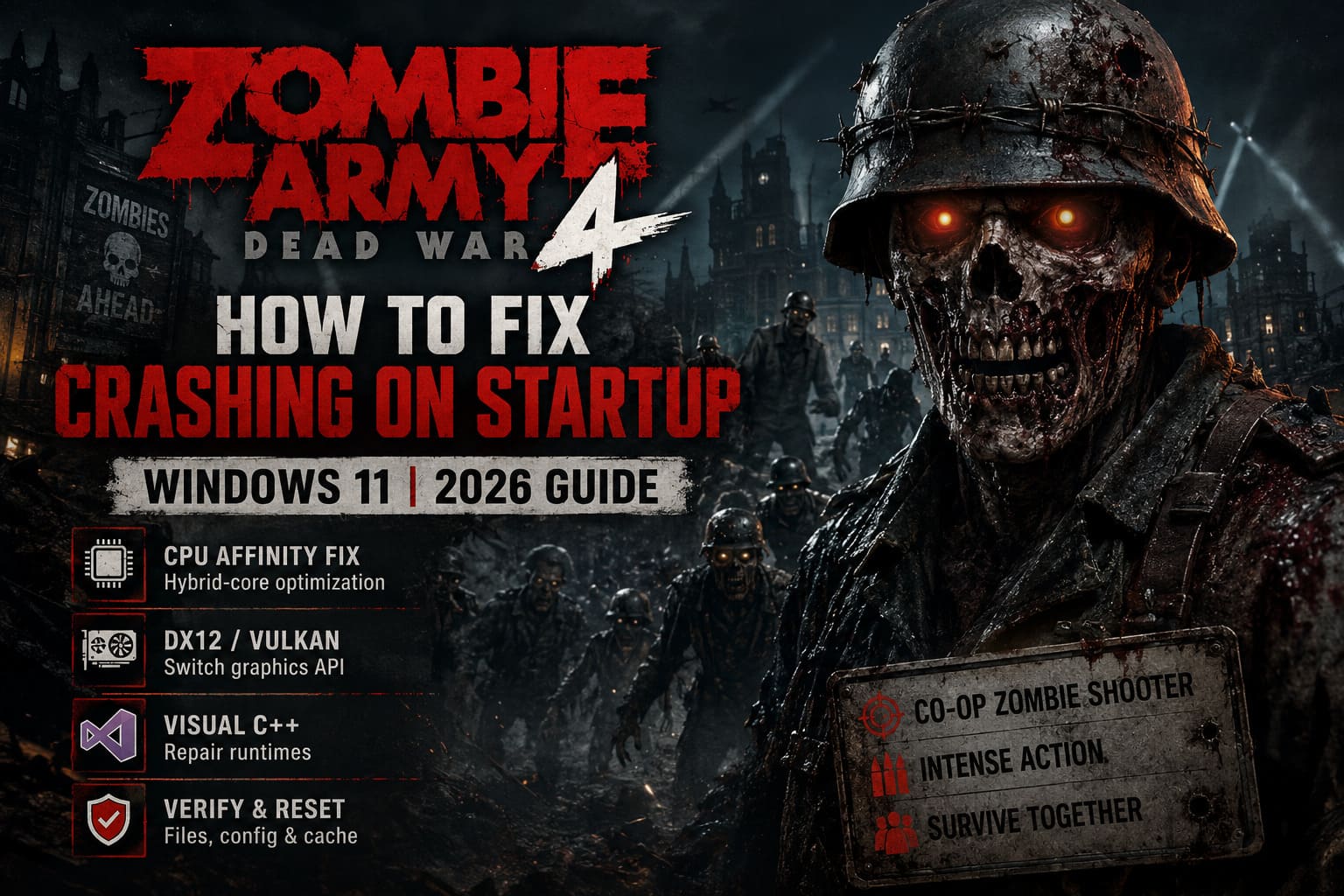
How to Fix Zombie Army 4: Dead War Crashing on Startup in Windows 11 (2026 Guide)
If Zombie Army 4: Dead War crashes the moment you press Play on Windows 11, you’re definitely not alone. The game still holds up as one of the most satisfying co-op zombie shooters around, but getting it to behave on newer PCs can sometimes feel like a boss fight before the actual undead even appear.
The annoying part is that modern hardware is usually more than powerful enough to run the game. The problem is often compatibility. Newer Intel processors use hybrid P-core and E-core designs, Windows 11 handles processes differently from older operating systems, graphics drivers keep changing, and old runtime components can quietly break in the background. Throw in a damaged configuration file or a bad shader cache and suddenly Zombie Army 4 closes without warning, freezes on a black screen, or drops straight back to the desktop.
I’ve spent enough time troubleshooting PC games to know that the worst approach is randomly changing ten settings at once. You want to identify the likely culprit, make one change, and test the game. That way, when it finally boots, you actually know what fixed it.
This guide covers the most useful solutions for Zombie Army 4 startup crashes on Windows 11 in 2026, including CPU affinity problems, DirectX 12 and Vulkan conflicts, compatibility settings, Visual C++ repairs, security exceptions, corrupted configuration files, and Steam’s file-repair tools.
Quick Diagnosis: What Is Actually Breaking Zombie Army 4?
Before you start deleting folders and reinstalling drivers, use the symptoms to narrow things down.
| Problem | Most Likely Cause | First Fix to Try |
|---|---|---|
| Instant crash after pressing Play | CPU affinity or API conflict | Limit CPU cores / switch API |
| Black screen during launch | DX12 or Vulkan issue | Change graphics API |
| Missing DLL error | Visual C++ runtime | Repair Visual C++ Redistributable |
| Game closes with no message | Permissions or security software | Run as administrator |
| Crashes after changing graphics settings | Corrupt config/cache | Reset local settings |
| Crash after an update | Damaged game files | Verify Steam files |
The good news is that you probably don’t need to reinstall Windows, reset your PC, or start messing with the registry. Those are hammer-to-the-face solutions for a problem that usually has a much simpler cause.
1. Check Your CPU First: The Hybrid-Core Problem
For players using newer Intel processors, this is the first thing I’d investigate.
Modern Intel CPUs such as 12th, 13th, and 14th Gen models, along with newer generations, can combine Performance cores with Efficient cores. That’s great for modern workloads, but older game engines aren’t always thrilled about suddenly having a complicated collection of different CPU cores and a huge number of available threads.
Zombie Army 4 can sometimes struggle when its executable attempts to distribute work across these processors. The result can be an immediate startup crash or a game that disappears before reaching the main menu.
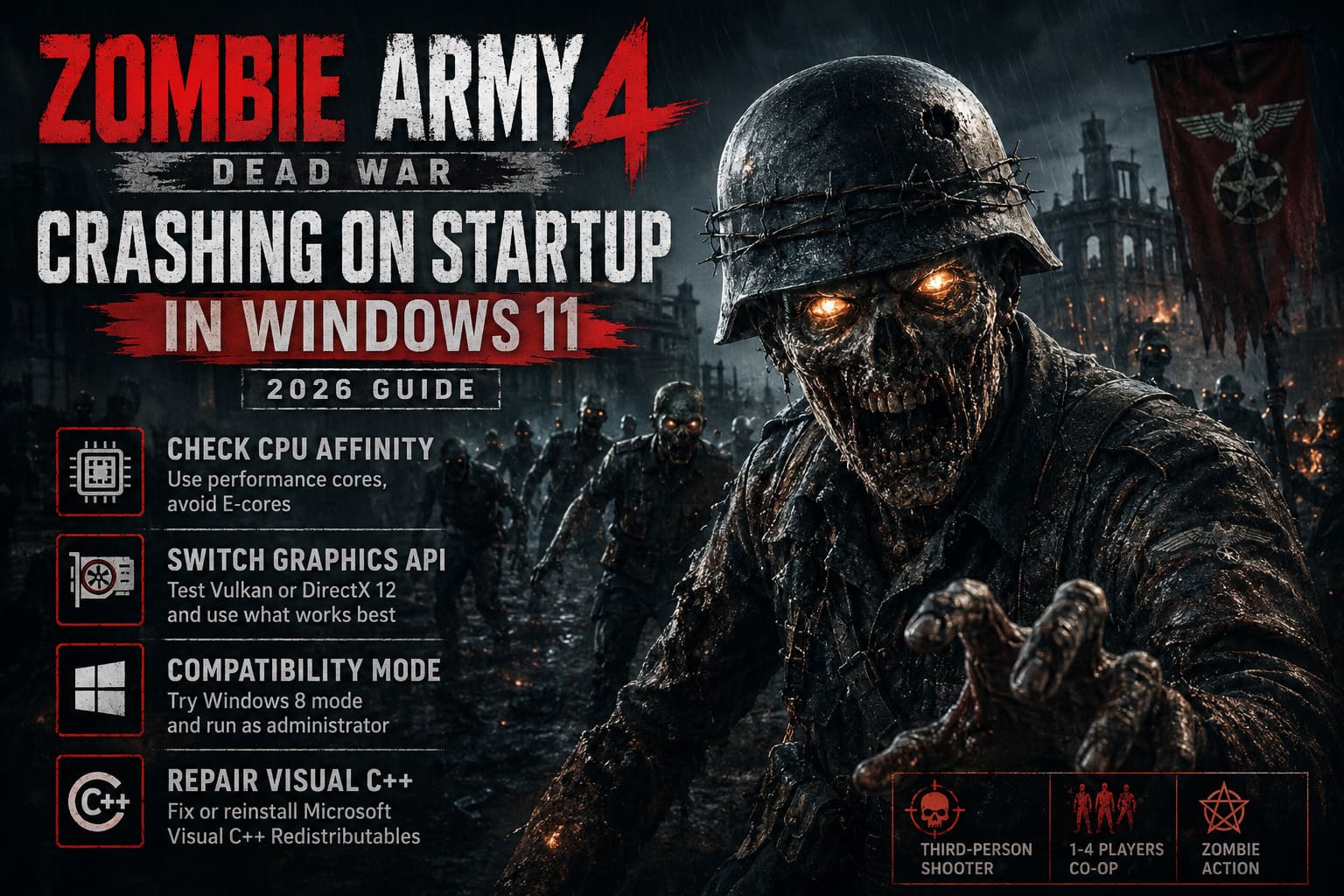
Test CPU Affinity Manually
Start the game and keep Task Manager ready with Ctrl + Shift + Esc.
- Open the Details tab in Task Manager.
- Find the Zombie Army 4 executable, such as
za4_dx12.exeorza4_vulkan.exe. - Right-click the process.
- Choose Set Affinity.
- Disable All Processors.
- Select only the first available group of CPU threads, starting with CPU 0 through CPU 7 if those correspond to your performance cores.
- Click OK and let the game continue launching.
The exact core numbering varies by processor, so don’t blindly assume CPU 0 through CPU 7 are always the P-cores. The important idea is to test the game with fewer, performance-oriented cores rather than throwing every available thread at it.
If the game suddenly launches normally, you’ve found a very strong suspect.
Make the Affinity Fix Permanent
Having to race Task Manager every time you want to play is obviously ridiculous.
A utility such as Process Lasso can apply CPU affinity rules automatically. Once Zombie Army 4 appears in its active process list, you can create a permanent affinity rule and prevent the game from using problematic E-cores.
For many modern PC games, this kind of workaround is surprisingly effective. It isn’t glamorous, but neither is watching a zombie shooter crash before you get to shoot a single zombie.
2. Switch Between DirectX 12 and Vulkan
Zombie Army 4 gives you another important troubleshooting option: graphics API selection.
If you’re getting a black screen, a GPU Was Lost type crash, or an instant desktop return, the rendering API may be the problem.
Some systems simply behave better with Vulkan, while others are more stable with DirectX 12. Your graphics card and driver version matter here, so there isn’t one universal winner.
Try the Opposite API
If the game is configured for DirectX 12:
Switch to Vulkan.
If Vulkan is crashing:
Switch back to DirectX 12.
Look for the graphics API option in the game’s launcher before the full game starts.
If Zombie Army 4 crashes so quickly that you can’t reach the launcher, try forcing the API through your game client’s launch options. On Steam:
- Open your Library.
- Right-click Zombie Army 4: Dead War.
- Select Properties.
- Stay in the General section.
- Find Launch Options.
- Enter the appropriate API parameter, such as
-vulkanor-dx12. - Launch the game and test.
Don’t change other graphics settings at the same time. If one API works and the other doesn’t, you’ve just saved yourself hours of pointless troubleshooting.
3. Run the Game in Windows Compatibility Mode
Windows 11 is excellent for modern software, but older PC games don’t always appreciate the new environment.
If Zombie Army 4 starts loading and then crashes, try compatibility settings on the actual executable rather than only changing Steam settings.
Open your game installation directory and locate the main executable files, including the DirectX 12 and Vulkan versions if they’re present.
Right-click the relevant .exe file and choose Properties.
Open the Compatibility tab and test the following:
- Enable Run this program in compatibility mode.
- Select Windows 8.
- Enable Run this program as an administrator.
- Click Apply, then OK.
Repeat the process for the important Zombie Army 4 executables if necessary.
I’d recommend changing these settings one executable at a time rather than applying every possible compatibility option Windows offers. More isn’t automatically better here.
If Windows 8 compatibility makes things worse, turn it back off and test administrator privileges separately.
4. Repair Microsoft Visual C++ Redistributables
This one is easy to overlook because the game itself may be perfectly fine.
A missing or corrupted Microsoft Visual C++ Redistributable can prevent an executable from starting before the game’s own error handling even has a chance to appear.
If double-clicking za4_dx12.exe or za4_vulkan.exe produces a Windows error mentioning something like:
vcruntime140.dllmsvcp140.dll- another Visual C++ runtime component
then your installation needs attention.
Download the current supported Microsoft Visual C++ Redistributable packages from Microsoft’s official software resources and install the appropriate x64 and x86 versions.
If the installer detects an existing installation, choose Repair when available.
Afterward, restart Windows.
Yes, the classic “turn it off and on again” move still has a place in PC gaming. A reboot ensures the repaired runtime components are properly loaded before you test Zombie Army 4 again.
5. Check Windows Security and Firewall Blocking
Windows 11’s security features can occasionally interfere with game executables, launchers, overlays, or networking components.
That doesn’t mean you should immediately disable Windows Defender. Don’t turn off your entire security stack just because one game crashes. That’s a terrible trade.
Instead, create targeted exceptions only if you’ve confirmed security software is involved.
Open Windows Security and go to:
Virus & threat protection → Manage settings → Exclusions
You can add the Zombie Army 4 installation folder as an exclusion if necessary.
You can also check Windows Firewall and make sure the game and its launcher are allowed to communicate.
For firewall troubleshooting:
- Search Windows for Allow an app through Windows Firewall.
- Open the result.
- Select Change settings.
- Check whether Zombie Army 4 or the relevant launcher is listed.
- Add the game’s executable if required.
- Make sure the appropriate network permissions are enabled.
Don’t start adding random files from your entire PC. Keep exclusions limited to the actual game and launcher directories.
6. Reset Zombie Army 4 Configuration and Shader Cache
Sometimes the game isn’t broken at all. Its configuration is.
This is especially common after changing resolution, display mode, graphics quality, or switching between graphics APIs.
A corrupted configuration can cause a crash every time the game attempts to initialize the same setting.
Press:
Windows Key + R
Then enter:
%appdata%
Look for folders associated with Rebellion or Zombie Army 4.
If you don’t find the relevant data there, check the nearby Local or LocalLow AppData directories.
Look for configuration and cache files connected to the game.
Important: Protect Your Saves
Before deleting anything, make sure you’re not touching your actual campaign saves.
Do not blindly delete every Zombie Army 4 folder you find.
The goal is to remove corrupted graphics settings or shader-cache data, allowing the game to rebuild clean configuration files on its next launch.
If the crash began immediately after changing graphical settings, this fix is particularly worth trying.
7. Verify Zombie Army 4 Through Steam
If the game worked yesterday and suddenly crashes today, don’t underestimate damaged files.
Failed updates, interrupted downloads, storage errors, or corrupted data can leave a game in a weird half-working state. Steam’s verification system is built specifically for this situation.
First, clear the Steam download cache:
- Open Steam.
- Go to Steam → Settings.
- Open Downloads.
- Select Clear Download Cache.
- Sign back into Steam if prompted.
Then verify Zombie Army 4:
- Open your Steam Library.
- Right-click Zombie Army 4: Dead War.
- Select Properties.
- Open Installed Files.
- Choose Verify integrity of game files.
- Wait for the process to finish.
If Steam discovers damaged or missing files, it will replace them automatically.
This is one of the safest fixes in the entire guide because you’re not manually deleting game data or changing Windows internals.
8. Don’t Ignore Your Graphics Driver
A graphics driver update can fix a crash, but it can also create one.
If Zombie Army 4 stopped launching immediately after installing a new NVIDIA or AMD driver, consider testing another driver version. On the other hand, if you’ve been running an ancient driver for months, updating is the obvious move.
For a particularly stubborn installation, a clean graphics driver installation can be more useful than simply installing the newest package over the old one.
This is especially worth considering if other games are also experiencing black screens, driver resets, or unexplained crashes.
9. The Fix Order I’d Actually Use
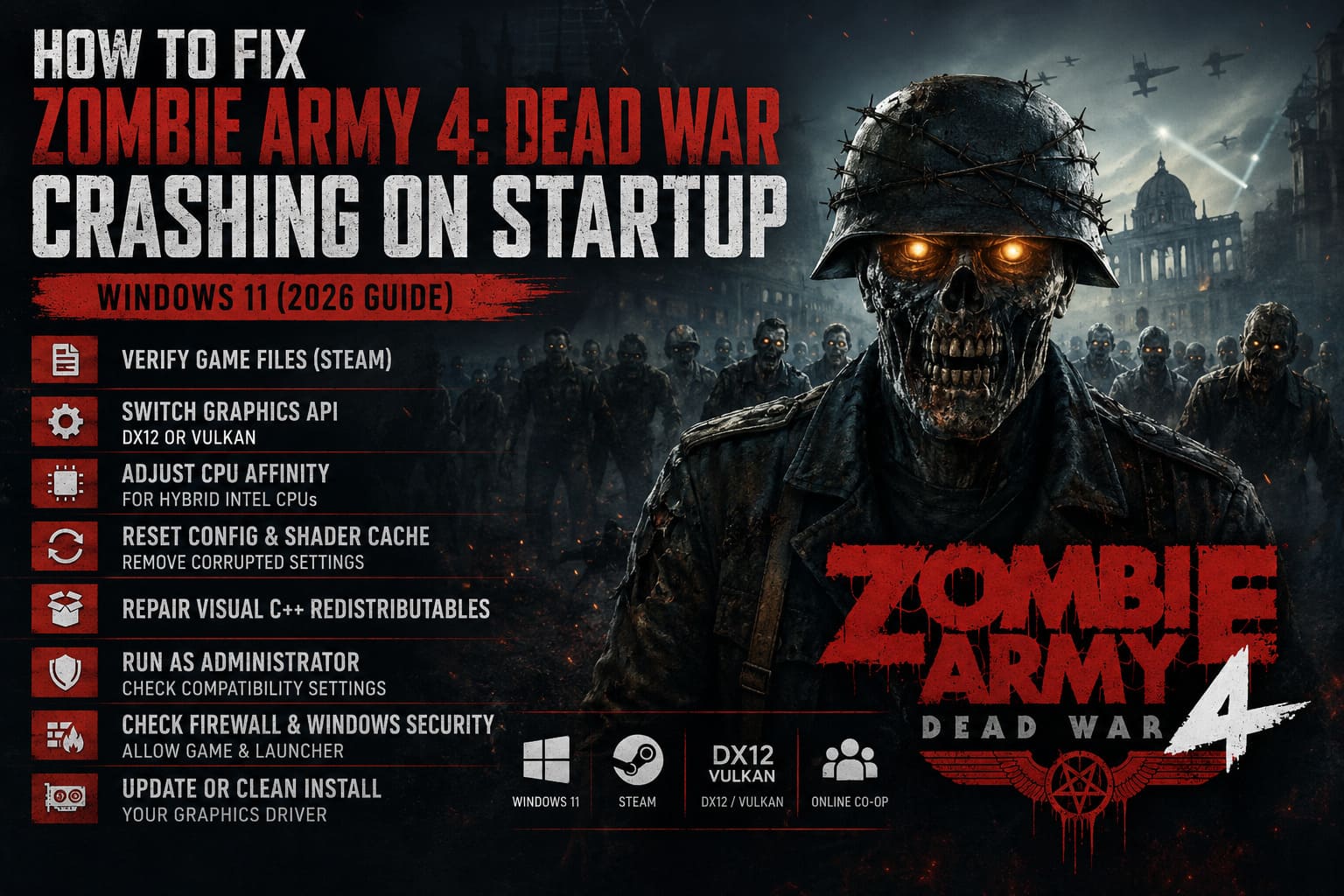
You don’t need to perform every fix immediately. If I were troubleshooting this PC myself, I’d work through the problem in this order:
- Verify the game files through Steam.
- Try the opposite graphics API: DX12 or Vulkan.
- Test CPU affinity if you’re using a modern hybrid Intel CPU.
- Reset corrupted configuration and shader-cache data.
- Repair Visual C++ Redistributables.
- Test administrator and compatibility settings.
- Check Windows Security and firewall interference.
- Investigate graphics driver problems if other games are also crashing.
This order starts with relatively harmless fixes and moves toward more system-specific troubleshooting.
Final Verdict
Zombie Army 4: Dead War shouldn’t be crashing on startup simply because you’ve upgraded to a modern Windows 11 gaming PC. Unfortunately, that’s exactly the kind of compatibility headache that can happen when a game engine designed around older hardware assumptions meets today’s CPUs, drivers, security systems, and graphics APIs.
The hybrid CPU issue is the big one to investigate on newer Intel systems, especially when the game vanishes instantly without a useful error message. If that isn’t the culprit, switching between DirectX 12 and Vulkan is the next move I’d make, particularly for black-screen and GPU-related crashes.
Zombie Army 4: Dead War Character Tier List (2026 Meta Guide)
After that, repair the Visual C++ runtime, reset corrupted graphics settings, check security restrictions, and verify the game files.
The important thing is to troubleshoot methodically. Don’t throw every Windows tweak you’ve ever heard of at the problem and hope something sticks. Change one thing, launch the game, and see what happens.
Once Zombie Army 4 finally gets past that cursed startup screen, you’re back where you belong: rifle in hand, four-player squad assembled, and an absolutely unreasonable number of undead waiting to get turned into target practice.