BOMBANANA Multiplayer Not Working? How to Fix Lobbies, Friend Invites, and Server Connection Errors in 2026
BOMBANANA! is one of those co-op games that sounds completely ridiculous when you explain it to someone who hasn’t played it. Three monkeys, one bomb, and a team where each player has a different communication handicap. Then you actually play it, start screaming instructions at your friends, and suddenly the whole thing makes perfect sense.
That is, at least, when the multiplayer works.
I’ve spent enough time with co-op games to know that nothing kills the mood faster than getting your squad together only to discover that one friend can’t join the lobby, another is stuck on a loading screen, and the host suddenly disappears from everyone’s game. BOMBANANA! is especially vulnerable to this kind of frustration because the entire experience is built around three players being connected at the same time.
If you’re dealing with BOMBANANA multiplayer not working on PC, don’t immediately assume the servers are completely broken. Some problems come from the lobby itself, others from Steam, Windows networking, firewalls, overlays, or even mismatched game files.
Here are the fixes I’d try first, based on the most common multiplayer problems players run into.
The Most Common BOMBANANA Multiplayer Problems
Before changing Windows settings or reinstalling anything, figure out exactly where the failure happens. That can save you a lot of unnecessary troubleshooting.
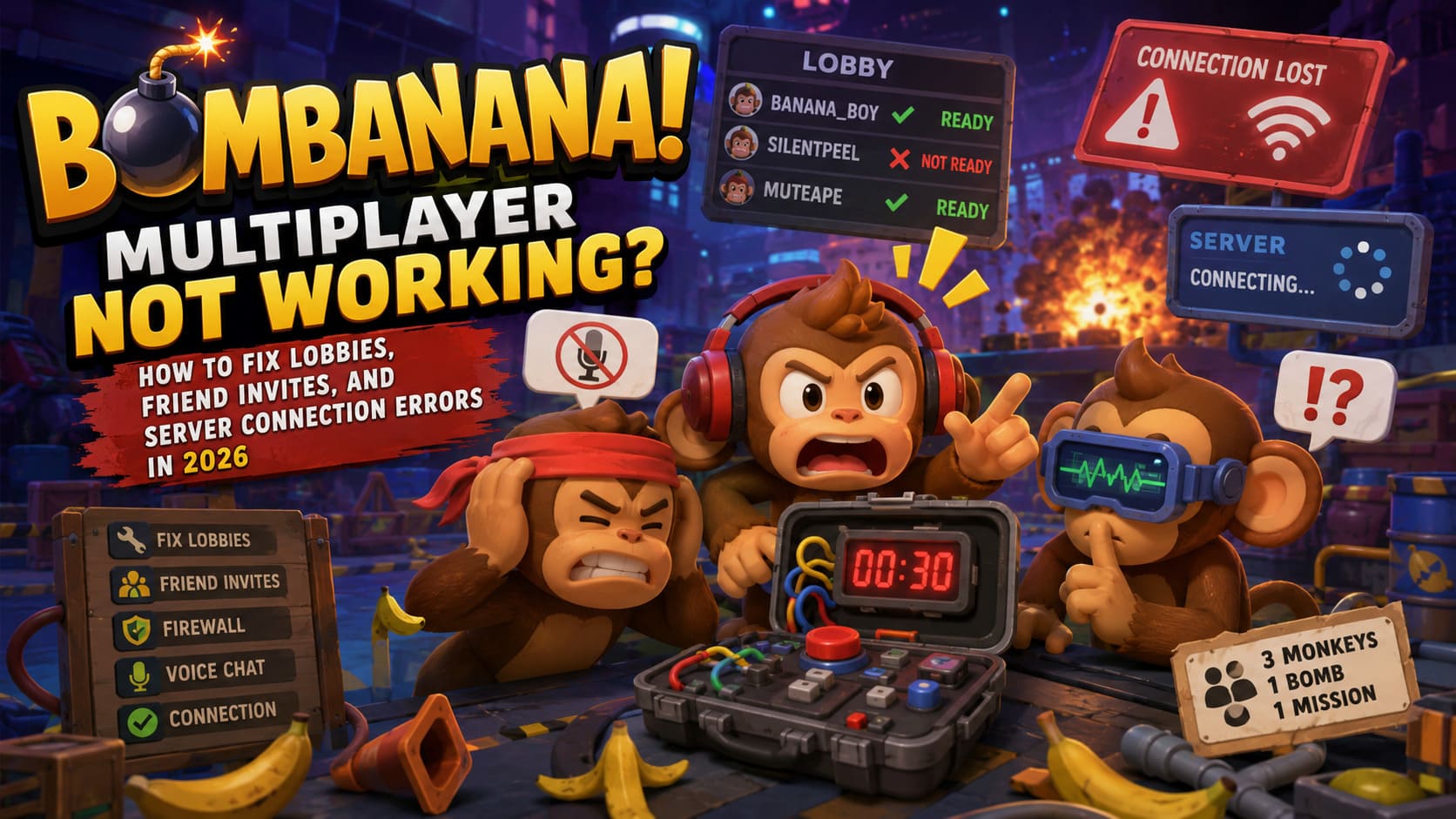
| Problem | What Usually Happens | First Fix To Try |
|---|---|---|
| Lobby won’t start | Player remains Not Ready | Create a new lobby |
| Friend can’t join | Invite loops or fails | Use a room code |
| Connection Lost | Game returns to menu | Check firewall and network |
| Voice chat stops | Players can’t hear each other | Check Windows audio devices |
| Mouth animation breaks | Voice sync stops | Restart the lobby |
| Crash when joining | Game closes or shows an error | Verify Steam files |
In my experience, recreating the lobby is worth trying before anything complicated. BOMBANANA! has enough moving parts in its multiplayer system that a completely fresh session can sometimes solve a problem that looks much more serious than it actually is.
1. BOMBANANA Lobby Bug: Can’t Ready Up or Start the Game
The classic BOMBANANA multiplayer headache is the lobby that looks fine but simply refuses to work.
Everyone can see each other. Everyone appears connected. Then one player clicks Ready and… nothing. Or the host sees somebody as disconnected while that player insists everything looks normal on their screen.
This is usually the point where people start restarting Steam, rebooting their routers, and questioning their entire internet connection.
Don’t do all that yet. Rebuild the lobby first.
Create a Completely New Lobby
Have the host leave the current lobby and return to the main menu. Don’t simply kick the affected player and invite them back into the same room. If the session state is already out of sync, you’re just rebuilding the same problem.
Instead:
- Host leaves the current lobby.
- Return completely to the main menu.
- Create a brand-new room.
- Invite everyone again.
- Have every player join before anyone starts the match.
This is a surprisingly important distinction. A multiplayer lobby can look perfectly normal from one player’s perspective while another client is holding outdated information.
Try a Room Code Instead of a Steam Invite
If Steam invitations are acting weird, use the game’s room-code system if available in your current build.
Have the host create a private room, copy the code, and send it directly to the other players. This avoids relying entirely on the Steam overlay and gives everyone a clean way to enter the same session.
Personally, this would be my first workaround if one particular friend repeatedly gets stuck on “Joining” or receives a lobby-not-found message.
2. Steam Invites Not Working? Blame the Overlay First
Steam’s overlay is useful right up until it isn’t.
I’ve had plenty of multiplayer games where the Steam friends list says everything is fine, the invitation appears normally, and clicking it produces absolutely nothing useful. BOMBANANA! can be particularly annoying when the invitation opens a loading state but never actually places the player inside the lobby.
Try disabling the Steam Overlay temporarily.
Open:
Steam Library → BOMBANANA! → Properties → General
Find the Steam Overlay option and disable it. Then restart the game and attempt to join through the game’s own multiplayer interface.
You can also temporarily disable the Discord overlay and hardware monitoring overlays such as RivaTuner.
This isn’t something I’d leave disabled forever if you use these features regularly. It’s simply a good troubleshooting test. If multiplayer suddenly works after disabling overlays, you’ve found the likely source of the conflict.
3. BOMBANANA Connection Lost Error: Check Windows Firewall
If you can create a lobby but your friends can’t connect, Windows Firewall is one of the first things I’d check.
A firewall doesn’t necessarily block the game completely. Sometimes it can interfere with specific network communication while everything else appears normal.
To check it:
- Open the Windows Start menu.
- Search for Firewall & network protection.
- Select Allow an app through firewall.
- Click Change settings.
- Find BOMBANANA! in the list.
- Make sure the appropriate Private and Public network permissions are enabled.
- Save the changes and restart the game.
If BOMBANANA! isn’t listed, use Allow another app and browse to the game’s executable inside your Steam installation.
I’d also check whether your third-party antivirus has its own firewall or application-control feature. Windows can say an application is allowed while another security program is quietly blocking it.
4. Flush DNS If the Server Browser Is Acting Strange
This is one of those old-school Windows fixes that sounds too simple to matter, but it’s worth trying when multiplayer suddenly stops connecting properly.
Open Terminal (Admin) or Command Prompt (Admin) and enter:
ipconfig /flushdnsThen run:
netsh winsock resetRestart your PC afterward.
The first command clears the local DNS resolver cache, while the second resets Windows’ Winsock networking configuration.
Don’t expect this to magically fix every BOMBANANA server problem. If the game’s servers are having an outage, no amount of DNS flushing will save you. But if your machine has developed a local networking problem, these commands can remove one more possible cause.
5. Verify BOMBANANA! Files Through Steam
If multiplayer crashes the game, throws a fatal error, or suddenly stopped working after an update, verify the installation before reinstalling the entire game.
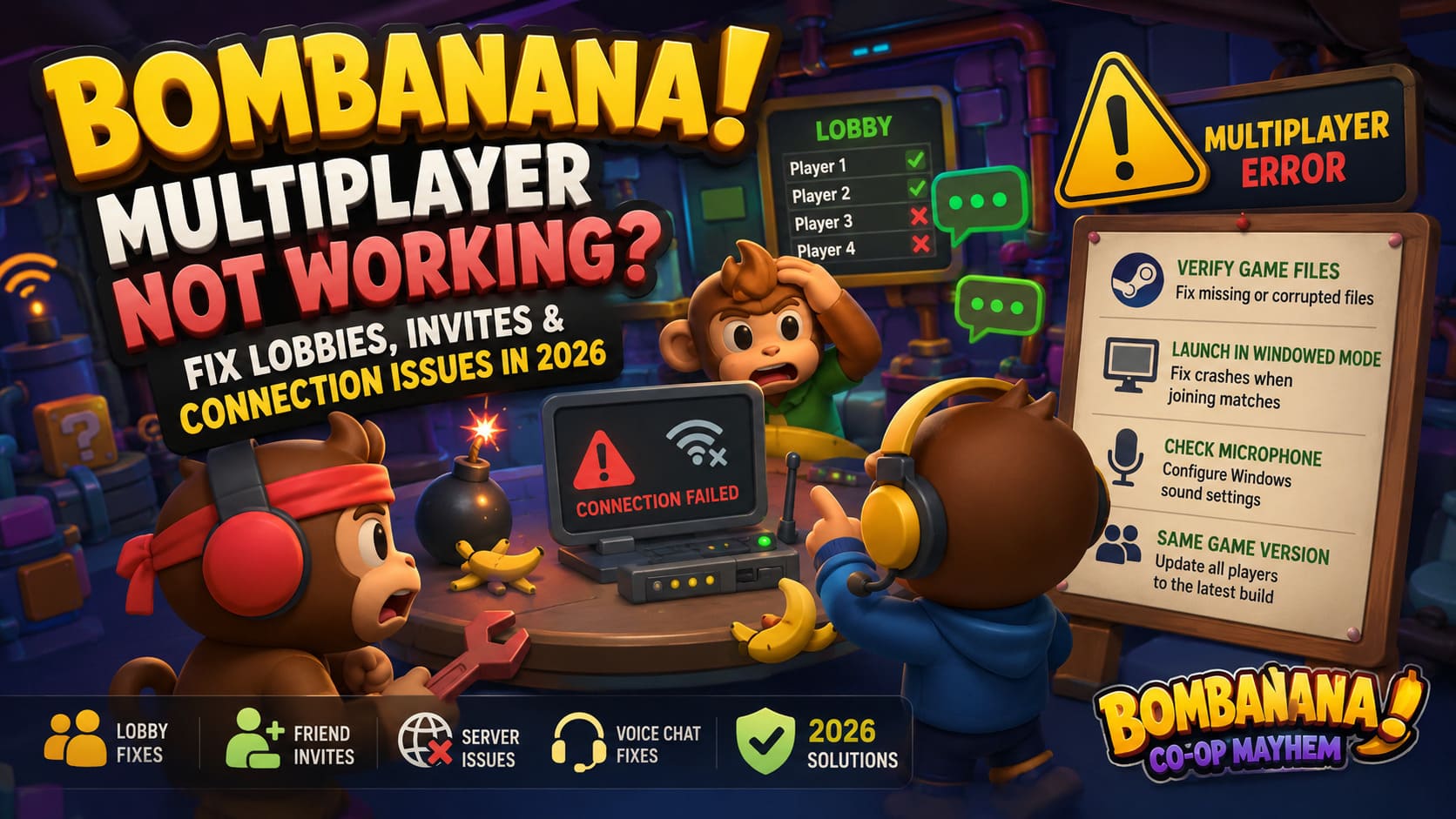
In Steam:
Library → BOMBANANA! → Properties → Installed Files → Verify integrity of game files
Let Steam complete the scan.
If it finds damaged or missing files, Steam will replace them automatically. This is particularly useful after patches because a multiplayer client that isn’t behaving exactly like the current build can cause strange connection or matchmaking problems.
A full reinstall should be much further down your troubleshooting list.
6. BOMBANANA Crashes When Joining a Multiplayer Match
There’s another annoying situation where the lobby itself works, but the game crashes as soon as everyone loads into the map.
If your screen goes black, the game freezes, or the display driver appears to reset, try launching BOMBANANA! in windowed mode.
Go to:
Steam → BOMBANANA! → Properties → General → Launch Options
Enter:
-windowedLaunch the game and try joining a multiplayer session again.
If it works, you can change the display mode later through the game’s graphics settings.
I’d also temporarily lower demanding graphics settings if you’re the host, particularly if your system is close to the minimum requirements. Multiplayer synchronization and game rendering are separate problems, but a struggling host machine can make an already unstable session considerably worse.
7. Voice Chat Broken? Check Your Windows Microphone
This one deserves special attention because voice chat isn’t just a cosmetic feature in BOMBANANA!. Communication is basically the entire joke and challenge of the game.
If you can hear your friends but they can’t hear you, or the voice-driven mouth animations suddenly stop responding, check Windows’ communication-device settings.
Open:
Windows Settings → System → Sound
Select your microphone and make sure it is correctly configured as your active input device. If you have several microphones connected — such as a headset mic, webcam microphone, and USB microphone — Windows can occasionally select the wrong one.
This is especially easy to miss after changing headsets.
Also Check Push-to-Talk
If you’re using Discord at the same time, make sure your Discord push-to-talk key and BOMBANANA! voice key aren’t fighting each other.
For troubleshooting, I’d actually close Discord completely and test the game’s voice chat by itself.
If voice chat suddenly works, you can start Discord again and figure out which setting is causing the conflict.
8. Everyone Should Be Running the Same Game Version
This sounds obvious, but it catches people surprisingly often.
If one player hasn’t received the latest update, multiplayer compatibility can become messy. Steam normally handles updates automatically, but it’s worth checking before you start changing network settings.
In your BOMBANANA! Steam properties, make sure the game isn’t being held back by unusual update settings. Restart Steam if necessary and check for an available update.
Have every member of the squad update before creating the lobby.
This is particularly important immediately after a patch.
My Recommended Order for Fixing BOMBANANA Multiplayer
If you don’t want to spend an hour changing random Windows settings, here’s the order I’d personally follow:
- Restart BOMBANANA! and Steam.
- Create a completely new lobby.
- Use a room code instead of a Steam invitation.
- Have another player host the session.
- Disable Steam and Discord overlays temporarily.
- Check Windows Firewall permissions.
- Flush DNS and reset Winsock.
- Verify BOMBANANA! game files through Steam.
- Check Windows microphone and communication-device settings.
- Make sure everyone is running the latest game version.
The host swap is especially underrated. If three players are trying to connect and one person has a noticeably weaker PC or unreliable connection, having another member host can immediately tell you whether the problem follows the lobby or follows the host.
Final Thoughts: Don’t Let a Broken Lobby Ruin the Joke
BOMBANANA! is at its best when everything goes wrong inside the game, not when the multiplayer menu decides to become the real boss fight.
The good news is that many multiplayer problems don’t require reinstalling Windows, replacing your router, or performing some obscure networking ritual. Start with the simple stuff: rebuild the lobby, try a room code, switch hosts, and disable overlays.
If that doesn’t work, move on to firewall permissions, DNS/Winsock resets, file verification, and microphone settings.
And if absolutely none of that works while every other multiplayer game on your PC is connecting normally, there’s a decent chance the problem isn’t your computer at all. In that situation, check for a current BOMBANANA! server issue or an update from the developers before spending another two hours fighting Windows.
After all, the whole point of BOMBANANA! is to get three friends into the same room and watch communication collapse in spectacular fashion. You shouldn’t have to spend the entire evening trying to get the room itself to connect.