WARDOGS Lag and Stuttering Fix Guide: How to Boost FPS and Fix 1% Lows in 2026
If there is one thing that can instantly ruin a great multiplayer shooter for me, it is bad frame pacing. I can tolerate a lower average FPS. I can even tolerate dropping a few graphics settings to make a demanding game run properly. What I cannot stand is watching the counter say 100+ FPS while the game suddenly freezes for half a second during the exact moment I am trying to win a firefight.
That is the situation some players are running into with WARDOGS.
BULKHEAD’s large-scale tactical shooter is built around an absolutely ridiculous amount of stuff happening at once: huge player counts, destructible environments, vehicles, explosions, environmental effects, voice communication and constantly changing battlefields. On paper, that sounds incredible. In practice, it can put serious pressure on both CPU and GPU resources.
During the latest test builds and early access preparations, players have reported micro-stuttering, inconsistent frame times, sudden FPS drops, poor 1% lows, rubber-banding, packet spikes and occasional crashes. And no, having an RTX card does not automatically make you immune. A powerful GPU cannot magically fix a CPU bottleneck, shader compilation hitch, overloaded background application or unstable network route.
After spending way too much time messing with graphics options, Windows settings and the usual PC troubleshooting nonsense, I’ve put together the settings and fixes I would actually use on my own gaming machine.
The goal here isn’t simply to chase the biggest FPS number possible. Stable frame delivery is the priority.
WARDOGS Stuttering: Is It Your PC or Your Internet?
Before changing 25 different settings at once, figure out what kind of problem you’re actually dealing with.
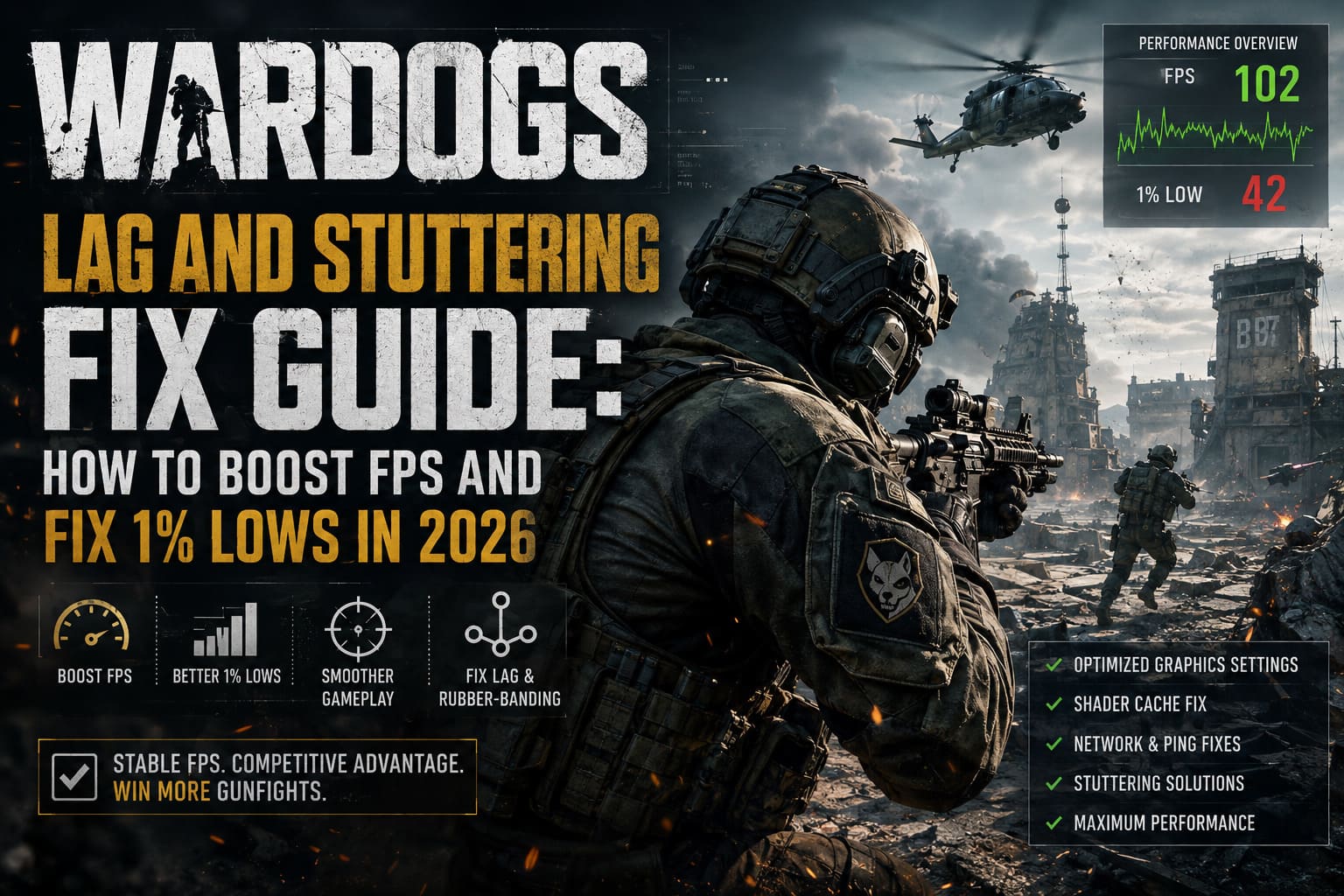
WARDOGS can produce two completely different types of “lag.”
Performance stutter usually looks like this:
- FPS suddenly falls from 100 to 40 or lower.
- The image freezes for a fraction of a second.
- Explosions or entering a new area cause hitching.
- Mouse movement feels inconsistent.
- Your FPS counter looks fine most of the time, but 1% lows are awful.
Network lag feels different:
- Characters teleport or snap backward.
- Shots appear delayed.
- Players rubber-band across the map.
- Ping suddenly jumps.
- Your movement feels disconnected from the server.
You can absolutely experience both at the same time, which makes diagnosing WARDOGS even more annoying.
The biggest performance culprits
| Problem | Typical Symptom | What Usually Helps |
|---|---|---|
| Asset Streaming | Hitches while entering new areas | Install on SSD |
| Shader Compilation | Short freezes and inconsistent frame times | Clear shader cache |
| Heavy Shadows | Large FPS drops during combat | Lower Shadow Quality |
| Global Illumination | GPU spikes during destruction | Lower GI |
| CPU Load | Poor 1% lows in massive battles | Reduce CPU-heavy settings |
| Packet Loss | Rubber-banding and delayed actions | Ethernet connection |
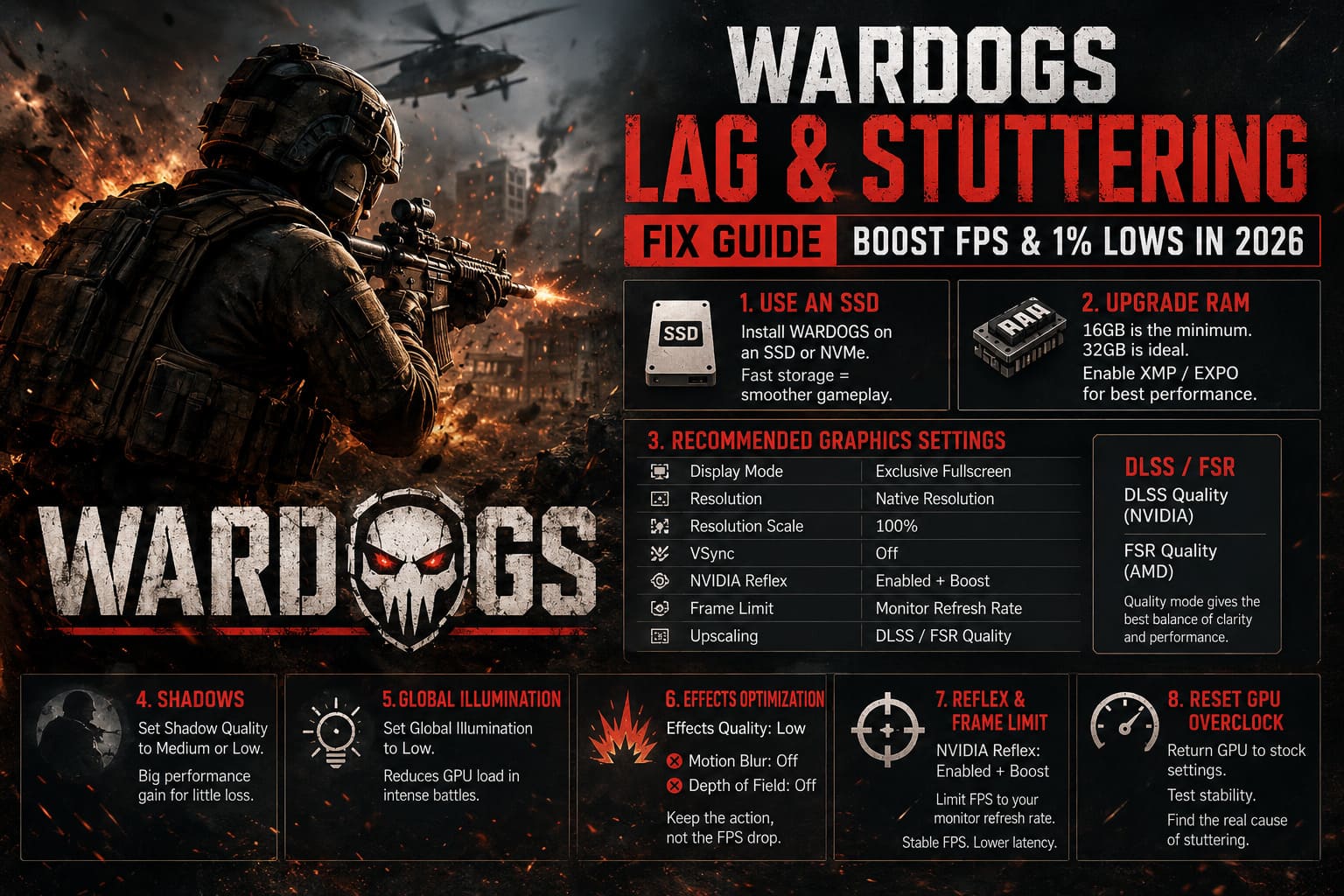
1. Install WARDOGS on an SSD
This sounds painfully obvious in 2026, but it is still worth saying.
Don’t run WARDOGS from a mechanical hard drive if you can avoid it.
The game has to constantly stream world assets, textures and environmental information while you’re moving through large combat zones. Throw destructible environments, explosions and dozens of players into the mix and your storage device can become part of the problem.
An HDD might technically launch the game, but that doesn’t mean the experience will be good.
If your WARDOGS installation is sitting on an old 7200 RPM drive, moving it to an SSD is one of the first things I’d try. An NVMe SSD is even better if you have one available.
I wouldn’t bother chasing exotic Windows tweaks before doing this.
Fast storage first. Tweaking second.
2. Don’t Ignore Your RAM
WARDOGS is the kind of multiplayer game where 16GB of RAM is increasingly becoming the floor rather than the sweet spot.
With Windows, Steam, Discord, browser tabs and other background applications eating memory, a 16GB system can get surprisingly cramped.
If you’re serious about eliminating random hitching, 32GB of RAM is what I’d personally target.
Also check your motherboard BIOS.
If you have DDR4 or DDR5 memory capable of running at a higher rated speed, make sure your XMP or EXPO profile is actually enabled. A surprising number of gaming PCs are running their expensive memory at conservative default speeds.
That won’t magically double your FPS, but memory performance can contribute to better frame consistency in CPU-heavy games.
3. My Recommended WARDOGS Graphics Settings
This is where I’d start if my goal was competitive performance rather than making every puddle look like a Hollywood production.
Display Settings
| Setting | Recommended Value |
|---|---|
| Display Mode | Exclusive Fullscreen |
| Resolution | Native Monitor Resolution |
| Resolution Scale | 100% |
| VSync | Off |
| NVIDIA Reflex | Enabled + Boost |
| Frame Limit | Monitor Refresh Rate |
| Upscaling | DLSS / FSR Quality |
I prefer native resolution combined with an upscaler rather than simply lowering the resolution scale.
For example, if you’re playing at 1440p, I’d rather keep the interface and image presentation at 1440p and let DLSS or FSR handle the internal rendering.
DLSS or FSR?
If you have an NVIDIA GPU, start with DLSS Quality.
If you’re using an AMD card, FSR Quality is the logical starting point.
Don’t immediately jump to Performance mode because a benchmark told you it produces another 20 FPS.
In a competitive shooter, image clarity matters. Aggressive upscaling can turn distant enemies and environmental details into a blurry mess.
Quality mode is usually the sweet spot.
4. Lower Shadows Before Destroying Your Entire Image
This is one of the first changes I make in demanding shooters.
Shadow Quality: Medium or Low
There’s very little reason to sacrifice a huge amount of performance just to make every shadow beautifully detailed.
WARDOGS has massive combat encounters where multiple explosions, vehicles and environmental objects can appear simultaneously. That’s exactly when expensive shadow calculations can become painful.
If you’re getting nasty FPS drops during large battles, lower shadows before touching textures.
5. Global Illumination Can Hammer Performance
Global illumination is another setting I would keep under control.
Try:
Global Illumination: Low
WARDOGS’ destructible environments create situations where lighting calculations become significantly more complicated. When structures are damaged and explosions are going off everywhere, GPU workload can climb quickly.
If your average FPS looks good but your frame-time graph suddenly becomes ugly during combat, this is one of the settings I’d experiment with.
6. Effects Quality: Keep the Explosions, Lose the FPS Disaster
I love spectacular explosions as much as anyone.
I don’t need them to turn my GPU into a space heater.
Set:
Effects Quality: Low
This can help when you’re dealing with heavy particle effects, smoke, debris and explosions. You may lose a little visual spectacle, but you’ll gain something considerably more valuable in a competitive match: consistency.
Also turn these off:
- Motion Blur: Off
- Depth of Field: Off
I disable motion blur in practically every competitive shooter anyway. It makes fast camera movement cleaner and keeps enemies easier to track.
7. NVIDIA Reflex and Frame Limiting
If your NVIDIA GPU supports Reflex, use:
NVIDIA Reflex: Enabled + Boost
The point isn’t simply “more FPS.” Reflex is designed to reduce system latency by improving how CPU and GPU workloads are synchronized.
For a shooter like WARDOGS, that matters.
Frame limiting also deserves some attention.
If you’re running a 144Hz monitor, I would start around 144 FPS rather than letting the GPU run completely unrestricted.
Don’t stack multiple frame limiters without a reason. If you’re using an external limiter, don’t simultaneously create another conflicting cap inside the game unless you’ve tested the combination.
The objective is simple:
One predictable frame limit. Stable frame times.
8. Reset Your GPU Overclock or Undervolt
Here’s a troubleshooting step people often overlook.
If you’ve undervolted your GPU because it works perfectly in every other game, temporarily return it to stock.
WARDOGS may expose instability that other games never trigger.
Large multiplayer battles can produce unusual combinations of CPU, GPU, memory and shader workloads. A GPU profile that seems rock-solid elsewhere can suddenly produce:
- Driver crashes
- Black screens
- Random FPS drops
- Game crashes
- Freezes when joining a match
Set your GPU back to its stock power target and voltage configuration and test again.
If the stuttering disappears, congratulations: you’ve found the problem.
9. Clear Your DirectX Shader Cache
Shader compilation is one of those PC gaming problems that makes you question whether computers were a good idea in the first place.
If WARDOGS is constantly hitching despite otherwise good FPS, clearing the shader cache is worth trying.
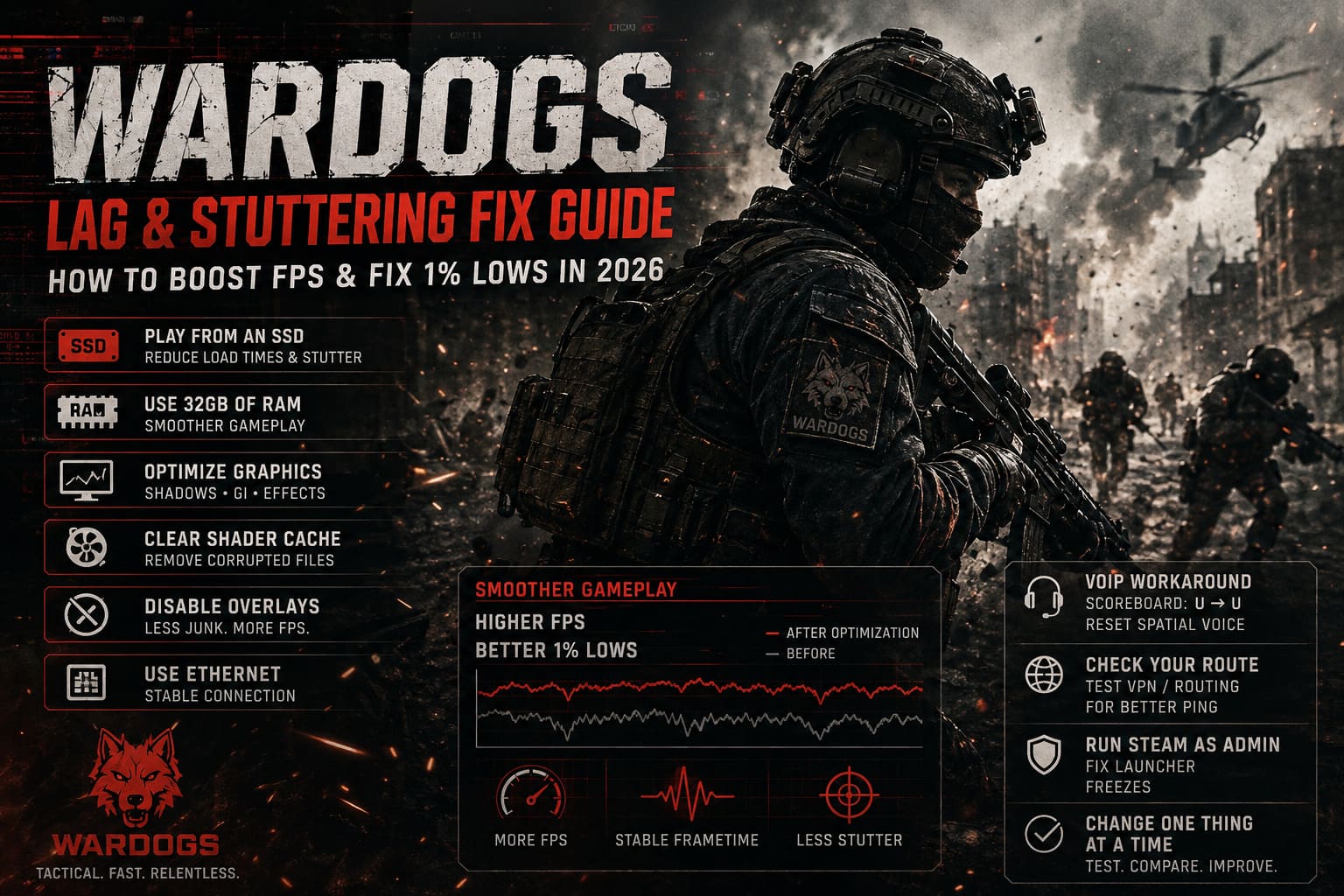
In Windows:
- Search for Disk Cleanup.
- Select your main Windows drive.
- Look for DirectX Shader Cache.
- Select it.
- Delete the cached data.
- Restart the PC.
The next launch may initially involve some shader-related processing again, but a corrupted or problematic cache can absolutely be worth eliminating when troubleshooting persistent stutter.
10. Disable the Junk Running Behind Your Game
This is another thing I would test before blaming the game engine.
Temporarily disable unnecessary overlays and background utilities.
Potential troublemakers include:
- Discord overlay
- Steam overlay
- NVIDIA overlay
- RTSS
- GPU monitoring tools
- RGB controller software
- Corsair iCUE
- NZXT CAM
- Other hardware monitoring utilities
I’m not saying every one of these applications automatically causes problems.
They don’t.
The problem is that modern games interact with an absurd number of software hooks. If something is injecting an overlay, monitoring hardware or controlling RGB devices in the background, it becomes another variable.
When troubleshooting, remove the variables.
Once WARDOGS is stable, you can turn things back on one at a time.
11. HAGS: Worth Testing on Your System
Windows’ Hardware-Accelerated GPU Scheduling can be found under:
Settings → System → Display → Graphics → Change default graphics settings
Try enabling HAGS and restart Windows.
It can reduce certain scheduling overheads on supported systems, although I wouldn’t treat it as some universal FPS miracle.
PC performance is annoyingly hardware-dependent.
If HAGS makes your frame times worse, turn it back off.
The important thing is to test rather than blindly copying somebody else’s configuration.
12. Fix WARDOGS Network Lag and Rubber-Banding
Now for the other kind of “lag.”
If your FPS is stable but players are teleporting around the map, don’t waste an hour lowering texture quality.
That’s probably networking.
Use Ethernet if possible
Wi-Fi can be perfectly usable for gaming, but large multiplayer shooters punish unstable connections much harder than casual games.
An Ethernet connection gives you a much more predictable connection to your router.
If you’re serious about competitive play, wired Ethernet is still my first choice.
13. Try the Spatial VoIP Workaround
One particularly strange community workaround involves WARDOGS’ proximity/spatial voice system.
If you suddenly experience severe stuttering or instability during a match, try opening the scoreboard and pressing:
U → U
The idea is to toggle the VoIP functionality off and back on, potentially resetting the problematic voice-chat state.
I wouldn’t call this a guaranteed universal fix, but if your performance suddenly falls apart when you’re surrounded by players using proximity communication, it’s a ridiculously easy thing to test.
And honestly, if tapping one key twice gets my frame rate back, I’ll take it.
14. VPN and Routing Problems
A gaming VPN or routing service can sometimes help if your ISP takes a terrible route to the game server.
Services such as ExitLag or similar routing tools can potentially provide an alternative network path.
But don’t blindly assume a VPN equals lower ping.
Sometimes the VPN route is better.
Sometimes it’s worse.
If you’re experiencing packet loss or huge ping spikes, compare your normal connection against an alternative route and look at consistency, not just the lowest ping number.
A stable 50ms connection is infinitely more pleasant than a connection bouncing between 30ms and 180ms.
15. Fix WARDOGS Launcher Freezes
If WARDOGS refuses to launch and gets stuck around the starting/initialization stage, one troubleshooting step worth testing is running Steam as administrator.
Find your Steam installation, locate Steam.exe, right-click it and open:
Properties → Compatibility
Then enable:
Run this program as an administrator
Apply the change and launch Steam again.
This can help when permissions or access to configuration and temporary files are involved.
I wouldn’t permanently run every application as administrator just because one game has a problem, but as a troubleshooting step, it’s worth testing.
16. Don’t Change Everything at Once
This is probably my biggest piece of advice.
When a game stutters, players love doing this:
“I changed 37 settings and now it feels better, I have no idea why.”
Don’t do that.
Change one major variable at a time.
Start with:
SSD → 32GB RAM → Shadows → Global Illumination → Effects → Upscaling → Shader Cache → Overlays → GPU stock settings → Network testing
After each change, play the same type of scenario and compare the result.
Pay attention to 1% lows and frame-time consistency, not just average FPS.
A system producing 120 FPS with awful frame pacing can feel considerably worse than a machine producing a locked 90 FPS.
How to Fix WARDOGS Can’t Join Server Error: Full Guide for 2026 Beta and Early Access
Final WARDOGS Performance Verdict
WARDOGS is an ambitious game, and that’s both its greatest strength and one of its biggest technical challenges.
A 100-player battlefield filled with destruction, vehicles, voice communication, physics and constantly changing environments is going to put considerably more pressure on a PC than a small arena shooter.
That doesn’t mean you should accept horrible stuttering.
My priority would be stable frame delivery over maximum graphical quality. Put the game on an SSD, make sure your RAM is configured correctly, use DLSS or FSR Quality, reduce shadows and global illumination, disable unnecessary visual effects, clear the shader cache and temporarily return an overclocked or undervolted GPU to stock.
WARDOGS Enemy Spotting Guide: How to See, Tag, and Track Players
If the game feels smooth but you’re getting rubber-banding, stop lowering graphics settings and troubleshoot your network instead.
And if WARDOGS is still hitching after all of that, don’t immediately assume your PC is too weak. Early builds of ambitious multiplayer games can have genuine optimization problems that no amount of Windows registry wizardry is going to magically fix.
The good news is that WARDOGS doesn’t need to look bad to run well.
With the right compromises, you can keep the image sharp, maintain competitive visibility and push the frame times into a much more comfortable range. For me, that’s the real definition of a good performance setup: not a screenshot showing an enormous FPS number, but a firefight where I stop thinking about performance entirely and can just concentrate on shooting the guy who is trying to flank me.