How to Fix WARDOGS Can’t Join Server Error: Full Guide for 2026 Beta and Early Access
That has been my experience with WARDOGS during the 2026 beta.
The concept alone is enough to get any tactical shooter fan interested. A huge 100-player battlefield, three factions fighting over objectives, destructible environments, vehicles, communication, and the kind of organized chaos that makes games like Squad and Battlefield so addictive. I was expecting to spend my time worrying about enemy squads and incoming fire.
Instead, I found myself staring at login screens.
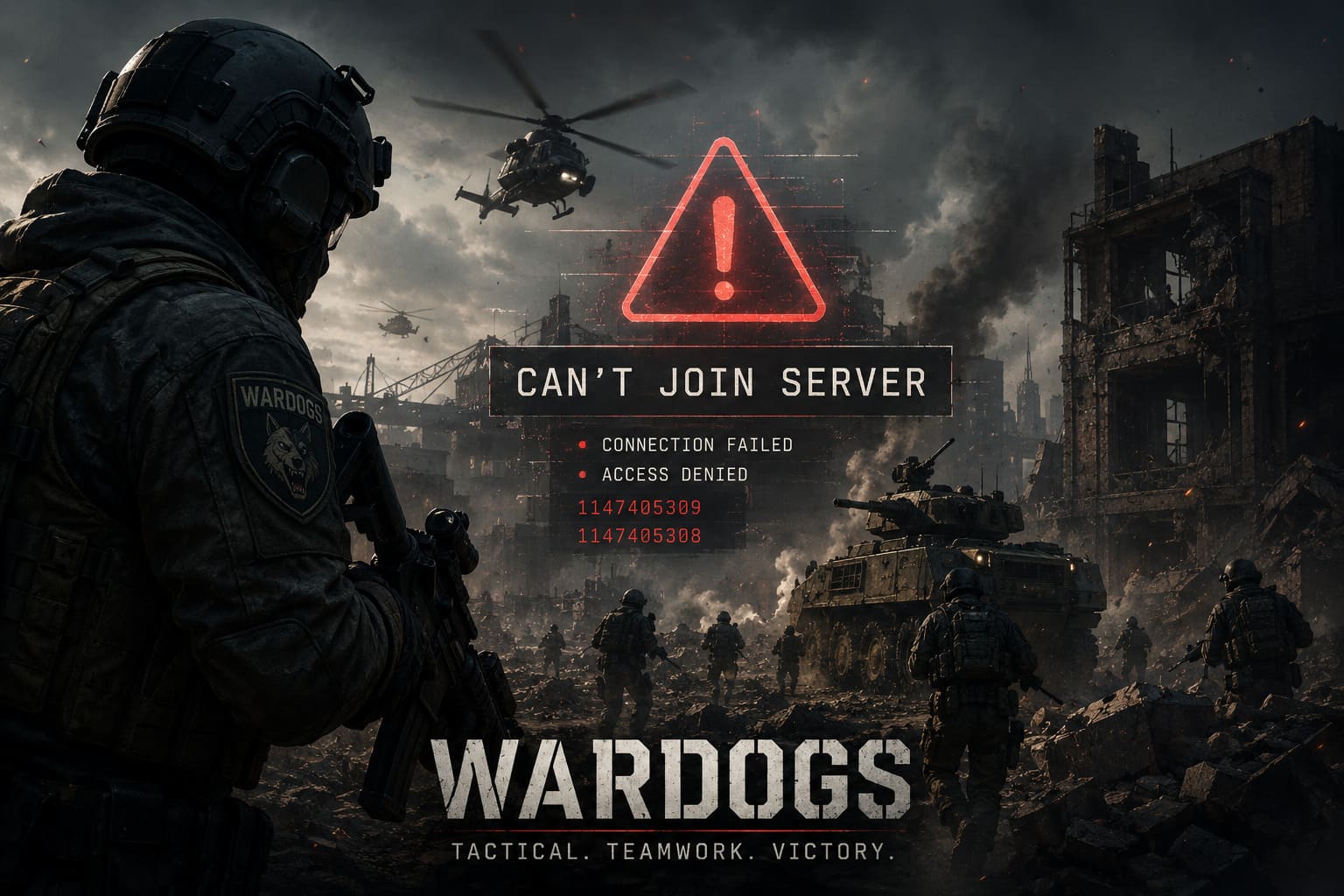
If you’re currently dealing with WARDOGS can’t join server, endless matchmaking, Connection Failed, Access Denied, or errors such as 1147405309 and 1147405308, you’re definitely not the only one. Some of these problems aren’t even caused by your PC or internet connection.
And honestly, that’s the first thing I would check before spending an hour changing Windows settings.
Is WARDOGS Actually Down?
Before touching your DNS, firewall, or game files, check whether the problem is on Bulkhead’s side.
WARDOGS is going through a very unusual period right now. The developers are running large-scale tests designed specifically to see how the backend handles enormous numbers of players. That means queues, authentication systems, matchmaking, voice communication, and servers are being pushed much harder than they would be during a normal small-scale playtest.
The recent beta window around September 3–5, 2026, for example, is exactly the kind of environment where server-side problems can appear.
My rule here is simple:
Don’t troubleshoot your PC until you know other players can actually get into the game.
If Reddit, Steam discussions, Discord, and community channels suddenly fill up with players reporting the same connection error, there probably isn’t anything wrong with your router.
What I would check first
- Official WARDOGS announcements and developer posts
- Steam Community discussions
- Reports from other players during the current test
- Whether the current beta session is actually active
- Any announced maintenance or server stress tests
If everyone is getting kicked out, wait for the servers to recover. No DNS trick is going to repair a broken matchmaking cluster.
Error 1147405309: This One May Not Be Your Internet
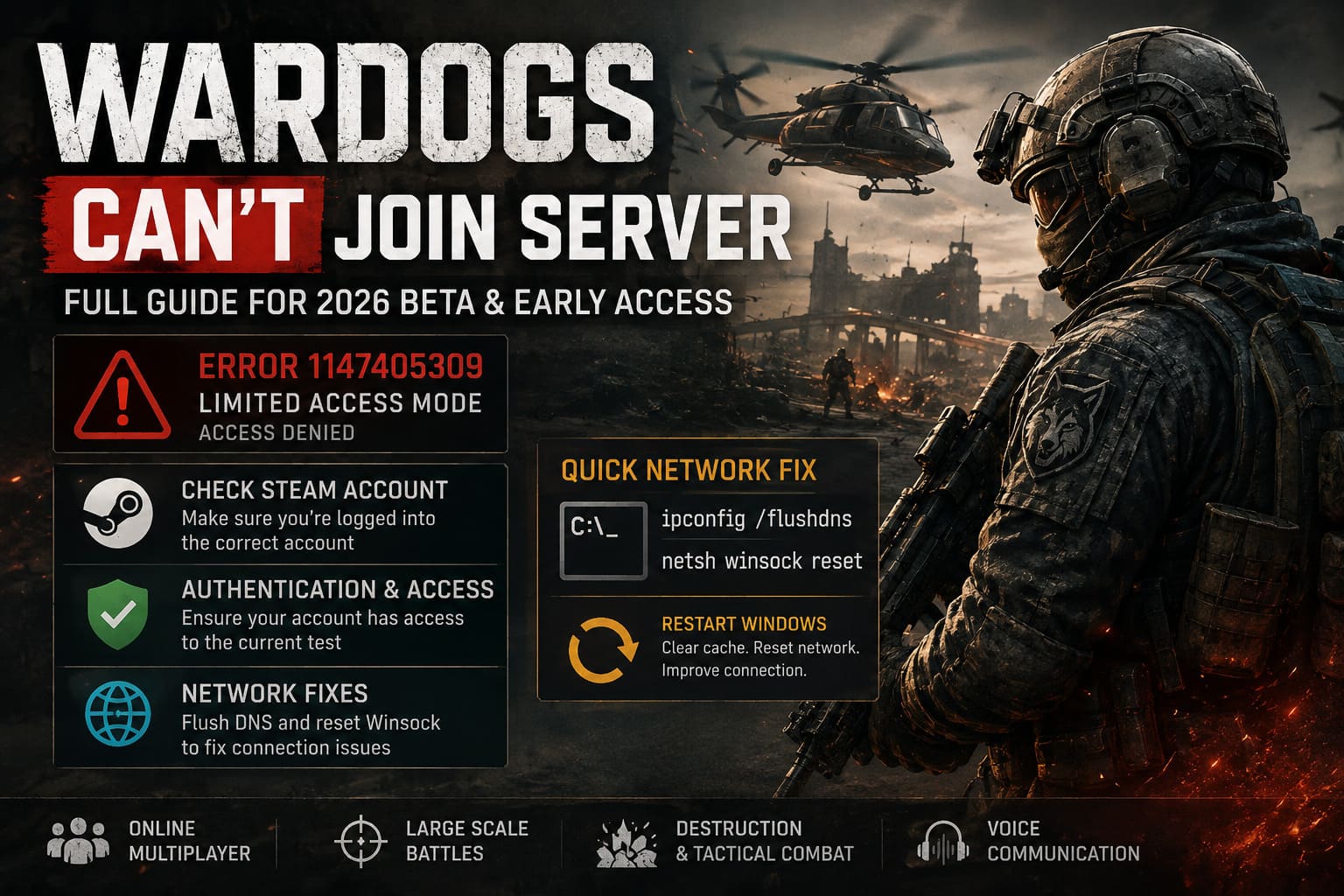
One of the more confusing problems is Error 1147405309, particularly when it appears alongside Limited Access Mode or an access-denied message.
At first glance, it looks like another connection problem. But during a closed beta, authentication is just as important as your internet connection.
WARDOGS needs to know that your Steam account is allowed to access the current test. If your account doesn’t have the correct entitlement, invitation, or authentication token for the active testing period, the game can reject you before you ever reach a real server.
That’s why I wouldn’t immediately start opening ports or changing network adapters when this particular error appears.
Try this instead
- Make sure you’re logged into the correct Steam account.
- Confirm that the account actually has access to the current WARDOGS test.
- Completely exit Steam.
- Check the Windows system tray and make sure Steam isn’t still running.
- Open Task Manager and close any remaining Steam processes if necessary.
- Start Steam again and launch WARDOGS.
- If the problem continues, log out of Steam completely and sign back in.
It sounds ridiculously simple, but authentication problems can sometimes survive a normal game restart. A proper Steam restart gives the client a chance to refresh its account and entitlement information.
My First Network Fix: Flush DNS and Reset Winsock
If your account is definitely authorized and the servers are online, then I would move on to the network.
WARDOGS is the type of game where a stable connection matters. With large player counts, constant combat updates, destruction, movement, and voice communication happening simultaneously, unstable routing can become very noticeable.
Start with two commands.
Open Command Prompt as Administrator and enter:
ipconfig /flushdnsThen:
netsh winsock resetRestart Windows afterward.
The DNS flush removes cached DNS information, while the Winsock reset rebuilds the Windows networking catalog. Neither is some magical “fix every WARDOGS problem” button, but both are quick, safe troubleshooting steps when your connection is behaving strangely.
And if it takes less than a minute to try, I consider it worth doing.
Should You Change Your DNS?
This is another common recommendation, and I’m slightly less enthusiastic about it than some guides.
Changing DNS can help if your ISP’s DNS service is slow or unreliable. However, it won’t magically reduce your ping to a server halfway across the world.
If you want to test it anyway, you can use:
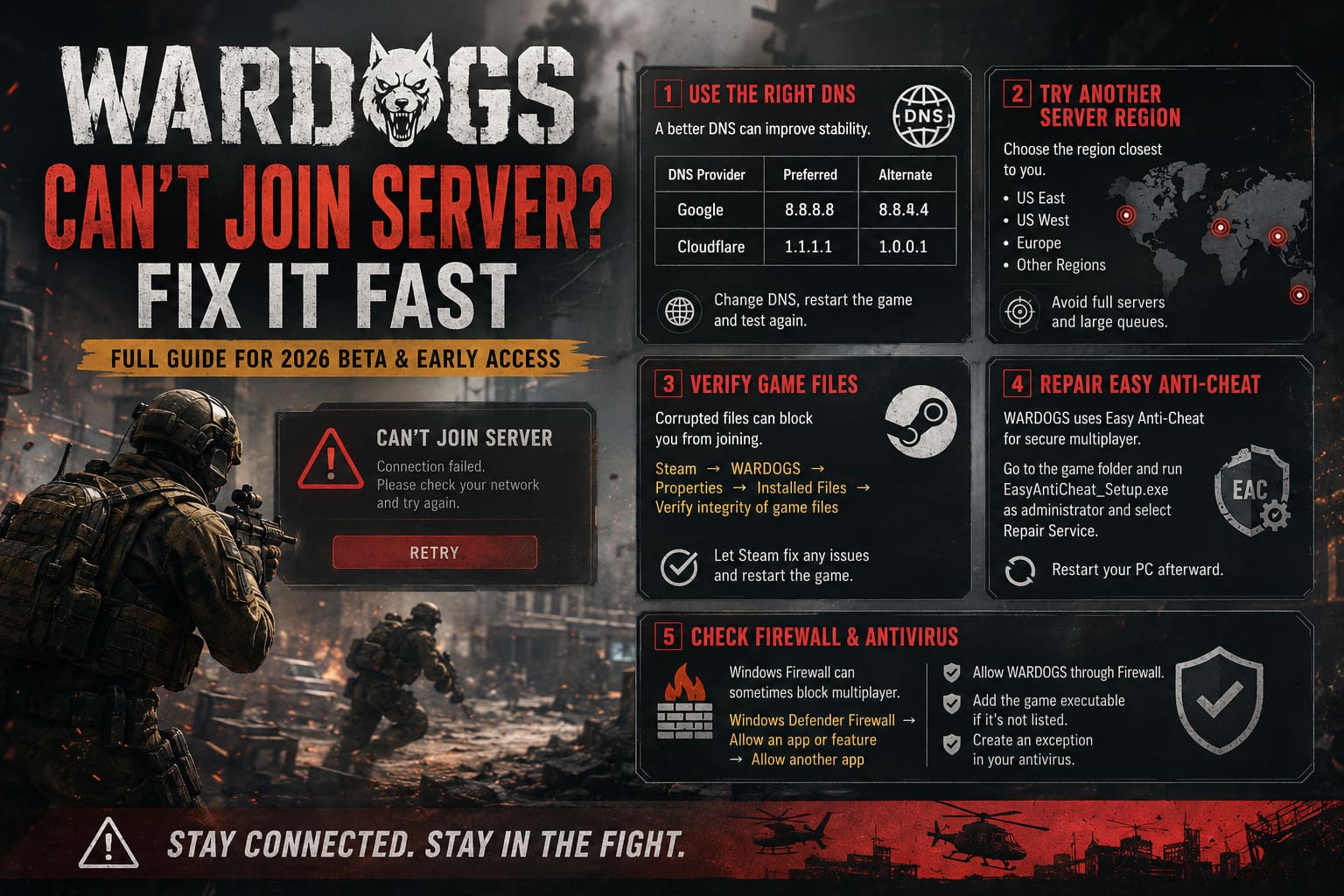
| DNS Provider | Preferred | Alternate |
|---|---|---|
| 8.8.8.8 | 8.8.4.4 | |
| Cloudflare | 1.1.1.1 | 1.0.0.1 |
After changing DNS, restart the game and test again.
If nothing changes, switch back. I wouldn’t keep changing network settings endlessly just because somebody on YouTube claims their DNS configuration gives them “zero lag.”
DNS isn’t a gaming performance cheat code.
Try a Different Server Region
This is one of the more practical things I’d experiment with in WARDOGS.
If the server browser or matchmaking system allows regional filtering, don’t leave everything on Auto while you’re troubleshooting.
Select the region geographically closest to you.
- US East
- US West
- European servers
- Other available regional clusters
The exact options can change depending on the current build and test configuration, but the principle remains the same: reduce the number of variables.
If you’re searching across every possible region, you’re making it harder to determine whether the problem is local, regional, or global.
I’d also avoid repeatedly trying to join a server that is already packed.
A massive queue isn’t necessarily proof that your client is broken. Sometimes the answer is simply that there are too many people trying to get through the same door.
Verify WARDOGS Game Files
Now we get into the classic Steam troubleshooting territory.
If WARDOGS updated recently, there’s always a chance something went wrong during installation or patching.
In Steam:
Library → WARDOGS → Properties → Installed Files → Verify integrity of game files
Let Steam finish the process.
If damaged or missing files are discovered, Steam should replace them automatically.
I always recommend doing this before reinstalling the entire game. Reinstalling dozens of gigabytes should be a last resort, not your first reaction.
And yes, restart WARDOGS after the verification finishes.
Repair Easy Anti-Cheat
WARDOGS also depends on Easy Anti-Cheat for multiplayer security, so EAC deserves its own check.
If the game launches normally but refuses to connect to secure multiplayer sessions, an EAC problem is worth investigating.
Navigate to the WARDOGS installation folder and locate the EasyAntiCheat directory.
Look for:
EasyAntiCheat_Setup.exe
Run the setup utility as administrator and use the available Repair Service option.
Afterward, restart your computer.
This is particularly worth trying if you’ve recently installed another game using EAC, changed security software, or experienced an interrupted update.
Check Windows Firewall Before Blaming the Router
Windows Firewall can occasionally interfere with multiplayer games, particularly after updates or changes to security settings.
Go to:
Windows Defender Firewall → Allow an app or feature through Windows Defender Firewall
Find WARDOGS and make sure the appropriate network permissions are enabled.
If it isn’t listed, use Allow another app and add the game’s executable manually.
I’d also check your third-party antivirus software if you use one.
That said, don’t start disabling every security feature on your PC just to get into a game. Create a specific exception where possible rather than turning your firewall or antivirus completely off.
What About VPNs and Gaming Boosters?
This is where I would experiment rather than blindly follow advice.
Some players use routing tools such as gaming boosters because their ISP’s route to a particular game server can be terrible. In theory, a different route can help with packet loss or regional congestion.
But here’s my personal take:
If your normal connection works perfectly in other online games, I wouldn’t immediately pay for a gaming booster because WARDOGS won’t connect.
First establish whether the problem is actually routing-related.
If you’re consistently seeing packet loss, disconnects, or problems only when connecting to a particular region, then experimenting with a different route can make more sense.
Otherwise, you’re potentially paying for a solution to a server-side problem.
One Weird Fix Worth Trying: Borderless or Windowed Mode
This one sounds unrelated to networking, but I’ve seen enough strange PC game behavior over the years that I wouldn’t completely dismiss it.
If WARDOGS freezes, black-screens, or becomes unresponsive around the point where it should establish a connection, try launching it in windowed or borderless mode.
In Steam’s launch options, you can test:
-windowedor:
-borderlessThis isn’t specifically a server fix. What you’re really trying to determine is whether the game is hanging during initialization rather than failing authentication.
If the problem disappears, you’ve learned something useful.
WARDOGS Connection Fixes: What I’d Try First
If I were sitting at my PC right now and couldn’t join a WARDOGS server, I wouldn’t perform every fix at once.
I’d go in this order:
| Priority | Fix | Why |
|---|---|---|
| 1 | Check server status | Rules out a developer-side outage |
| 2 | Confirm beta access | Important for authentication errors |
| 3 | Restart Steam | Refreshes account/session data |
| 4 | Restart WARDOGS | Clears temporary client issues |
| 5 | Try another region | Helps identify regional problems |
| 6 | Verify game files | Fixes corrupted installations |
| 7 | Repair EAC | Useful for multiplayer authentication |
| 8 | Reset DNS/Winsock | Addresses local networking problems |
| 9 | Check firewall | Rules out blocked connections |
| 10 | Try borderless mode | Useful for initialization freezes |
That order saves a lot of unnecessary messing around.
WARDOGS Enemy Spotting Guide: How to See, Tag, and Track Players
Don’t Forget: It’s Still a Beta
This is probably the most important part of the entire article.
WARDOGS isn’t launching into Early Access until September 10, 2026.
The current problems are happening during a period specifically intended to expose weaknesses in the game’s infrastructure. That’s frustrating when you’re the person sitting in front of the login screen, but technically, that’s exactly what a large-scale test is supposed to reveal.
And I actually prefer seeing developers discover these problems now rather than after launch.
A 100-player tactical shooter with destruction, multiple factions, VOIP, matchmaking, and persistent backend services is a very different beast from a small multiplayer game.
The servers have to survive the players and everything those players are doing.
So if you encounter WARDOGS can’t join server, don’t immediately assume your PC is broken.
Check the servers. Check your access. Restart Steam. Try another region. Verify the files. Repair EAC. Then start digging into your network configuration.
And if thousands of other players are experiencing the exact same error?
Honestly, go make a coffee and wait for Bulkhead to fix it.
Sometimes the best troubleshooting technique in an online beta is knowing when the problem isn’t yours to solve.
WARDOGS XP Guide: How to Level Up Medic, Assault, and Recon Roles Fast
Final Thoughts
I’m genuinely excited to see how WARDOGS performs once the Early Access launch arrives. The idea of taking the large-scale tactical gameplay I enjoy from Squad and Battlefield and combining it with heavy destruction and three-way faction warfare is exactly the kind of ambitious multiplayer experiment I want to see succeed.
But ambition comes with technical headaches.
If the beta’s connection problems help Bulkhead identify authentication bottlenecks, queue failures, regional routing issues, and server scaling limits before September 10, then the frustration we’re seeing right now could ultimately be useful.
For now, don’t panic when WARDOGS refuses to connect. Work through the basics, determine whether the issue is local or server-side, and don’t waste three hours rebuilding your entire network when everyone else is stuck on the same login screen.
Sometimes the server really is the problem.
And in a 100-player shooter, that’s a problem the developer—not your router—is going to have to solve.