SpiritVale Best Settings for High FPS: Ultimate Graphics Optimization Guide (2026)
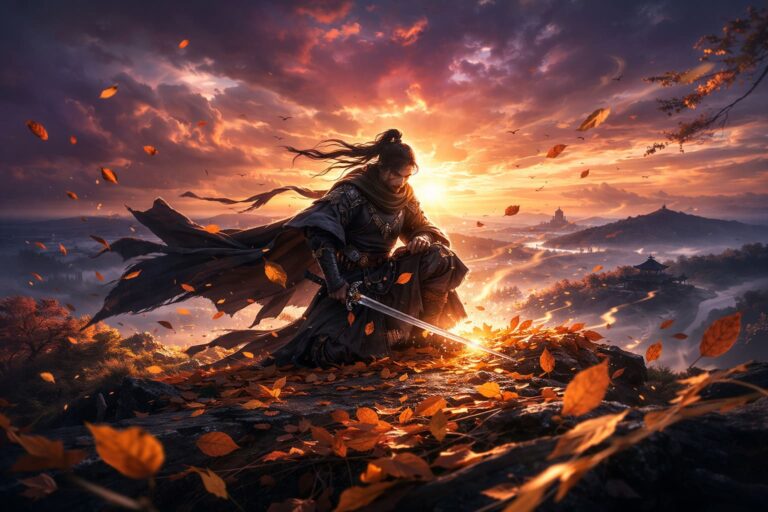
After spending years playing everything from massive open-world MMORPGs to smaller online RPG projects, I have learned one simple truth: a beautiful game means nothing if your performance collapses during the moments that actually matter. SpiritVale is a perfect example of this problem. Baikun Interactive created a visually impressive class-based MMORPG with large boss encounters, flashy abilities, and cooperative battles, but all that visual ambition comes with a serious performance cost.
When you enter Nevaris and participate in chaotic fights with multiple players, dozens of visual effects, and huge enemy animations filling the screen, even powerful gaming PCs can struggle. I have seen similar problems in many online RPGs where developers focus heavily on atmosphere and graphics but forget that stable performance is part of the gameplay experience. A delayed dodge, missed skill rotation, or sudden FPS drop during a boss mechanic can completely change the outcome of a fight.
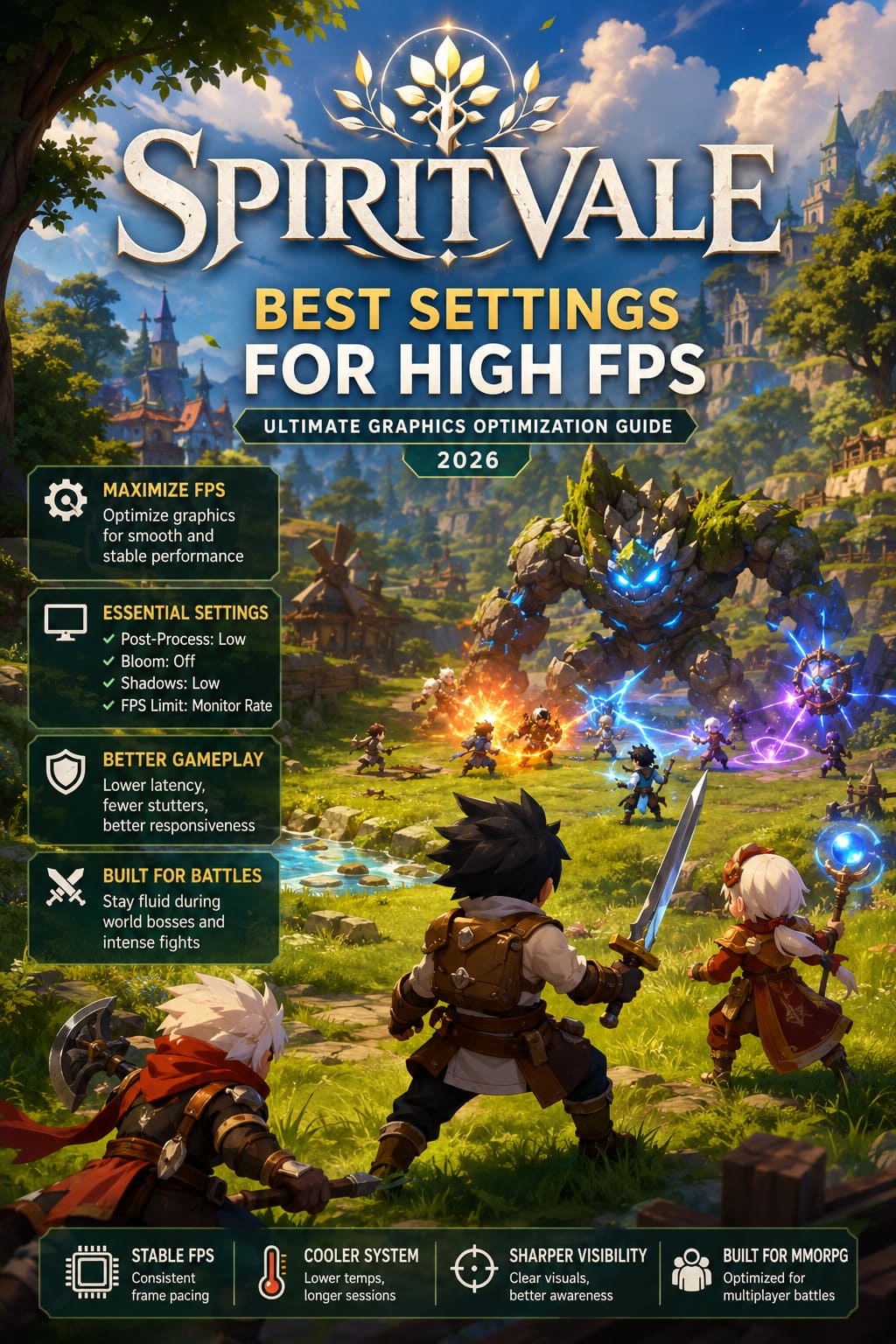
This SpiritVale FPS optimization guide for 2026 focuses on practical settings that actually improve gameplay. These are not simple ’turn everything to low’ recommendations. The goal is to keep SpiritVale looking great while creating smoother gameplay, better frame pacing, lower temperatures, and fewer annoying stutters.
How to Fix SpiritVale Crashing on Launch Ultimate Startup Guide
Why SpiritVale Can Have FPS Drops and Performance Problems
Before changing your graphics settings, it is important to understand what makes SpiritVale demanding. Unlike simple single-player games, MMORPGs have many systems working at the same time. The engine is not only rendering the world but also tracking players, abilities, enemies, animations, combat effects, and multiplayer information.
The biggest performance problems usually appear during large battles. A quiet area of Nevaris might run perfectly, but entering a world boss encounter with eight players using powerful abilities can push both your GPU and CPU much harder than normal exploration.
From my experience with online RPGs, the biggest FPS killers are usually not textures. Many players immediately lower texture quality, but effects like reflections, shadows, and post-processing often create much larger performance losses.
The main SpiritVale performance issues usually come from:
- Heavy post-processing effects such as bloom, screen-space reflections, and cinematic filters.
- Unlimited FPS settings that force your GPU to run at maximum load constantly.
- Real-time shadows that create unnecessary GPU and CPU pressure.
- Large multiplayer battles where dozens of visual effects appear simultaneously.
A balanced configuration will usually provide a much better experience than simply selecting the lowest possible graphics preset.
My Recommended SpiritVale Graphics Settings for Maximum FPS
I have tested similar optimization methods across many MMORPGs, and SpiritVale benefits from the same approach: keep the important visual elements while removing effects that mostly exist for screenshots.
The following settings provide a strong balance between image quality and performance:
| Setting | Recommended Option | Performance Impact |
|---|---|---|
| Display Mode | Fullscreen | Better performance and lower input delay |
| Resolution | Native Monitor Resolution | Best image quality |
| V-Sync | Off | Lower input latency |
| FPS Limit | Match Monitor Refresh Rate | Reduces GPU stress |
| Post-Process Quality | Low or Medium | Large FPS improvement |
| Bloom | Off | Better visibility and stability |
| Vignette | Off | Small performance gain |
| Shadow Quality | Low | Improves FPS during battles |
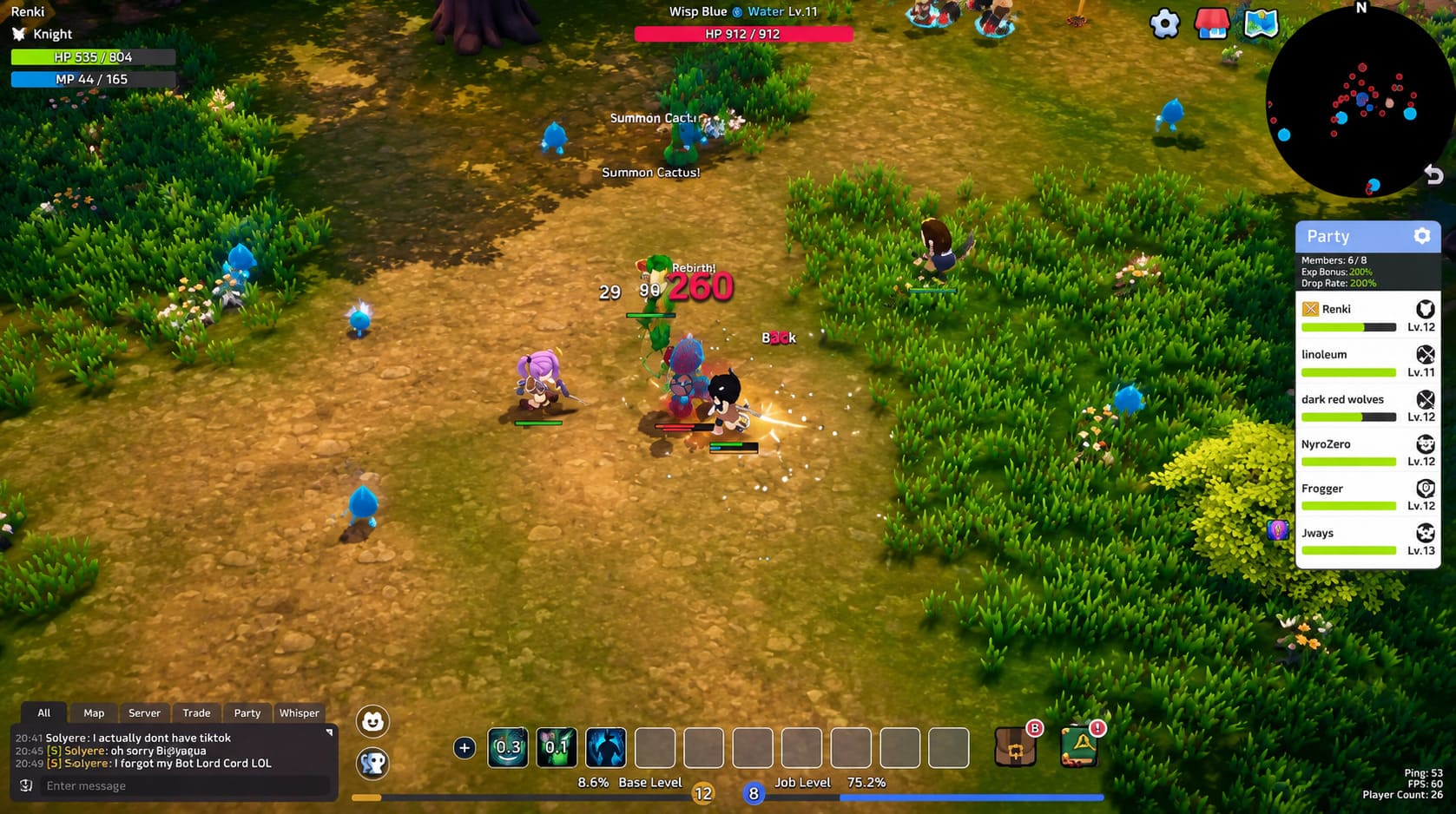
Display Mode and Resolution Settings
For SpiritVale, I strongly recommend using Exclusive Fullscreen mode whenever possible. Borderless fullscreen is convenient, especially when switching between applications, but it can introduce additional Windows overhead because the game still interacts with the desktop compositor.
The FPS difference is not always massive, but in fast-paced combat even small improvements matter. A smoother frame delivery often feels much better than a higher average FPS number that constantly jumps.
Your resolution should stay at your monitor’s native setting whenever possible. Playing at 1920×1080 or 2560×1440 provides the sharpest image and keeps the interface readable.
If your graphics card cannot maintain stable performance, lowering the resolution scale is usually better than changing the entire display resolution. The game will still look cleaner while giving your GPU more breathing room.
Turn Off Expensive Visual Effects
This is where most SpiritVale players will find the biggest improvements. Some graphical options look impressive but provide almost no gameplay value while consuming valuable performance resources.
The first settings I would change are:
- Bloom: Off
- Vignette: Off
- Heavy Color Filters: Off
- Post-Process Quality: Low or Medium
Bloom can make magical abilities look more dramatic, but during multiplayer combat it becomes more of a problem than a benefit. When several players activate high-level skills at the same time, the screen can become overloaded with glowing effects that reduce visibility and hurt performance.
The same applies to vignette and cinematic filters. They may improve screenshots, but they do not improve gameplay. Removing them gives your hardware fewer unnecessary tasks and often improves clarity during important fights.
Texture Quality and Shadows: What Should You Lower?
Many players immediately set textures to the lowest option, but that is usually not the correct solution. Texture quality mainly depends on your graphics card’s available VRAM.
- 4GB VRAM GPUs: Use Medium textures.
- 6GB or more VRAM GPUs: High textures are usually safe.
High textures can make SpiritVale look significantly better without destroying FPS on modern graphics cards. Keeping textures higher while lowering expensive effects often creates a much better visual balance.
Shadows are different. Real-time shadows are expensive because they require constant calculations as characters and objects move. Lowering shadow quality is one of the easiest ways to improve performance during crowded events.
I personally prefer lower shadows with stable FPS over beautiful shadows combined with random frame drops during important boss mechanics.
NVIDIA Control Panel Settings for SpiritVale
Players using NVIDIA graphics cards can improve consistency by creating a dedicated SpiritVale profile through NVIDIA Control Panel.
Open NVIDIA Control Panel, go to Manage 3D Settings, select SpiritVale, and apply these recommended options:
- Low Latency Mode: On or Ultra
- Power Management Mode: Prefer Maximum Performance
- Texture Filtering Quality: High Performance
- MFAA: Off
These changes focus on reducing latency and preventing unnecessary GPU clock changes during gameplay. In MMORPGs, consistent performance is often more important than maximum graphics quality.
A stable 90 FPS experience usually feels much better than a system jumping between 140 FPS and 45 FPS during combat.
AMD Radeon Settings for Better SpiritVale Performance
AMD users can optimize SpiritVale through Radeon Software Adrenalin Edition. These options are designed to improve responsiveness and maintain smoother gameplay.
- AMD Radeon Anti-Lag: Enabled
- AMD Radeon Image Sharpening: Around 30%
- Texture Filtering Quality: Performance
Image Sharpening is especially useful if you need to lower resolution scaling. It can restore some visual clarity while allowing your graphics card to deliver higher FPS.
Windows Optimization Before Playing SpiritVale
Sometimes performance problems are not caused by game settings but by unnecessary Windows processes running in the background.
Enable Windows Game Mode
Windows Game Mode helps prioritize gaming resources and reduces interruptions from background processes. It is a simple setting that should always be enabled for modern games.
Set SpiritVale to High Performance Graphics
Go to:
Settings → System → Display → Graphics
Find SpiritVale and choose the High Performance option. This ensures that the game uses your dedicated GPU instead of integrated graphics.
Close Unnecessary Background Applications
Browsers with many tabs, hardware monitoring software, overlays, and some Discord settings can create unexpected stutters.
You do not need to close everything, but removing unnecessary background programs can improve frame consistency and reduce random FPS drops.
Final Thoughts on SpiritVale FPS Optimization
After playing many MMORPGs, I have become convinced that smooth performance matters just as much as graphics quality. SpiritVale is at its best when combat feels responsive and every ability activates instantly without technical problems getting in the way.
The biggest improvements come from disabling expensive effects like Bloom, Vignette, and heavy Post-Processing while keeping textures at a reasonable level. Combine that with a proper FPS cap, optimized GPU settings, and Windows adjustments, and SpiritVale becomes much smoother even during intense multiplayer battles.
A beautiful world is worth exploring, but a stable frame rate is what keeps you playing.