How to Fix Echoes of Mystralia Controller Not Working / Detecting (PC Guide)
There are few things more annoying than sitting down to play an action RPG with a controller, only to discover that the game apparently has no idea your gamepad exists. That is especially painful in Echoes of Mystralia, where combat is built around movement, spell combinations, quick reactions, and precise positioning. After playing enough PC games to know that controller problems can come from almost anywhere, I would not immediately blame the game itself. Steam Input, Windows, virtual devices, connection order, and even another USB peripheral can all get involved.
If Echoes of Mystralia is not detecting your controller, shows keyboard prompts instead of gamepad buttons, or recognizes the controller but refuses to accept input, there are several things worth trying before you start reinstalling the entire game. I have run into similar problems with everything from Xbox pads to DualSense controllers, and the annoying part is that there is rarely one universal solution. The good news is that most of these problems can be fixed in a few minutes.
Does Echoes of Mystralia Have Full Controller Support PC Setup Guide
Why Echoes of Mystralia May Not Recognize a Controller
The first thing I would check is not the controller itself but the way the game is seeing it. PC games have to deal with a ridiculous number of input configurations, and modern titles often prefer XInput, the standard commonly associated with Xbox controllers. A controller can work perfectly in Windows while a particular game still refuses to communicate with it correctly.
There are a few common reasons this happens. The game may have started before the controller was connected, Steam Input may be translating the device incorrectly, or another virtual controller could be taking priority. Older DirectInput gamepads can also cause trouble because they do not always present themselves to games in the way modern XInput-focused titles expect.
| Problem | What Usually Helps |
|---|---|
| Controller completely invisible | Reconnect it before launching the game |
| Wrong keyboard button prompts | Check Steam Input settings |
| Controller works in Windows but not in-game | Test Steam Input on and off |
| Several controllers or USB devices connected | Disconnect unnecessary peripherals |
| Old or generic gamepad | Use XInput emulation |
| Sticks or buttons behave incorrectly | Reset Windows controller calibration |
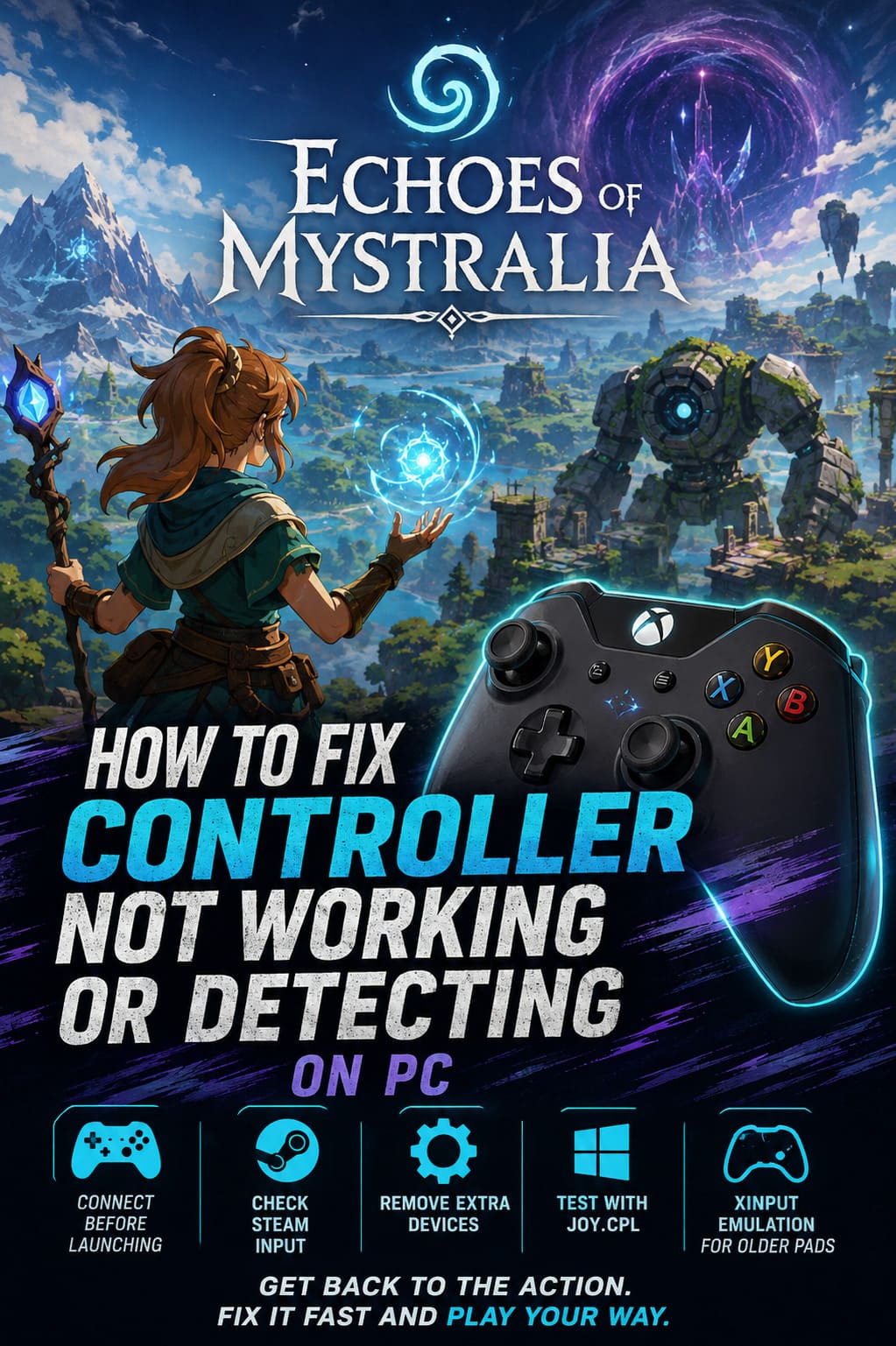
1. Connect Your Controller Before Starting Echoes of Mystralia
This is the first fix I would try because it takes almost no effort. Completely close Echoes of Mystralia, make sure the game is no longer running in the background, connect your controller, and only then start the game. Some games detect available input devices during startup, and if your controller appears after that process has already happened, the game may continue behaving as if you are playing with a keyboard and mouse.
For a wired controller, disconnect the USB cable, wait a few seconds, and plug it back in. With Bluetooth, turn the controller off and reconnect it to Windows before launching the game. Once Windows recognizes the device and its indicator light is active, start Echoes of Mystralia through Steam.
It sounds almost too simple, but I have lost count of how many PC controller issues have disappeared after doing exactly this. It is also a much better first step than immediately changing drivers or installing third-party software.
2. Try Changing Steam Input for Echoes of Mystralia
Steam Input is incredibly useful, especially when you are using a controller that a game does not handle perfectly on its own. At the same time, controller translation can occasionally create another layer between your hardware and the game. When something goes wrong, testing Steam Input in both directions is often the fastest way to identify the problem.
Open your Steam Library, right-click Echoes of Mystralia, and select Properties. Open the controller settings and look for the option that controls Steam Input for the game. If it is using the default configuration, try explicitly enabling Steam Input and then restart the game.
If that makes things worse, do the opposite and disable Steam Input. This is particularly worth testing if you are using a standard Xbox controller that should already be recognized through native XInput support. I always recommend testing both settings rather than assuming that Steam Input must be enabled.
- Try Enable Steam Input if the controller is completely invisible.
- Try Disable Steam Input if the controller is detected but behaves strangely.
- Restart the game after changing the setting.
3. Remove Other Controllers and USB Devices
This is one of those troubleshooting steps that sounds ridiculous until you actually encounter the problem. If your PC has a steering wheel, flight stick, second gamepad, drawing tablet, arcade stick, pedals, or other HID devices connected, a game can sometimes receive unexpected input information. Virtual controller software makes the situation even messier.
For testing purposes, strip the setup down to the basics. Disconnect unnecessary USB controllers and accessories, leaving your keyboard, mouse, and the gamepad you actually want to use. Then reboot the computer and launch Echoes of Mystralia again.
Also look for programs such as vJoy, JoyToKey, controller remappers, or other virtual input utilities. These tools are useful for specific setups, but if you are simply trying to get a normal gamepad working, they can introduce another virtual device that the game does not need to see.
4. Test Your Controller Through Steam Big Picture Mode
If regular Steam configuration is not getting anywhere, I like using Big Picture Mode as a second diagnostic step. It gives you a cleaner console-style controller interface and makes it easier to determine whether Steam actually sees the hardware properly before the game starts.
Open Steam Big Picture Mode and head into the controller settings. Check whether your controller appears there and whether Steam identifies the correct type of device. You can also test the sticks, triggers, bumpers, and buttons to make sure the hardware is sending the expected signals.
If something is wrong at this stage, there is little point blaming Echoes of Mystralia. The problem is happening before the game even gets a chance to process your inputs. Fix the controller configuration in Steam first, then launch the game again.
5. Check Windows With joy.cpl
Windows has a surprisingly useful old-school controller diagnostic tool hidden behind a tiny command. Press Windows + R, type joy.cpl, and press Enter. You will get the Windows Game Controllers panel, where you can see whether your system actually recognizes the connected gamepad.
If the controller does not appear there, I would investigate the physical connection before touching Echoes of Mystralia. Try another USB port, replace the cable if possible, reconnect the wireless adapter, or pair the Bluetooth controller again. A game cannot detect hardware that Windows itself is failing to recognize.
If the controller is listed, open its properties and test every button and analog stick. Watch for inputs that remain stuck, fail to register, or move without you touching the controller. If the device appears to have calibration problems, use the Windows calibration options to reset its configuration and test it again.
6. Generic Controllers May Need XInput Emulation
This is where things become a little more complicated. If you are using an older gamepad, a cheap generic controller, or another device designed around DirectInput, Echoes of Mystralia may not recognize it correctly even though Windows does.
In that situation, an XInput compatibility layer can sometimes solve the problem by making the controller appear to the game as a more conventional Xbox-style device. Tools such as x360ce or DS4Windows are commonly used for this purpose, depending on the controller and your particular setup.
The important thing here is not to install several controller emulators at once. Pick one appropriate solution, configure the buttons and sticks, save the profile, and test the game. Running multiple input translation programs simultaneously is a great way to create a completely new problem while trying to solve the original one.
7. What If the Controller Works but the Button Prompts Are Wrong?
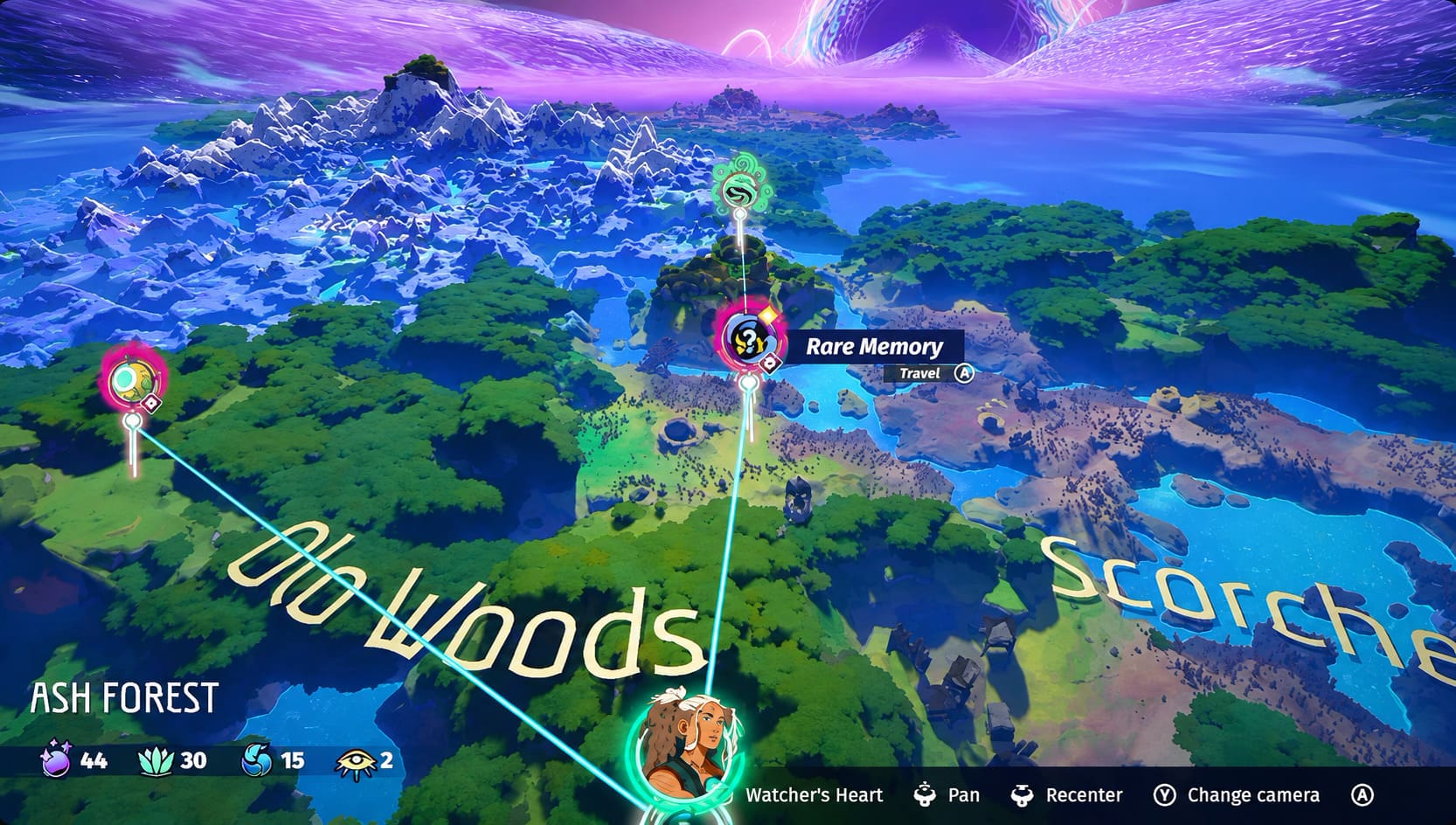
This is a slightly different problem. If your character moves, attacks, and casts spells correctly but the screen keeps displaying keyboard icons, your controller may actually be working perfectly. The game is simply deciding that the keyboard is the preferred active input device.
Try moving the controller stick or pressing a gamepad button without touching the keyboard or mouse. If the prompts change after that, the issue is probably input priority rather than controller detection. I would also check Steam Input and make sure no remapping software is sending phantom keyboard commands in the background.
For games with fast combat, correct prompts matter more than people sometimes realize. When you are trying to react to an attack or trigger a spell combination, seeing the wrong button can create unnecessary hesitation. It is worth fixing even if the controller technically functions.
My Recommended Order for Fixing the Problem
I would not run through every possible Windows fix immediately. Start with the simple stuff and only move toward more complicated solutions when the basic checks fail. This saves time and makes it much easier to identify what actually fixed the problem.
- Close Echoes of Mystralia completely.
- Reconnect the controller before launching the game.
- Test the Steam Input setting.
- Disconnect extra controllers and virtual input devices.
- Check the controller in Steam Big Picture Mode.
- Run joy.cpl and verify Windows sees every input.
- Use XInput emulation only if the controller genuinely needs it.
Don’t Reinstall the Game Yet
One of the first instincts when a PC game refuses to recognize a controller is to verify files or reinstall everything. Honestly, I would leave that until the end. A controller detection problem is usually related to the input stack, Steam configuration, Windows recognition, or another connected device rather than damaged game files.
That is why I prefer troubleshooting from the outside in. First determine whether Windows sees the controller, then check whether Steam sees it, and finally check whether Echoes of Mystralia receives the correct input. That approach tells you exactly where the chain is breaking instead of throwing random fixes at the problem.
Final Thoughts on Echoes of Mystralia Controller Issues
Echoes of Mystralia is much more enjoyable with a properly working controller, at least in my experience. The real-time combat feels considerably better when movement, dodging, attacks, and spellcasting are sitting comfortably under your fingers instead of being scattered across a keyboard. When the game refuses to detect a gamepad, it can make an otherwise enjoyable session frustrating before you have even reached the interesting parts.
The good news is that most controller problems are fixable without doing anything drastic. Connect the gamepad before launching the game, experiment with Steam Input, remove unnecessary virtual devices, and use joy.cpl to establish whether Windows itself sees the hardware. If you are using an older DirectInput controller, XInput emulation may be the final piece of the puzzle.
If I were sitting down to troubleshoot this on my own PC, I would start with the connection order and Steam Input settings before touching anything else. Those two checks take only a couple of minutes, and they solve a surprising number of controller problems. Only after those fail would I start digging into virtual drivers, calibration, or compatibility software.