How to Fix Liquidation Divio Stuck on Loading Screen at Launch (2026 Guide)
| Game | Liquidation |
|---|---|
| Issue | Stuck on Divio Loading Screen |
| Platform | PC (Steam) |
| Updated | 2026 |
| Difficulty | Easy to Advanced |
| Estimated Time | 10–30 Minutes |
There are few things more frustrating than clicking Play, seeing the Divio splash screen appear, and then… absolutely nothing. No crash message, no error code, no progress bar—just an endless loading screen that refuses to move forward.
I’ve spent enough hours troubleshooting PC games to know that this kind of problem almost never has a single cause. One player fixes it by clearing Steam’s cache, another only gets in after deleting corrupted configuration files, while someone else discovers their GPU shader cache was the real culprit all along.
The good news is that the issue is usually fixable without reinstalling Windows or replacing hardware.
This guide collects the most effective solutions reported by the community and combines them into one logical troubleshooting process. Instead of randomly trying dozens of fixes, work through these methods one by one until the game finally loads normally.
Common Reasons Behind the Infinite Loading Screen
Before changing anything, it’s useful to understand what may actually be happening.
In most cases, the Divio loading screen freeze is connected to one or more of these problems:
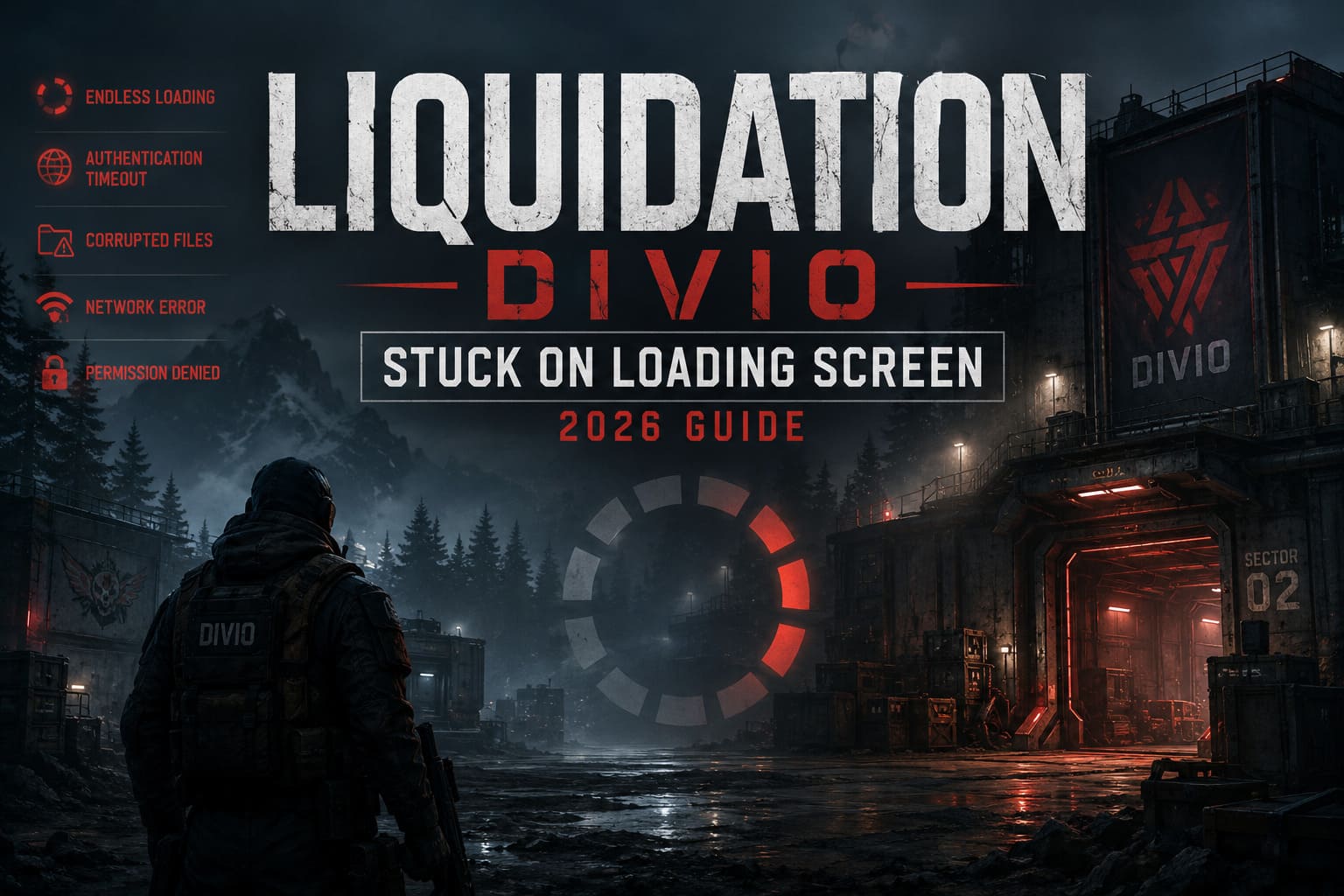
| Possible Cause | Symptoms |
|---|---|
| Corrupted Steam cache | Game freezes immediately after launch |
| Broken local configuration files | Endless loading every startup |
| Outdated shader cache | Black screen or permanent loading |
| Missing game files | Startup never finishes |
| DNS or network authentication problems | Loading hangs while connecting |
| Windows permission conflicts | Executable cannot initialize correctly |
| Antivirus interference | Client becomes stuck during startup |
Knowing the source makes it much easier to solve the problem without wasting time.
1. Refresh Steam’s Download Cache
Steam occasionally leaves behind outdated download data after hotfixes or background updates.
The game may technically be updated, but cached platform information can become inconsistent, causing Liquidation to stall before gameplay even begins.
Clear the Cache
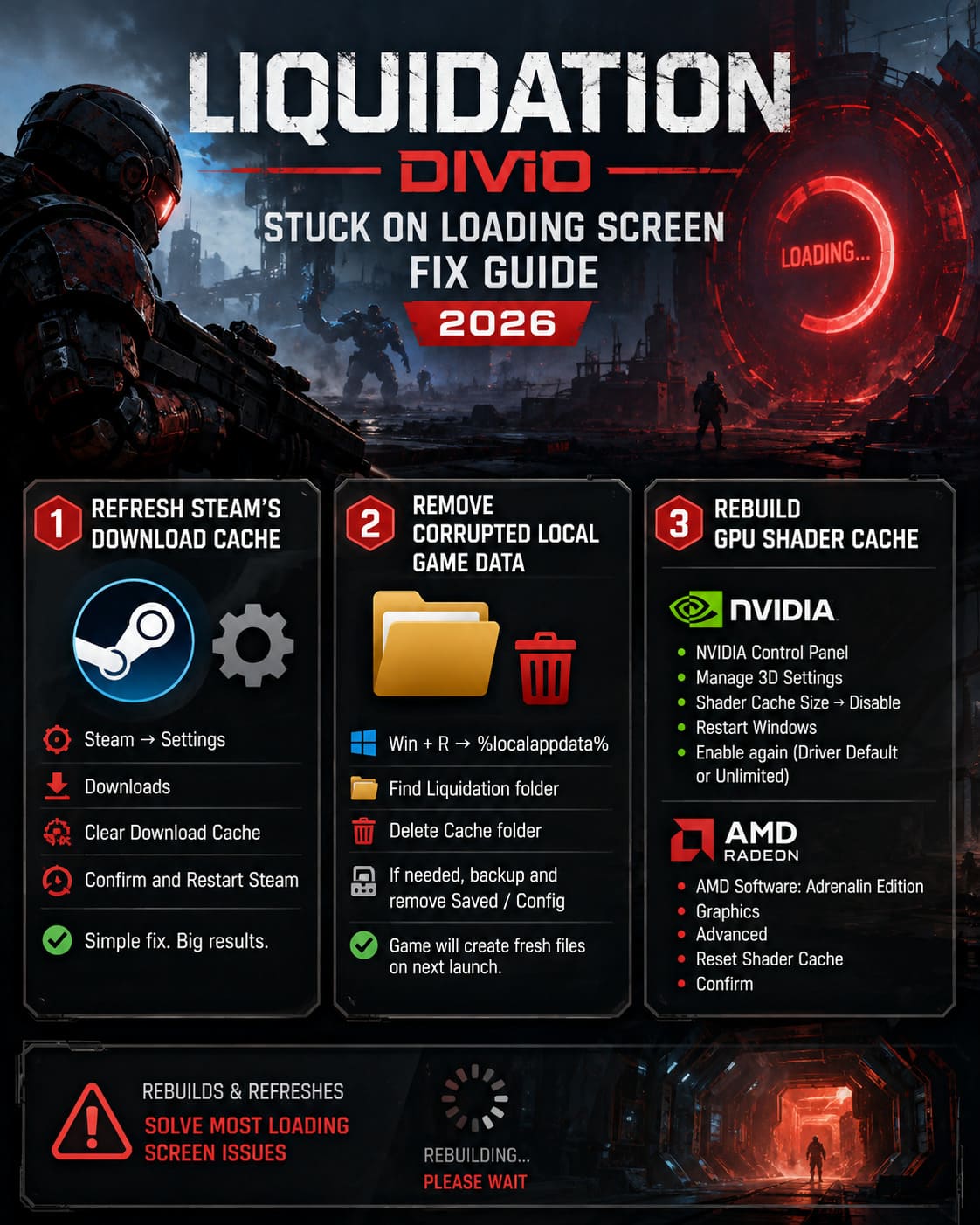
- Open Steam.
- Open Settings.
- Select Downloads.
- Choose Clear Download Cache.
- Confirm the operation.
- Steam will restart and ask you to log in again.
After signing back in, launch the game before trying anything else.
This surprisingly simple fix has solved countless startup issues across many modern PC releases.
2. Remove Corrupted Local Game Data
Configuration files eventually become damaged.
Maybe the game crashed during a save.
Maybe Windows shut down unexpectedly.
Maybe an update introduced incompatible settings.
Whatever the reason, Liquidation can become trapped trying to load corrupted local data.
Reset the Local Files
Open the Run window using Windows + R.
Type %localappdata% and press Enter.
Locate the Liquidation folder or the developer’s folder.
Inside you’ll usually find folders such as:
- Saved
- Config
- Cache
Start by deleting only the Cache folder.
If the issue remains, create a backup of the Saved folder before removing the remaining configuration folders.
The game will automatically generate fresh files the next time it launches.
3. Rebuild the GPU Shader Cache
Modern games compile thousands of shaders.
If even a small portion becomes corrupted after a graphics driver update, loading can stop indefinitely while the engine waits for invalid shader data.
This has become increasingly common with recent NVIDIA, AMD, and Intel driver releases.
For NVIDIA Graphics Cards
- Open NVIDIA Control Panel.
- Navigate to Manage 3D Settings.
- Locate Shader Cache Size.
- Temporarily disable it.
- Restart Windows.
- Enable Shader Cache again using Driver Default or Unlimited.
For AMD Graphics Cards
- Launch AMD Software: Adrenalin Edition.
- Open the Graphics section.
- Expand Advanced.
- Select Reset Shader Cache.
- Confirm the reset.
When Liquidation starts again, the game will rebuild every shader from scratch instead of relying on damaged cache files.
4. Verify the Installation
Missing files don’t always generate obvious error messages.
Sometimes a single damaged DLL or corrupted asset package is enough to keep the loading screen spinning forever.
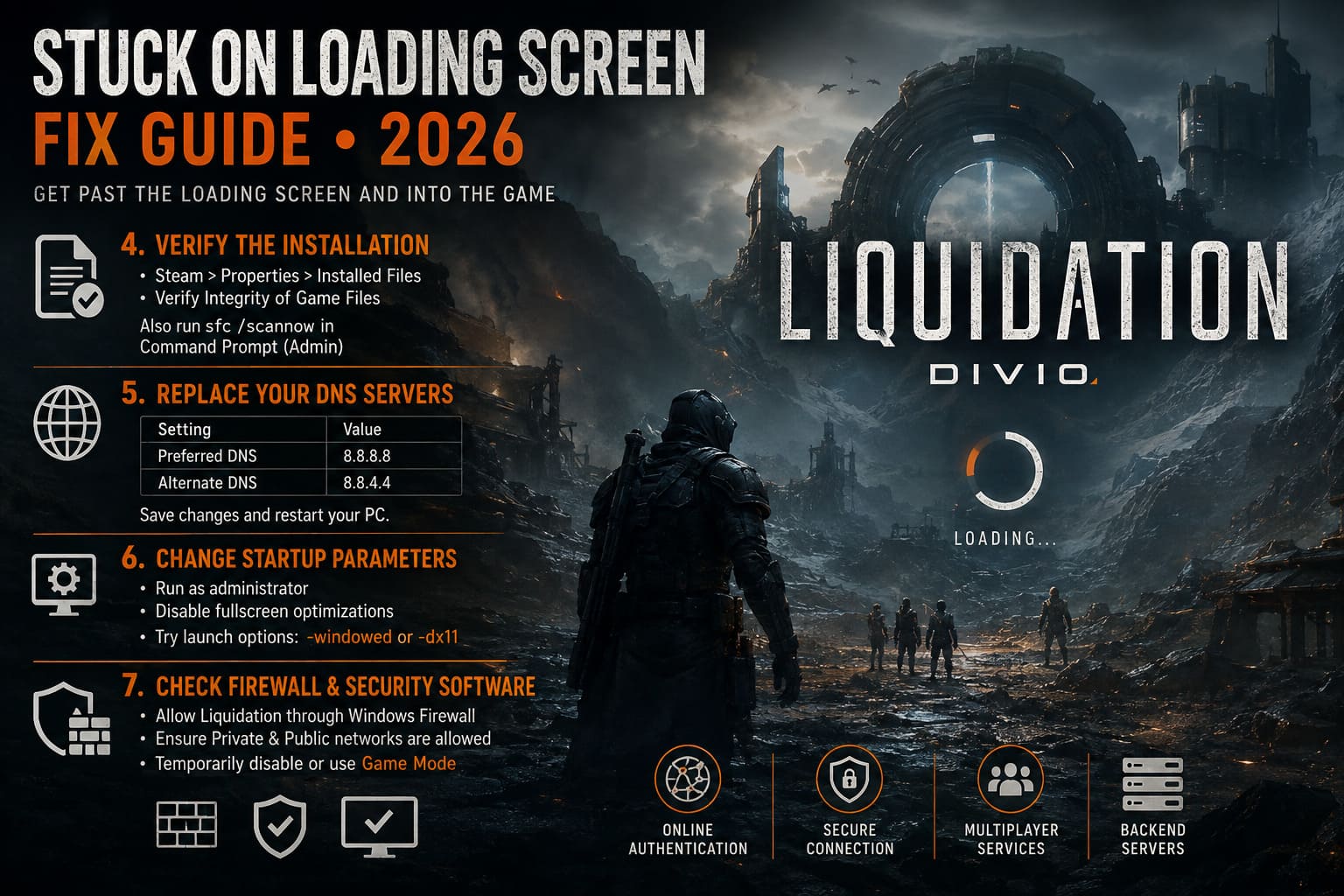
Verify Through Steam
- Open your Steam Library.
- Right-click Liquidation.
- Select Properties.
- Open the Installed Files tab.
- Click Verify Integrity of Game Files.
Steam compares every installed file with its official version and automatically downloads anything that is missing or corrupted.
While you’re troubleshooting, it is also worth checking Windows itself.
Open Command Prompt as Administrator and run sfc /scannow.
This command repairs damaged Windows system files that many games depend on during startup.
5. Replace Your DNS Servers
A surprising number of loading issues aren’t graphics related at all.
The Divio screen performs account authentication, verifies online services, and establishes communication with backend servers.
If your ISP’s DNS servers respond slowly or inconsistently, the authentication process may never finish.
Switching to Google’s public DNS servers often eliminates these delays.
| Setting | Value |
|---|---|
| Preferred DNS | 8.8.8.8 |
| Alternate DNS | 8.8.4.4 |
Save the changes and restart your computer before launching the game again.
If the issue was caused by a failed authentication request, this simple adjustment may immediately resolve the loading loop.
6. Change Startup Parameters
Some systems struggle with fullscreen initialization or modern DirectX rendering during the very first loading sequence.
Changing how the game launches can bypass those compatibility issues.
Configure the Executable
- Browse to the game’s installation folder through Steam.
- Locate the main executable file.
- Open Properties.
- Select the Compatibility tab.
- Enable Run this program as administrator.
- Enable Disable fullscreen optimizations.
- Click Apply and then OK.
Try Launch Options
Open the game’s Steam properties and add one of the following launch commands:
- -windowed
- -dx11
These parameters force the engine to start using more stable rendering methods and can bypass hardware or DirectX conflicts that freeze the game before it reaches the main menu.
7. Check Firewall and Security Software
Modern antivirus applications have become increasingly aggressive.
Anti-cheat components, encrypted authentication requests, and background services are occasionally flagged as suspicious even when they are completely legitimate.
Instead of showing an error, the game simply remains stuck on the loading screen.
Open Windows Security and navigate to Firewall & Network Protection.
Select Allow an app through firewall and make sure Liquidation has permission for both Private and Public networks.
If you’re using third-party security software like Malwarebytes, Bitdefender, or Norton, temporarily switch it to Game Mode or pause real-time protection while testing the game.
If the loading screen disappears after doing this, you’ve likely identified the source of the conflict.
Extra Troubleshooting Tips Worth Trying
If none of the primary fixes solve the problem, several smaller adjustments have helped players recover from stubborn startup issues.
- Completely restart Steam instead of relying on Fast Resume.
- Disconnect unnecessary USB devices before launching.
- Disable overlays from Discord, Steam, MSI Afterburner, and GeForce Experience.
- Install the latest GPU drivers using a clean installation.
- Restart your router.
- Temporarily close RGB software that hooks into DirectX.
- Install the latest Windows updates.
- Avoid running multiple monitoring applications simultaneously.
Each of these tweaks may seem minor on its own, but together they eliminate many hidden software conflicts that can interfere with the game’s startup process.
Liquidation Game 2026 Guide: Resource Control Point Tactics, Faction Builds, and Meta Strategies
When the Problem Isn’t on Your PC
Not every loading screen freeze is caused by your own hardware or software.
If large numbers of players suddenly begin reporting the same issue immediately after an update, the problem may be occurring on the developer’s authentication servers.
In situations like this, repeatedly reinstalling the game or changing Windows settings is unlikely to help.
Instead, check the following sources for announcements:
- Official developer news.
- Steam Discussions.
- Community forums.
- Official social media accounts.
- Server maintenance notifications.
If authentication servers are temporarily offline, waiting for an official fix is usually the only solution.
Is Liquidation (Divio) a Multiplayer Co-Op Game? 2026 Release Details and Gameplay Modes Explained
Final Thoughts
The Divio loading screen issue can feel like one of those mysterious PC problems that appears without warning and refuses to explain itself. Fortunately, it is rarely caused by failing hardware. Most cases are linked to corrupted cache files, damaged local settings, outdated shader caches, network authentication delays, or Windows permission conflicts.
Based on extensive community feedback and personal troubleshooting experience, the biggest success rates usually come from clearing the local cache, rebuilding GPU shaders, and verifying the game’s installation before moving on to networking fixes like switching DNS servers. Those three methods alone have helped a significant number of players get back into the game.
If you’ve completed every step in this guide and Liquidation still refuses to move beyond the Divio loading screen, keep an eye on official announcements. Sometimes the issue is happening entirely on the developer’s side, and no amount of local troubleshooting can bypass a server outage.
Approach each solution methodically, avoid changing too many settings at once, and you’ll greatly improve your chances of getting back into Liquidation without needing a complete reinstall or more drastic system repairs.