Does Echoes of Mystralia Have Full Controller Support? PC Setup Guide
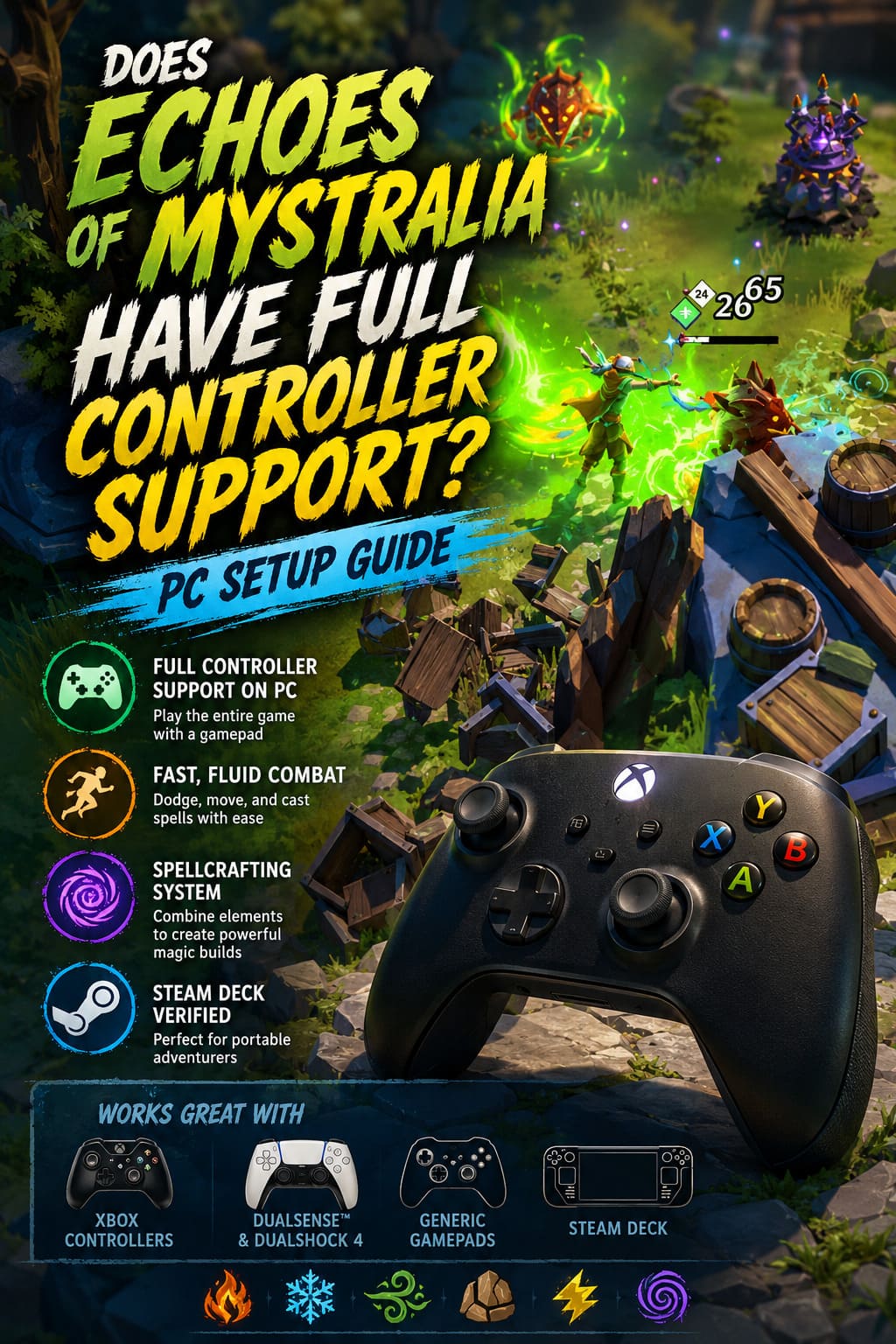
If there is one thing I have learned after playing way too many action RPGs and roguelites on PC, it is that controller support can make or break a game. A title can have fantastic combat, clever progression, and satisfying build variety, but if the controls feel awkward, I will notice it within the first hour. Echoes of Mystralia fortunately gets the important part right: it has full controller support, and after spending time with its fast magical combat, I can understand why the developers recommend playing with a gamepad.
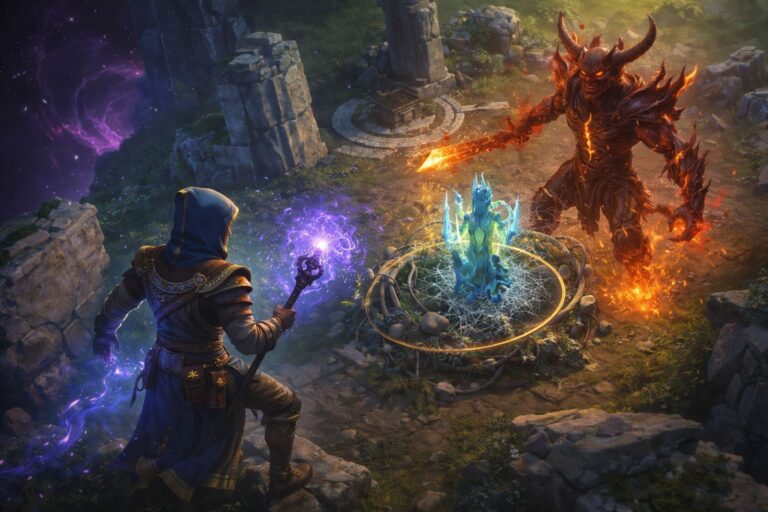
Developed by Borealys Games, Echoes of Mystralia takes the spellcrafting ideas associated with Mages of Mystralia and pushes them into a much more aggressive roguelite structure. You play as Mazarim, a Watcher connected to the Cycle of Memories, while fighting the Shadows of the Past and constantly experimenting with magical combinations. The combat moves quickly, and that makes reliable movement just as important as building the right spell. For PC players wondering whether they can skip the mouse and keyboard entirely, the answer is yes.
Echoes of Mystralia Steam Deck Best Graphics Settings: Complete Performance Optimization Guide
Does Echoes of Mystralia Have Full Controller Support?
Echoes of Mystralia has full controller support on PC. You can use a compatible gamepad to navigate menus, manage your inventory, interact with characters, customize spells, and fight through the game’s different encounters without needing to reach for a mouse. That is particularly useful in a game where combat constantly asks you to move, dodge, aim, and activate abilities in a very short amount of time.
From my perspective, the controller feels like the more natural option here. Keyboard movement works perfectly well, but analog movement gives you finer control when several enemies are surrounding you. That matters when an attack is about to land from one direction while another enemy is closing the gap from somewhere else. A few small changes in positioning can be the difference between keeping a run alive and watching another promising build collapse.
| Feature | Controller Experience | PC Keyboard & Mouse |
|---|---|---|
| Character Movement | Excellent analog control | Precise but less flexible |
| Combat | Very comfortable | Responsive and accurate |
| Spell Usage | Easy to access during fights | Excellent for players who prefer keyboard shortcuts |
| Menu Navigation | Fully supported | Fast and familiar |
| Long Sessions | Generally more comfortable | Depends heavily on personal setup |
Why a Controller Works So Well for the Combat
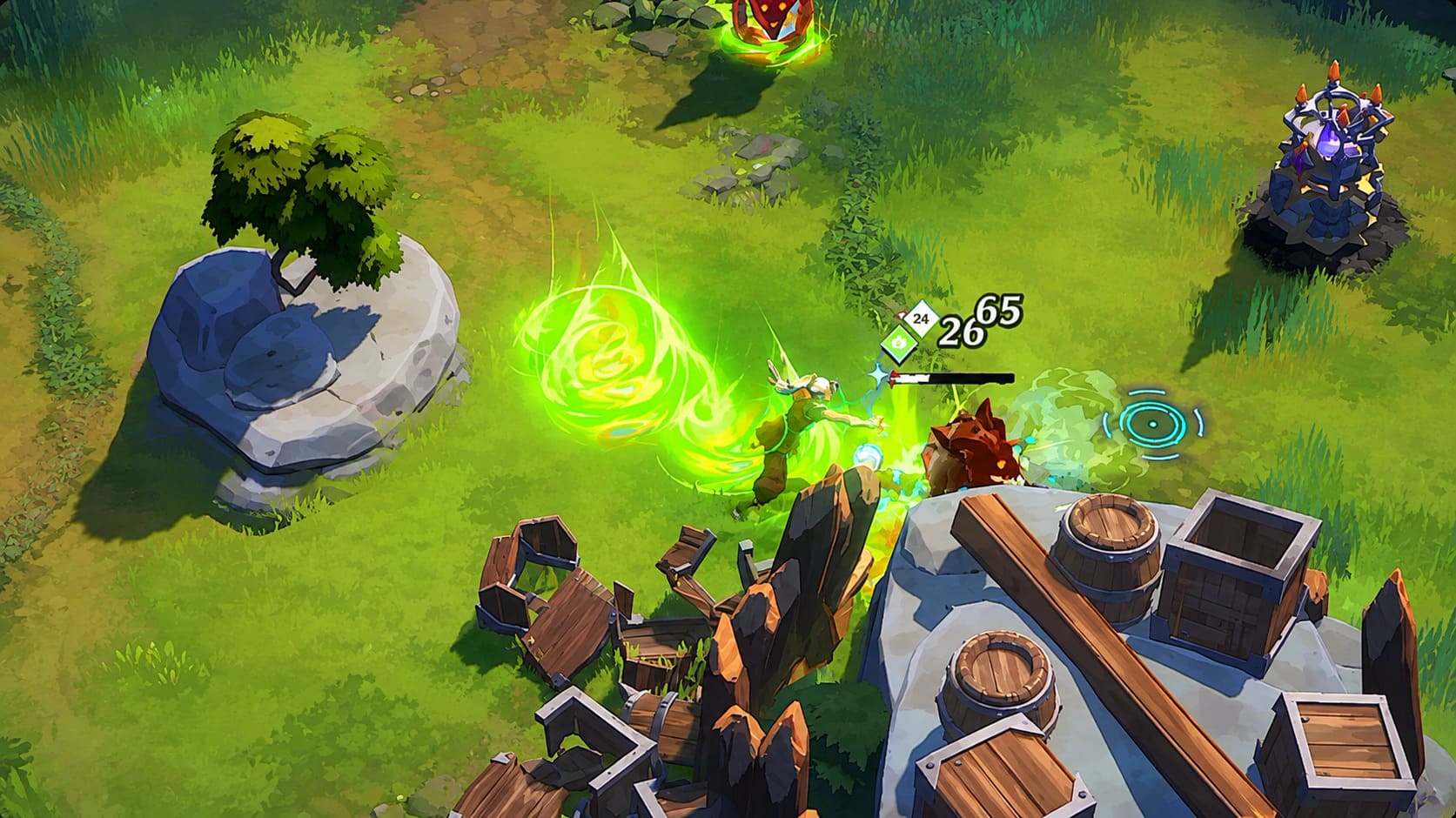
The biggest reason I prefer a gamepad in Echoes of Mystralia is the movement. This is not one of those RPGs where you can stand behind your character and calmly queue up attacks. The roguelite combat constantly throws hazards, enemies, and area attacks at you, so movement becomes part of your offensive strategy rather than something you only use to escape.
The spellcrafting system adds another layer to the equation. Players collect Memories and use them to create increasingly interesting magical combinations involving elements and modifiers such as fire, ice, wind, earth, and electricity. Once a build starts coming together, fights can become surprisingly hectic. Having both analog sticks available makes it much easier to maintain movement while concentrating on what your spell setup is doing.
This is also where controller ergonomics become important. During a short session, almost any reasonable control scheme will feel fine. After several runs, though, the difference becomes much more obvious. Echoes of Mystralia encourages experimentation, and I found myself more willing to play ‘one more run’ when the controls were comfortable rather than constantly fighting my input setup.
Xbox Controllers Are the Easiest Choice
If you are using an Xbox controller or another standard XInput-compatible gamepad, the setup should be straightforward. Xbox One and Xbox Series X|S controllers are generally recognized without requiring complicated configuration, and the game uses familiar Xbox-style button prompts when the device is detected correctly.
For PC gamers who simply want to connect a controller and start playing, this is probably the least troublesome route. There is no reason to build an elaborate control profile if the default configuration already feels good. In fact, I would recommend playing with the standard layout first and only changing things after you have spent enough time with the game to identify an actual problem.
What About DualSense and DualShock 4?
PlayStation controllers can also be used, but the experience on Windows can be a little less predictable. DualSense and DualShock 4 users have encountered situations where the controller is not detected correctly, the game switches back to keyboard prompts, or Xbox button icons appear despite using a PlayStation gamepad.
This does not necessarily mean the controller is unsupported. PC controller compatibility can be surprisingly dependent on how the device is initialized, how Steam Input is configured, and whether the controller was already active when the game started. One of the simplest things to try is turning on or connecting the controller before launching Echoes of Mystralia. It sounds almost too obvious, but it can prevent unnecessary troubleshooting.
How to Fix Echoes of Mystralia Controller Problems
If the game refuses to recognize your controller, I would not immediately start installing random drivers or third-party utilities. Start with the basic Steam configuration first. Most controller problems are much easier to solve when you work through the software layers one at a time instead of changing everything simultaneously.
1. Try Steam Input
Steam Input can act as the middleman between your physical controller and the game. It is particularly useful when Windows or the game does not properly recognize a PlayStation controller or a less common gamepad.
- Open your Steam Library.
- Right-click Echoes of Mystralia and open Properties.
- Go to the Controller section.
- Find the controller override option.
- Enable Steam Input for the game.
- Completely restart Echoes of Mystralia.
I recommend restarting the game after changing this setting rather than assuming the configuration will be applied instantly. Controller detection can happen during the game’s startup sequence, so changing settings while the game is already running may not accomplish anything.
2. Try Steam Big Picture Mode
Big Picture Mode is another useful trick if your controller works elsewhere in Steam but behaves strangely when Echoes of Mystralia launches. Starting the game directly through the controller-focused Steam interface can sometimes force the correct input configuration to be applied.
This is especially worth trying with wireless controllers. Bluetooth can introduce another layer of potential problems, and eliminating as many variables as possible makes troubleshooting much easier. If the controller works perfectly in Steam but disappears inside the game, this is one of the first things I would test.
3. Be Careful With In-Game Key Remapping
Some early players have reported problems when attempting to remap controller buttons through the game’s settings. One particularly annoying issue involves inputs appearing red or becoming unresponsive during the reassignment process. Getting stuck in a settings menu because the game will not accept the new input is exactly the kind of small PC issue that can sour an otherwise great first session.
My advice is simple: use the default controller layout before changing anything. The developers have already built the default configuration around the game’s combat flow, and it is perfectly usable. If you eventually decide that a button needs changing, Steam’s controller configuration can be a safer alternative than immediately rebuilding the entire in-game layout.
Can You Use Generic PC Controllers?
Generic gamepads can be more complicated because not every inexpensive PC controller behaves like a standard XInput device. If Windows sees the controller but Echoes of Mystralia does not, the problem may be the input protocol rather than the game itself.
Tools that translate a controller into an Xbox-style virtual device can sometimes solve compatibility problems with older or unusual hardware. However, I would treat this as a last resort. Adding another piece of software means adding another possible source of conflicts, and if Steam Input already solves the problem, there is little reason to make your setup more complicated.
Echoes of Mystralia on Steam Deck
The Steam Deck is an especially interesting platform for Echoes of Mystralia because the entire game structure fits handheld gaming surprisingly well. Roguelite runs naturally lend themselves to shorter sessions, while the built-in controls remove much of the controller-detection hassle that Windows users can encounter.
The Steam Deck also benefits from having physical controls integrated directly into the hardware. You do not have to worry about whether Bluetooth connected correctly or whether another controller has been selected by Windows. Pick up the system, launch the game, and you are basically ready to play.
For me, this is one of those games that makes sense on a handheld. You can spend an evening chasing a powerful spell build, but you can also squeeze in a run without feeling like you have committed yourself to a huge RPG session. That flexibility is one of the strongest advantages of the roguelite format.
My Recommended Controller Setup
If I were setting up Echoes of Mystralia on a new PC, I would keep things simple. I would start with an Xbox-compatible controller, leave the default controls alone, and only enable Steam Input if the game failed to recognize the hardware properly. For a DualSense or DualShock 4, I would connect the controller before starting the game and then test Steam Input if the prompts or detection were incorrect.
| Controller Type | Recommended Approach |
|---|---|
| Xbox Series X|S | Use directly with the default layout |
| Xbox One | Use directly with the default layout |
| DualSense | Connect before launching; use Steam Input if needed |
| DualShock 4 | Connect before launching; test Steam Input if detection fails |
| Generic Gamepad | Try Steam Input before using external emulation software |
| Steam Deck | Use the built-in controls and standard configuration |
Is Controller Better Than Keyboard and Mouse?
I would not say the controller is objectively better for every player. Mouse and keyboard still have obvious advantages if you are someone who likes extremely precise inputs or prefers traditional PC controls. After years of switching between both setups, I usually judge games based on how naturally the control method fits the gameplay, and Echoes of Mystralia feels particularly comfortable on a gamepad.
The fast movement is the deciding factor for me. When enemies start filling the screen and magical effects are flying everywhere, the ability to move smoothly in any direction feels more valuable than having a huge number of keyboard buttons immediately available. Once the spell system becomes more complicated, keeping your hands relaxed also makes a noticeable difference during longer sessions.
Final Verdict on Echoes of Mystralia Controller Support
Echoes of Mystralia absolutely supports controllers on PC, and I would recommend using one if you enjoy action-heavy roguelites. The default experience is already strong with compatible XInput controllers, while PlayStation users may occasionally need to pay more attention to how their controller is connected and whether Steam Input is enabled.
The occasional PC setup quirks are frustrating, but they are not serious enough to change my overall opinion. Once the controller is recognized, the gamepad suits the combat extremely well. Dodging through attacks, repositioning around groups of Shadows, and firing off carefully crafted spells feels much more natural when everything is sitting comfortably under your thumbs.
If you are starting Echoes of Mystralia for the first time, I would not overthink the setup. Connect the controller before launching the game, try the default layout, and only start troubleshooting if something actually goes wrong. For a game built around fast combat and experimental spell builds, a good controller setup lets the gameplay take center stage instead of making you think about the controls.