Echoes of Mystralia Steam Deck Best Graphics Settings: Complete Performance Optimization Guide
There is something especially satisfying about playing a spell-heavy action RPG on the Steam Deck. You can sit on the couch, fire up a run of Echoes of Mystralia, start mixing Memories and spells, and suddenly the entire screen is filled with fire, ice, lightning, enemies, and particles flying in every direction. On a desktop PC, that spectacle is exactly what you want. On Steam Deck, though, those same effects can turn into a serious performance problem surprisingly quickly.
After playing plenty of demanding roguelites and action RPGs on handheld hardware, I’ve learned that chasing the highest possible graphics preset is usually the wrong approach. A game like Echoes of Mystralia benefits much more from consistent frame pacing than from slightly prettier shadows or extra atmospheric effects. My preferred setup aims for a stable 40 FPS experience, while a 30 FPS profile makes more sense when battery life is the priority.
Is Echoes of Mystralia Coming to Xbox Series X? Everything We Know About the Borealys Games Release
Why Echoes of Mystralia Can Be Demanding on Steam Deck
Echoes of Mystralia isn’t necessarily difficult for the Steam Deck because every part of the game is graphically extreme. The real problem appears when its systems start working together. You can have several enemies on screen, numerous projectiles, environmental effects and a collection of customized magical attacks firing almost simultaneously. Once a combat encounter becomes chaotic, the GPU and CPU suddenly have much more work to do.
This is also why simply selecting a global Low or Medium preset isn’t always enough. Some settings have a surprisingly small visual impact but can cost valuable performance, while others can be lowered dramatically without making the game look bad. On a handheld screen, that distinction matters a lot.
I’ve also found that 60 FPS shouldn’t be the default target here. It sounds great on paper, but maintaining it during the busiest fights can force the Steam Deck to run harder than necessary. A properly configured 40 FPS profile feels considerably more realistic and gives Echoes of Mystralia the responsive combat that this type of game needs.
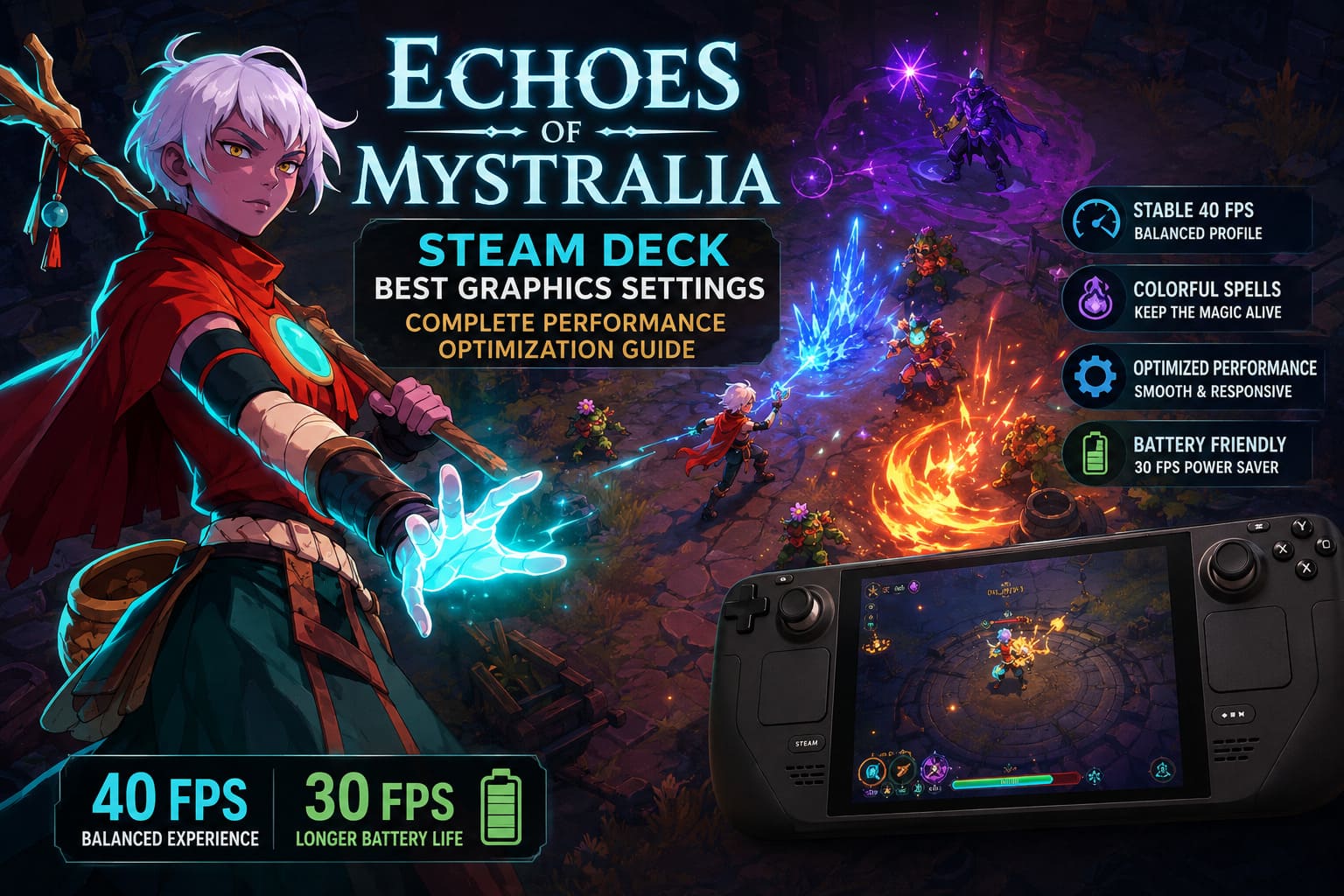
My Recommended Echoes of Mystralia Steam Deck Settings
If I were setting up Echoes of Mystralia on a Steam Deck from scratch, this is where I’d start. The goal isn’t to make the game look like a high-end desktop version. Instead, the idea is to preserve the colorful spell effects and detailed environments while cutting the settings that provide relatively little benefit on a small display.
| Setting | Recommended Value | Why |
|---|---|---|
| Resolution | 1280×800 | Native Steam Deck resolution |
| Display Mode | Fullscreen | Best starting point for consistent performance |
| V-Sync | Off | Use SteamOS frame limiting instead |
| Upscaling | FSR 2.1 / TSR | Improves GPU performance while retaining image quality |
| Upscale Quality | Quality or Balanced | Good compromise between clarity and performance |
| Texture Quality | Medium | Keeps environments detailed without unnecessary memory pressure |
| Texture Filtering | 4x–8x | Low performance cost with sharper angled surfaces |
| Shadow Quality | Low | One of the easiest settings to sacrifice |
| Effects Quality | Medium | Preserves the visual punch of spells |
| Volumetric Effects | Low | Reduces expensive fog and atmospheric rendering |
| Anti-Aliasing | Temporal / FXAA | Reduces jagged edges without excessive GPU cost |
| Motion Blur | Optional | Personal preference at lower frame rates |
| Depth of Field | Off | Minor visual benefit compared with performance cost |
| Ambient Occlusion | Low / SSAO | Adds depth without becoming too expensive |
Don’t Sacrifice Spell Effects Too Aggressively
One mistake I wouldn’t recommend is putting every graphical option on Low. That approach may produce a higher average frame rate, but Echoes of Mystralia loses part of its personality when you do it. The game’s spell effects are a major part of the experience, and watching your carefully assembled magical combinations explode across the screen is one of the reasons to play it in the first place.
That’s why I prefer Medium Effects Quality. Shadows and volumetric effects can take a hit because the difference is much less noticeable during combat. Effects are different. Dropping them too far makes spells look flat and underwhelming, and I don’t think saving a few frames is worth turning the game’s most entertaining visual feature into a blur of low-quality particles.
Texture Quality is another setting where Medium makes sense. The Steam Deck’s screen is small enough that High textures aren’t always as impressive as they would be on a large desktop monitor. Medium keeps environments sharp enough while leaving additional memory and bandwidth available for everything else happening during a run.
Why Low Shadows Are Actually a Good Trade
Shadows are one of those settings I happily lower on handheld hardware. In a slower adventure game, I might care more about them, but Echoes of Mystralia constantly asks you to watch enemies, projectiles and spell effects. During a hectic encounter, you’re rarely stopping to admire the subtle difference between high-quality and low-quality shadow maps.
Setting Shadows to Low gives the GPU some breathing room without destroying the overall presentation. The environments still retain depth, especially when Ambient Occlusion remains enabled at a modest level. For me, this is exactly the sort of optimization that makes sense on Steam Deck: sacrifice something you barely notice to protect the parts of the game you actually interact with.
FSR, TSR and Image Quality
Upscaling deserves a little experimentation because this is one of the settings that can dramatically change how a game feels on Steam Deck. I would start with FSR 2.1 or TSR at Quality and move to Balanced if performance still isn’t where you want it.
I wouldn’t immediately choose an Ultra Performance-style setting. Sure, it can reduce the rendering workload, but the resulting image can become noticeably soft, especially around text, thin environmental details and bright spell effects. On a seven-inch display, image reconstruction can work surprisingly well, but there is a point where performance gains aren’t worth the visual compromise.
My 40 FPS Steam Deck Profile
If you’re playing Echoes of Mystralia while plugged in or simply want the best overall handheld experience, 40 FPS is the target I’d choose. Set the Steam Deck refresh rate to 40Hz and cap the game at 40 FPS through the SteamOS performance menu. This combination feels considerably smoother than 30 FPS without demanding the same level of performance as a locked 60 FPS target.
For Steam Deck OLED owners, an 80Hz display mode can also be useful because 40 FPS divides evenly into 80Hz. The result is a particularly clean presentation. I still wouldn’t obsess over hitting 40 FPS in every possible situation, though; the important thing is reducing the big frame-time spikes that make combat feel uneven.
- Frame Rate Limit: 40 FPS
- Refresh Rate: 40Hz or 80Hz on OLED
- TDP Limit: Unrestricted initially
- Per-Game Profile: Enabled
I’d start with the TDP unrestricted and only experiment with power limits after confirming that the game is stable. There is little point in forcing a low power target if a difficult boss encounter immediately causes the frame rate to collapse.
A 30 FPS Profile for Longer Battery Life
Sometimes smoothness isn’t the main objective. If I’m playing during a long trip, sitting somewhere without access to a charger, or simply trying to keep fan noise down, I would rather have a consistent 30 FPS than constantly chase higher numbers.
At 30 FPS, Echoes of Mystralia can become much easier to manage from a power perspective. A manual TDP limit around 10–11W is a reasonable starting point for experimentation, although the exact result will depend on your Steam Deck, system software, brightness, background processes and other variables. Battery estimates should therefore be treated as rough guidelines rather than guarantees.
The biggest advantage is consistency. A stable 30 FPS that survives a screen full of enemies and elemental effects is far more enjoyable than a setup that jumps between 60, 45, 35 and 25 FPS depending on what happens during combat.
What to Do If You Still Get Stutters
If the game is still hitching after lowering the obvious graphics settings, don’t immediately assume that you need to drop everything to Low. Stuttering can come from asset streaming, shader compilation, background activity or storage performance rather than raw GPU load.
Installing the game on the Steam Deck’s internal SSD is my first recommendation if you have enough space. A microSD card can work perfectly well for many games, but an internal SSD gives the system faster access to assets and can help reduce loading-related pauses in games that constantly stream new content.
It’s also worth checking whether SteamOS and the game are fully updated. Shader caches and game updates can have a meaningful impact on how smooth a title feels, particularly with newer releases. Before changing advanced BIOS settings, I’d always go through these simpler checks first.
Should You Change the Steam Deck UMA Frame Buffer?
The UMA Frame Buffer setting is sometimes mentioned as a solution for Steam Deck performance problems, but I wouldn’t treat it as a magic switch. Increasing the reserved frame buffer from the default value to something like 4GB can help particular workloads, but it isn’t guaranteed to improve every game. In some situations, the operating system and game engine already manage shared memory effectively.
If you’re comfortable experimenting with BIOS settings and understand how to revert the changes, it can be something to investigate after conventional optimization has failed. For most players, though, I’d leave the BIOS alone and concentrate on the in-game settings, frame-rate cap and power profile first.
The Settings I’d Actually Use
If I wanted to play Echoes of Mystralia regularly on Steam Deck, my personal configuration would be fairly simple. I’d use native 1280×800 output, FSR or TSR at Quality, Medium textures, Low shadows, Medium effects and Low volumetric effects. Then I’d lock the system to 40 FPS and let the Steam Deck do the frame pacing rather than forcing V-Sync inside the game.
| Profile | Target | Main Settings | Best For |
|---|---|---|---|
| Balanced | 40 FPS | Medium textures/effects, Low shadows, Quality upscaling | Everyday gaming |
| Battery Saver | 30 FPS | Medium textures, Low shadows/effects, Balanced upscaling | Long sessions |
| Visual Priority | 30–40 FPS | Higher textures and effects with reduced frame target | Players who prefer image quality |
Final Thoughts on Echoes of Mystralia on Steam Deck
I’ve spent enough time tweaking games on handheld hardware to know that the perfect preset rarely comes from pushing every slider in one direction. Echoes of Mystralia is a particularly good example because its most impressive moments are also its most demanding ones. When your character starts chaining powerful Memories while the screen fills with elemental chaos, stable frame pacing matters far more than having perfect shadows in a quiet forest.
For that reason, 40 FPS with sensible Medium and Low settings is my sweet spot. The game still looks colorful, the spell effects retain their impact, and combat remains responsive without making the Steam Deck work unnecessarily hard. If battery life matters more, 30 FPS is an easy recommendation, especially when combined with a conservative power limit.
The best Steam Deck setup is ultimately the one that matches how you play. If you care about responsiveness, go for 40 FPS. If you’re traveling, take the 30 FPS route. Either way, don’t ruin Echoes of Mystralia’s excellent visual identity just to chase a number on the performance overlay—you’ll get a much better handheld experience by keeping the important effects intact and cutting the settings that don’t matter as much.