SpiritVale High Ping and Desync Fix: How to Stop Rubberbanding and Network Lag
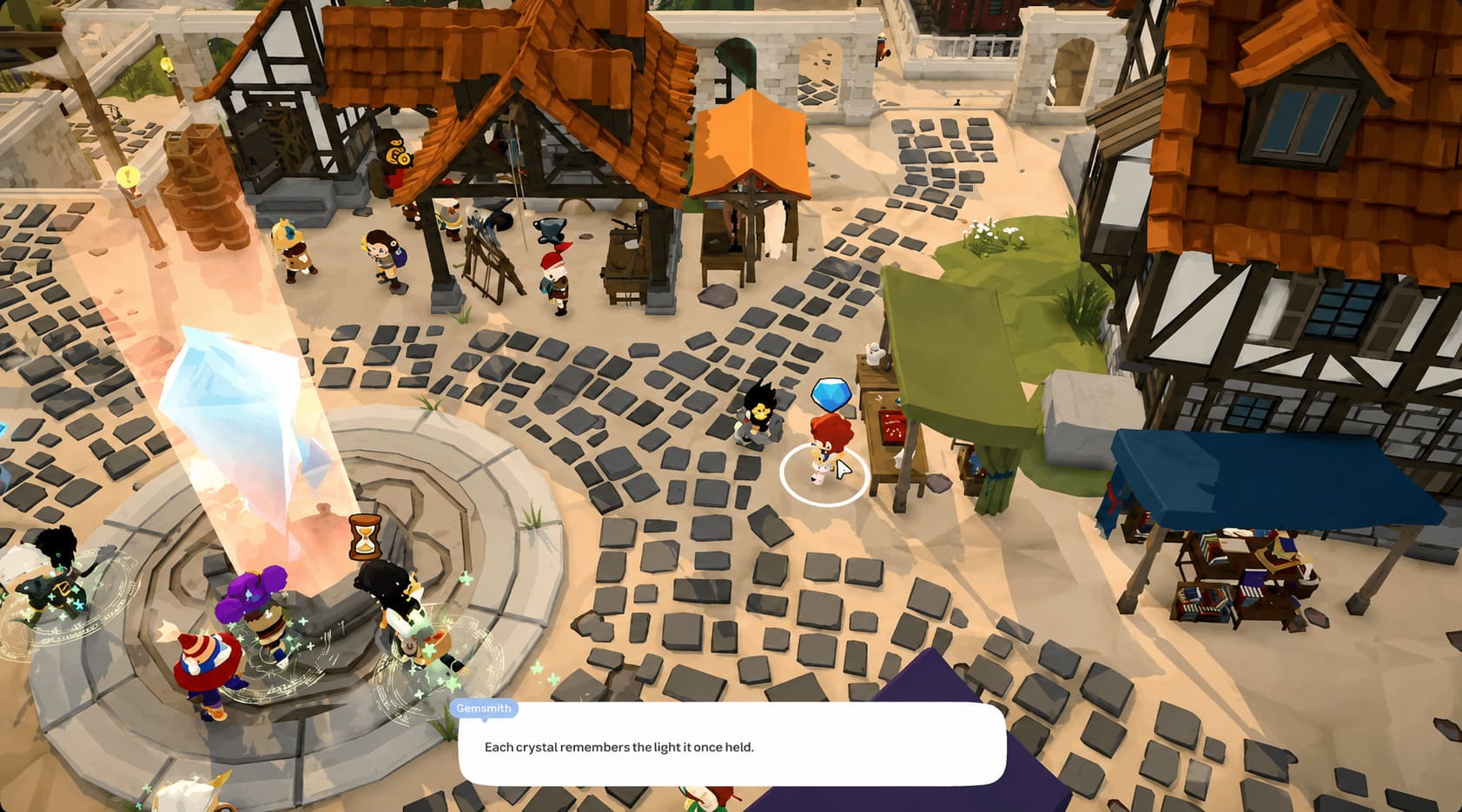
After spending a lot of time with online RPGs, I have learned one painful lesson: even the strongest combat system can fall apart when the connection cannot keep up. SpiritVale from Baikun Interactive is a game built around fast reactions, accurate positioning, cooperative battles, and constant interaction between players and servers. Its mix of retro-inspired MMORPG elements, real-time combat, exploration, character progression, and difficult boss encounters creates a gameplay loop that is easy to get addicted to.
However, when network problems appear, the experience changes completely. Many SpiritVale players have reported issues such as high ping spikes, rubberbanding, delayed abilities, and severe desynchronization. These problems become especially frustrating during world boss battles, PvP encounters, and crowded events in Nevaris, where a single second can decide whether you survive or watch your entire team collapse.
Desync happens when the information displayed on your screen does not match what the game server currently understands. Your character may appear to dodge an attack, but the server still registers the hit. You might land a skill visually, but the ability fails because your input never reached the server correctly. Having played many MMORPGs and competitive online games, I know this type of issue can completely ruin otherwise enjoyable combat.

The good news is that not every lag problem comes from SpiritVale servers. Sometimes the cause is your own network setup, ISP routing, background applications, or unstable hardware performance. This guide covers the most effective ways to reduce SpiritVale high ping, fix rubberbanding, lower packet loss, and create a smoother online experience.
SpiritVale Best Settings for High FPS Ultimate Graphics Optimization Guide (2026)
Why SpiritVale Has High Ping and Desync Problems
Before changing settings or installing additional software, it is important to understand where connection problems actually come from. Online games like SpiritVale constantly exchange information between your PC and the game servers. Your movement, attacks, enemy positions, skill usage, and character location all need to stay synchronized in real time.
When this communication becomes unstable, you experience teleporting characters, delayed actions, failed attacks, and random movement corrections. The most common reasons behind SpiritVale network issues include server load, poor internet routing, unstable home connections, and unnecessary bandwidth usage.
| Problem | How It Affects SpiritVale |
|---|---|
| Server Overload | Large numbers of players can reduce server response speed and delay position updates. |
| Bad ISP Routing | Your internet provider may send your connection through inefficient routes, increasing ping. |
| Wi-Fi Instability | Wireless interference can create packet loss and sudden latency spikes. |
| Background Applications | Other programs compete for bandwidth and cause connection interruptions. |
| System Performance Issues | High hardware usage can increase input delay and make lag feel worse. |
Because SpiritVale is still evolving through Early Access, server improvements and networking updates will likely continue over time. However, players can already make several adjustments to improve stability and reduce frustrating connection problems.
Step 1: Improve Your Local Network Connection
The first thing I always recommend for online games is fixing the foundation: your own network. Many players immediately blame the game server, but unstable home connections are responsible for a huge percentage of lag problems.
Wi-Fi is convenient, but it is not the best choice for games where every millisecond matters. Wireless connections can suffer from walls, distance, interference from other devices, and unstable signal quality. A wired Ethernet connection remains the most reliable option for competitive and multiplayer gaming.
Use a Wired Ethernet Connection
Connecting your gaming PC directly to your router with a Cat6 Ethernet cable can significantly improve stability. A wired connection reduces packet loss, provides consistent data transfer, and removes many random interruptions caused by wireless networks.
Restart Your Router and Modem
Network equipment can sometimes develop temporary problems after running for long periods. Restarting your modem and router completely can refresh your connection and clear temporary errors.
- Turn off your router and modem.
- Disconnect them from power for around 60 seconds.
- Reconnect everything and launch SpiritVale again.
Close Applications Using Your Internet
Many connection problems are caused by hidden background activity. Programs like Discord streaming, cloud storage synchronization, browser video playback, Windows updates, and game downloads can consume bandwidth without you noticing.
Open Windows Task Manager by pressing Ctrl + Shift + Esc, check the Network usage section, and close unnecessary applications before launching SpiritVale.
Step 2: Adjust SpiritVale Settings for Better Network Stability
Most players think graphics settings only affect FPS, but performance problems can also influence how smooth online gameplay feels. When your system reaches maximum usage, your computer may struggle to process game information quickly, which can make network delays feel even worse.
A stable connection is not only about having fast internet. Your PC must also process incoming and outgoing game data efficiently. This is why optimizing performance settings can sometimes reduce the feeling of lag.
Lower Render Distance
High render distance forces your system to process more objects, players, and world information. Reducing this setting can lower the amount of data your client needs to handle during busy situations.
Limit Your FPS
Running your GPU constantly at 99% usage can create additional latency. Instead of pushing unlimited frames, try setting an FPS limit close to your monitor refresh rate.
A stable 120 FPS experience usually feels much better than unstable performance that constantly jumps between extremely high and low frame rates.
Disable V-Sync
Traditional V-Sync can introduce additional input delay because it forces your frames to synchronize with your monitor refresh cycle. Disabling it or using low-latency options from your graphics card software may improve responsiveness.
Step 3: Optimize Windows Network Settings
If basic fixes do not solve SpiritVale lag, the next step is adjusting Windows network behavior. Default Windows settings are designed for general internet use, not necessarily for fast-paced online games that require constant low-latency communication.
Flush Windows DNS Cache
Old or incorrect DNS information can sometimes create connection problems when your system searches for game servers.
Open Command Prompt as Administrator and enter:
ipconfig /flushdns
This removes stored DNS information and forces Windows to refresh network lookups.
Adjust TCP Autotuning
Windows automatically manages TCP packet settings, but some players may experience instability depending on their network environment.
To disable TCP autotuning, open Command Prompt as Administrator and enter:
netsh int tcp set global autotuninglevel=disable
If the connection becomes worse, restore the default setting with:
netsh int tcp set global autotuninglevel=normal
Allow SpiritVale Through Windows Firewall
Security software can sometimes interfere with game traffic by inspecting incoming and outgoing connections. Make sure SpiritVale has firewall permission.
Navigate to:
Control Panel → System and Security → Windows Defender Firewall → Allow an app through Firewall
Make sure SpiritVale is enabled for both private and public networks.

Step 4: Fix ISP Routing Problems With GPN and VPN Services
Sometimes your internet connection is perfectly fine, but your ISP chooses a poor route to the SpiritVale servers. Your data may travel through unnecessary locations before reaching the destination, increasing latency and causing packet loss.
This problem is common in online games because the shortest physical distance is not always the route your provider chooses.
Use a Gaming Private Network
A Gaming Private Network (GPN) focuses specifically on improving gaming traffic routes. These services attempt to create cleaner paths between your PC and the game server, reducing unnecessary network jumps.
Try a Premium Gaming VPN
A quality VPN can sometimes solve routing problems caused by your ISP. Connect to a server location close to the SpiritVale server region and compare your ping results.
However, remember that VPNs cannot fix overloaded game servers. If the problem comes directly from SpiritVale infrastructure, changing your route will not completely remove lag.
Quick SpiritVale Lag Fix Checklist
- Restart your PC and router.
- Use Ethernet instead of Wi-Fi.
- Close unnecessary background programs.
- Lower render distance and limit FPS.
- Disable unnecessary network-heavy applications.
- Flush DNS settings.
- Check firewall permissions.
- Test a GPN or gaming VPN service.
- Compare performance during different server hours.
Final Thoughts
High ping and desync can destroy the best parts of SpiritVale. A fast-paced MMORPG depends on accurate movement, responsive abilities, and reliable multiplayer communication. When your character teleports backward or your attacks fail because of network problems, the frustration is understandable.
Fortunately, many connection issues can be reduced with proper optimization. A stable Ethernet connection, cleaner Windows settings, reduced system load, and better network routing can make a noticeable improvement.
SpiritVale is still growing, and Baikun Interactive will likely continue improving server performance and netcode quality. Until then, these troubleshooting methods can help make sure your PC and network are prepared for smoother adventures across Nevaris.